NSF NEON, Operated by Battelle

Main navigation

  • About Us
    • Overview
      • Spatial and Temporal Design
      • History
    • Vision and Management
    • FAQ
    • Contact Us
      • Contact NEON Biorepository
      • Field Offices
    • User Accounts
    • Staff
    • Code of Conduct

    About Us

  • Data & Samples
    • Data Portal
      • Explore Data Products
      • Data Availability Charts
      • Spatial Data & Maps
      • Document Library
      • API & GraphQL
      • Prototype Data
      • External Lab Data Ingest (restricted)
    • Data Themes
      • Atmosphere
      • Biogeochemistry
      • Ecohydrology
      • Land Cover and Processes
      • Organisms, Populations, and Communities
    • Samples & Specimens
      • Discover and Use NEON Samples
        • Sample Types
        • Sample Repositories
        • Sample Explorer
        • Megapit and Distributed Initial Characterization Soil Archives
      • Sample Processing
      • Sample Quality
      • Taxonomic Lists
    • Collection Methods
      • Protocols & Standardized Methods
      • Airborne Remote Sensing
        • Flight Box Design
        • Flight Schedules and Coverage
        • Daily Flight Reports
          • AOP Flight Report Sign Up
        • Camera
        • Imaging Spectrometer
        • Lidar
      • Automated Instruments
        • Site Level Sampling Design
        • Sensor Collection Frequency
        • Instrumented Collection Types
          • Meteorology
          • Phenocams
          • Soil Sensors
          • Ground Water
          • Surface Water
      • Observational Sampling
        • Site Level Sampling Design
        • Sampling Schedules
        • Observation Types
          • Aquatic Organisms
            • Aquatic Microbes
            • Fish
            • Macroinvertebrates & Zooplankton
            • Periphyton, Phytoplankton, and Aquatic Plants
          • Terrestrial Organisms
            • Birds
            • Ground Beetles
            • Mosquitoes
            • Small Mammals
            • Soil Microbes
            • Terrestrial Plants
            • Ticks
          • Hydrology & Geomorphology
            • Discharge
            • Geomorphology
          • Biogeochemistry
          • DNA Sequences
          • Pathogens
          • Sediments
          • Soils
            • Soil Descriptions
        • Optimizing the Observational Sampling Designs
    • Data Notifications
    • Data Guidelines and Policies
      • Acknowledging and Citing NEON
      • Publishing Research Outputs
      • Usage Policies
    • Data Management
      • Data Availability
      • Data Formats and Conventions
      • Data Processing
      • Data Quality
      • Data Product Bundles
      • Data Product Revisions and Releases
        • Release 2021
        • Release 2022
        • Release 2023
        • Release 2024
        • Release-2025
      • NEON and Google
      • Externally Hosted Data

    Data & Samples

  • Field Sites
    • About Field Sites and Domains
    • Explore Field Sites
    • Site Management Data Product

    Field Sites

  • Impact
    • Observatory Blog
    • Case Studies
    • Papers & Publications
    • Newsroom
      • NEON in the News
      • Newsletter Archive
      • Newsletter Sign Up

    Impact

  • Resources
    • Getting Started with NEON Data & Resources
    • Documents and Communication Resources
      • Papers & Publications
      • Document Library
      • Outreach Materials
    • Code Hub
      • Code Resources Guidelines
      • Code Resources Submission
      • NEON's GitHub Organization Homepage
    • Learning Hub
      • Science Videos
      • Tutorials
      • Workshops & Courses
      • Teaching Modules
    • Research Support Services
      • Field Site Coordination
      • Letters of Support
      • Mobile Deployment Platforms
      • Permits and Permissions
      • AOP Flight Campaigns
      • Research Support FAQs
      • Research Support Projects
    • Funding Opportunities

    Resources

  • Get Involved
    • Advisory Groups
      • Science, Technology & Education Advisory Committee (STEAC)
      • Innovation Advisory Committee (IAC)
      • Technical Working Groups (TWG)
    • Upcoming Events
    • NEON Ambassador Program
      • Exploring NEON-Derived Data Products Workshop Series
    • Research and Collaborations
      • Environmental Data Science Innovation and Inclusion Lab
      • Collaboration with DOE BER User Facilities and Programs
      • EFI-NEON Ecological Forecasting Challenge
      • NEON Great Lakes User Group
      • NEON Science Summit
      • NCAR-NEON-Community Collaborations
        • NCAR-NEON Community Steering Committee
    • Community Engagement
      • How Community Feedback Impacts NEON Operations
    • Science Seminars and Data Skills Webinars
      • Past Years
    • Work Opportunities
      • Careers
      • Seasonal Fieldwork
      • Internships
        • Intern Alumni
    • Partners

    Get Involved

  • My Account
  • Search

Search

Data Activity: Visualize Precipitation Data in R to Better Understand the 2013 Colorado Floods

Several factors contributed to extreme flooding that occurred in Boulder, Colorado in 2013. In this data activity, we explore and visualize the data for precipitation (rainfall) data collected by the National Weather Service's Cooperative Observer Program. The tutorial is part of the Data Activities that can be used with the Quantifying The Drivers and Impacts of Natural Disturbance Events Teaching Module.

Learning Objectives

After completing this tutorial, you will be able to:

  • Download precipitation data from NOAA's National Centers for Environmental Information.
  • Plot precipitation data in R.
  • Publish & share an interactive plot of the data using Plotly.
  • Subset data by date (if completing Additional Resources code).
  • Set a NoData Value to NA in R (if completing Additional Resources code).

Things You'll Need To Complete This Lesson

Please be sure you have the most current version of R and, preferably, RStudio to write your code.

R Libraries to Install:

  • ggplot2: install.packages("ggplot2")
  • plotly: install.packages("plotly")

Data to Download

Part of this lesson is to access and download the data directly from NOAA's NCEI Database. If instead you would prefer to download the data as a single compressed file, it can be downloaded from the NEON Data Skills account on FigShare.

Set Working Directory This lesson assumes that you have set your working directory to the location of the downloaded and unzipped data subsets.

An overview of setting the working directory in R can be found here.

R Script & Challenge Code: NEON data lessons often contain challenges that reinforce learned skills. If available, the code for challenge solutions is found in the downloadable R script of the entire lesson, available in the footer of each lesson page.

Research Question

What were the patterns of precipitation leading up to the 2013 flooding events in Colorado?

Precipitation Data

The heavy precipitation (rain) that occurred in September 2013 caused much damage during the 2013 flood by, among other things, increasing stream discharge (flow). In this lesson we will download, explore, and visualize the precipitation data collected during this time to better understand this important flood driver.

Where can we get precipitation data?

The precipitation data are obtained through NOAA's NECI database. There are numerous datasets that can be found and downloaded via the CDO Search portal.

The precipitation data that we will use is from the Cooperative Observer Network (COOP).

"Through the National Weather Service (NWS) Cooperative Observer Program (COOP), more than 10,000 volunteers take daily weather observations at National Parks, seashores, mountaintops, and farms as well as in urban and suburban areas. COOP data usually consist of daily maximum and minimum temperatures, snowfall, and 24-hour precipitation totals." Quoted from NOAA's National Centers for Environmental Information

Data are collected at different stations, often on paper data sheets like the one below, and then entered into a central database where we can access that data and download it in the .csv (Comma Separated Values) format.

An example of a data sheet used to collect precipitation data for the Cooperative Observer network
An example of the data sheets used to collect the precipitation data for the Cooperative Observer Network. Source: Cooperative Observer Network, NOAA

Obtain the Data

If you have not already opened the CDO Search portal, do so now.

Note: If you are using the pre-compiled data subset that can be downloaded as a compressed file above, you should still read through this section to know where the data comes from before proceeding with the lesson.

Step 1: Search for the data

To obtain data we must first choose a location of interest. The COOP site Boulder 2 (Station ID:050843) is centrally located in Boulder, CO.

Map dislaying Cooperative Observer Network station 050843, located in central Boulder, CO.
Cooperative Observer Network station 050843 is located in central Boulder, CO. Source: National Centers for Environmental Information

Then we must decide what type of data we want to download for that station. As shown in the image below, we selected:

  • the desired date range (1 January 2003 to 31 December 2013),
  • the type of dataset ("Precipitation Hourly"),
  • the search type ("Stations") and
  • the search term (e.g. the # for the station located in central Boulder, CO: 050843).
Data search interface of the selected Boulder, CO site, which allows the user to select the Weather Observation Type/Dataset, date range, and station identifier.
CDO search page for the central Boulder, CO, station:050843

Once the data are entered and you select Search, you will be directed to a new page with a map. You can find out more information about the data by selecting View Full Details. Notice that this dataset goes all the way back to 1 August 1948! However, we've selected only a portion of this time frame.

Step 2: Request the data

Once you are sure this is the data that you want, you need to request it by selecting Add to Cart. The data can then be downloaded as a .csv file which we will use to conduct our analyses. Be sure to double check the date range before downloading.

On the options page, we want to make sure we select:

  • Station Name
  • Geographic Location (this gives us longitude & latitude; optional)
  • Include Data Flags (this gives us information if the data are problematic)
  • Units (Standard)
  • Precipitation (w/ HPCP automatically checked)

On the next page you must enter an email address for the dataset to be sent to.

Step 3: Get the data

As this is a small dataset, it won't take long for you to get an email telling you the dataset is ready. Follow the link in the email to download your dataset. You can also view documentation (metadata) for the data.
Each data subset is downloaded with a unique order number. The order number in our example dataset is 805325. If you are using a dataset you've downloaded yourself, make sure to substitute in your own order number in the code below.

To ensure that we remember what our data file is, we've added a descriptor to the order number: 805325-precip_daily_2003-2013. You may wish to do the same.

Work with Precipitation Data

R Libraries

We will use ggplot2 to efficiently plot our data and plotly to create i nteractive plots.

# load packages
library(ggplot2) # create efficient, professional plots
library(plotly) # create cool interactive plots

## 
## Attaching package: 'plotly'

## The following object is masked from 'package:ggmap':
## 
##     wind

## The following object is masked from 'package:ggplot2':
## 
##     last_plot

## The following object is masked from 'package:stats':
## 
##     filter

## The following object is masked from 'package:graphics':
## 
##     layout

# set your working directory to ensure R can find the file we wish to import 
# and where we want to save our files. Be sure to move the download into 
# your working direectory!
wd <- "~/Git/data/" # This will depend on your local environment
setwd(wd)

Import Precipitation Data

We will use the 805325-Preciptation_daily_2003-2013.csv file in this analysis. This dataset is the daily precipitation date from the COOP station 050843 in Boulder, CO for 1 January 2003 through 31 December 2013.

Since the data format is a .csv, we can use read.csv to import the data. After we import the data, we can take a look at the first few lines using head(), which defaults to the first 6 rows, of the data.frame. Finally, we can explore the R object structure.

# import precip data into R data.frame by 
# defining the file name to be opened

precip.boulder <- read.csv(paste0(wd,"disturb-events-co13/precip/805325-precip_daily_2003-2013.csv"), stringsAsFactors = FALSE, header = TRUE )

# view first 6 lines of the data
head(precip.boulder)

##       STATION    STATION_NAME ELEVATION LATITUDE LONGITUDE
## 1 COOP:050843 BOULDER 2 CO US    1650.5 40.03389 -105.2811
## 2 COOP:050843 BOULDER 2 CO US    1650.5 40.03389 -105.2811
## 3 COOP:050843 BOULDER 2 CO US    1650.5 40.03389 -105.2811
## 4 COOP:050843 BOULDER 2 CO US    1650.5 40.03389 -105.2811
## 5 COOP:050843 BOULDER 2 CO US    1650.5 40.03389 -105.2811
## 6 COOP:050843 BOULDER 2 CO US    1650.5 40.03389 -105.2811
##             DATE HPCP Measurement.Flag Quality.Flag
## 1 20030101 01:00  0.0                g             
## 2 20030201 01:00  0.0                g             
## 3 20030202 19:00  0.2                              
## 4 20030202 22:00  0.1                              
## 5 20030203 02:00  0.1                              
## 6 20030205 02:00  0.1

# view structure of data
str(precip.boulder)

## 'data.frame':	1840 obs. of  9 variables:
##  $ STATION         : chr  "COOP:050843" "COOP:050843" "COOP:050843" "COOP:050843" ...
##  $ STATION_NAME    : chr  "BOULDER 2 CO US" "BOULDER 2 CO US" "BOULDER 2 CO US" "BOULDER 2 CO US" ...
##  $ ELEVATION       : num  1650 1650 1650 1650 1650 ...
##  $ LATITUDE        : num  40 40 40 40 40 ...
##  $ LONGITUDE       : num  -105 -105 -105 -105 -105 ...
##  $ DATE            : chr  "20030101 01:00" "20030201 01:00" "20030202 19:00" "20030202 22:00" ...
##  $ HPCP            : num  0 0 0.2 0.1 0.1 ...
##  $ Measurement.Flag: chr  "g" "g" " " " " ...
##  $ Quality.Flag    : chr  " " " " " " " " ...

About the Data

Viewing the structure of these data, we can see that different types of data are included in this file.

  • STATION and STATION_NAME: Identification of the COOP station.
  • ELEVATION, LATITUDE and LONGITUDE: The spatial location of the station.
  • DATE: Gives the date in the format: YYYYMMDD HH:MM. Notice that DATE is currently class chr, meaning the data are interpreted as a character class and not as a date.
  • HPCP: The total precipitation given in inches (since we selected Standard for the units), recorded for the hour ending at the time specified by DATE. Importantly, the metadata (see below) notes that the value 999.99 indicates missing data. Also important, hours with no precipitation are not recorded.
  • Measurement Flag: Indicates if there are any abnormalities with the measurement of the data. Definitions of each flag can be found in Table 2 of the documentation.
  • Quality Flag: Indicates if there are any potential quality problems with the data. Definitions of each flag can be found in Table 3 of the documentation.

Additional information about the data, known as metadata, is available in the PRECIP_HLY_documentation.pdf file that can be downloaded along with the data. (Note, as of Sept. 2016, there is a mismatch in the data downloaded and the documentation. The differences are in the units and missing data value: inches/999.99 (standard) or millimeters/25399.75 (metric)).

Clean the Data

Before we can start plotting and working with the data we always need to check several important factors:

  • data class: is R interpreting the data the way we expect it. The function str() is an important tools for this.
  • NoData Values: We need to know if our data contains a specific value that means "data are missing" and if this value has been assigned to NA in R.

Convert Date-Time

As we've noted, the date field is in a character class. We can convert it to a date/time class that will allow R to correctly interpret the data and allow us to easily plot the data. We can convert it to a date/time class using as.POSIXct().

# convert to date/time and retain as a new field
precip.boulder$DateTime <- as.POSIXct(precip.boulder$DATE, 
                                  format="%Y%m%d %H:%M") 
                                  # date in the format: YearMonthDay Hour:Minute 

# double check structure
str(precip.boulder$DateTime)

##  POSIXct[1:1840], format: "2003-01-01 01:00:00" "2003-02-01 01:00:00" ...
  • For more information on date/time classes, see the NEON tutorial Dealing With Dates & Times in R - as.Date, POSIXct, POSIXlt.

NoData Values

We've also learned that missing values, also known as NoData values, are labelled with the placeholder 999.99. Do we have any NoData values in our data?

# histogram - would allow us to see 999.99 NA values 
# or other "weird" values that might be NA if we didn't know the NA value
hist(precip.boulder$HPCP)

Histogram displaying the frquency of total precipitation in inches for the recorded hour.

Looking at the histogram, it looks like we have mostly low values (which makes sense) but a few values up near 1000 -- likely 999.99. We can assign these entries to be NA, the value that R interprets as no data.

# assing NoData values to NA
precip.boulder$HPCP[precip.boulder$HPCP==999.99] <- NA 

# check that NA values were added; 
# we can do this by finding the sum of how many NA values there are
sum(is.na(precip.boulder))

## [1] 94

There are 94 NA values in our dataset. This is missing data.

Questions:

  1. Do we need to worry about the missing data?
  2. Could they affect our analyses?

This depends on what questions we are asking. Here we are looking at general patterns in the data across 10 years. Since we have just over 3650 days in our entire dataset, missing 94 probably won't affect the general trends we are looking at.

Can you think of a research question where we would need to be concerned about the missing data?

Plot Precipitation Data

Now that we've cleaned up the data, we can view it. To do this we will plot using ggplot() from the ggplot2 package.

#plot the data
precPlot_hourly <- ggplot(data=precip.boulder,  # the data frame
      aes(DateTime, HPCP)) +   # the variables of interest
      geom_bar(stat="identity") +   # create a bar graph
      xlab("Date") + ylab("Precipitation (Inches)") +  # label the x & y axes
      ggtitle("Hourly Precipitation - Boulder Station\n 2003-2013")  # add a title

precPlot_hourly

## Warning: Removed 94 rows containing missing values (position_stack).

Bar graph of Hourly Precipitation (Inches) for the Boulder station, 050843, spanning years 2003 - 2013. X-axis and Y-axis are Date and Precipitation in Inches, repectively.

As we can see, plots of hourly date lead to very small numbers and is difficult to represent all information on a figure. Hint: If you can't see any bars on your plot you might need to zoom in on it.

Plots and comparison of daily precipitation would be easier to view.

Plot Daily Precipitation

There are several ways to aggregate the data.

Daily Plots

If you only want to view the data plotted by date you need to create a column with only dates (no time) and then re-plot.

# convert DATE to a Date class 
# (this will strip the time, but that is saved in DateTime)
precip.boulder$DATE <- as.Date(precip.boulder$DateTime, # convert to Date class
                                  format="%Y%m%d %H:%M") 
                                  #DATE in the format: YearMonthDay Hour:Minute 

# double check conversion
str(precip.boulder$DATE)

##  Date[1:1840], format: "2003-01-01" "2003-02-01" "2003-02-03" "2003-02-03" ...

precPlot_daily1 <- ggplot(data=precip.boulder,  # the data frame
      aes(DATE, HPCP)) +   # the variables of interest
      geom_bar(stat="identity") +   # create a bar graph
      xlab("Date") + ylab("Precipitation (Inches)") +  # label the x & y axes
      ggtitle("Daily Precipitation - Boulder Station\n 2003-2013")  # add a title

precPlot_daily1

## Warning: Removed 94 rows containing missing values (position_stack).

Bar graph of Daily Precipitation (Inches) for the Boulder station, 050843, spanning years 2003 - 2013. X-axis and Y-axis are Date and Precipitation in Inches, repectively.

R will automatically combine all data from the same day and plot it as one entry.

Daily Plots & Data

If you want to record the combined hourly data for each day, you need to create a new data frame to store the daily data. We can use the aggregate() function to combine all the hourly data into daily data. We will use the date class DATE field we created in the previous code for this.

# aggregate the Precipitation (PRECIP) data by DATE
precip.boulder_daily <-aggregate(precip.boulder$HPCP,   # data to aggregate
	by=list(precip.boulder$DATE),  # variable to aggregate by
	FUN=sum,   # take the sum (total) of the precip
	na.rm=TRUE)  # if the are NA values ignore them
	# if this is FALSE any NA value will prevent a value be totalled

# view the results
head(precip.boulder_daily)

##      Group.1   x
## 1 2003-01-01 0.0
## 2 2003-02-01 0.0
## 3 2003-02-03 0.4
## 4 2003-02-05 0.2
## 5 2003-02-06 0.1
## 6 2003-02-07 0.1

So we now have daily data but the column names don't mean anything. We can give them meaningful names by using the names() function. Instead of naming the column of precipitation values with the original HPCP, let's call it PRECIP.

# rename the columns
names(precip.boulder_daily)[names(precip.boulder_daily)=="Group.1"] <- "DATE"
names(precip.boulder_daily)[names(precip.boulder_daily)=="x"] <- "PRECIP"

# double check rename
head(precip.boulder_daily)

##         DATE PRECIP
## 1 2003-01-01    0.0
## 2 2003-02-01    0.0
## 3 2003-02-03    0.4
## 4 2003-02-05    0.2
## 5 2003-02-06    0.1
## 6 2003-02-07    0.1

Now we can plot the daily data.

# plot daily data
precPlot_daily <- ggplot(data=precip.boulder_daily,  # the data frame
      aes(DATE, PRECIP)) +   # the variables of interest
      geom_bar(stat="identity") +   # create a bar graph
      xlab("Date") + ylab("Precipitation (Inches)") +  # label the x & y axes
      ggtitle("Daily Precipitation - Boulder Station\n 2003-2013")  # add a title

precPlot_daily

Bar graph of Daily Precipitation (Inches) for the Boulder station, 050843, using combined hourly data for each day. X-axis and Y-axis are Date and Precipitation in Inches, repectively.

Compare this plot to the plot we created using the first method. Are they the same?

R Tip: This manipulation, or aggregation, of data can also be done with the package plyr using the summarize() function.

Subset the Data

Instead of looking at the data for the full decade, let's now focus on just the 2 months surrounding the flood on 11-15 September. We'll focus on the window from 15 August to 15 October.

Just like aggregating, we can accomplish this by interacting with the larger plot through the graphical interface or by creating a subset of the data and protting it separately.

Subset Within Plot

To see only a subset of the larger plot, we can simply set limits for the scale on the x-axis with scale_x_date().

# First, define the limits -- 2 months around the floods
limits <- as.Date(c("2013-08-15", "2013-10-15"))

# Second, plot the data - Flood Time Period
precPlot_flood <- ggplot(data=precip.boulder_daily,
      aes(DATE, PRECIP)) +
      geom_bar(stat="identity") +
      scale_x_date(limits=limits) +
      xlab("Date") + ylab("Precipitation (Inches)") +
      ggtitle("Precipitation - Boulder Station\n August 15 - October 15, 2013")

precPlot_flood

## Warning: Removed 770 rows containing missing values (position_stack).

Bar graph of Daily Precipitation (Inches) for the Boulder station, 050843, using a subset of the data spanning 2 months around the floods. X-axis and Y-axis are Date and Precipitation in Inches, repectively.

Now we can easily see the dramatic rainfall event in mid-September!

R Tip: If you are using a date-time class, instead of just a date class, you need to use scale_x_datetime().

Subset The Data

Now let's create a subset of the data and plot it.

# subset 2 months around flood
precip.boulder_AugOct <- subset(precip.boulder_daily, 
                        DATE >= as.Date('2013-08-15') & 
												DATE <= as.Date('2013-10-15'))

# check the first & last dates
min(precip.boulder_AugOct$DATE)

## [1] "2013-08-21"

max(precip.boulder_AugOct$DATE)

## [1] "2013-10-11"

# create new plot
precPlot_flood2 <- ggplot(data=precip.boulder_AugOct, aes(DATE,PRECIP)) +
  geom_bar(stat="identity") +
  xlab("Time") + ylab("Precipitation (inches)") +
  ggtitle("Daily Total Precipitation \n Boulder Creek 2013") 

precPlot_flood2 

Bar graph of Daily Precipitation (Inches) for the Boulder station, 050843, using a subset of the data spanning 2 months around the floods. X-axis and Y-axis are Date and Precipitation in Inches, repectively.

Interactive Plots - Plotly

Let's turn our plot into an interactive Plotly plot.

# setup your plot.ly credentials; if not already set up
#Sys.setenv("plotly_username"="your.user.name.here")
#Sys.setenv("plotly_api_key"="your.key.here")


# view plotly plot in R
ggplotly(precPlot_flood2)


# publish plotly plot to your plot.ly online account when you are happy with it
api_create(precPlot_flood2)

Challenge: Plot Precip for Boulder Station Since 1948

The Boulder precipitation station has been recording data since 1948. Use the steps above to create a plot of the full record of precipitation at this station (1948 - 2013). The full dataset takes considerable time to download, so we recommend you use the dataset provided in the compressed file ("805333-precip_daily_1948-2013.csv").

As an added challenge, aggregate the data by month instead of by day.

Bar graph of Daily Precipitation (Inches) for the full record of precipitation data available for the Boulder station, 050843. Data spans years 1948 through 2013. X-axis and Y-axis are Date and Precipitation in Inches, repectively.

Additional Resources

Units & Scale

If you are using a dataset downloaded before 2016, the units were in hundredths of an inch, this isn't the most useful measure. You might want to create a new column PRECIP that contains the data from HPCP converted to inches.

# convert from 100th inch by dividing by 100
precip.boulder$PRECIP<-precip.boulder$HPCP/100

# view & check to make sure conversion occurred
head(precip.boulder)

##       STATION    STATION_NAME ELEVATION LATITUDE LONGITUDE       DATE
## 1 COOP:050843 BOULDER 2 CO US    1650.5 40.03389 -105.2811 2003-01-01
## 2 COOP:050843 BOULDER 2 CO US    1650.5 40.03389 -105.2811 2003-02-01
## 3 COOP:050843 BOULDER 2 CO US    1650.5 40.03389 -105.2811 2003-02-03
## 4 COOP:050843 BOULDER 2 CO US    1650.5 40.03389 -105.2811 2003-02-03
## 5 COOP:050843 BOULDER 2 CO US    1650.5 40.03389 -105.2811 2003-02-03
## 6 COOP:050843 BOULDER 2 CO US    1650.5 40.03389 -105.2811 2003-02-05
##   HPCP Measurement.Flag Quality.Flag            DateTime PRECIP
## 1  0.0                g              2003-01-01 01:00:00  0.000
## 2  0.0                g              2003-02-01 01:00:00  0.000
## 3  0.2                               2003-02-02 19:00:00  0.002
## 4  0.1                               2003-02-02 22:00:00  0.001
## 5  0.1                               2003-02-03 02:00:00  0.001
## 6  0.1                               2003-02-05 02:00:00  0.001

Question

Compare HPCP and PRECIP. Did we do the conversion correctly?

Image Raster Data in R - An Intro

This tutorial will walk you through the fundamental principles of working with image raster data in R.

Learning Objectives

After completing this activity, you will be able to:

  • Import multiple image rasters and create a stack of rasters.
  • Plot three band RGB images in R.
  • Export single band and multiple band image rasters in R.

Things You’ll Need To Complete This Tutorial

You will need the most current version of R and, preferably, RStudio loaded on your computer to complete this tutorial.

Install R Packages

  • raster: install.packages("raster")
  • rgdal: install.packages("rgdal")
  • sp: install.packages("sp")

More on Packages in R – Adapted from Software Carpentry.

Download Data

NEON Teaching Data Subset: Field Site Spatial Data

These remote sensing data files provide information on the vegetation at the National Ecological Observatory Network's San Joaquin Experimental Range and Soaproot Saddle field sites. The entire dataset can be accessed by request from the NEON Data Portal.

Download Dataset

This data download contains several files. You will only need the RGB .tif files for this tutorial. The path to this file is: NEON-DS-Field-Site-Spatial-Data/SJER/RGB/* . The other data files in the downloaded data directory are used for related tutorials. You should set your working directory to the parent directory of the downloaded data to follow the code exactly.

Recommended Reading

You may benefit from reviewing these related resources prior to this tutorial:

  • The Relationship Between Raster Resolution, Spatial Extent & Number of Pixels - in R tutorial.
  • Please read through Raster Data in R - The Basics tutorial.
  • The raster R package documentation.

Raster Data

Raster or "gridded" data are data that are saved in pixels. In the spatial world, each pixel represents an area on the Earth's surface. An color image raster is a bit different from other rasters in that it has multiple bands. Each band represents reflectance values for a particular color or spectra of light. If the image is RGB, then the bands are in the red, green and blue portions of the electromagnetic spectrum. These colors together create what we know as a full color image.

A color image at the NEON San Joaquin Experimental Range (SJER) field site in California. Each pixel in the image represents the combined reflectance in the red, green and blue portions of the electromagnetic spectrum. Source: National Ecological Observatory Network (NEON)

Work with Multiple Rasters

In a previous tutorial, we loaded a single raster into R. We made sure we knew the CRS (coordinate reference system) and extent of the dataset among other key metadata attributes. This raster was a Digital Elevation Model so there was only a single raster that represented the ground elevation in each pixel. When we work with color images, there are multiple rasters to represent each band. Here we'll learn to work with multiple rasters together.

Raster Stacks

A raster stack is a collection of raster layers. Each raster layer in the raster stack needs to have the same

  • projection (CRS),
  • spatial extent and
  • resolution.

You might use raster stacks for different reasons. For instance, you might want to group a time series of rasters representing precipitation or temperature into one R object. Or, you might want to create a color images from red, green and blue band derived rasters.

In this tutorial, we will stack three bands from a multi-band image together to create a composite RGB image.

First let's load the R packages that we need: sp and raster.

# load the raster, sp, and rgdal packages
library(raster)
library(sp)
library(rgdal)

# set the working directory to the data
#setwd("pathToDirHere")
wd <- ("~/Git/data/")
setwd(wd)

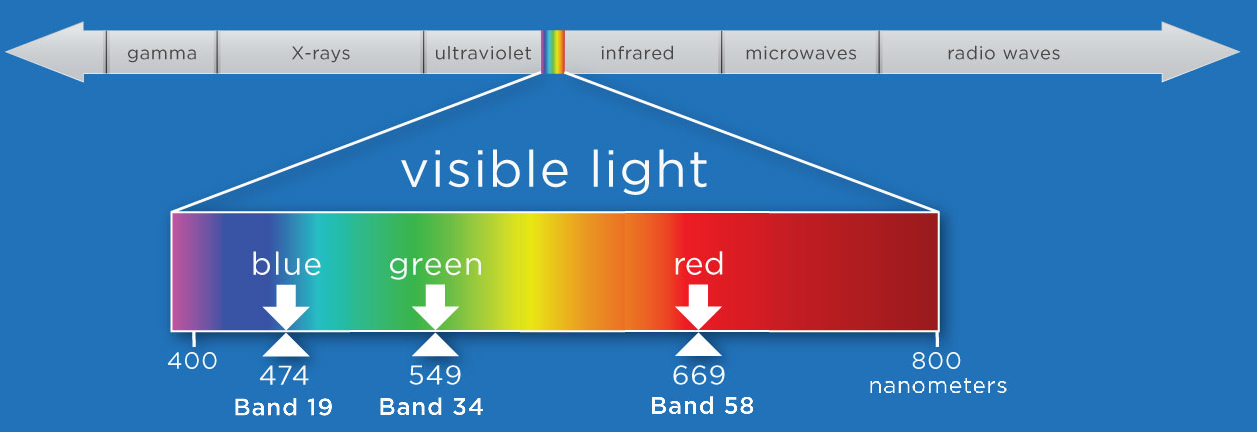
Next, let's create a raster stack with bands representing

  • blue: band 19, 473.8nm
  • green: band 34, 548.9nm
  • red; band 58, 669.1nm

This can be done by individually assigning each file path as an object.

# import tiffs
band19 <- paste0(wd, "NEON-DS-Field-Site-Spatial-Data/SJER/RGB/band19.tif")
band34 <- paste0(wd, "NEON-DS-Field-Site-Spatial-Data/SJER/RGB/band34.tif")
band58 <- paste0(wd, "NEON-DS-Field-Site-Spatial-Data/SJER/RGB/band58.tif")

# View their attributes to check that they loaded correctly:
band19

## [1] "~/Git/data/NEON-DS-Field-Site-Spatial-Data/SJER/RGB/band19.tif"

band34

## [1] "~/Git/data/NEON-DS-Field-Site-Spatial-Data/SJER/RGB/band34.tif"

band58

## [1] "~/Git/data/NEON-DS-Field-Site-Spatial-Data/SJER/RGB/band58.tif"

Note that if we wanted to create a stack from all the files in a directory (folder) you can easily do this with the list.files() function. We would use full.names=TRUE to ensure that R will store the directory path in our list of rasters.

# create list of files to make raster stack
rasterlist1 <- list.files(paste0(wd,"NEON-DS-Field-Site-Spatial-Data/SJER/RGB", full.names=TRUE))

rasterlist1

## character(0)

Or, if your directory consists of some .tif files and other file types you don't want in your stack, you can ask R to only list those files with a .tif extension.

rasterlist2 <-  list.files(paste0(wd,"NEON-DS-Field-Site-Spatial-Data/SJER/RGB", full.names=TRUE, pattern="tif"))

rasterlist2

## character(0)

Back to creating our raster stack with three bands. We only want three of the bands in the RGB directory and not the fourth band90, so will create the stack from the bands we loaded individually. We do this with the stack() function.

# create raster stack
rgbRaster <- stack(band19,band34,band58)

# example syntax for stack from a list
#rstack1 <- stack(rasterlist1)

This has now created a stack that is three rasters thick. Let's view them.

# check attributes
rgbRaster

## class      : RasterStack 
## dimensions : 502, 477, 239454, 3  (nrow, ncol, ncell, nlayers)
## resolution : 1, 1  (x, y)
## extent     : 256521, 256998, 4112069, 4112571  (xmin, xmax, ymin, ymax)
## crs        : +proj=utm +zone=11 +datum=WGS84 +units=m +no_defs 
## names      : band19, band34, band58 
## min values :     84,    116,    123 
## max values :  13805,  15677,  14343

# plot stack
plot(rgbRaster)

From the attributes we see the CRS, resolution, and extent of all three rasters. The we can see each raster plotted. Notice the different shading between the different bands. This is because the landscape relects in the red, green, and blue spectra differently.

Check out the scale bars. What do they represent?

This reflectance data are radiances corrected for atmospheric effects. The data are typically unitless and ranges from 0-1. NEON Airborne Observation Platform data, where these rasters come from, has a scale factor of 10,000.

Plot an RGB Image

You can plot a composite RGB image from a raster stack. You need to specify the order of the bands when you do this. In our raster stack, band 19, which is the blue band, is first in the stack, whereas band 58, which is the red band, is last. Thus the order for a RGB image is 3,2,1 to ensure the red band is rendered first as red.

Thinking ahead to next time: If you know you want to create composite RGB images, think about the order of your rasters when you make the stack so the RGB=1,2,3.

We will plot the raster with the rgbRaster() function and the need these following arguments:

  • R object to plot
  • which layer of the stack is which color
  • stretch: allows for increased contrast. Options are "lin" & "hist".

Let's try it.

# plot an RGB version of the stack
plotRGB(rgbRaster,r=3,g=2,b=1, stretch = "lin")

Note: read the raster package documentation for other arguments that can be added (like scale) to improve or modify the image.

Explore Raster Values - Histograms

You can also explore the data. Histograms allow us to view the distrubiton of values in the pixels.

# view histogram of reflectance values for all rasters
hist(rgbRaster)

## Warning in .hist1(raster(x, y[i]), maxpixels = maxpixels, main =
## main[y[i]], : 42% of the raster cells were used. 100000 values used.

## Warning in .hist1(raster(x, y[i]), maxpixels = maxpixels, main =
## main[y[i]], : 42% of the raster cells were used. 100000 values used.

## Warning in .hist1(raster(x, y[i]), maxpixels = maxpixels, main =
## main[y[i]], : 42% of the raster cells were used. 100000 values used.

Note about the warning messages: R defaults to only showing the first 100,000 values in the histogram so if you have a large raster you may not be seeing all the values. This saves your from long waits, or crashing R, if you have large datasets.

Crop Rasters

You can crop all rasters within a raster stack the same way you'd do it with a single raster.

# determine the desired extent
rgbCrop <- c(256770.7,256959,4112140,4112284)

# crop to desired extent
rgbRaster_crop <- crop(rgbRaster, rgbCrop)

# view cropped stack
plot(rgbRaster_crop)

### Challenge: Plot Cropped RGB Plot this new cropped stack as an RGB image.

Raster Bricks in R

In our rgbRaster object we have a list of rasters in a stack. These rasters are all the same extent, CRS and resolution. By creating a raster brick we will create one raster object that contains all of the rasters so that we can use this object to quickly create RGB images. Raster bricks are more efficient objects to use when processing larger datasets. This is because the computer doesn't have to spend energy finding the data - it is contained within the object.

# create raster brick
rgbBrick <- brick(rgbRaster)

# check attributes
rgbBrick

## class      : RasterBrick 
## dimensions : 502, 477, 239454, 3  (nrow, ncol, ncell, nlayers)
## resolution : 1, 1  (x, y)
## extent     : 256521, 256998, 4112069, 4112571  (xmin, xmax, ymin, ymax)
## crs        : +proj=utm +zone=11 +datum=WGS84 +units=m +no_defs 
## source     : memory
## names      : band19, band34, band58 
## min values :     84,    116,    123 
## max values :  13805,  15677,  14343

While the brick might seem similar to the stack (see attributes above), we can see that it's very different when we look at the size of the object.

  • the brick contains all of the data stored in one object
  • the stack contains links or references to the files stored on your computer

Use object.size() to see the size of an R object.

# view object size
object.size(rgbBrick)

## 5762000 bytes

object.size(rgbRaster)

## 49984 bytes

# view raster brick
plotRGB(rgbBrick,r=3,g=2,b=1, stretch = "Lin")

Notice the faster plotting? For a smaller raster like this the difference is slight, but for larger raster it can be considerable.

Write to GeoTIFF

We can write out the raster in GeoTIFF format as well. When we do this it will copy the CRS, extent and resolution information so the data will read properly into a GIS program as well. Note that this writes the raster in the order they are in. In our case, the blue (band 19) is first but most programs expect the red band first (RGB).

One way around this is to generate a new raster stack with the rasters in the proper order - red, green and blue format. Or, just always create your stacks R->G->B to start!!!

# Make a new stack in the order we want the data in 
orderRGBstack <- stack(rgbRaster$band58,rgbRaster$band34,rgbRaster$band19)

# write the geotiff
# change overwrite=TRUE to FALSE if you want to make sure you don't overwrite your files!
writeRaster(orderRGBstack,paste0(wd,"NEON-DS-Field-Site-Spatial-Data/SJER/RGB/rgbRaster.tif"),"GTiff", overwrite=TRUE)

Import A Multi-Band Image into R

You can import a multi-band image into R too. To do this, you import the file as a stack rather than a raster (which brings in just one band). Let's import the raster than we just created above.

# import multi-band raster as stack
multiRasterS <- stack(paste0(wd,"NEON-DS-Field-Site-Spatial-Data/SJER/RGB/rgbRaster.tif")) 

# import multi-band raster direct to brick
multiRasterB <- brick(paste0(wd,"NEON-DS-Field-Site-Spatial-Data/SJER/RGB/rgbRaster.tif")) 

# view raster
plot(multiRasterB)

plotRGB(multiRasterB,r=1,g=2,b=3, stretch="lin")

NSF announces Dear Colleague Letter for research using NEON data

Interactive Data Vizualization with R and Plotly

Plotly - Interactive (and Online) Plots

Plotly bills itself as "a collaborative platform for modern data science". You can use it to build interactive plots that can easily be shared with others (like the Quantifying The Drivers and Impacts of Natural Disturbance Events – The 2013 Colorado Floods lessons).

You will need an free online Plotly account to post & share you plots online. But you can create the plots and use them on your local computer without an account. If you do not wish to share plots online you can skip to Step 3: Create Plotly plot.

Additional information on the plotly R package can be found on the Plotly R Getting Started page.

Note: Plotly doesn't just work with R -- other programs include Python, MATLAB, Excel, and JavaScript.

Step 1: Create account

If you do not already have an account, you need to set up an account by visiting the Plotly website and following the directions there.

Step 2: Connect account to R

To share plots from R (or RStudio) to Plotly, you have to connect to your account. This is done through an API (Application Program Interface). You can find your username & API key in your profile settings on the Plotly website under the "API key" menu option.

To link your account to your R, use the following commands, substituting in your own username & key as appropriate.

# set plotly user name
Sys.setenv("plotly_username"="YOUR_USERNAME")
# set plotly API key
Sys.setenv("plotly_api_key"="YOUR_KEY")

Step 3: Create Plotly plot

There are lots of ways to plot with the plotly package. We briefly describe two basic functions plotly() and ggplotly(). For more information on plotting in R with Plotly, check out the Plotly R library page.

Here we use the example dataframe economics that comes with the package.

# load packages
library(ggplot2) # to create plots and feed to ggplotly()
library(plotly)  # to create interactive plots

# view str of example dataset
str(economics)

## tibble [574 × 6] (S3: spec_tbl_df/tbl_df/tbl/data.frame)
##  $ date    : Date[1:574], format: "1967-07-01" "1967-08-01" ...
##  $ pce     : num [1:574] 507 510 516 512 517 ...
##  $ pop     : num [1:574] 198712 198911 199113 199311 199498 ...
##  $ psavert : num [1:574] 12.6 12.6 11.9 12.9 12.8 11.8 11.7 12.3 11.7 12.3 ...
##  $ uempmed : num [1:574] 4.5 4.7 4.6 4.9 4.7 4.8 5.1 4.5 4.1 4.6 ...
##  $ unemploy: num [1:574] 2944 2945 2958 3143 3066 ...

# plot with the plot_ly function
unempPerCapita <- plot_ly(x =economics$date, y = economics$unemploy/economics$pop)

To make your plotly plot in R, run the following line:

unempPerCapita 

Note: This plot is interactive within the R environment but is not as posted on this website.

If you already use ggplot to create your plots, you can directly turn your ggplot objects into interactive plots with ggplotly().

## plot with ggplot, then ggplotly

unemployment <- ggplot(economics, aes(date,unemploy)) + geom_line()
unemployment

To make your plotly plot in R, run the following line:

ggplotly(unemployment)

Note: This plot is interactive within the R environment but is not as posted on this website.

Step 4: Publish to Plotly

The function plotly_POST() allows you to post any plotly plot to your account.

# publish plotly plot to your plotly online account
api_create(unemployment)

Examples

The plots below were generated using R code that harnesses the power of the ggplot2 and the plotly packages. The plotly code utilizes the RopenSci plotly packages - check them out!

Data Tip Are you a Python user? Use matplotlib to create and publish visualizations.

Hierarchical Data Formats - What is HDF5?

Learning Objectives

After completing this tutorial, you will be able to:

  • Explain what the Hierarchical Data Format (HDF5) is.
  • Describe the key benefits of the HDF5 format, particularly related to big data.
  • Describe both the types of data that can be stored in HDF5 and how it can be stored/structured.

About Hierarchical Data Formats - HDF5

The Hierarchical Data Format version 5 (HDF5), is an open source file format that supports large, complex, heterogeneous data. HDF5 uses a "file directory" like structure that allows you to organize data within the file in many different structured ways, as you might do with files on your computer. The HDF5 format also allows for embedding of metadata making it self-describing.

**Data Tip:** HDF5 is one hierarchical data format, that builds upon both HDF4 and NetCDF (two other hierarchical data formats). Read more about HDF5 here.
Organizations use HDF5 for various data, access, computing, and networking needs
Why Use HDF5. Source: The HDF5 Group

Hierarchical Structure - A file directory within a file

The HDF5 format can be thought of as a file system contained and described within one single file. Think about the files and folders stored on your computer. You might have a data directory with some temperature data for multiple field sites. These temperature data are collected every minute and summarized on an hourly, daily and weekly basis. Within one HDF5 file, you can store a similar set of data organized in the same way that you might organize files and folders on your computer. However in a HDF5 file, what we call "directories" or "folders" on our computers, are called groups and what we call files on our computer are called datasets.

2 Important HDF5 Terms

  • Group: A folder like element within an HDF5 file that might contain other groups OR datasets within it.
  • Dataset: The actual data contained within the HDF5 file. Datasets are often (but don't have to be) stored within groups in the file.
An illustration of a HDF5 file structure which contains groups, datasets and associated metadata
An example HDF5 file structure which contains groups, datasets and associated metadata.

An HDF5 file containing datasets, might be structured like this:

The HDF5 illustration from above but the groups are NEON sites and sensor types and datasets are included under sensor types
An example HDF5 file structure containing data for multiple field sites and also containing various datasets (averaged at different time intervals).

HDF5 is a Self Describing Format

HDF5 format is self describing. This means that each file, group and dataset can have associated metadata that describes exactly what the data are. Following the example above, we can embed information about each site to the file, such as:

  • The full name and X,Y location of the site
  • Description of the site.
  • Any documentation of interest.

Similarly, we might add information about how the data in the dataset were collected, such as descriptions of the sensor used to collect the temperature data. We can also attach information, to each dataset within the site group, about how the averaging was performed and over what time period data are available.

One key benefit of having metadata that are attached to each file, group and dataset, is that this facilitates automation without the need for a separate (and additional) metadata document. Using a programming language, like R or Python, we can grab information from the metadata that are already associated with the dataset, and which we might need to process the dataset.

An illustration of a HDF5 file structure with a group that contains two datasets and all associated metadata
HDF5 files are self describing - this means that all elements (the file itself, groups and datasets) can have associated metadata that describes the information contained within the element.

Compressed & Efficient subsetting

The HDF5 format is a compressed format. The size of all data contained within HDF5 is optimized which makes the overall file size smaller. Even when compressed, however, HDF5 files often contain big data and can thus still be quite large. A powerful attribute of HDF5 is data slicing, by which a particular subsets of a dataset can be extracted for processing. This means that the entire dataset doesn't have to be read into memory (RAM); very helpful in allowing us to more efficiently work with very large (gigabytes or more) datasets!

Heterogeneous Data Storage

HDF5 files can store many different types of data within in the same file. For example, one group may contain a set of datasets to contain integer (numeric) and text (string) data. Or, one dataset can contain heterogeneous data types (e.g., both text and numeric data in one dataset). This means that HDF5 can store any of the following (and more) in one file:

  • Temperature, precipitation and PAR (photosynthetic active radiation) data for a site or for many sites
  • A set of images that cover one or more areas (each image can have specific spatial information associated with it - all in the same file)
  • A multi or hyperspectral spatial dataset that contains hundreds of bands.
  • Field data for several sites characterizing insects, mammals, vegetation and meteorology.
  • A set of images that cover one or more areas (each image can have unique spatial information associated with it)
  • And much more!

Open Format

The HDF5 format is open and free to use. The supporting libraries (and a free viewer), can be downloaded from the HDF Group website. As such, HDF5 is widely supported in a host of programs, including open source programming languages like R and Python, and commercial programming tools like Matlab and IDL. Spatial data that are stored in HDF5 format can be used in GIS and imaging programs including QGIS, ArcGIS, and ENVI.

Summary Points - Benefits of HDF5

  • Self-Describing The datasets with an HDF5 file are self describing. This allows us to efficiently extract metadata without needing an additional metadata document.
  • Supporta Heterogeneous Data: Different types of datasets can be contained within one HDF5 file.
  • Supports Large, Complex Data: HDF5 is a compressed format that is designed to support large, heterogeneous, and complex datasets.
  • Supports Data Slicing: "Data slicing", or extracting portions of the dataset as needed for analysis, means large files don't need to be completely read into the computers memory or RAM.
  • Open Format - wide support in the many tools: Because the HDF5 format is open, it is supported by a host of programming languages and tools, including open source languages like R and Python and open GIS tools like QGIS.

Intro to Working with Hyperspectral Remote Sensing Data in HDF5 Format in R

In this tutorial, we will show how to read and extract NEON reflectance data stored within an HDF5 file using R.

Learning Objectives

After completing this tutorial, you will be able to:

  • Explain how HDF5 data can be used to store spatial data and the associated benefits of this format when working with large spatial data cubes.
  • Extract metadata from HDF5 files.
  • Slice or subset HDF5 data. You will extract one band of pixels.
  • Plot a matrix as an image and a raster.
  • Export a final GeoTIFF (spatially projected) that can be used both in further analysis and in common GIS tools like QGIS.

Things You’ll Need To Complete This Tutorial

To complete this tutorial you will need the most current version of R and, preferably, RStudio installed on your computer.

R Libraries to Install:

  • rhdf5: install.packages("BiocManager"), BiocManager::install("rhdf5")
  • terra: install.packages("terra")
  • neonUtilities: install.packages("neonUtilities")

More on Packages in R - Adapted from Software Carpentry.

Data to Download

Data will be downloaded in the tutorial using the neonUtilities::byTileAOP function.

These hyperspectral remote sensing data provide information on the National Ecological Observatory Network's San Joaquin Experimental Range field site in March of 2021. The data were collected over the San Joaquin field site located in California (Domain 17).The entire dataset can be also be downloaded from the NEON Data Portal.


Set Working Directory: This lesson assumes that you have set your working directory to the location of the downloaded data.

An overview of setting the working directory in R can be found here.

R Script & Challenge Code: NEON data lessons often contain challenges to reinforce skills. If available, the code for challenge solutions is found in the downloadable R script of the entire lesson, available in the footer of each lesson page.

About Hyperspectral Remote Sensing Data

The electromagnetic spectrum is composed of thousands of bands representing different types of light energy. Imaging spectrometers (instruments that collect hyperspectral data) break the electromagnetic spectrum into groups of bands that support classification of objects by their spectral properties on the Earth's surface. Hyperspectral data consists of many bands - up to hundreds of bands - that span a portion of the electromagnetic spectrum, from the visible to the Short Wave Infrared (SWIR) regions.

The NEON imaging spectrometer (NIS) collects data within the 380 nm to 2510 nm portions of the electromagnetic spectrum within bands that are approximately 5 nm in width. This results in a hyperspectral data cube that contains approximately 426 bands - which means BIG DATA.

Data cube graphic of NEON hyperspectral data. Each layer in the cube represents a band.
A data cube of NEON hyperspectral data. Each layer in the cube represents a band.

The HDF5 data model natively compresses data stored within it (makes it smaller) and supports data slicing (extracting only the portions of the data that you need to work with rather than reading the entire dataset into memory). These features make it ideal for working with large data cubes such as those generated by imaging spectrometers, in addition to supporting spatial data and associated metadata.

In this tutorial we will demonstrate how to read and extract spatial raster data stored within an HDF5 file using R.

Read HDF5 data into R

We will use the terra and rhdf5 packages to read in the HDF5 file that contains hyperspectral data for the NEON San Joaquin (SJER) field site. Let's start by calling the needed packages and reading in our NEON HDF5 file.

Please be sure that you have at least version 2.10 of rhdf5 installed. Use: packageVersion("rhdf5") to check the package version.

Data Tip: To update all packages installed in R, use update.packages().

# Load `terra` and `rhdf5` packages to read NIS data into R

library(terra)

library(rhdf5)

library(neonUtilities)

Set the working directory to ensure R can find the file we are importing, and we know where the file is being saved. You can move the file that is downloaded afterward, but be sure to re-set the path to the file.

wd <- "~/data/" #This will depend on your local environment

setwd(wd)

We can use the neonUtilities function byTileAOP to download a single reflectance tile. You can run help(byTileAOP) to see more details on what the various inputs are. For this exercise, we'll specify the UTM Easting and Northing to be (257500, 4112500), which will download the tile with the lower left corner (257000,4112000). By default, the function will check the size total size of the download and ask you whether you wish to proceed (y/n). This file is ~672.7 MB, so make sure you have enough space on your local drive. You can set check.size=FALSE if you want to download without a prompt.

byTileAOP(dpID='DP3.30006.001',

          site='SJER',

          year='2021',

          easting=257500,

          northing=4112500,

          check.size=TRUE, # set to FALSE if you don't want to enter y/n

          savepath = wd)

This file will be downloaded into a nested subdirectory under the ~/data folder, inside a folder named DP3.30006.001 (the Data Product ID). The file should show up in this location: ~/data/DP3.30006.001/neon-aop-products/2021/FullSite/D17/2021_SJER_5/L3/Spectrometer/Reflectance/NEON_D17_SJER_DP3_257000_4112000_reflectance.h5.

Data Tip: To make sure you are pointing to the correct path, look in the ~/data folder and navigate to where the .h5 file is saved, or use the R command list.files(path=wd,pattern="\\.h5$",recursive=TRUE,full.names=TRUE) to display the full path of the .h5 file. Note, if you have any other .h5 files downloaded in this folder, it will display all of the hdf5 files.

# Define the h5 file name to be opened

h5_file <- paste0(wd,"DP3.30006.001/neon-aop-products/2021/FullSite/D17/2021_SJER_5/L3/Spectrometer/Reflectance/NEON_D17_SJER_DP3_257000_4112000_reflectance.h5")

You can use h5ls and/or View(h5ls(...)) to look at the contents of the hdf5 file, as follows:

# look at the HDF5 file structure 

View(h5ls(h5_file,all=T))

When you look at the structure of the data, take note of the "map info" dataset, the Coordinate_System group, and the wavelength and Reflectance datasets. The Coordinate_System folder contains the spatial attributes of the data including its EPSG Code, which is easily converted to a Coordinate Reference System (CRS). The CRS documents how the data are physically located on the Earth. The wavelength dataset contains the wavelength values for each band in the data. The Reflectance dataset contains the image data that we will use for both data processing and visualization.

More Information on raster metadata:

  • Raster Data in R - The Basics - this tutorial explains more about how rasters work in R and their associated metadata.

  • About Hyperspectral Remote Sensing Data -this tutorial explains more about metadata and important concepts associated with multi-band (multi and hyperspectral) rasters.

Data Tip - HDF5 Structure: Note that the structure of individual HDF5 files may vary depending on who produced the data. In this case, the Wavelength and reflectance data within the file are both h5 datasets. However, the spatial information is contained within a group. Data downloaded from another organization (like NASA) may look different. This is why it's important to explore the data as a first step!

We can use the h5readAttributes() function to read and extract metadata from the HDF5 file. Let's start by learning about the wavelengths described within this file.

# get information about the wavelengths of this dataset

wavelengthInfo <- h5readAttributes(h5_file,"/SJER/Reflectance/Metadata/Spectral_Data/Wavelength")

wavelengthInfo

## $Description
## [1] "Central wavelength of the reflectance bands."
## 
## $Units
## [1] "nanometers"

Next, we can use the h5read function to read the data contained within the HDF5 file. Let's read in the wavelengths of the band centers:

# read in the wavelength information from the HDF5 file

wavelengths <- h5read(h5_file,"/SJER/Reflectance/Metadata/Spectral_Data/Wavelength")

head(wavelengths)

## [1] 381.6035 386.6132 391.6229 396.6327 401.6424 406.6522

tail(wavelengths)

## [1] 2485.693 2490.703 2495.713 2500.722 2505.732 2510.742

Which wavelength is band 21 associated with?

(Hint: look at the wavelengths vector that we just imported and check out the data located at index 21 - wavelengths[21]).

Graphical representation showing where the 482 nm wavelength falls within the blue portion of the visible light region of the electromagnetic spectrum.
482 nanometers falls within the blue portion of the electromagnetic spectrum. Source: National Ecological Observatory Network

Band 21 has a associated wavelength center of 481.7982 nanometers (nm) which is in the blue portion (~380-500 nm) of the visible electromagnetic spectrum (~380-700 nm).

Bands and Wavelengths

A band represents a group of wavelengths. For example, the wavelength values between 695 nm and 700 nm might be one band captured by an imaging spectrometer. The imaging spectrometer collects reflected light energy in a pixel for light in that band. Often when you work with a multi- or hyperspectral dataset, the band information is reported as the center wavelength value. This value represents the mean value of the wavelengths represented in that band. Thus in a band spanning 695-700 nm, the center would be 697.5 nm). The full width half max (FWHM) will also be reported. This value can be thought of as the spread of the band around that center point. So, a band that covers 800-805 nm might have a FWHM of 5 nm and a wavelength value of 802.5 nm.

Graphical representation showing how bands represent a range of values within the electromagnetic spectrum. The graphic shows wavelengths 675 nm through 700 nm split into five different bands, labeled bands A through E. Values for each band are often represented as the center point value of each band.
Bands represent a range of values (types of light) within the electromagnetic spectrum. Values for each band are often represented as the center point value of each band. Source: National Ecological Observatory Network (NEON)

The HDF5 dataset that we are working with in this activity may contain more information than we need to work with. For example, we don't necessarily need to process all 426 bands available in a full NEON hyperspectral reflectance file - if we are interested in creating a product like NDVI which only uses bands in the Near InfraRed (NIR) and Red portions of the spectrum. Or we might only be interested in a spatial subset of the data - perhaps an area where we have collected corresponding ground data in the field.

The HDF5 format allows us to slice (or subset) the data - quickly extracting the subset that we need to process. Let's extract one of the green bands - band 34.

By the way - what is the center wavelength value associated with band 34?

Hint: wavelengths[34].

How do we know this band is a green band in the visible portion of the spectrum?

In order to effectively subset our data, let's first read the reflectance metadata stored as attributes in the "Reflectance_Data" dataset.

# First, we need to extract the reflectance metadata:

reflInfo <- h5readAttributes(h5_file, "/SJER/Reflectance/Reflectance_Data")

reflInfo

## $Cloud_conditions
## [1] "For cloud conditions information see Weather Quality Index dataset."
## 
## $Cloud_type
## [1] "Cloud type may have been selected from multiple flight trajectories."
## 
## $Data_Ignore_Value
## [1] -9999
## 
## $Description
## [1] "Atmospherically corrected reflectance."
## 
## $Dimension_Labels
## [1] "Line, Sample, Wavelength"
## 
## $Dimensions
## [1] 1000 1000  426
## 
## $Interleave
## [1] "BSQ"
## 
## $Scale_Factor
## [1] 10000
## 
## $Spatial_Extent_meters
## [1]  257000  258000 4112000 4113000
## 
## $Spatial_Resolution_X_Y
## [1] 1 1
## 
## $Units
## [1] "Unitless."
## 
## $Units_Valid_range
## [1]     0 10000

# Next, we read the different dimensions


nRows <- reflInfo$Dimensions[1]

nCols <- reflInfo$Dimensions[2]

nBands <- reflInfo$Dimensions[3]


nRows

## [1] 1000

nCols

## [1] 1000

nBands

## [1] 426

The HDF5 read function reads data in the order: Bands, Cols, Rows. This is different from how R reads data. We'll adjust for this later.

# Extract or "slice" data for band 34 from the HDF5 file

b34 <- h5read(h5_file,"/SJER/Reflectance/Reflectance_Data",index=list(34,1:nCols,1:nRows)) 


# what type of object is b34?

class(b34)

## [1] "array"

A Note About Data Slicing in HDF5

Data slicing allows us to extract and work with subsets of the data rather than reading in the entire dataset into memory. In this example, we will extract and plot the green band without reading in all 426 bands. The ability to slice large datasets makes HDF5 ideal for working with big data.

Next, let's convert our data from an array (more than 2 dimensions) to a matrix (just 2 dimensions). We need to have our data in a matrix format to plot it.

# convert from array to matrix by selecting only the first band

b34 <- b34[1,,]


# display the class of this re-defined variable

class(b34)

## [1] "matrix" "array"

Arrays vs. Matrices

Arrays are matrices with more than 2 dimensions. When we say dimension, we are talking about the "z" associated with the data (imagine a series of tabs in a spreadsheet). Put the other way: matrices are arrays with only 2 dimensions. Arrays can have any number of dimensions one, two, ten or more.

Here is a matrix that is 4 x 3 in size (4 rows and 3 columns):

Metric species 1 species 2
total number 23 45
average weight 14 5
average length 2.4 3.5
average height 32 12

Dimensions in Arrays

An array contains 1 or more dimensions in the "z" direction. For example, let's say that we collected the same set of species data for every day in a 30 day month. We might then have a matrix like the one above for each day for a total of 30 days making a 4 x 3 x 30 array (this dataset has more than 2 dimensions). More on R object types here (links to external site, DataCamp).

Graphic showing an array, which in contrast to a matrix, has more than two dimensions. In this graphic, additional dimensions are represented in the z direction, and labeled a through d.
Left: a matrix has only 2 dimensions. Right: an array has more than 2 dimensions.

Next, let's look at the metadata for the reflectance data. When we do this, take note of 1) the scale factor and 2) the data ignore value. Then we can plot the band 34 data. Plotting spatial data as a visual "data check" is a good idea to make sure processing is being performed correctly and all is well with the image.

# look at the metadata for the reflectance dataset

h5readAttributes(h5_file,"/SJER/Reflectance/Reflectance_Data")

## $Cloud_conditions
## [1] "For cloud conditions information see Weather Quality Index dataset."
## 
## $Cloud_type
## [1] "Cloud type may have been selected from multiple flight trajectories."
## 
## $Data_Ignore_Value
## [1] -9999
## 
## $Description
## [1] "Atmospherically corrected reflectance."
## 
## $Dimension_Labels
## [1] "Line, Sample, Wavelength"
## 
## $Dimensions
## [1] 1000 1000  426
## 
## $Interleave
## [1] "BSQ"
## 
## $Scale_Factor
## [1] 10000
## 
## $Spatial_Extent_meters
## [1]  257000  258000 4112000 4113000
## 
## $Spatial_Resolution_X_Y
## [1] 1 1
## 
## $Units
## [1] "Unitless."
## 
## $Units_Valid_range
## [1]     0 10000

# plot the image

image(b34)

Plot of reflectance values for band 34 data. This plot shows a very washed out image lacking any detail.

What do you notice about the first image? It's washed out and lacking any detail. What could be causing this? It got better when plotting the log of the values, but still not great.

# this is a little hard to visually interpret - what happens if we plot a log of the data?

image(log(b34))

Let's look at the distribution of reflectance values in our data to figure out what is going on.

# Plot range of reflectance values as a histogram to view range

# and distribution of values.

hist(b34,breaks=50,col="darkmagenta")

Histogram of reflectance values for band 34. The x-axis represents the reflectance values and ranges from 0 to 8000. The frequency of these values is on the y-axis. The histogram shows reflectance values are skewed to the right, where the majority of the values lie between 0 and 1000. We can conclude that reflectance values are not equally distributed across the range of reflectance values, resulting in a washed out image.

# View values between 0 and 5000

hist(b34,breaks=100,col="darkmagenta",xlim = c(0, 5000))

Histogram of reflectance values between 0 and 5000 for band 34. Reflectance values are on the x-axis, and the frequency is on the y-axis. The x-axis limit has been set 5000 in order to better visualize the distribution of reflectance values. We can confirm that the majority of the values are indeed within the 0 to 4000 range.

# View higher values

hist(b34, breaks=100,col="darkmagenta",xlim = c(5000, 15000),ylim = c(0, 750))

Histogram of reflectance values between 5000 and 15000 for band 34. Reflectance values are on the x-axis, and the frequency is on the y-axis. Plot shows that a very few number of pixels have reflectance values larger than 5,000. These values are skewing how the image is being rendered and heavily impacting the way the image is drawn on our monitor.

As you're examining the histograms above, keep in mind that reflectance values range between 0-1. The data scale factor in the metadata tells us to divide all reflectance values by 10,000. Thus, a value of 5,000 equates to a reflectance value of 0.50. Storing data as integers (without decimal places) compared to floating points (with decimal places) creates a smaller file. This type of scaling is commin in remote sensing datasets.

Notice in the data that there are some larger reflectance values (>5,000) that represent a smaller number of pixels. These pixels are skewing how the image renders.

Data Ignore Value

Image data in raster format will often contain a data ignore value and a scale factor. The data ignore value represents pixels where there are no data. Among other causes, no data values may be attributed to the sensor not collecting data in that area of the image or to processing results which yield null values.

Remember that the metadata for the Reflectance dataset designated -9999 as data ignore value. Thus, let's set all pixels with a value == -9999 to NA (no value). If we do this, R won't render these pixels.

# there is a no data value in our raster - let's define it

noDataValue <- as.numeric(reflInfo$Data_Ignore_Value)

noDataValue

## [1] -9999

# set all values equal to the no data value (-9999) to NA

b34[b34 == noDataValue] <- NA


# plot the image now

image(b34)

Plot of reflectance values for band 34 data with values equal to -9999 set to NA. Image data in raster format will often contain no data values, which may be attributed to the sensor not collecting data in that area of the image or to processing results which yield null values. Reflectance datasets designate -9999 as data ignore values. As such, we will reassign -9999 values to NA so R won't try to render these pixels.

Reflectance Values and Image Stretch

Our image still looks dark because R is trying to render all reflectance values between 0 and 14999 as if they were distributed equally in the histogram. However we know they are not distributed equally. There are many more values between 0-5000 than there are values >5000.

Images contain a distribution of reflectance values. A typical image viewing program will render the values by distributing the entire range of reflectance values across a range of "shades" that the monitor can render - between 0 and 255. However, often the distribution of reflectance values is not linear. For example, in the case of our data, most of the reflectance values fall between 0 and 0.5. Yet there are a few values >0.8 that are heavily impacting the way the image is drawn on our monitor. Imaging processing programs like ENVI, QGIS and ArcGIS (and even Adobe Photoshop) allow you to adjust the stretch of the image. This is similar to adjusting the contrast and brightness in Photoshop.

The proper way to adjust our data would be to apply what's called an image stretch. We will learn how to stretch our image data later. For now, let's plot the values as the log function on the pixel reflectance values to factor out those larger values.

image(log(b34))

Plot of log transformed reflectance values for the previous b34 image. Applying the log to the image increases the contrast making it look more like an image by factoring out those larger values. While an improvement, the image is still far from great. The proper way to adjust an image is by doing whats called an image stretch.

The log applied to our image increases the contrast making it look more like an image. However, look at the images below. The top one is an RGB image as the image should look. The bottom one is our log-adjusted image. Notice a difference?

RGB image of the SJER field site. At the top right of the image, there is dark, brackish water. Scattered throughout the image, there are several trees. At the center of the image, there is a baseball field, with low grass. At the bottom left of the image, there is a parking lot and some buildings with highly reflective surfaces, and adjacent to it is a section of a gravel lot. Plot of log transformed reflectance values for the b34 image previously plotted. Applying the log to the image increases the contrast making it look more like an image by factoring out those larger values. While an improvement, the image is still far from great. The proper way to adjust an image is by applying an image stretch. The log transformed image appears flipped because when R reads in the dataset, it reads them as: Columns x Bands x Rows, as opposed to the RGB image on the left which has dimensions as Bands x Rows x Columns.
Top: The image as it should look. Bottom: the image that we outputted from the code above. Notice a difference?

Transpose Image

Notice that there are three data dimensions for this file: Bands x Rows x Columns. However, when R reads in the dataset, it reads them as: Columns x Bands x Rows. The data are flipped. We can quickly transpose the data to correct for this using the t or transpose command in R.

The orientation is rotated in our log adjusted image. This is because R reads in matrices starting from the upper left hand corner. While most rasters read pixels starting from the lower left hand corner. In the next section, we will deal with this issue by creating a proper georeferenced (spatially located) raster in R. The raster format will read in pixels following the same methods as other GIS and imaging processing software like QGIS and ENVI do.

# We need to transpose x and y values in order for our 

# final image to plot properly

b34 <- t(b34)

image(log(b34), main="Transposed Image")

Plot showing the transposed image of the log transformed reflectance values of b34. The orientation of the image is rotated in our log transformed image, because R reads in the matrices starting from the upper left hand corner.

Create a Georeferenced Raster

Next, we will create a proper raster using the b34 matrix. The raster format will allow us to define and manage:

  • Image stretch
  • Coordinate reference system & spatial reference
  • Resolution
  • and other raster attributes...

It will also account for the orientation issue discussed above.

To create a raster in R, we need a few pieces of information, including:

  • The coordinate reference system (CRS)
  • The spatial extent of the image

Define Raster CRS

First, we need to define the Coordinate reference system (CRS) of the raster. To do that, we can first grab the EPSG code from the HDF5 attributes, and covert the EPSG to a CRS string. Then we can assign that CRS to the raster object.

# Extract the EPSG from the h5 dataset

h5EPSG <- h5read(h5_file, "/SJER/Reflectance/Metadata/Coordinate_System/EPSG Code")


# convert the EPSG code to a CRS string

h5CRS <- crs(paste0("+init=epsg:",h5EPSG))


# define final raster with projection info 

# note that capitalization will throw errors on a MAC.

# if UTM is all caps it might cause an error!

b34r <- rast(b34, 
        crs=h5CRS)


# view the raster attributes

b34r

## class       : SpatRaster 
## dimensions  : 1000, 1000, 1  (nrow, ncol, nlyr)
## resolution  : 1, 1  (x, y)
## extent      : 0, 1000, 0, 1000  (xmin, xmax, ymin, ymax)
## coord. ref. : WGS 84 / UTM zone 11N 
## source(s)   : memory
## name        : lyr.1 
## min value   :    32 
## max value   : 13129

# let's have a look at our properly oriented raster. Take note of the 

# coordinates on the x and y axis.


image(log(b34r), 
      xlab = "UTM Easting", 
      ylab = "UTM Northing",
      main = "Properly Oriented Raster")

Plot of the properly oriented raster image of the band 34 data. In order to orient the image correctly, the coordinate reference system was defined and assigned to the raster object. X-axis represents the UTM Easting values, and the Y-axis represents the Northing values.

Next we define the extents of our raster. The extents will be used to calculate the raster's resolution. Fortunately, the spatial extent is provided in the HDF5 file "Reflectance_Data" group attributes that we saved before as reflInfo.

# Grab the UTM coordinates of the spatial extent

xMin <- reflInfo$Spatial_Extent_meters[1]

xMax <- reflInfo$Spatial_Extent_meters[2]

yMin <- reflInfo$Spatial_Extent_meters[3]

yMax <- reflInfo$Spatial_Extent_meters[4]


# define the extent (left, right, top, bottom)

rasExt <- ext(xMin,xMax,yMin,yMax)

rasExt

## SpatExtent : 257000, 258000, 4112000, 4113000 (xmin, xmax, ymin, ymax)

# assign the spatial extent to the raster

ext(b34r) <- rasExt


# look at raster attributes

b34r

## class       : SpatRaster 
## dimensions  : 1000, 1000, 1  (nrow, ncol, nlyr)
## resolution  : 1, 1  (x, y)
## extent      : 257000, 258000, 4112000, 4113000  (xmin, xmax, ymin, ymax)
## coord. ref. : WGS 84 / UTM zone 11N 
## source(s)   : memory
## name        : lyr.1 
## min value   :    32 
## max value   : 13129
Image showing how the extent of a raster image represents the spatial location of each corner. The coordinate units are determined by the spatial projection/coordinate reference system that are assigned to the data.
The extent of a raster represents the spatial location of each corner. The coordinate units will be determined by the spatial projection coordinate reference system that the data are in. Source: National Ecological Observatory Network (NEON)

Learn more about working with Raster data in R in the Data Carpentry workshop: Introduction to Geospatial Raster and Vector Data with R.

We can adjust the colors of our raster as well, if desired.

# let's change the colors of our raster and adjust the zlim 

col <- terrain.colors(25)


image(b34r,  
      xlab = "UTM Easting", 
      ylab = "UTM Northing",
      main= "Spatially Referenced Raster",
      col=col, 
      zlim=c(0,3000))

Plot of the properly oriented raster image of B34 with custom colors. We can adjust the colors of the image by adjusting the z limits, which in this case makes the highly reflective surfaces more vibrant. This color adjustment is more apparent in the bottom left of the image, where the parking lot, buildings and bare surfaces are located. The X-axis represents the UTM Easting values, and the Y-axis represents the Northing values.

We've now created a raster from band 34 reflectance data. We can export the data as a raster, using the writeRaster command. Note that it's good practice to close the H5 connection before moving on!

# write out the raster as a geotiff

writeRaster(b34r,

            file=paste0(wd,"band34.tif"),

            overwrite=TRUE)


# close the H5 file

H5close()

Challenge: Work with Rasters

Try these three extensions on your own:

  1. Create rasters using other bands in the dataset.

  2. Vary the distribution of values in the image to mimic an image stretch. e.g. b34[b34 > 6000 ] <- 6000

  3. Use what you know to extract ALL of the reflectance values for ONE pixel rather than for an entire band. HINT: this will require you to pick an x and y value and then all values in the z dimension: aPixel<- h5read(h5_file,"Reflectance",index=list(NULL,100,35)). Plot the spectra output.

Creating a Raster Stack from Hyperspectral Imagery in HDF5 Format in R

In this tutorial, we will learn how to create multi (3) band images from hyperspectral data. We will also learn how to perform some basic raster calculations (known as raster math in the GIS world).

Learning Objectives

After completing this activity, you will be able to:

  • Extract a "slice" of data from a hyperspectral data cube.
  • Create a raster "stack" in R which can be used to create RGB images from band combinations in a hyperspectral data cube.
  • Plot data spatially on a map.
  • Create basic vegetation indices like NDVI using raster-based calculations in R.

Things You’ll Need To Complete This Tutorial

To complete this tutorial you will need the most current version of R and, preferably, RStudio loaded on your computer.

R Libraries to Install:

  • rhdf5: install.packages("BiocManager"), BiocManager::install("rhdf5")
  • terra: install.packages("terra")
  • neonUtilities: install.packages("neonUtilities")

More on Packages in R - Adapted from Software Carpentry.

Data

These hyperspectral remote sensing data provide information on the National Ecological Observatory Network's San Joaquin Experimental Range (SJER) field site in March of 2021. The data used in this lesson is the 1km by 1km mosaic tile named NEON_D17_SJER_DP3_257000_4112000_reflectance.h5. If you already completed the previous lesson in this tutorial series, you do not need to download this data again. The entire SJER reflectance dataset can be accessed from the NEON Data Portal.

Set Working Directory: This lesson assumes that you have set your working directory to the location of the downloaded data, as explained in the tutorial.

An overview of setting the working directory in R can be found here.

R Script & Challenge Code: NEON data lessons often contain challenges to reinforce skills. If available, the code for challenge solutions is found in the downloadable R script of the entire lesson, available in the footer of each lesson page.

Recommended Skills

For this tutorial you should be comfortable working with HDF5 files that contain hyperspectral data, including reading in reflectance values and associated metadata and attributes.

If you aren't familiar with these steps already, we highly recommend you work through the Introduction to Working with Hyperspectral Data in HDF5 Format in R tutorial before moving on to this tutorial.

About Hyperspectral Data

We often want to generate a 3 band image from multi or hyperspectral data. The most commonly recognized band combination is RGB which stands for Red, Green and Blue. RGB images are just like an image that your camera takes. But other band combinations can be useful too. For example, near infrared images highlight healthy vegetation, which makes it easy to classify or identify where vegetation is located on the ground.

An image showing portion of the San Joaquin Experimental Range field site using red, green and blue bands (58,34,19).
A portion of the SJER field site using red, green and blue (bands 58, 34, and 19).
Image showing the same portion of the San Joaquin Experimental Range field site mentioned above, but using near infrared, green and blue bands (bands 90, 34, and 19) to create an infrared image.
Here is the same section of SJER but with other bands highlighted to create a colored infrared image – near infrared, green and blue (bands 90, 34, and 19).

Data Tip - Band Combinations: The Biodiversity Informatics group created a great interactive tool that lets you explore band combinations. Check it out. Learn more about band combinations using a great online tool from the American Museum of Natural History! (The tool requires Flash player.)

Create a Raster Stack in R

In the previous lesson, we exported a single band of the NEON Reflectance data from a HDF5 file. In this activity, we will create a full color image using 3 (red, green and blue - RGB) bands. We will follow many of the steps we followed in the Intro to Working with Hyperspectral Remote Sensing Data in HDF5 Format in R tutorial. These steps included loading required packages, downloading the data (optionally, you don't need to do this if you downloaded the data from the previous lesson), and reading in our file and viewing the hdf5 file structure.

First, let's load the required R packages, terra and rhdf5.

library(terra)

library(rhdf5)

library(neonUtilities)

Next set the working directory to ensure R can find the file we wish to import. Be sure to move the download into your working directory!

# set working directory (this will depend on your local environment)

wd <- "~/data/"

setwd(wd)

We can use the neonUtilities function byTileAOP to download a single reflectance tile. You can run help(byTileAOP) to see more details on what the various inputs are. For this exercise, we'll specify the UTM Easting and Northing to be (257500, 4112500), which will download the tile with the lower left corner (257000, 4112000).

byTileAOP(dpID = 'DP3.30006.001',

          site = 'SJER',

          year = '2021',

          easting = 257500,

          northing = 4112500,

          savepath = wd)

This file will be downloaded into a nested subdirectory under the ~/data folder, inside a folder named DP3.30006.001 (the Data Product ID). The file should show up in this location: ~/data/DP3.30006.001/neon-aop-products/2021/FullSite/D17/2021_SJER_5/L3/Spectrometer/Reflectance/NEON_D17_SJER_DP3_257000_4112000_reflectance.h5.

Now we can read in the file. You can move this file to a different location, but make sure to change the path accordingly.

# Define the h5 file name to be opened

h5_file <- paste0(wd,"DP3.30006.001/neon-aop-products/2021/FullSite/D17/2021_SJER_5/L3/Spectrometer/Reflectance/NEON_D17_SJER_DP3_257000_4112000_reflectance.h5")

As in the last lesson, let's use View(h5ls) to take a look inside this hdf5 dataset:

View(h5ls(h5_file,all=T))

To spatially locate our raster data, we need a few key attributes:

  • The coordinate reference system
  • The spatial extent of the raster

We'll begin by grabbing these key attributes from the H5 file.

# define coordinate reference system from the EPSG code provided in the HDF5 file

h5EPSG <- h5read(h5_file,"/SJER/Reflectance/Metadata/Coordinate_System/EPSG Code" )

h5CRS <- crs(paste0("+init=epsg:",h5EPSG))


# get the Reflectance_Data attributes

reflInfo <- h5readAttributes(h5_file,"/SJER/Reflectance/Reflectance_Data" )


# Grab the UTM coordinates of the spatial extent

xMin <- reflInfo$Spatial_Extent_meters[1]

xMax <- reflInfo$Spatial_Extent_meters[2]

yMin <- reflInfo$Spatial_Extent_meters[3]

yMax <- reflInfo$Spatial_Extent_meters[4]


# define the extent (left, right, top, bottom)

rastExt <- ext(xMin,xMax,yMin,yMax)


# view the extent to make sure that it looks right

rastExt

## SpatExtent : 257000, 258000, 4112000, 4113000 (xmin, xmax, ymin, ymax)

# Finally, define the no data value for later

h5NoDataValue <- as.integer(reflInfo$Data_Ignore_Value)

cat('No Data Value:',h5NoDataValue)

## No Data Value: -9999

Next, we'll write a function that will perform the processing that we did step by step in the Intro to Working with Hyperspectral Remote Sensing Data in HDF5 Format in R. This will allow us to process multiple bands in bulk.

The function band2Rast slices a band of data from the HDF5 file, and extracts the reflectance array for that band. It then converts the data into a matrix, converts it to a raster, and finally returns a spatially corrected raster for the specified band.

The function requires the following variables:

  • file: the hdf5 reflectance file
  • band: the band number we wish to extract
  • noDataValue: the noDataValue for the raster
  • extent: a terra spatial extent (SpatExtent) object .
  • crs: the Coordinate Reference System for the raster

The function output is a spatially referenced, R terra object.

# file: the hdf5 file

# band: the band you want to process

# returns: a matrix containing the reflectance data for the specific band


band2Raster <- function(file, band, noDataValue, extent, CRS){
    # first, read in the raster
    out <- h5read(file,"/SJER/Reflectance/Reflectance_Data",index=list(band,NULL,NULL))
	  # Convert from array to matrix
	  out <- (out[1,,])
	  # transpose data to fix flipped row and column order 
    # depending upon how your data are formatted you might not have to perform this
    # step.
	  out <- t(out)
    # assign data ignore values to NA
    # note, you might chose to assign values of 15000 to NA
    out[out == noDataValue] <- NA
	  
    # turn the out object into a raster
    outr <- rast(out,crs=CRS)
   
    # assign the extents to the raster
    ext(outr) <- extent
   
    # return the terra raster object
    return(outr)
}

Now that the function is created, we can create our list of rasters. The list specifies which bands (or dimensions in our hyperspectral dataset) we want to include in our raster stack. Let's start with a typical RGB (red, green, blue) combination. We will use bands 14, 9, and 4 (bands 58, 34, and 19 in a full NEON hyperspectral dataset).

Data Tip - wavelengths and bands: Remember that you can look at the wavelengths dataset in the HDF5 file to determine the center wavelength value for each band. Keep in mind that this data subset only includes every fourth band that is available in a full NEON hyperspectral dataset!

# create a list of the bands (R,G,B) we want to include in our stack

rgb <- list(58,34,19)


# lapply tells R to apply the function to each element in the list

rgb_rast <- lapply(rgb,FUN=band2Raster, file = h5_file,
                   noDataValue=h5NoDataValue, 
                   ext=rastExt,
                   CRS=h5CRS)

Check out the properties or rgb_rast:

rgb_rast

## [[1]]
## class       : SpatRaster 
## dimensions  : 1000, 1000, 1  (nrow, ncol, nlyr)
## resolution  : 1, 1  (x, y)
## extent      : 257000, 258000, 4112000, 4113000  (xmin, xmax, ymin, ymax)
## coord. ref. : WGS 84 / UTM zone 11N 
## source(s)   : memory
## name        : lyr.1 
## min value   :     0 
## max value   : 14950 
## 
## [[2]]
## class       : SpatRaster 
## dimensions  : 1000, 1000, 1  (nrow, ncol, nlyr)
## resolution  : 1, 1  (x, y)
## extent      : 257000, 258000, 4112000, 4113000  (xmin, xmax, ymin, ymax)
## coord. ref. : WGS 84 / UTM zone 11N 
## source(s)   : memory
## name        : lyr.1 
## min value   :    32 
## max value   : 13129 
## 
## [[3]]
## class       : SpatRaster 
## dimensions  : 1000, 1000, 1  (nrow, ncol, nlyr)
## resolution  : 1, 1  (x, y)
## extent      : 257000, 258000, 4112000, 4113000  (xmin, xmax, ymin, ymax)
## coord. ref. : WGS 84 / UTM zone 11N 
## source(s)   : memory
## name        : lyr.1 
## min value   :     9 
## max value   : 11802

Note that it displays properties of 3 rasters. Finally, we can create a raster stack from our list of rasters as follows:

rgbStack <- rast(rgb_rast)

In the code chunk above, we used the lapply() function, which is a powerful, flexible way to apply a function (in this case, our band2Raster() function) multiple times. You can learn more about lapply() here.

NOTE: We are using the raster stack object in R to store several rasters that are of the same CRS and extent. This is a popular and convenient way to organize co-incident rasters.

Next, add the names of the bands to the raster so we can easily keep track of the bands in the list.

# Create a list of band names

bandNames <- paste("Band_",unlist(rgb),sep="")


# set the rasterStack's names equal to the list of bandNames created above

names(rgbStack) <- bandNames


# check properties of the raster list - note the band names

rgbStack

## class       : SpatRaster 
## dimensions  : 1000, 1000, 3  (nrow, ncol, nlyr)
## resolution  : 1, 1  (x, y)
## extent      : 257000, 258000, 4112000, 4113000  (xmin, xmax, ymin, ymax)
## coord. ref. : WGS 84 / UTM zone 11N 
## source(s)   : memory
## names       : Band_58, Band_34, Band_19 
## min values  :       0,      32,       9 
## max values  :   14950,   13129,   11802


# scale the data as specified in the reflInfo$Scale Factor

rgbStack <- rgbStack/as.integer(reflInfo$Scale_Factor)


# plot one raster in the stack to make sure things look OK.

plot(rgbStack$Band_58, main="Band 58")

We can play with the color ramps too if we want:

# change the colors of our raster 

colors1 <- terrain.colors(25)

image(rgbStack$Band_58, main="Band 58", col=colors1)

Raster plot of band 14 from the raster stack created using different colors available from the terrain.colors funtion. The x-axis and y-axis values represent the extent, which range from 257500 to 258000 meters easting, and 4112500 to 4113000 meters northing, respectively.

# adjust the zlims or the stretch of the image

image(rgbStack$Band_58, main="Band 58", col=colors1, zlim = c(0,.5))

Raster plot of band 58 from the raster stack created with a 0.5 adjustment of the z plane, which causes the image to be stretched. The x-axis and y-axis values represent the extent, which range from 257500 to 25800 meters easting, and 4112500 to 4113000 meters northing, respectively. The plot legend depicts the range of reflectance values, which go from 0 to 0.8.

# try a different color palette

colors2 <- topo.colors(15, alpha = 1)

image(rgbStack$Band_58, main="Band 58", col=colors2, zlim=c(0,.5))

Raster plot of band 58 from the raster stack created using a different color palette. The x-axis and y-axis values represent the extent, which range from 257500 to 258000 meters easting, and 4112500 to 4113000 meters northing, respectively.

The plotRGB function allows you to combine three bands to create an true-color image.

# create a 3 band RGB image

plotRGB(rgbStack,
        r=1,g=2,b=3,
        stretch = "lin")

RGB image of a portion of the SJER field site using 3 bands fom the raster stack. Brightness values have been stretched using the stretch argument to produce a natural looking image.

A note about image stretching: Notice that we use the argument stretch="lin" in this plotting function, which automatically stretches the brightness values for us to produce a natural-looking image.

Once you've created your raster, you can export it as a GeoTIFF using writeRaster. You can bring this GeoTIFF into any GIS software, such as QGIS or ArcGIS.

# Write out final raster	

# Note: if you set overwrite to TRUE, then you will overwrite (and lose) any older version of the tif file! 

writeRaster(rgbStack, file=paste0(wd,"NEON_hyperspectral_tutorial_example_RGB_image.tif"), overwrite=TRUE)

Data Tip - False color and near infrared images: Use the band combinations listed at the top of this page to modify the raster list. What type of image do you get when you change the band values?

Challenge: Other band combinations

Use different band combinations to create other "RGB" images. Suggested band combinations are below for use with the full NEON hyperspectral reflectance datasets (for this example dataset, divide the band number by 4 and round to the nearest whole number):

  • Color Infrared/False Color: rgb (90,34,19)
  • SWIR, NIR, Red Band: rgb (152,90,58)
  • False Color: rgb (363,246,55)

Raster Math - Creating NDVI and other Vegetation Indices in R

In this last part, we will calculate some vegetation indices using raster math in R! We will start by creating NDVI or Normalized Difference Vegetation Index.

About NDVI

NDVI is a ratio between the near infrared (NIR) portion of the electromagnetic spectrum and the red portion of the spectrum.

$$ NDVI = \frac{NIR-RED}{NIR+RED} $$

Please keep in mind that there are different ways to aggregate bands when using hyperspectral data. This example is using individual bands to perform the NDVI calculation. Using individual bands is not necessarily the best way to calculate NDVI from hyperspectral data.

# Calculate NDVI

# select bands to use in calculation (red, NIR)

ndviBands <- c(58,90)


# create raster list and then a stack using those two bands

ndviRast <- lapply(ndviBands,FUN=band2Raster, file = h5_file,
                   noDataValue=h5NoDataValue, 
                   ext=rastExt, CRS=h5CRS)

ndviStack <- rast(ndviRast)


# make the names pretty

bandNDVINames <- paste("Band_",unlist(ndviBands),sep="")

names(ndviStack) <- bandNDVINames


# view the properties of the new raster stack

ndviStack

## class       : SpatRaster 
## dimensions  : 1000, 1000, 2  (nrow, ncol, nlyr)
## resolution  : 1, 1  (x, y)
## extent      : 257000, 258000, 4112000, 4113000  (xmin, xmax, ymin, ymax)
## coord. ref. : WGS 84 / UTM zone 11N 
## source(s)   : memory
## names       : Band_58, Band_90 
## min values  :       0,      11 
## max values  :   14950,   14887

#calculate NDVI

NDVI <- function(x) {
	  (x[,2]-x[,1])/(x[,2]+x[,1])
}

ndviCalc <- app(ndviStack,NDVI)

plot(ndviCalc, main="NDVI for the NEON SJER Field Site")

Raster plot of a portion of the SJER field site showing calculated NDVI values. The x-axis and y-axis values represent the extent, which range from 257500 to 258000 meters easting, and 4112500 to 4113000 meters northing, respectively. Plot legend goes from -1 to 1.

# Now, play with breaks and colors to create a meaningful map

# add a color map with 4 colors

myCol <- rev(terrain.colors(4)) # use the 'rev()' function to put green as the highest NDVI value

# add breaks to the colormap, including lowest and highest values (4 breaks = 3 segments)

brk <- c(0, .25, .5, .75, 1)


# plot the image using breaks

plot(ndviCalc, main="NDVI for the NEON SJER Field Site", col=myCol, breaks=brk)

Raster plot of a portion of the SJER field site showing calculated NDVI values with predefined breaks at 0, 0.25, 0.5, 05, and 1. The x-axis and y-axis values represent the extent, which range from 257500 to 258000 meters easting, and 4112500 to 4113000 meters northing, respectively. Plot legend goes from 0 to 1.

Challenge: Work with Indices

Try the following on your own:

  1. Calculate the Normalized Difference Nitrogen Index (NDNI) using the following equation:

$$ NDNI = \frac{log(\frac{1}{p_{1510}}) - log(\frac{1}{p_{1680}})}{log(\frac{1}{p_{1510}}) + log(\frac{1}{p_{1680}})} $$

  1. Calculate the Enhanced Vegetation Index (EVI). Hint: Look up the formula, and apply the appropriate NEON bands. Hint: You can look at satellite datasets, such as USGS Landsat EVI.

  2. Explore the bands in the hyperspectral data. What happens if you average reflectance values across multiple Red and NIR bands and then calculate NDVI?

Raster Data in R - The Basics

This activity will walk you through the fundamental principles of working with raster data in R.

Learning Objectives

After completing this activity, you will be able to:

  • Describe what a raster dataset is and its fundamental attributes.
  • Import rasters into R using the raster library.
  • Perform raster calculations in R.

Things You’ll Need To Complete This Tutorial

You will need the most current version of R and, preferably, RStudio loaded on your computer to complete this tutorial.

Install R Packages

  • raster: install.packages("raster")
  • rgdal: install.packages("rgdal")

Data to Download

NEON Teaching Data Subset: Field Site Spatial Data

These remote sensing data files provide information on the vegetation at the National Ecological Observatory Network's San Joaquin Experimental Range and Soaproot Saddle field sites. The entire dataset can be accessed by request from the NEON Data Portal.

Download Dataset

The LiDAR and imagery data used to create the rasters in this dataset were collected over the San Joaquin field site located in California (NEON Domain 17) and processed at NEON headquarters. The entire dataset can be accessed by request from the NEON website.

This data download contains several files used in related tutorials. The path to the files we will be using in this tutorial is: NEON-DS-Field-Site-Spatial-Data/SJER/. You should set your working directory to the parent directory of the downloaded data to follow the code exactly.

Recommended Reading

  • The Relationship Between Raster Resolution, Spatial extent & Number of Pixels - in R
  • Read more about the raster package in R

What is Raster Data?

Raster or "gridded" data are data that are saved in pixels. In the spatial world, each pixel represents an area on the Earth's surface. For example in the raster below, each pixel represents a particular land cover class that would be found in that location in the real world.

More on rasters in the The Relationship Between Raster Resolution, Spatial extent & Number of Pixels tutorial.

The National Land Cover dataset (NLCD) is an example of a commonly used raster dataset. Each pixel in the Landsat derived raster represents a land cover class. Source: Multi-Resolution Land Characteristics Consortium.

To work with rasters in R, we need two key packages, sp and raster. To install the raster package you can use install.packages('raster'). When you install the raster package, sp should also install. Also install the rgdal package install.packages('rgdal'). Among other things, rgdal will allow us to export rasters to GeoTIFF format.

Once installed we can load the packages and start working with raster data.

# load the raster, sp, and rgdal packages
library(raster)
library(sp)
library(rgdal)

# set working directory to data folder
#setwd("pathToDirHere")
wd <- ("~/Git/data/")
setwd(wd)

Next, let's load a raster containing elevation data into our environment. And look at the attributes.

# load raster in an R object called 'DEM'
DEM <- raster(paste0(wd, "NEON-DS-Field-Site-Spatial-Data/SJER/DigitalTerrainModel/SJER2013_DTM.tif"))

# look at the raster attributes. 
DEM

## class      : RasterLayer 
## dimensions : 5060, 4299, 21752940  (nrow, ncol, ncell)
## resolution : 1, 1  (x, y)
## extent     : 254570, 258869, 4107302, 4112362  (xmin, xmax, ymin, ymax)
## crs        : +proj=utm +zone=11 +datum=WGS84 +units=m +no_defs 
## source     : /Users/olearyd/Git/data/NEON-DS-Field-Site-Spatial-Data/SJER/DigitalTerrainModel/SJER2013_DTM.tif 
## names      : SJER2013_DTM

Notice a few things about this raster.

  • dimensions: the "size" of the file in pixels
  • nrow, ncol: the number of rows and columns in the data (imagine a spreadsheet or a matrix).
  • ncells: the total number of pixels or cells that make up the raster.
  • resolution: the size of each pixel (in meters in this case). 1 meter pixels means that each pixel represents a 1m x 1m area on the earth's surface.
  • extent: the spatial extent of the raster. This value will be in the same coordinate units as the coordinate reference system of the raster.
  • coord ref: the coordinate reference system string for the raster. This raster is in UTM (Universal Trans Mercator) zone 11 with a datum of WGS 84. More on UTM here.

Work with Rasters in R

Now that we have the raster loaded into R, let's grab some key raster attributes.

Define Min/Max Values

By default this raster doesn't have the min or max values associated with it's attributes Let's change that by using the setMinMax() function.

# calculate and save the min and max values of the raster to the raster object
DEM <- setMinMax(DEM)

# view raster attributes
DEM

## class      : RasterLayer 
## dimensions : 5060, 4299, 21752940  (nrow, ncol, ncell)
## resolution : 1, 1  (x, y)
## extent     : 254570, 258869, 4107302, 4112362  (xmin, xmax, ymin, ymax)
## crs        : +proj=utm +zone=11 +datum=WGS84 +units=m +no_defs 
## source     : /Users/olearyd/Git/data/NEON-DS-Field-Site-Spatial-Data/SJER/DigitalTerrainModel/SJER2013_DTM.tif 
## names      : SJER2013_DTM 
## values     : 228.1, 518.66  (min, max)

Notice the values is now part of the attributes and shows the min and max values for the pixels in the raster. What these min and max values represent depends on what is represented by each pixel in the raster.

You can also view the rasters min and max values and the range of values contained within the pixels.

#Get min and max cell values from raster
#NOTE: this code may fail if the raster is too large
cellStats(DEM, min)

## [1] 228.1

cellStats(DEM, max)

## [1] 518.66

cellStats(DEM, range)

## [1] 228.10 518.66

View CRS

First, let's consider the Coordinate Reference System (CRS).

#view coordinate reference system
DEM@crs

## CRS arguments:
##  +proj=utm +zone=11 +datum=WGS84 +units=m +no_defs

This raster is located in UTM Zone 11.

The UTM coordinate reference system breaks the world into 60 latitude zones.

View Extent

If you want to know the exact boundaries of your raster that is in the extent slot.

# view raster extent
DEM@extent

## class      : Extent 
## xmin       : 254570 
## xmax       : 258869 
## ymin       : 4107302 
## ymax       : 4112362

Raster Pixel Values

We can also create a histogram to view the distribution of values in our raster. Note that the max number of pixels that R will plot by default is 100,000. We can tell it to plot more using the maxpixels attribute. Be careful with this, if your raster is large this can take a long time or crash your program.

Since our raster is a digital elevation model, we know that each pixel contains elevation data about our area of interest. In this case the units are meters.

This is an easy and quick data checking tool. Are there any totally weird values?

# the distribution of values in the raster
hist(DEM, main="Distribution of elevation values", 
     col= "purple", 
     maxpixels=22000000)

It looks like we have a lot of land around 325m and 425m.

Plot Raster Data

Let's take a look at our raster now that we know a bit more about it. We can do a simple plot with the plot() function.

# plot the raster
# note that this raster represents a small region of the NEON SJER field site
plot(DEM, 
		 main="Digital Elevation Model, SJER") # add title with main

R has an image() function that allows you to control the way a raster is rendered on the screen. The plot() function in R has a base setting for the number of pixels that it will plot (100,000 pixels). The image command thus might be better for rendering larger rasters.

# create a plot of our raster
image(DEM)

# specify the range of values that you want to plot in the DEM
# just plot pixels between 250 and 300 m in elevation
image(DEM, zlim=c(250,300))

# we can specify the colors too
col <- terrain.colors(5)
image(DEM, zlim=c(250,375), main="Digital Elevation Model (DEM)", col=col)

Plotting with Colors

In the above example. terrain.colors() tells R to create a palette of colors within the terrain.colors color ramp. There are other palettes that you can use as well include rainbow and heat.colors.

  • More on color palettes in R here.
  • Another good post on colors.
  • RColorBrewer is another powerful tool to create sets of colors.
### Challenge: Plotting Rasters

Explore colors more:

  • What happens if you change the number of colors in the terrain.colors() function?
  • What happens if you change the zlim values in the image() function?
  • What are the other attributes that you can specify when using the image() function?

Breaks and Colorbars in R

A digital elevation model (DEM) is an example of a continuous raster. It contains elevation values for a range. For example, elevations values in a DEM might include any set of values between 200 m and 500 m. Given this range, you can plot DEM pixels using a gradient of colors.

By default, R will assign the gradient of colors uniformly across the full range of values in the data. In our case, our DEM has values between 250 and 500. However, we can adjust the "breaks" which represent the numeric locations where the colors change if we want too.

# add a color map with 5 colors
col=terrain.colors(5)

# add breaks to the colormap (6 breaks = 5 segments)
brk <- c(250, 300, 350, 400, 450, 500)

plot(DEM, col=col, breaks=brk, main="DEM with more breaks")

We can also customize the legend appearance.

# First, expand right side of clipping rectangle to make room for the legend
# turn xpd off
par(xpd = FALSE, mar=c(5.1, 4.1, 4.1, 4.5))

# Second, plot w/ no legend
plot(DEM, col=col, breaks=brk, main="DEM with a Custom (but flipped) Legend", legend = FALSE)

# Third, turn xpd back on to force the legend to fit next to the plot.
par(xpd = TRUE)

# Fourth, add a legend - & make it appear outside of the plot
legend(par()$usr[2], 4110600,
        legend = c("lowest", "a bit higher", "middle ground", "higher yet", "highest"), 
        fill = col)

Notice that the legend is in reverse order in the previous plot. Let’s fix that. We need to both reverse the order we have the legend laid out and reverse the the color fill with the rev() colors.

# Expand right side of clipping rect to make room for the legend
par(xpd = FALSE,mar=c(5.1, 4.1, 4.1, 4.5))
#DEM with a custom legend
plot(DEM, col=col, breaks=brk, main="DEM with a Custom Legend",legend = FALSE)
#turn xpd back on to force the legend to fit next to the plot.
par(xpd = TRUE)

#add a legend - but make it appear outside of the plot
legend( par()$usr[2], 4110600,
        legend = c("Highest", "Higher yet", "Middle","A bit higher", "Lowest"), 
        fill = rev(col))

Try the code again but only make one of the changes -- reverse order or reverse colors-- what happens?

The raster plot now inverts the elevations! This is a good reason to understand your data so that a simple visualization error doesn't have you reversing the slope or some other error.

We can add a custom color map with fewer breaks as well.

#add a color map with 4 colors
col=terrain.colors(4)
#add breaks to the colormap (6 breaks = 5 segments)
brk <- c(200, 300, 350, 400,500)
plot(DEM, col=col, breaks=brk, main="DEM with fewer breaks")

A discrete dataset has a set of unique categories or classes. One example could be land use classes. The example below shows elevation zones generated using the same DEM.

A DEM with discrete classes. In this case, the classes relate to regions of elevation values.

Basic Raster Math

We can also perform calculations on our raster. For instance, we could multiply all values within the raster by 2.

#multiple each pixel in the raster by 2
DEM2 <- DEM * 2

DEM2

## class      : RasterLayer 
## dimensions : 5060, 4299, 21752940  (nrow, ncol, ncell)
## resolution : 1, 1  (x, y)
## extent     : 254570, 258869, 4107302, 4112362  (xmin, xmax, ymin, ymax)
## crs        : +proj=utm +zone=11 +datum=WGS84 +units=m +no_defs 
## source     : memory
## names      : SJER2013_DTM 
## values     : 456.2, 1037.32  (min, max)

#plot the new DEM
plot(DEM2, main="DEM with all values doubled")

Cropping Rasters in R

You can crop rasters in R using different methods. You can crop the raster directly drawing a box in the plot area. To do this, first plot the raster. Then define the crop extent by clicking twice:

  1. Click in the UPPER LEFT hand corner where you want the crop box to begin.
  2. Click again in the LOWER RIGHT hand corner to define where the box ends.

You'll see a red box on the plot. NOTE that this is a manual process that can be used to quickly define a crop extent.

#plot the DEM
plot(DEM)

#Define the extent of the crop by clicking on the plot
cropbox1 <- drawExtent()

#crop the raster, then plot the new cropped raster
DEMcrop1 <- crop(DEM, cropbox1)

#plot the cropped extent
plot(DEMcrop1)

You can also manually assign the extent coordinates to be used to crop a raster. We'll need the extent defined as (xmin, xmax, ymin , ymax) to do this. This is how we'd crop using a GIS shapefile (with a rectangular shape)

#define the crop extent
cropbox2 <-c(255077.3,257158.6,4109614,4110934)
#crop the raster
DEMcrop2 <- crop(DEM, cropbox2)
#plot cropped DEM
plot(DEMcrop2)

### Challenge: Plot a Digital Surface Model

Use what you've learned to open and plot a Digital Surface Model.

  • Create an R object called DSM from the raster: DigitalSurfaceModel/SJER2013_DSM.tif.
  • Convert the raster data from m to feet. What is that conversion again? Oh, right 1m = ~3.3ft.
  • Plot the DSM in feet using a custom color map.
  • Create numeric breaks that make sense given the distribution of the data. Hint, your breaks might represent high elevation, medium elevation, low elevation.

Image (RGB) Data in R

Go to our tutorial Image Raster Data in R - An Intro to learn more about working with image formatted rasters in R.

HDFView: Exploring HDF5 Files in the Free HDFview Tool

In this tutorial you will use the free HDFView tool to explore HDF5 files and the groups and datasets contained within. You will also see how HDF5 files can be structured and explore metadata using both spatial and temporal data stored in HDF5!

Learning Objectives

After completing this activity, you will be able to:

  • Explain how data can be structured and stored in HDF5.
  • Navigate to metadata in an HDF5 file, making it "self describing".
  • Explore HDF5 files using the free HDFView application.

Tools You Will Need

Install the free HDFView application. This application allows you to explore the contents of an HDF5 file easily. Click here to go to the download page.

Data to Download

NOTE: The first file downloaded has an .HDF5 file extension, the second file downloaded below has an .h5 extension. Both extensions represent the HDF5 data type.

NEON Teaching Data Subset: Sample Tower Temperature - HDF5

These temperature data were collected by the National Ecological Observatory Network's flux towers at field sites across the US. The entire dataset can be accessed by request from the NEON Data Portal.

Download Dataset

Download NEON Teaching Data Subset: Imaging Spectrometer Data - HDF5

These hyperspectral remote sensing data provide information on the National Ecological Observatory Network's San Joaquin Exerimental Range field site. The data were collected over the San Joaquin field site located in California (Domain 17) and processed at NEON headquarters. The entire dataset can be accessed by request from the NEON Data Portal.

Download Dataset

Installing HDFView

Select the HDFView download option that matches the operating system (Mac OS X, Windows, or Linux) and computer setup (32 bit vs 64 bit) that you have.

This tutorial was written with graphics from the VS 2012 version, but it is applicable to other versions as well.

Hierarchical Data Format 5 - HDF5

Hierarchical Data Format version 5 (HDF5), is an open file format that supports large, complex, heterogeneous data. Some key points about HDF5:

  • HDF5 uses a "file directory" like structure.
  • The HDF5 data models organizes information using Groups. Each group may contain one or more datasets.
  • HDF5 is a self describing file format. This means that the metadata for the data contained within the HDF5 file, are built into the file itself.
  • One HDF5 file may contain several heterogeneous data types (e.g. images, numeric data, data stored as strings).

For more introduction to the HDF5 format, see our About Hierarchical Data Formats - What is HDF5? tutorial.

In this tutorial, we will explore two different types of data saved in HDF5. This will allow us to better understand how one file can store multiple different types of data, in different ways.

Part 1: Exploring Temperature Data in HDF5 Format in HDFView

The first thing that we will do is open an HDF5 file in the viewer to get a better idea of how HDF5 files can be structured.

Open a HDF5/H5 file in HDFView

To begin, open the HDFView application. Within the HDFView application, select File --> Open and navigate to the folder where you saved the NEONDSTowerTemperatureData.hdf5 file on your computer. Open this file in HDFView.

If you click on the name of the HDF5 file in the left hand window of HDFView, you can view metadata for the file. This will be located in the bottom window of the application.

HDFView screenshot showing folders for Domain 3 and Domain 10 under the HDF5 file name
If you click on the file name within the viewer, you can view any stored metadata for that file, at the bottom of the viewer. You may have to click on the metadata tab at the bottom of the viewer.

Explore File Structure in HDFView

Next, explore the structure of this file. Notice that there are two Groups (represented as folder icons in the viewer) called "Domain_03" and "Domain_10". Within each domain group, there are site groups (NEON sites that are located within those domains). Expand these folders by double clicking on the folder icons. Double clicking expands the groups content just as you might expand a folder in Windows explorer.

Notice that there is metadata associated with each group.

Double click on the OSBS group located within the Domain_03 group. Notice in the metadata window that OSBS contains data collected from the NEON Ordway-Swisher Biological Station field site.

Within the OSBS group there are two more groups - Min_1 and Min_30. What data are contained within these groups?

Expand the "min_1" group within the OSBS site in Domain_03. Notice that there are five more nested groups named "Boom_1, 2, etc". A boom refers to an arm on a tower, which sits at a particular height and to which are attached sensors for collecting data on such variables as temperature, wind speed, precipitation, etc. In this case, we are working with data collected using temperature sensors, mounted on the tower booms.

**Note:** The data used in this activity were collected by a temperature sensor mounted on a National Ecological Observatory Network (NEON) flux tower. Read more about NEON towers here.
Illustration of a NEON tower with arms containing sensors extending horizontally off of the tower structure
A NEON flux tower contains booms or arms that house sensors at varying heights along the tower.

Speaking of temperature - what type of sensor is collected the data within the boom_1 folder at the Ordway Swisher site? HINT: check the metadata for that dataset.

Expand the "Boom_1" folder by double clicking it. Finally, we have arrived at a dataset! Have a look at the metadata associated with the temperature dataset within the boom_1 group. Notice that there is metadata describing each attribute in the temperature dataset. Double click on the group name to open up the table in a tabular format. Notice that these data are temporal.

So this is one example of how an HDF5 file could be structured. This particular file contains data from multiple sites, collected from different sensors (mounted on different booms on the tower) and collected over time. Take some time to explore this HDF5 dataset within the HDFViewer.

Part 2: Exploring Hyperspectral Imagery stored in HDF5

Illutration of a NEON site with field scientists on the ground and an airborne observation plane flying above
NEON airborne observation platform.

Next, we will explore a hyperspectral dataset, collected by the NEON Airborne Observation Platform (AOP) and saved in HDF5 format. Hyperspectral data are naturally hierarchical, as each pixel in the dataset contains reflectance values for hundreds of bands collected by the sensor. The NEON sensor (imaging spectrometer) collected data within 428 bands.

A few notes about hyperspectral imagery:

  • An imaging spectrometer, which collects hyperspectral imagery, records light energy reflected off objects on the earth's surface.
  • The data are inherently spatial. Each "pixel" in the image is located spatially and represents an area of ground on the earth.
  • Similar to an Red, Green, Blue (RGB) camera, an imaging spectrometer records reflected light energy. Each pixel will contain several hundred bands worth of reflectance data.
A hyperspectral resolution graph and a landsat TM resolution graph each showing different reflectance values across wavelengths for five differnt plants
A hyperspectral instrument records reflected light energy across very narrow bands. The NEON Imaging Spectrometer collects 428 bands of information for each pixel on the ground.

Read more about hyperspectral remote sensing data:

  • About Hyperspectral Remote Sensing Data tutorial on this site.
  • White paper by Dr Peg Shippert

Let's open some hyperspectral imagery stored in HDF5 format to see what the file structure can like for a different type of data.

Open the file. Notice that it is structured differently. This file is composed of 3 datasets:

  • Reflectance,
  • fwhm, and
  • wavelength.

It also contains some text information called "map info". Finally it contains a group called spatial info.

Let's first look at the metadata stored in the spatialinfo group. This group contains all of the spatial information that a GIS program would need to project the data spatially.

Next, double click on the wavelength dataset. Note that this dataset contains the central wavelength value for each band in the dataset.

Finally, click on the reflectance dataset. Note that in the metadata for the dataset that the structure of the dataset is 426 x 501 x 477 (wavelength, line, sample), as indicated in the metadata. Right click on the reflectance dataset and select Open As. Click Image in the "display as" settings on the left hand side of the popup.

In this case, the image data are in the second and third dimensions of this dataset. However, HDFView will default to selecting the first and second dimensions

**Note:** HDF5 files use 0-based indexing. Therefore, the first dimension is called `dim 0` and the second is called `dim 1`.

Let’s tell the HDFViewer to use the second and third dimensions to view the image:

  1. Under height, make sure dim 1 is selected.
  2. Under width, make sure dim 2 is selected.

Notice an image preview appears on the left of the pop-up window. Click OK to open the image. You may have to play with the brightness and contrast settings in the viewer to see the data properly.

Explore the spectral dataset in the HDFViewer taking note of the metadata and data stored within the file.

Create HDF5 Files in R Using Loops

Learning Objectives

After completing this tutorial, you will be able to:

  • Understand how HDF5 files can be created and structured in R using the rhfd libraries.
  • Understand the three key HDF5 elements: * the HDF5 file itself, * groups,and * datasets.

Things You’ll Need To Complete This Tutorial

To complete this tutorial you will need the most current version of R and, preferably, RStudio loaded on your computer.

R Libraries to Install:

  • rhdf5

More on Packages in R – Adapted from Software Carpentry.

Recommended Background

Consider reviewing the documentation for the RHDF5 package.

A Brief Review - About HDF5

The HDF5 file can store large, heterogeneous datasets that include metadata. It also supports efficient data slicing, or extraction of particular subsets of a dataset which means that you don't have to read large files read into the computers memory/RAM in their entirety in order work with them. This saves a lot of time when working with with HDF5 data in R. When HDF5 files contain spatial data, they can also be read directly into GIS programs such as QGiS.

The HDF5 format is a self-contained directory structure. We can compare this structure to the folders and files located on your computer. However, in HDF5 files "directories" are called groups and files are called datasets. The HDF5 element itself is a file. Each element in an HDF5 file can have metadata attached to it making HDF5 files "self-describing".

Read more about HDF5 here.

HDF5 in R

To access HDF5 files in R, you need base HDF5 libraries installed on your computer. It might also be useful to install the free HDF5 viewer which will allow you to explore the contents of an HDF5 file visually using a graphic interface. More about working with HDFview and a hands-on activity here.

The package we'll be using is rhdf5 which is part of the Bioconductor suite of R packages. If you haven't installed this package before, you can use the first two lines of code below to install the package. Then use the library command to call the library("rhdf5") library.

# Install rhdf5 package (only need to run if not already installed)
#install.packages("BiocManager")
#BiocManager::install("rhdf5")

# Call the R HDF5 Library
library("rhdf5")

# set working directory to ensure R can find the file we wish to import and where
# we want to save our files
wd <- "~/Documents/data/" #This will depend on your local environment 
setwd(wd) 

Read more about the rhdf5 package here.

Create an HDF5 File in R

Let's start by outlining the structure of the file that we want to create. We'll build a file called "sensorData.h5", that will hold data for a set of sensors at three different locations. Each sensor takes three replicates of two different measurements, every minute.

HDF5 allows us to organize and store data in many ways. Therefore we need to decide what type of structure is ideally suited to our data before creating the HDF5 file. To structure the HDF5 file, we'll start at the file level. We will create a group for each sensor location. Within each location group, we will create two datasets containing temperature and precipitation data collected through time at each location.

So it will look something like this:

  • HDF5 FILE (sensorData.H5)
    • Location_One (Group)
      • Temperature (Dataset)
      • Precipitation (Dataset)
    • Location_Two (Group)
      • Temperature (Dataset)
      • Precipitation (Dataset)
    • Location_Three (Group)
      • Temperature (Dataset)
      • Precipitation (Dataset)

Let's first create the HDF5 file and call it "sensorData.h5". Next, we will add a group for each location to the file.

# create hdf5 file
h5createFile("sensorData.h5")

## file '/Users/olearyd/Git/data/sensorData.h5' already exists.

## [1] FALSE

# create group for location 1
h5createGroup("sensorData.h5", "location1")

## Can not create group. Object with name 'location1' already exists.

## [1] FALSE

The output is TRUE when the code properly runs.

Remember from the discussion above that we want to create three location groups. The process of creating nested groups can be simplified with loops and nested loops. While the for loop below might seem excessive for adding three groups, it will become increasingly more efficient as we need to add more groups to our file.

# Create loops that will populate 2 additional location "groups" in our HDF5 file
	l1 <- c("location2","location3")
	for(i in 1:length(l1)){
  	  h5createGroup("sensorData.h5", l1[i])
	}

## Can not create group. Object with name 'location2' already exists.

## Can not create group. Object with name 'location3' already exists.

Now let's view the structure of our HDF5 file. We'll use the h5ls() function to do this.

# View HDF5 File Structure
h5ls("sensorData.h5")

##        group      name       otype dclass     dim
## 0          / location1   H5I_GROUP               
## 1 /location1    precip H5I_DATASET  FLOAT 100 x 3
## 2 /location1      temp H5I_DATASET  FLOAT 100 x 3
## 3          / location2   H5I_GROUP               
## 4 /location2    precip H5I_DATASET  FLOAT 100 x 3
## 5 /location2      temp H5I_DATASET  FLOAT 100 x 3
## 6          / location3   H5I_GROUP               
## 7 /location3    precip H5I_DATASET  FLOAT 100 x 3
## 8 /location3      temp H5I_DATASET  FLOAT 100 x 3

Our group structure that will contain location information is now set-up. However, it doesn't contain any data. Let's simulate some data pretending that each sensor took replicate measurements for 100 minutes. We'll add a 100 x 3 matrix that will be stored as a dataset in our HDF5 file. We'll populate this dataset with simulated data for each of our groups. We'll use loops to create these matrices and then paste them into each location group within the HDF5 file as datasets.

# Add datasets to each group
for(i in 1:3){
      g <- paste("location",i,sep="")
      
      # populate matrix with dummy data
      # create precip dataset within each location group
      h5write(
      	matrix(rnorm(300,2,1),
      				 ncol=3,nrow=100),
			file = "sensorData.h5",
			paste(g,"precip",sep="/"))
      
      #create temperature dataset within each location group
      h5write(
      	matrix(rnorm(300,25,5),
      				 ncol=3,nrow=100),
			file = "sensorData.h5",
			paste(g,"temp",sep="/"))
	}

Understandig Complex Code

Sometimes you may run into code (like the above code) that combines multiple functions. It can be helpful to break the pieces of the code apart to understand their overall function.

Looking at the first h5write() chunck above, let's figure out what it is doing. We can see easily that part of it is telling R to create a matrix (matrix()) that has 3 columns (ncol=3) and 100 rows (nrow=100). That is fairly straight forward, but what about the rest?

Do the following to figure out what it's doing.

  1. Type paste(g,"precip",sep="/") into the R console. What is the result?
  2. Type rnorm(300,2,1) into the console and see the result.
  3. Type g into the console and take note of the result.
  4. Type help(norm) to understand what norm does.

And the output:

# 1
paste(g, "precip", sep="/")

## [1] "location3/precip"

# 2
rnorm(300,2,1)

##   [1]  1.12160116  2.37206915  1.33052657  1.83329347  2.78469156  0.21951756  1.61651586
##   [8]  3.22719604  2.13671092  1.63516541  1.54468880  2.32070535  3.14719285  2.00645027
##  [15]  2.06133429  1.45723384  1.43104556  4.15926193  3.85002319  1.15748926  1.93503709
##  [22]  1.86915962  1.36021215  2.30083715  2.21046449 -0.02372759  1.54690075  1.87020013
##  [29]  0.97110571  1.65512027  2.17813648  1.56675913  2.64604422  2.79411476 -0.14945990
##  [36]  2.41051127  2.69399882  1.74000170  1.73502637  1.19408520  1.52722823  2.46432354
##  [43]  3.53782484  2.34243381  3.29194930  1.84151991  2.88567260 -0.13647135  3.00296224
##  [50]  0.85778037  2.95060383  3.60112607  1.70182011  2.21919357  2.78131358  4.77298934
##  [57]  2.05833348  1.83779216  2.69723103  2.99123600  3.50370367  1.94533631  2.27559399
##  [64]  2.72276547  0.45838054  1.46426751  2.59186665  1.76153254  0.98961174  1.89289852
##  [71]  0.82444265  2.87219678  1.50940120  0.48012497  1.98471512  0.41421129  2.63826815
##  [78]  2.27517882  3.23534211  0.97091857  1.65001320  1.22312203  3.21926211  1.61710396
##  [85] -0.12658234  1.35538608  1.29323483  2.63494212  2.45595986  1.60861243  0.24972178
##  [92]  2.59648815  2.21869671  2.47519870  3.28893524 -0.14351078  2.93625547  2.14517733
##  [99]  3.47478297  2.84619247  1.04448393  2.09413526  1.23898831  1.40311390  2.37146803
## [106]  2.19227829  1.90681329  2.26303161  2.99884507  1.74326040  2.11683327  1.81492036
## [113]  2.40780179  1.61687207  2.72739252  3.03310824  1.03081291  2.64457643  1.91816597
## [120]  1.08327451  1.78928748  2.76883928  1.84398295  1.90979931  1.74067337  1.12014125
## [127]  3.05520671  2.25953027  1.53057148  2.77369029  2.00694402  0.74746736  0.89913394
## [134]  1.92816438  2.35494925  0.67463920  3.05980940  2.71711642  0.78155942  3.72305006
## [141]  0.40562629  1.86261895  0.04233856  1.81609868 -0.17246583  1.08597066  0.97175222
## [148]  2.03687618  3.18872115  0.75895259  1.16660578  1.07536466  3.03581454  2.30605076
## [155]  3.01817174  1.88875411  0.99049222  1.93035897  2.62271411  2.59812578  2.26482981
## [162]  1.52726003  1.79621469  2.49783624  2.13485532  2.66744895  0.85641709  3.02384590
## [169]  3.67246567  2.60824228  1.52727352  2.27460561  2.80234576  4.11750031  2.61415438
## [176]  2.83139343  1.72584747  2.51950703  2.99546055  0.67057429  2.24606561  1.00670141
## [183]  1.06021336  2.17286945  1.95552109  2.07089743  2.68618677  0.56123176  3.28782653
## [190]  1.77083238  2.62322126  2.70762375  1.26714051  1.20204779  3.11801841  3.00480662
## [197]  2.60651464  2.67462075  1.35453017 -0.23423081  1.49772729  2.76268752  1.19530190
## [204]  3.10750811  2.52864738  2.26346764  1.83955448  2.49185616  1.91859037  3.22755405
## [211]  2.12798826  1.81429861  2.05723804  1.42868965  0.68103571  1.80038283  1.07693405
## [218]  2.43567001  2.64638560  3.11027077  2.46869879  0.40045458  3.33896319  2.58523866
## [225]  2.38463606  1.61439883  1.72548781  2.68705960  2.53407585  1.71551092  3.14097828
## [232]  3.66333494  2.81083499  3.18241488 -0.53755729  3.39492807  1.55778563  2.26579288
## [239]  2.97848166  0.58794567  1.84097123  3.34139313  1.98807665  2.80674310  2.19412789
## [246]  0.95367365  0.39471881  2.10241933  2.41306228  2.00773589  2.14253569  1.60134185
## [253] -0.65119903 -0.38269825  1.00581006  3.25421978  3.71441667  0.55648668  0.10765730
## [260] -0.47830919  1.84157184  2.30936354  2.37525467 -0.19275434  2.03402162  2.57293173
## [267]  2.63031994  1.15352865  0.90847785  1.28568361  1.84822183  2.98910787  2.63506781
## [274]  2.04770689  0.83206248  4.67738935  1.60943184  0.93227396  1.38921205  3.00806535
## [281]  0.96669941  1.50688173  2.81325862  0.76749654  0.63227293  1.27648973  2.81562324
## [288]  1.65374614  2.20174987  2.27493049  3.94629426  2.58820358  2.89080513  3.37907609
## [295]  0.91029648  3.03539190  0.61781396  0.05210651  1.99853728  0.86705444

# 3
g

## [1] "location3"

# 4
help(norm)

The rnorm function creates a set of random numbers that fall into a normal distribution. You specify the mean and standard deviation of the dataset and R does the rest. Notice in this loop we are creating a "precip" and a "temp" dataset and pasting them into each location group (the loop iterates 3 times).

The h5write function is writing each matrix to a dataset in our HDF5 file (sensorData.h5). It is looking for the following arguments: hrwrite(dataset,YourHdfFileName,LocationOfDatasetInH5File). Therefore, the code: (matrix(rnorm(300,2,1),ncol=3,nrow=100),file = "sensorData.h5",paste(g,"precip",sep="/")) tells R to add a random matrix of values to the sensorData HDF5 file within the path called g. It also tells R to call the dataset within that group, "precip".

HDF5 File Structure

Next, let's check the file structure of the sensorData.h5 file. The h5ls() command tells us what each element in the file is, group or dataset. It also identifies the dimensions and types of data stored within the datasets in the HDF5 file. In this case, the precipitation and temperature datasets are of type 'float' and of dimensions 100 x 3 (100 rows by 3 columns).

**Data Tip:** It's useful to learn about the different types of data that can be stored within R (and other objects). Learn more about float vs integer data here
	# List file structure
	h5ls("sensorData.h5")

##        group      name       otype dclass     dim
## 0          / location1   H5I_GROUP               
## 1 /location1    precip H5I_DATASET  FLOAT 100 x 3
## 2 /location1      temp H5I_DATASET  FLOAT 100 x 3
## 3          / location2   H5I_GROUP               
## 4 /location2    precip H5I_DATASET  FLOAT 100 x 3
## 5 /location2      temp H5I_DATASET  FLOAT 100 x 3
## 6          / location3   H5I_GROUP               
## 7 /location3    precip H5I_DATASET  FLOAT 100 x 3
## 8 /location3      temp H5I_DATASET  FLOAT 100 x 3

Data Types within HDF5

HDF5 files can hold mixed types of data. For example HDF5 files can store both strings and numbers in the same file. Each dataset in an HDF5 file can be its own type. For example a dataset can be composed of all integer values or it could be composed of all strings (characters). A group can contain a mix of string, and number based datasets. However a dataset can also be mixed within the dataset containing a combination of numbers and strings.

Add Metdata to HDF5 Files

Some metadata can be added to an HDF5 file in R by creating attributes in R objects before adding them to the HDF5 file. Let's look at an example of how we do this. We'll add the units of our data as an attribute of the R matrix before adding it to the HDF5 file. Note that write.attributes = TRUE is needed when you write to the HDF5 file, in order to add metadata to the dataset.

# Create matrix of "dummy" data
p1 <- matrix(rnorm(300,2,1),ncol=3,nrow=100)
# Add attribute to the matrix (units)
attr(p1,"units") <- "millimeters"

# Write the R matrix to the HDF5 file 
h5write(p1,file = "sensorData.h5","location1/precip",write.attributes=T)

# Close the HDF5 file
H5close()

We close the file at the end once we are done with it. Otherwise, next time you open a HDF5 file, you will get a warning message similar to:

Warning message: In h5checktypeOrOpenLoc(file, readonly = TRUE) : An open HDF5 file handle exists. If the file has changed on disk meanwhile, the function may not work properly. Run 'H5close()' to close all open HDF5 object handles.

Reading Data from an HDF5 File

We just learned how to create an HDF5 file and write information to the file. We use a different set of functions to read data from an HDF5 file. If read.attributes is set to TRUE when we read the data, then we can also see the metadata for the matrix. Furthermore, we can chose to read in a subset, like the first 10 rows of data, rather than loading the entire dataset into R.

# Read in all data contained in the precipitation dataset 
l1p1 <- h5read("sensorData.h5","location1/precip",
							 read.attributes=T)

# Read in first 10 lines of the data contained within the precipitation dataset 
l1p1s <- h5read("sensorData.h5","location1/precip",
								read.attributes = T,index = list(1:10,NULL))

Now you are ready to go onto the other tutorials in the series to explore more about HDF5 files.

### Challenge: Your Own HDF5

Think about an application for HDF5 that you might have. Create a new HDF5 file that would support the data that you need to store.

### Challenge: View Data with HDFView Open the sensordata.H5 file in the HDFView application and explore the contents.

Hint: You may be interested in these tutorials:

  • HDFView: Exploring HDF5 Files in the Free HDFview Tool .
  • Install HDF5View .

Pagination

  • First page
  • Previous page
  • …
  • Page 52
  • Page 53
  • Page 54
  • Page 55
  • Page 56
  • Page 57
  • Current page 58
  • Page 59
  • Page 60
  • Next page
  • Last page
Subscribe to
NSF NEON, Operated by Battelle

Follow Us:

Join Our Newsletter

Get updates on events, opportunities, and how NEON is being used today.

Subscribe Now

Footer

  • About Us
  • Newsroom
  • Contact Us
  • Terms & Conditions
  • Careers
  • Code of Conduct

Copyright © Battelle, 2025

The National Ecological Observatory Network is a major facility fully funded by the U.S. National Science Foundation.

Any opinions, findings and conclusions or recommendations expressed in this material do not necessarily reflect the views of the U.S. National Science Foundation.