The primary goal of this tutorial is to explain how to set a working directory
in R. The working directory is where your R session interacts with your hard drive.
This is where you can read data that you want to use, and save new information such
as derived data products, tables, maps, and figures. It is a good practice to store
your information in an organized set of directories, so you will often want to change
your working directory depending on what kinds of information that you need to access.
This tutorial teaches how to download and unzip the data files that accompany many
NEON Data Skills tutorials, and also covers the concept of file paths. You can read
from top to bottom, or use the menu bar at left to navigate to your desired topic.
Learning Objectives
After completing this tutorial, you will be able to:
Be able to download and uncompress NEON Teaching Data Subsets.
Be able to set the R working directory.
Know the difference between full, base and relative paths.
Be able to write out both full and relative paths for a given file or
directory.
Things You’ll Need To Complete This Lesson
To complete this lesson you will need the most current version of R and,
preferably, RStudio loaded on your computer.
Many NEON data tutorials utilize teaching data subsets which are hosted on the
NEON Data Skills figshare repository. If a data subset is required for a
tutorial it can be downloaded at the top of each tutorial in the Download
Data section.
Prior to working with any data in R, we must set the working directory to
the location of the data files. Setting the working directory tells R where
the data files are located on the computer. If the working directory is not
correctly set first, when we try to open a file we will get an error telling us
that R cannot find the file.
**Data Tip:** All NEON Data Skills tutorials are
written assuming the working directory is the parent directory to the
uncompressed .zip file of downloaded data. This allows for multiple data
subsets to be accessed in the tutorial without resetting the working directory.
Generally, these tutorials have a default working directory of **~/Documents/data**.
If you are working on a Mac, we suggest that you save your downloaded datasets
in a directory with the same name and location so that you don't have to edit
the code for the tutorial that you are working on. Most windows machines cannot
use the tilde "~" notation, therefore you must define the working directory
explicitly.
Wondering why we're saying directory instead of folder? See our
discussion of Directory vs. Folder in the middle of this tutorial.
Download & Uncompress the Data
1) Download
First, we will download the data to a location on the computer. To download the
data for this tutorial, click the blue button Download NEON Teaching Data
Subset: Meteorological Data for Harvard Forest within the box at the
top of this page.
Note: In other NEON Data Skills tutorials, download all data subsets in the
Download Data section prior to starting the tutorial. Here, the second
data subset is for those wishing to practice these skills in a Challenge
activity and will be downloaded at that time.
Screenshot of the Download Data button at the top of
NEON Data Skills tutorials. Source: National Ecological Observatory Network
(NEON)
After clicking on the Download Data button, the data will automatically
download to the computer.
2) Locate .zip file
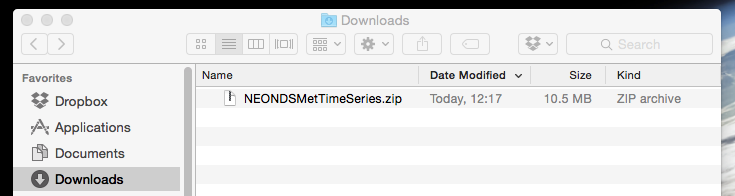
Second, we need to find the downloaded .zip file. Many browsers default to
downloading to the Downloads directory on your computer.
Note: You may have previously specified a specific directory (folder) for files
downloaded from the internet, if so, the .zip file will download there.
Screenshot of the computer's Downloads folder containing the
new NEONDSMetTimeSeries.zip file. Source: National Ecological
Observatory Network (NEON)
3) Move to data directory
Third, we must move the data files to the location we want to work with them.
We recommend moving the .zip to a dedicated data directory within the
Documents directory on your computer. This data directory can
then be a repository for all data subsets you use for the NEON Data Skills
tutorials. Note: If you chose to store your data in a different directory
(e.g., not in ~/Documents/data), modify the directions below with the
appropriate file path to your data directory.
4) Unzip/uncompress
Fourth, we need to unzip/uncompress the file so that the data files can be
accessed. Use your favorite tool that can unpackage/open .zip files (e.g.,
winzip, Archive Utility, etc). The files will now be accessible in a directory
named NEON-DS-Met-Time-Series containing all the subdirectories and files that
make up the dataset or the subdirectories and files will be unzipped directly
into the data directory. If the latter happens, they need to be moved into a
data/NEON-DS-Met-Time-Series directory.
### Challenge: Download and Unzip Teaching Data Subset
Want to make sure you have these steps down! Prepare the
**Site Layout Shapefiles Teaching Data Subset** so that the files
are accessible and ready to be opened in R.
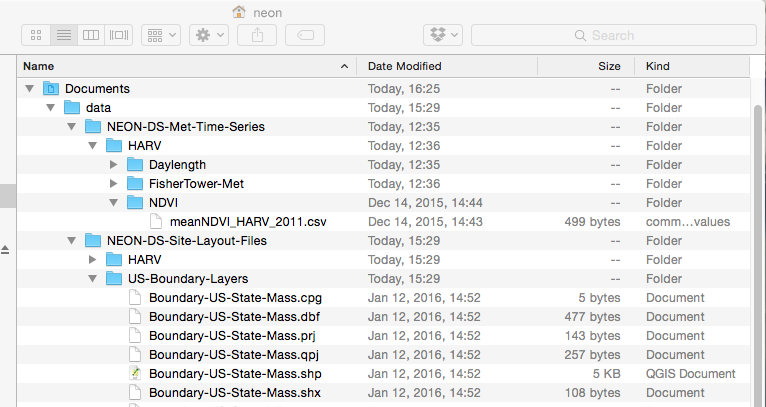
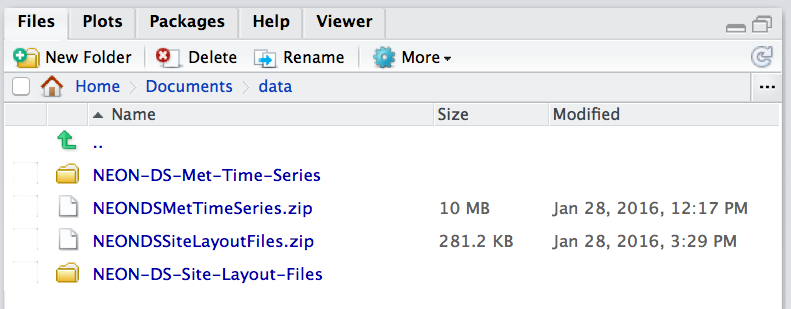
The directory should be the same as in this screenshot (below). Note that
NEON-DS-Site-Lyout-Files directory will only be in your directory if you
completed the challenge above. If you did not, your directory should look the
same but without that directory.
Screenshot of the neon directory with the nested
Documents, data, NEON-DS-Met-Time-Series, and other
directories. Source: National Ecological Observatory Network
(NEON)
Directory vs. Folder
"Directory" and "Folder" both refer to the same thing. Folder makes a lot of
sense when we think of an isolated folder as a "bin" containing many files.
However, the analogy to a physical file folder falters when we start thinking
about the relationship between different folders and how we tell a computer to
find a specific folder. This is why the term directory is often preferred. Any
directory (folder) can hold other directories and/or files. When we set the
working directory, we are telling the computer the location of the directory
(or folder) to start with when looking for other files or directories, or to
save any output to.
Full, Base, and Relative Paths
The data downloaded and unzipped in the previous steps are located within a
nested set of directories:
primary-level/home directory: neon
This directory isn't obvious as we are within this directory once we log
into the computer.
The full path is essentially the complete "directions" for how to find the
desired directory or file. It always starts with the home directory or root
(e.g., /Users/neon/). A full path is the base path when used to set
the working directory to a specific directory. The base path for the
NEON-DS-Met-Time-Series directory would be:
**Data Tip:** File or directory paths and the home
directory will appear slightly different in different operating systems.
Linux will appear as
`/home/neon/`. Windows will be similar to `C:\Documents and Settings\neon\` or
`C:\Users\neon\`. The format varies by Windows version. Make special note of
the direction of the slashes. Mac OS X and Unix format will appear as
`/Users/neon/`. This tutorial will show Mac OS X output unless specifically
noted.
### Challenge: Full File Path
Write out the full path for the `NEON-DS-Site-Layout-Shapefiles` directory. Use
the format of the operating system you are currently using.
Tip: When typing in the Rstudio console or an R script, if you surround your
filepath with quotes you can take advantage of the 'tab-completion' feature.
To use this feature, begin typing your filepath (e.g., "~/" or "C:") and then hit the tab button, which should pop up a list of possible directories and files that you could be pointing to. This method is awesome for avoiding typos in complex or long filepaths!
Bonus Points: Write the path as for one of the other operating systems.
Relative Path
A relative path is a path to a directory or file that starts from the
location determined by the working directory. If our working directory is set
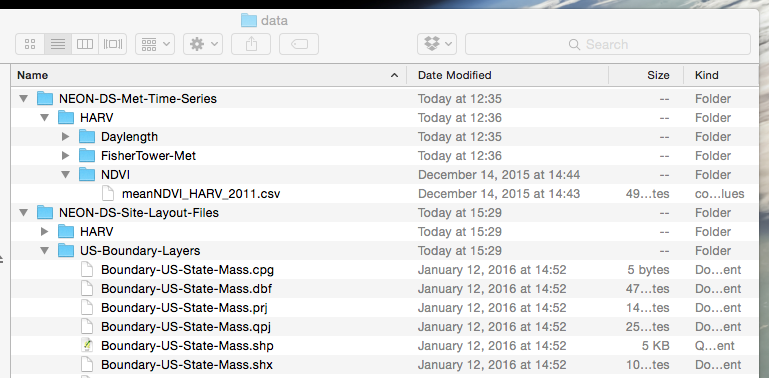
to the data directory,
/Users/neon/Documents/data/
we can then create a relative path for all directories and files within the
data directory.
Screenshot of the data directory containing the both NEON Data
Skills Teaching Subsets. Source: National Ecological Observatory Network
(NEON)
The relative path for the meanNDVI_HARV_2011.csv file would be:
### Challenge: Relative File Path
Use the format of your current operating system:
Write out the full path to for the Boundary-US-State-Mass.shp file.
Write out the relative path for the Boundary-US-State-Mass.shp file
assuming that the working directory is set to /Users/neon/Documents/data/.
Bonus: Write the paths as for one of the other operating systems.
The R Working Directory
In R, the working directory is the directory where R starts when looking for
any file to open (as directed by a file path) and where it saves any output.
Without a working directory all R scripts would need the full file path
written any time we wanted to open or save a file. It is more efficient if we
have a base file path set as our working directory and then all file
paths written in our scripts only consist of the file path relative to that base
path (a relative path).
If you are unfamiliar with the term full path, base path, or
relative path, please see the section below on Full, Base, and Relative Paths
for a more detailed explanation before continuing with this tutorial.
Find a Full Path to a File in Unknown Location
If you are unsure of the path to a specific directory or file, you can
find this information for a particular file/directory of interest by looking in
the:
Windows: Properties, General tab (right click on the file/directory) or
in the file path bar at the top of each window (select versions).
Mac OS X: Get Info (right clicking/control+click on the file/directory)
Mac OS X: /Users/neon/Documents/data/NEON-DS-Met-Time-Series
**Data Tip:** File or directory paths and the home
directory will appear slightly different in different operating systems.
Linux will appear as
`/home/neon/`. Windows will be similar to `C:\Documents and Settings\neon\` or
`C:\Users\neon\`. The format varies by Windows version. Make special note of
the direction of the slashes. Mac OS X and Unix format will appear as
`/Users/neon/`. This tutorial will show Mac OSX output unless specifically
noted.
Determine Current Working Directory
Once we are in the R program, we can view the current working directory
using the code getwd().
# view current working directory
getwd()
[1] "/Users/neon"
The working directory is currently set to the home directory /Users/neon.
Remember, your current working directory will have a different user name and may
appear different based on operating system.
This code can be used at any time to determine the current working directory.
Set the Working Directory
To set our current working directory to the location where our data are located,
we can either set the working directory in the R script or use our current GUI
to select the working directory.
**Data Tip:** All NEON Data Skills tutorials are
written assuming the working directory is the parent directory to the downloaded
data (the **data** directory in this tutorial). This allows for multiple data
subsets to be accessed in the tutorial without resetting the working directory.
We want to set our working directory to the data directory.
Set the Working Directory: Base Path in Script
We can set the working directory using the code setwd("PATH") where PATH is
the full path to the desired directory. You can enter "PATH" as a string (as
shown below), or save the file path as a string to a variable (e.g.,
wd <- "~/Documents/data") and then set the working directory based on
that variable (e.g., setwd(wd)).
This latter method is used in many of the NEON Data Skills tutorials because
of the advantages that this method provides. First, this method is extermely
flexible across different compute environments and formats, including personal
computers, Linux-based servers on 'the cloud' (e.g., AWS, CyVerse), and when using
Rmarkdown (.Rmd) documents. Second this method allows the tutorial's
user to set their working directory once as a string and then to reuse that
string as needed to reference input files, or make output files. For example,
some functions must have a full filepath to an input file (such as when reading
in HDF5 files). Third, this method simplifies the process that NEON uses internally
to create and update these tutorials. All in all, saving the working
directory as a string variable makes the code more explicit and determanistic without
relying on working knowledge of relative filepaths, making your code more
producible and easier for an outsider to interpret.
To practice, use these techniques to set your working directory to the directory where
you have the data saved, and check that you set the working directory correctly.
There is no R output from setwd(). If we want to check
that the working directory is correctly set we can use getwd().
Example Windows File Path
Notice the the backslashes used in Windows paths must be changed to slashes in
R.
# set the working directory to `data` folder
wd <- "C:/Users/neon/Documents/data"
setwd(wd)

# check to ensure path is correct
getwd()
[1] "C:/Users/neon/Documents/data"
Example Mac OS X File Path
# set the working directory to `data` folder
wd <- "/Users/neon/Documents/data"
setwd(wd)

# check to ensure path is correct
getwd()
[1] "/Users/neon/Documents/data"
**Data Tip:** If using RStudio, you can view the
contents of the working directory in the Files pane.
The Files pane in RStudio shows the contents of the current
working directory. Source: National Ecological Observatory Network
(NEON)
Set the Working Directory: Using RStudio GUI
You can also set the working directory using the Rstudio and/or R graphical user interface (GUI).
This method is easy for beginners to learn, but it also makes your code less
reproducible because it relies on a person to follow certain instructions, which
is a process that introduces human error. It may also be impossible for an observer
to determine where your input data are stored, which can make troubleshooting
more difficult as well. Use this method when getting started, or when you will
find it helpful to use a graphical user interface to navigate your files.
Note that this method will run a single line setwd() command in the console
when you select your working directory, so you can copy/paste that line into
your script for future use!
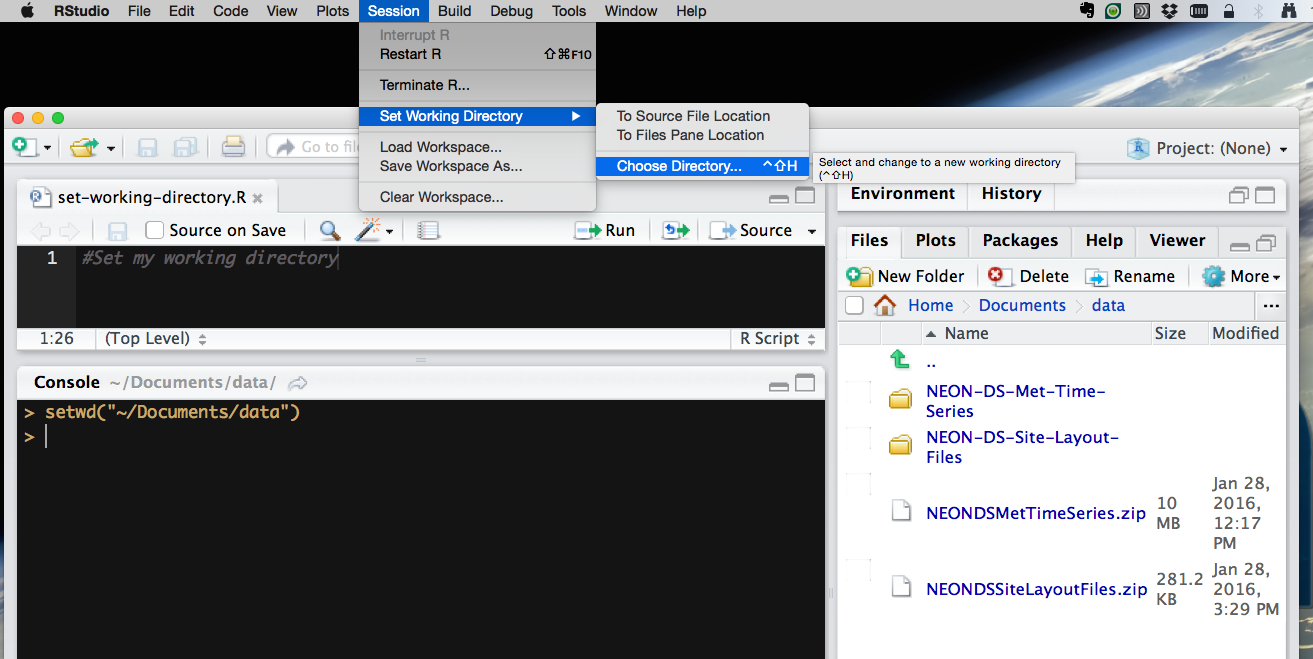
Go to Session in menu bar,
select Select Working Directory,
select Choose Directory,
in the new window that appears, select the appropriate directory.
How to set the working directory using the RStudio GUI.
Source: National Ecological Observatory Network (NEON)
Set the Working Directory: Using R GUI
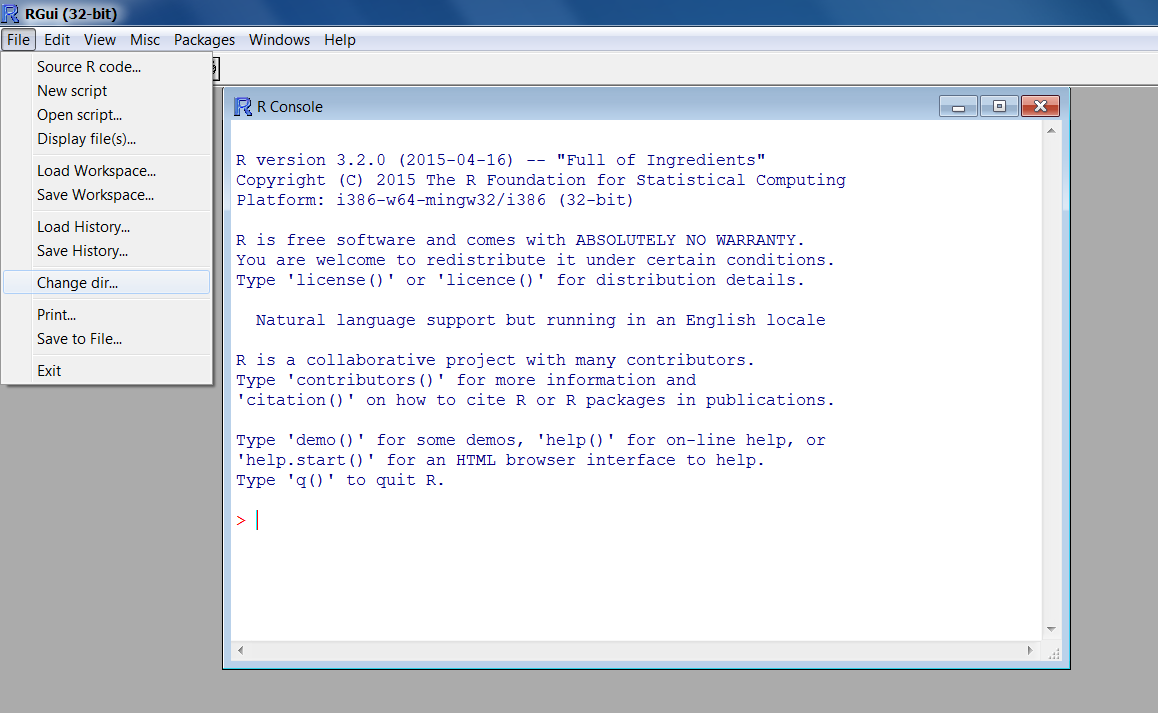
Windows Operating Systems:
Go to the File menu bar,
select Change dir... or Change Working Directory,
in the new window that appears, select the appropriate directory.
How to set the working directory using the R GUI in Windows.
Source: National Ecological Observatory Network (NEON)
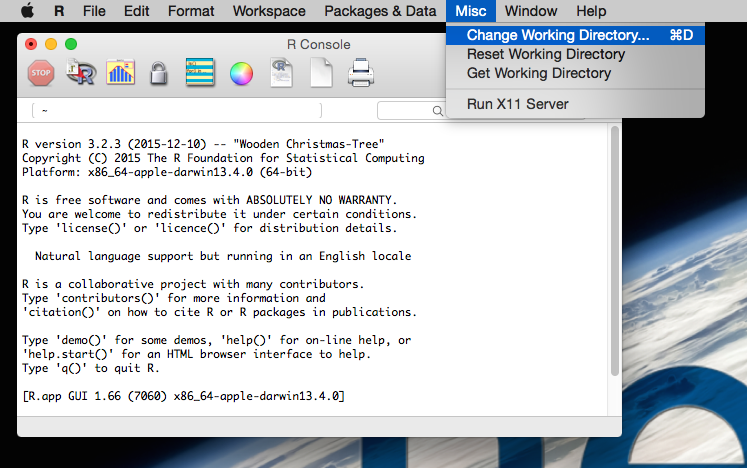
Mac Operating Systems:
Go to the Misc menu,
select Change Working Directory,
in the new window that appears, select the appropriate directory.
How to set the working directory using the R GUI in Mac OS X.
Source: National Ecological Observatory Network (NEON)
This tutorial explains how to crop a raster using the extent of a vector
shapefile. We will also cover how to extract values from a raster that occur
within a set of polygons, or in a buffer (surrounding) region around a set of
points.
Learning Objectives
After completing this tutorial, you will be able to:
Crop a raster to the extent of a vector layer.
Extract values from raster that correspond to a vector file
overlay.
Things You’ll Need To Complete This Tutorial
You will need the most current version of R and, preferably, RStudio loaded
on your computer to complete this tutorial.
R Script & Challenge Code: NEON data lessons often contain challenges that reinforce
learned skills. If available, the code for challenge solutions is found in the
downloadable R script of the entire lesson, available in the footer of each lesson page.
Crop a Raster to Vector Extent
We often work with spatial layers that have different spatial extents.
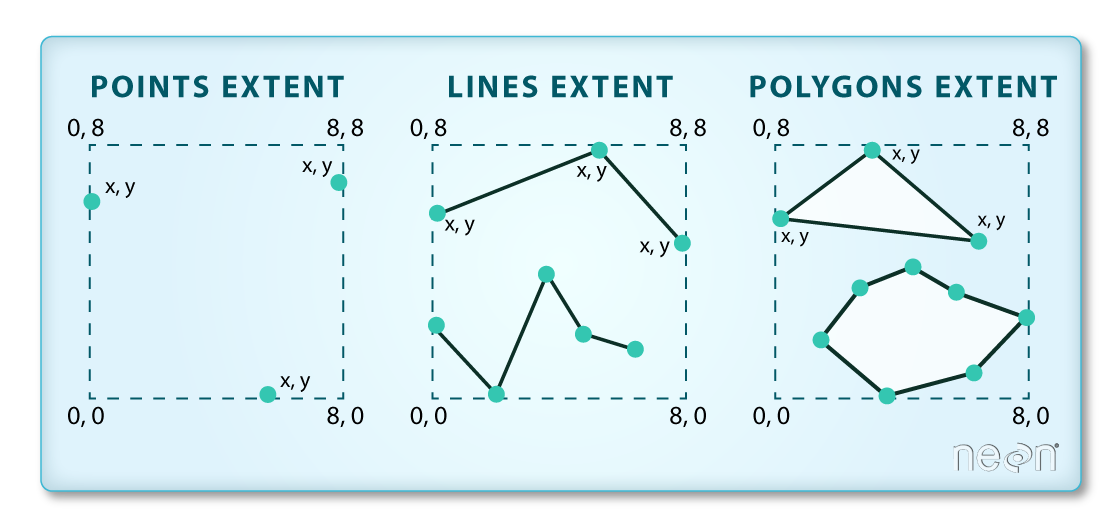
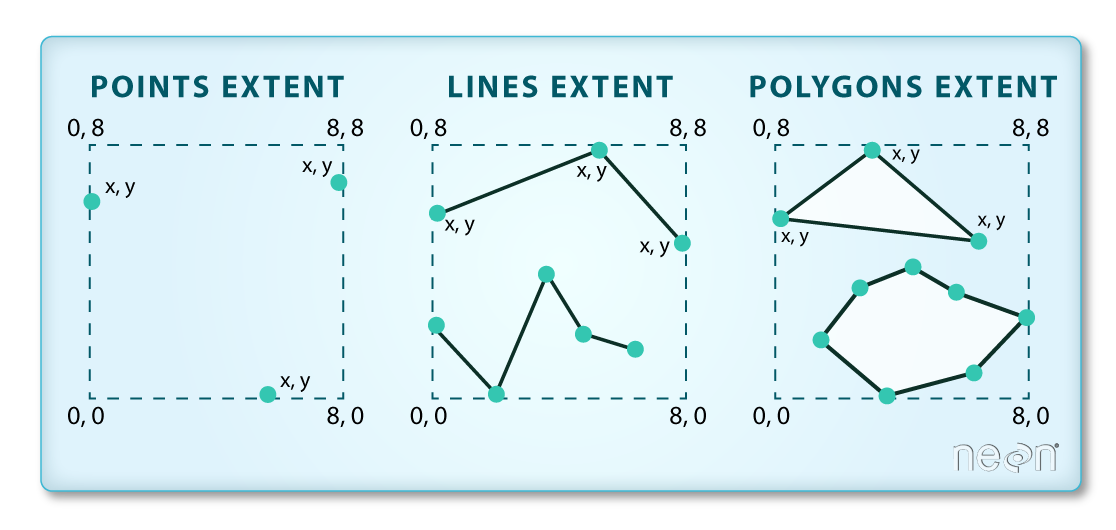
The spatial extent of a shapefile or R spatial object represents
the geographic "edge" or location that is the furthest north, south east and
west. Thus is represents the overall geographic coverage of the spatial
object. Image Source: National Ecological Observatory Network (NEON)
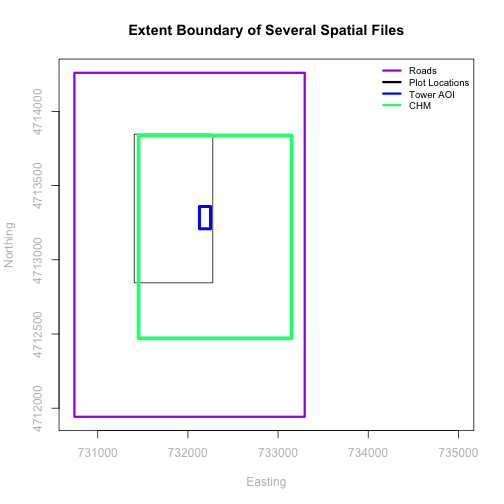
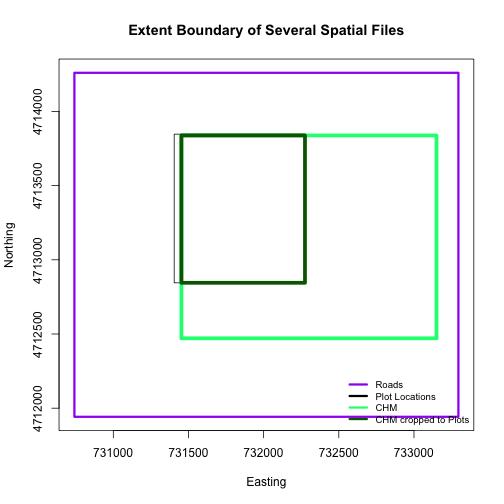
The graphic below illustrates the extent of several of the spatial layers that
we have worked with in this vector data tutorial series:
Area of interest (AOI) -- blue
Roads and trails -- purple
Vegetation plot locations -- black
and a raster file, that we will introduce this tutorial:
A canopy height model (CHM) in GeoTIFF format -- green
Frequent use cases of cropping a raster file include reducing file size and
creating maps.
Sometimes we have a raster file that is much larger than our study area or area
of interest. In this case, it is often most efficient to crop the raster to the extent of our
study area to reduce file sizes as we process our data.
Cropping a raster can also be useful when creating visually appealing maps so that the
raster layer matches the extent of the desired vector layers.
Import Data
We will begin by importing four vector shapefiles (field site boundary,
roads/trails, tower location, and veg study plot locations) and one raster
GeoTIFF file, a Canopy Height Model for the Harvard Forest, Massachusetts.
These data can be used to create maps that characterize our study location.
# load necessary packages
library(rgdal)  # for vector work; sp package should always load with rgdal.
library (raster)

# set working directory to data folder
# setwd("pathToDirHere")

# Imported in Vector 00: Vector Data in R - Open & Plot Data
# shapefile
aoiBoundary_HARV <- readOGR("NEON-DS-Site-Layout-Files/HARV/",
                            "HarClip_UTMZ18")
# Import a line shapefile
lines_HARV <- readOGR( "NEON-DS-Site-Layout-Files/HARV/",
                       "HARV_roads")
# Import a point shapefile
point_HARV <- readOGR("NEON-DS-Site-Layout-Files/HARV/",
                      "HARVtower_UTM18N")

# Imported in  Vector 02: .csv to Shapefile in R
# import raster Canopy Height Model (CHM)
chm_HARV <-
  raster("NEON-DS-Airborne-Remote-Sensing/HARV/CHM/HARV_chmCrop.tif")
Crop a Raster Using Vector Extent
We can use the crop function to crop a raster to the extent of another spatial
object. To do this, we need to specify the raster to be cropped and the spatial
object that will be used to crop the raster. R will use the extent of the
spatial object as the cropping boundary.
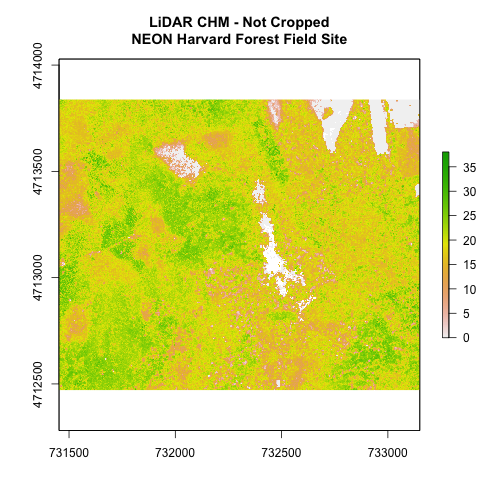
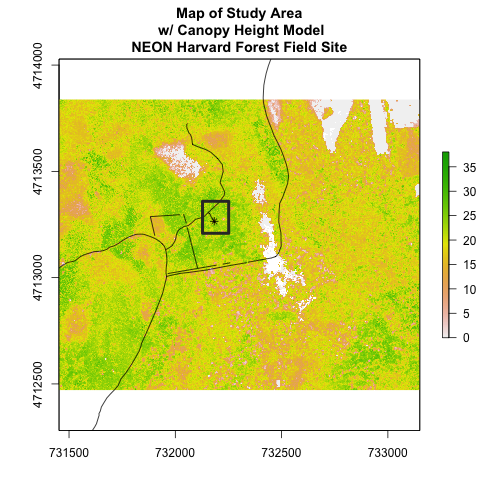
# plot full CHM
plot(chm_HARV,
     main="LiDAR CHM - Not Cropped\nNEON Harvard Forest Field Site")
# crop the chm
chm_HARV_Crop <- crop(x = chm_HARV, y = aoiBoundary_HARV)

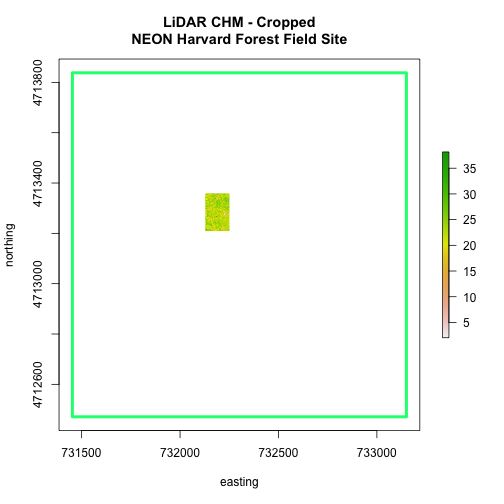
# plot full CHM
plot(extent(chm_HARV),
     lwd=4,col="springgreen",
     main="LiDAR CHM - Cropped\nNEON Harvard Forest Field Site",
     xlab="easting", ylab="northing")

plot(chm_HARV_Crop,
     add=TRUE)
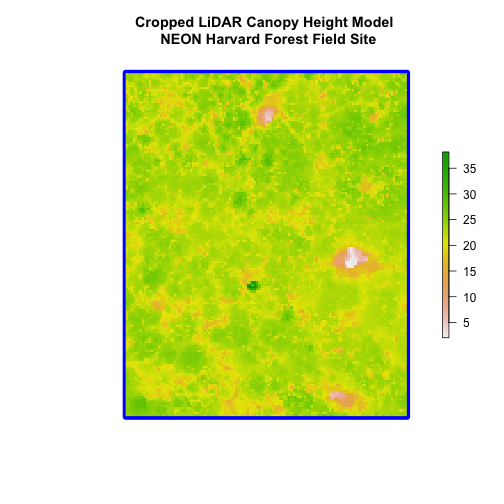
We can see from the plot above that the full CHM extent (plotted in green) is
much larger than the resulting cropped raster. Our new cropped CHM now has the
same extent as the aoiBoundary_HARV object that was used as a crop extent
(blue boarder below).
We can look at the extent of all the other objects.
# lets look at the extent of all of our objects
extent(chm_HARV)

## class      : Extent
## xmin       : 731453
## xmax       : 733150
## ymin       : 4712471
## ymax       : 4713838

extent(chm_HARV_Crop)

## class      : Extent
## xmin       : 732128
## xmax       : 732251
## ymin       : 4713209
## ymax       : 4713359

extent(aoiBoundary_HARV)

## class      : Extent
## xmin       : 732128
## xmax       : 732251.1
## ymin       : 4713209
## ymax       : 4713359
Which object has the largest extent? Our plot location extent is not the
largest but it is larger than the AOI Boundary. It would be nice to see our
vegetation plot locations with the Canopy Height Model information.
### Challenge: Crop to Vector Points Extent
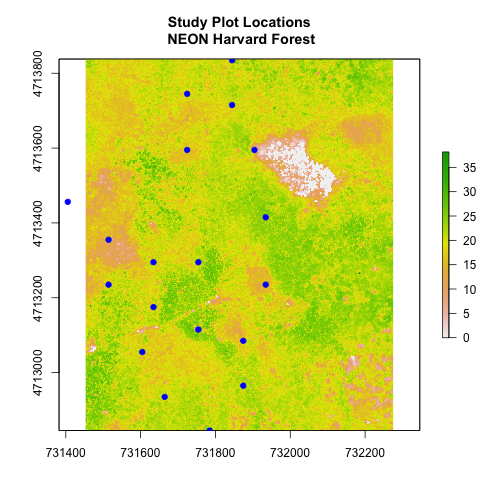
Crop the Canopy Height Model to the extent of the study plot locations.
Plot the vegetation plot location points on top of the Canopy Height Model.
If you completed the
.csv to Shapefile in R tutorial
you have these plot locations as the spatial R spatial object
plot.locationsSp_HARV. Otherwise, import the locations from the
\HARV\PlotLocations_HARV.shp shapefile in the downloaded data.
In the plot above, created in the challenge, all the vegetation plot locations
(blue) appear on the Canopy Height Model raster layer except for one. One is
situated on the white space. Why?
A modification of the first figure in this tutorial is below, showing the
relative extents of all the spatial objects. Notice that the extent for our
vegetation plot layer (black) extends further west than the extent of our CHM
raster (bright green). The crop function will make a raster extent smaller, it
will not expand the extent in areas where there are no data. Thus, extent of our
vegetation plot layer will still extend further west than the extent of our
(cropped) raster data (dark green).
Define an Extent
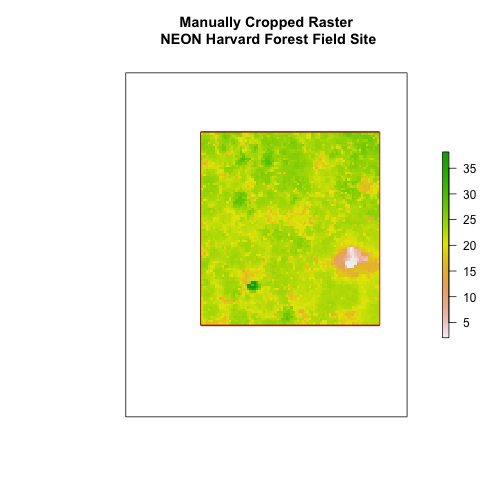
We can also use an extent() method to define an extent to be used as a cropping
boundary. This creates an object of class extent.
Once we have defined the extent, we can use the crop function to crop our
raster.
# crop raster
CHM_HARV_manualCrop <- crop(x = chm_HARV, y = new.extent)

# plot extent boundary and newly cropped raster
plot(aoiBoundary_HARV,
     main = "Manually Cropped Raster\n NEON Harvard Forest Field Site")
plot(new.extent,
     col="brown",
     lwd=4,
     add = TRUE)
plot(CHM_HARV_manualCrop,
     add = TRUE)
Notice that our manually set new.extent (in red) is smaller than the
aoiBoundary_HARV and that the raster is now the same as the new.extent
object.
See the documentation for the extent() function for more ways
to create an extent object using ??raster::extent
Extract Raster Pixels Values Using Vector Polygons
Often we want to extract values from a raster layer for particular locations -
for example, plot locations that we are sampling on the ground.
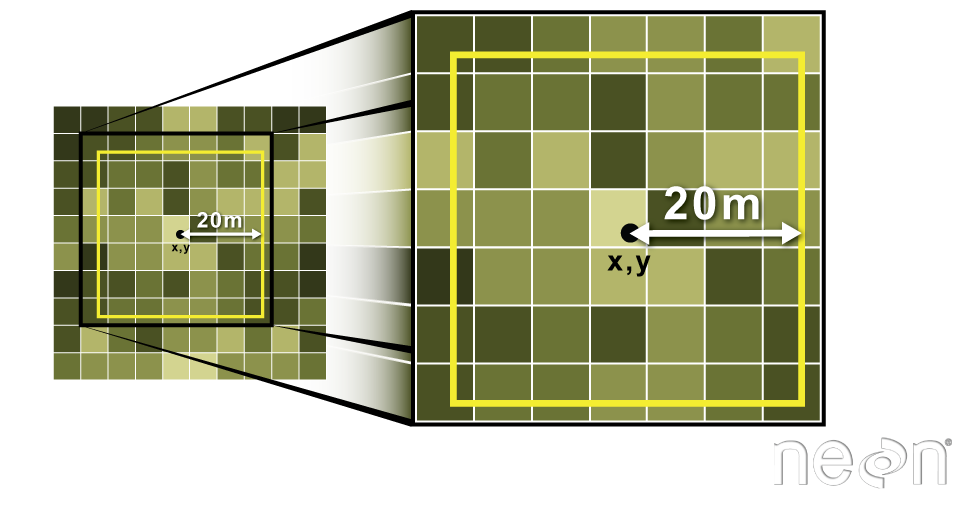
Extract raster information using a polygon boundary. We can
extract all pixel values within 20m of our x,y point of interest. These can
then be summarized into some value of interest (e.g. mean, maximum, total).
Source: National Ecological Observatory Network (NEON).
To do this in R, we use the extract() function. The extract() function
requires:
The raster that we wish to extract values from
The vector layer containing the polygons that we wish to use as a boundary or
boundaries
NOTE: We can tell it to store the output values in a data.frame using
df=TRUE (optional, default is to NOT return a data.frame) .
We will begin by extracting all canopy height pixel values located within our
aoiBoundary polygon which surrounds the tower located at the NEON Harvard
Forest field site.
# extract tree height for AOI
# set df=TRUE to return a data.frame rather than a list of values
tree_height <- raster::extract(x = chm_HARV,
                       y = aoiBoundary_HARV,
                       df = TRUE)

# view the object
head(tree_height)

##   ID HARV_chmCrop
## 1  1        21.20
## 2  1        23.85
## 3  1        23.83
## 4  1        22.36
## 5  1        23.95
## 6  1        23.89

nrow(tree_height)

## [1] 18450
When we use the extract command, R extracts the value for each pixel located
within the boundary of the polygon being used to perform the extraction, in
this case the aoiBoundary object (1 single polygon). Using the aoiBoundary as the boundary polygon, the
function extracted values from 18,450 pixels.
The extract function returns a list of values as default, but you can tell R
to summarize the data in some way or to return the data as a data.frame
(df=TRUE).
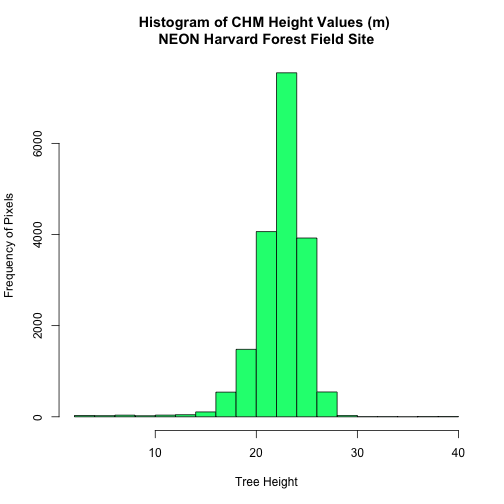
We can create a histogram of tree height values within the boundary to better
understand the structure or height distribution of trees. We can also use the
summary() function to view descriptive statistics including min, max and mean
height values to help us better understand vegetation at our field
site.
# view histogram of tree heights in study area
hist(tree_height$HARV_chmCrop,
     main="Histogram of CHM Height Values (m) \nNEON Harvard Forest Field Site",
     col="springgreen",
     xlab="Tree Height", ylab="Frequency of Pixels")
# view summary of values
summary(tree_height$HARV_chmCrop)

##    Min. 1st Qu.  Median    Mean 3rd Qu.    Max.
##    2.03   21.36   22.81   22.43   23.97   38.17
Check out the documentation for the extract() function for more details
(??raster::extract).
Summarize Extracted Raster Values
We often want to extract summary values from a raster. We can tell R the type
of summary statistic we are interested in using the fun= method. Let's extract
a mean height value for our AOI.
# extract the average tree height (calculated using the raster pixels)
# located within the AOI polygon
av_tree_height_AOI <- raster::extract(x = chm_HARV,
                              y = aoiBoundary_HARV,
                              fun=mean,
                              df=TRUE)

# view output
av_tree_height_AOI

##   ID HARV_chmCrop
## 1  1     22.43018
It appears that the mean height value, extracted from our LiDAR data derived
canopy height model is 22.43 meters.
Extract Data using x,y Locations
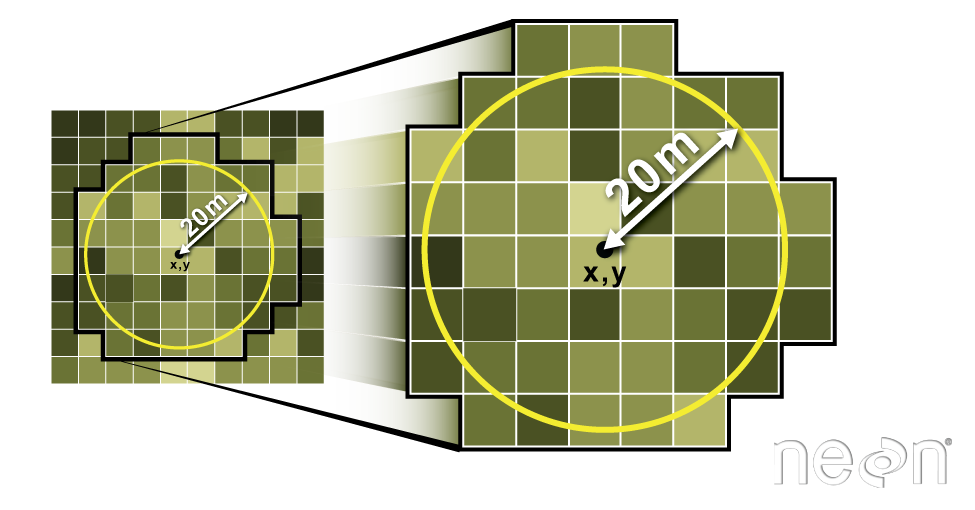
We can also extract pixel values from a raster by defining a buffer or area
surrounding individual point locations using the extract() function. To do this
we define the summary method (fun=mean) and the buffer distance (buffer=20)
which represents the radius of a circular region around each point.
The units of the buffer are the same units of the data CRS.
Extract raster information using a buffer region. All pixels
that are touched by the buffer region are included in the extract.
Source: National Ecological Observatory Network (NEON).
Let's put this into practice by figuring out the average tree height in the
20m around the tower location.
# what are the units of our buffer
crs(point_HARV)

## CRS arguments:
##  +proj=utm +zone=18 +datum=WGS84 +units=m +no_defs

# extract the average tree height (height is given by the raster pixel value)
# at the tower location
# use a buffer of 20 meters and mean function (fun)
av_tree_height_tower <- raster::extract(x = chm_HARV,
                                y = point_HARV,
                                buffer=20,
                                fun=mean,
                                df=TRUE)

# view data
head(av_tree_height_tower)

##   ID HARV_chmCrop
## 1  1     22.38812

# how many pixels were extracted
nrow(av_tree_height_tower)

## [1] 1
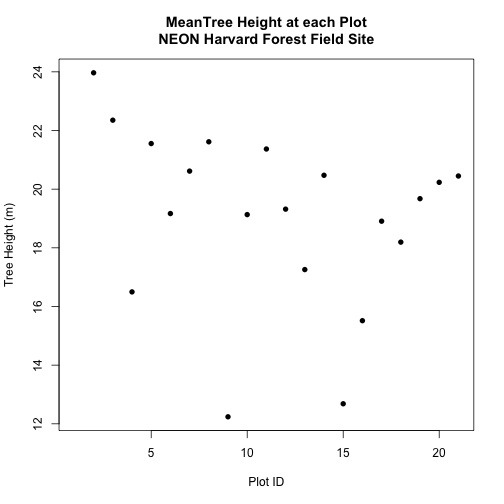
### Challenge: Extract Raster Height Values For Plot Locations
Use the plot location points shapefile HARV/plot.locations_HARV.shp or spatial
object plot.locationsSp_HARV to extract an average tree height value for the
area within 20m of each vegetation plot location in the study area.
Create a simple plot showing the mean tree height of each plot using the plot()
function in base-R.
This tutorial will review how to import spatial points stored in .csv (Comma
Separated Value) format into
R as a spatial object - a SpatialPointsDataFrame. We will also
reproject data imported in a shapefile format, export a shapefile from an
R spatial object, and plot raster and vector data as
layers in the same plot.
Learning Objectives
After completing this tutorial, you will be able to:
Import .csv files containing x,y coordinate locations into R.
Convert a .csv to a spatial object.
Project coordinate locations provided in a Geographic
Coordinate System (Latitude, Longitude) to a projected coordinate system (UTM).
Plot raster and vector data in the same plot to create a map.
Things You’ll Need To Complete This Tutorial
You will need the most current version of R and, preferably, RStudio loaded
on your computer to complete this tutorial.
R Script & Challenge Code: NEON data lessons often contain challenges that reinforce
learned skills. If available, the code for challenge solutions is found in the
downloadable R script of the entire lesson, available in the footer of each lesson page.
Spatial Data in Text Format
The HARV_PlotLocations.csv file contains x, y (point) locations for study
plots where NEON collects data on
vegetation and other ecological metrics.
We would like to:
Create a map of these plot locations.
Export the data in a shapefile format to share with our colleagues. This
shapefile can be imported into any GIS software.
Create a map showing vegetation height with plot locations layered on top.
Spatial data are sometimes stored in a text file format (.txt or .csv). If
the text file has an associated x and y location column, then we can
convert it into an R spatial object, which, in the case of point data,
will be a SpatialPointsDataFrame. The SpatialPointsDataFrame
allows us to store both the x,y values that represent the coordinate location
of each point and the associated attribute data, or columns describing each
feature in the spatial object.
**Data Tip:** There is a `SpatialPoints` object (not
`SpatialPointsDataFrame`) in R that does not allow you to store associated
attributes.
We will use the rgdal and raster libraries in this tutorial.
# load packages
library(rgdal)  # for vector work; sp package should always load with rgdal
library (raster)   # for metadata/attributes- vectors or rasters

# set working directory to data folder
# setwd("pathToDirHere")
Import .csv
To begin let's import the .csv file that contains plot coordinate x, y
locations at the NEON Harvard Forest Field Site (HARV_PlotLocations.csv) into
R. Note that we set stringsAsFactors=FALSE so our data imports as a
character rather than a factor class.
Also note that plot.locations_HARV is a data.frame that contains 21
locations (rows) and 15 variables (attributes).
Next, let's explore data.frame to determine whether it contains
columns with coordinate values. If we are lucky, our .csv will contain columns
labeled:
"X" and "Y" OR
Latitude and Longitude OR
easting and northing (UTM coordinates)
Let's check out the column names of our file to look for these.
View the column names, we can see that our data.frame that contains several
fields that might contain spatial information. The plot.locations_HARV$easting
and plot.locations_HARV$northing columns contain these coordinate values.
# view first 6 rows of the X and Y columns
head(plot.locations_HARV$easting)

## [1] 731405.3 731934.3 731754.3 731724.3 732125.3 731634.3

head(plot.locations_HARV$northing)

## [1] 4713456 4713415 4713115 4713595 4713846 4713295

# note that  you can also call the same two columns using their COLUMN NUMBER
# view first 6 rows of the X and Y columns
head(plot.locations_HARV[,1])

## [1] 731405.3 731934.3 731754.3 731724.3 732125.3 731634.3

head(plot.locations_HARV[,2])

## [1] 4713456 4713415 4713115 4713595 4713846 4713295
So, we have coordinate values in our data.frame but in order to convert our
data.frame to a SpatialPointsDataFrame, we also need to know the CRS
associated with these coordinate values.
There are several ways to figure out the CRS of spatial data in text format.
We can explore the file itself to see if CRS information is embedded in the
file header or somewhere in the data columns.
Following the easting and northing columns, there is a geodeticDa and a
utmZone column. These appear to contain CRS information
(datum and projection), so let's view those next.
# view first 6 rows of the X and Y columns
head(plot.locations_HARV$geodeticDa)

## [1] "WGS84" "WGS84" "WGS84" "WGS84" "WGS84" "WGS84"

head(plot.locations_HARV$utmZone)

## [1] "18N" "18N" "18N" "18N" "18N" "18N"
It is not typical to store CRS information in a column, but this particular
file contains CRS information this way. The geodeticDa and utmZone columns
contain the information that helps us determine the CRS:
To create the proj4 associated with UTM Zone 18 WGS84 we could look up the
projection on the
spatial reference website
which contains a list of CRS formats for each projection:
However, if we have other data in the UTM Zone 18N projection, it's much
easier to simply assign the crs() in proj4 format from that object to our
new spatial object. Let's import the roads layer from Harvard forest and check
out its CRS.
Note: if you do not have a CRS to borrow from another raster, see Option 2 in
the next section for how to convert to a spatial object and assign a
CRS.
# Import the line shapefile
lines_HARV <- readOGR( "NEON-DS-Site-Layout-Files/HARV/", "HARV_roads")

## OGR data source with driver: ESRI Shapefile
## Source: "/Users/olearyd/Git/data/NEON-DS-Site-Layout-Files/HARV", layer: "HARV_roads"
## with 13 features
## It has 15 fields

# view CRS
crs(lines_HARV)

## CRS arguments:
##  +proj=utm +zone=18 +datum=WGS84 +units=m +no_defs

# view extent
extent(lines_HARV)

## class      : Extent
## xmin       : 730741.2
## xmax       : 733295.5
## ymin       : 4711942
## ymax       : 4714260
Exploring the data above, we can see that the lines shapefile is in
UTM zone 18N. We can thus use the CRS from that spatial object to convert our
non-spatial data.frame into a spatialPointsDataFrame.
Next, let's create a crs object that we can use to define the CRS of our
SpatialPointsDataFrame when we create it.
Let's convert our data.frame into a SpatialPointsDataFrame. To do
this, we need to specify:
The columns containing X (easting) and Y (northing) coordinate values
The CRS that the column coordinate represent (units are included in the CRS).
Optional: the other columns stored in the data frame that you wish to append
as attributes to your spatial object.
We can add the CRS in two ways; borrow the CRS from another raster that
already has it assigned (Option 1) or to add it directly using the proj4string
(Option 2).
Option 1: Borrow CRS
We will use the SpatialPointsDataFrame() function to perform the conversion
and add the CRS from our utm18nCRS object.
# note that the easting and northing columns are in columns 1 and 2
plot.locationsSp_HARV <- SpatialPointsDataFrame(plot.locations_HARV[,1:2],
                    plot.locations_HARV,    #the R object to convert
                    proj4string = utm18nCRS)   # assign a CRS

# look at CRS
crs(plot.locationsSp_HARV)

## CRS arguments:
##  +proj=utm +zone=18 +datum=WGS84 +units=m +no_defs
Option 2: Assigning CRS
If we didn't have a raster from which to borrow the CRS, we can directly assign
it using either of two equivalent, but slightly different syntaxes.
# first, convert the data.frame to spdf
r <- SpatialPointsDataFrame(plot.locations_HARV[,1:2],
                    plot.locations_HARV)

# second, assign the CRS in one of two ways
r <- crs("+proj=utm +zone=18 +datum=WGS84 +units=m +no_defs
				 +ellps=WGS84 +towgs84=0,0,0" )
# or

crs(r) <- "+proj=utm +zone=18 +datum=WGS84 +units=m +no_defs
				 +ellps=WGS84 +towgs84=0,0,0"
Plot Spatial Object
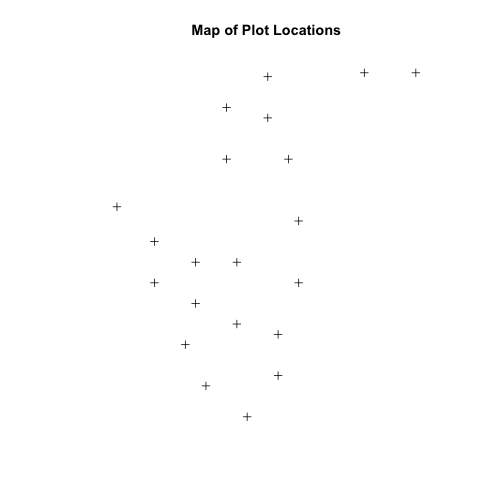
We now have a spatial R object, we can plot our newly created spatial object.
# plot spatial object
plot(plot.locationsSp_HARV,
     main="Map of Plot Locations")
Define Plot Extent
In
Open and Plot Shapefiles in R
we learned about spatial object extent. When we plot several spatial layers in
R, the first layer that is plotted becomes the extent of the plot. If we add
additional layers that are outside of that extent, then the data will not be
visible in our plot. It is thus useful to know how to set the spatial extent of
a plot using xlim and ylim.
Let's first create a SpatialPolygon object from the
NEON-DS-Site-Layout-Files/HarClip_UTMZ18 shapefile. (If you have completed
Vector 00-02 tutorials in this
Introduction to Working with Vector Data in R
series, you can skip this code as you have already created this object.)
# create boundary object
aoiBoundary_HARV <- readOGR("NEON-DS-Site-Layout-Files/HARV/",
                            "HarClip_UTMZ18")

## OGR data source with driver: ESRI Shapefile
## Source: "/Users/olearyd/Git/data/NEON-DS-Site-Layout-Files/HARV", layer: "HarClip_UTMZ18"
## with 1 features
## It has 1 fields
## Integer64 fields read as strings:  id
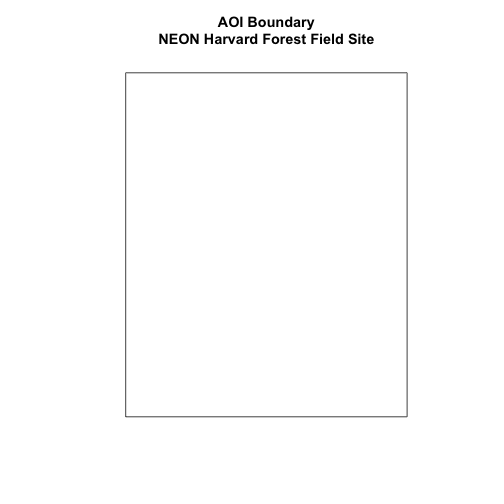
To begin, let's plot our aoiBoundary object with our vegetation plots.
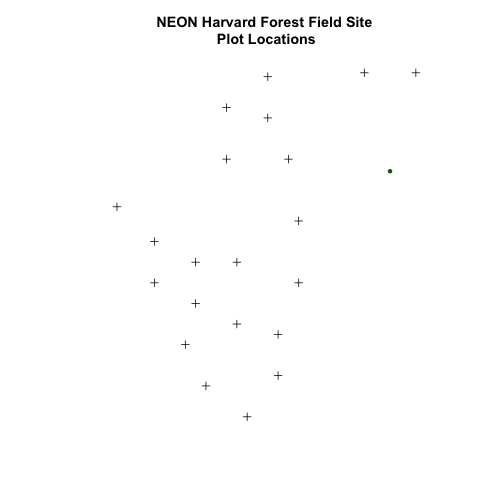
When we attempt to plot the two layers together, we can see that the plot
locations are not rendered. Our data are in the same projection,
so what is going on?
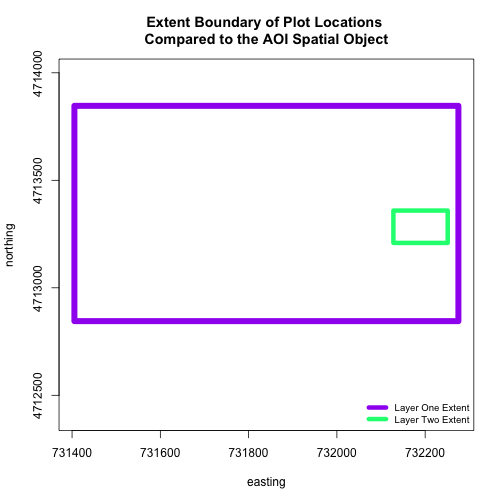
# view extent of each
extent(aoiBoundary_HARV)

## class      : Extent
## xmin       : 732128
## xmax       : 732251.1
## ymin       : 4713209
## ymax       : 4713359

extent(plot.locationsSp_HARV)

## class      : Extent
## xmin       : 731405.3
## xmax       : 732275.3
## ymin       : 4712845
## ymax       : 4713846

# add extra space to right of plot area;
# par(mar=c(5.1, 4.1, 4.1, 8.1), xpd=TRUE)

plot(extent(plot.locationsSp_HARV),
     col="purple",
     xlab="easting",
     ylab="northing", lwd=8,
     main="Extent Boundary of Plot Locations \nCompared to the AOI Spatial Object",
     ylim=c(4712400,4714000)) # extent the y axis to make room for the legend

plot(extent(aoiBoundary_HARV),
     add=TRUE,
     lwd=6,
     col="springgreen")

legend("bottomright",
       #inset=c(-0.5,0),
       legend=c("Layer One Extent", "Layer Two Extent"),
       bty="n",
       col=c("purple","springgreen"),
       cex=.8,
       lty=c(1,1),
       lwd=6)
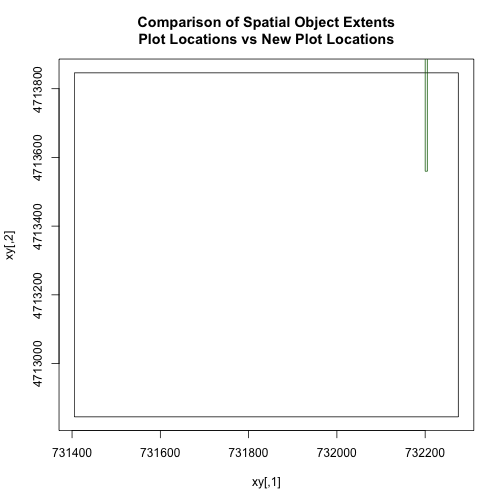
The extents of our two objects are different. plot.locationsSp_HARV is
much larger than aoiBoundary_HARV. When we plot aoiBoundary_HARV first, R
uses the extent of that object to as the plot extent. Thus the points in the
plot.locationsSp_HARV object are not rendered. To fix this, we can manually
assign the plot extent using xlims and ylims. We can grab the extent
values from the spatial object that has a larger extent. Let's try it.
The spatial extent of a shapefile or R spatial object
represents the geographic edge or location that is the furthest
north, south, east and west. Thus is represents the overall geographic
coverage of the spatial object. Source: National Ecological Observatory
Network (NEON)
plotLoc.extent <- extent(plot.locationsSp_HARV)
plotLoc.extent

## class      : Extent
## xmin       : 731405.3
## xmax       : 732275.3
## ymin       : 4712845
## ymax       : 4713846

# grab the x and y min and max values from the spatial plot locations layer
xmin <- plotLoc.extent@xmin
xmax <- plotLoc.extent@xmax
ymin <- plotLoc.extent@ymin
ymax <- plotLoc.extent@ymax

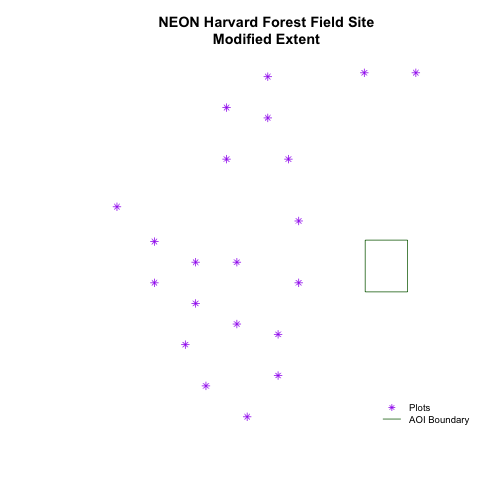
# adjust the plot extent using x and ylim
plot(aoiBoundary_HARV,
     main="NEON Harvard Forest Field Site\nModified Extent",
     border="darkgreen",
     xlim=c(xmin,xmax),
     ylim=c(ymin,ymax))

plot(plot.locationsSp_HARV,
     pch=8,
		 col="purple",
		 add=TRUE)

# add a legend
legend("bottomright",
       legend=c("Plots", "AOI Boundary"),
       pch=c(8,NA),
       lty=c(NA,1),
       bty="n",
       col=c("purple","darkgreen"),
       cex=.8)
## Challenge - Import & Plot Additional Points
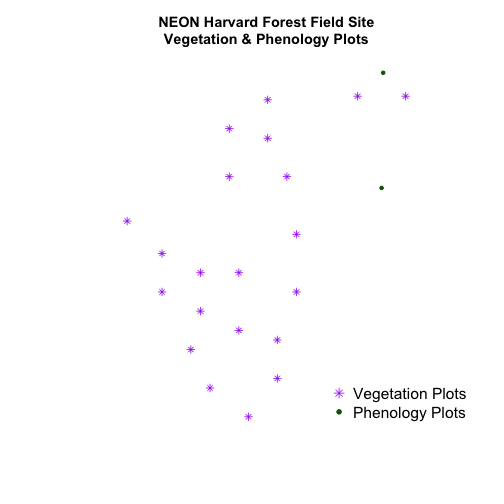
We want to add two phenology plots to our existing map of vegetation plot
locations.
Import the .csv: HARV/HARV_2NewPhenPlots.csv into R and do the following:
Find the X and Y coordinate locations. Which value is X and which value is Y?
These data were collected in a geographic coordinate system (WGS84). Convert
the data.frame into an R spatialPointsDataFrame.
Plot the new points with the plot location points from above. Be sure to add
a legend. Use a different symbol for the 2 new points! You may need to adjust
the X and Y limits of your plot to ensure that both points are rendered by R!
If you have extra time, feel free to add roads and other layers to your map!
In this tutorial, we will create a base map of our study site using a United States
state and country boundary accessed from the
United States Census Bureau.
We will learn how to map vector data that are in different CRS and thus
don't line up on a map.
Learning Objectives
After completing this tutorial, you will be able to:
Identify the CRS of a spatial dataset.
Differentiate between with geographic vs. projected coordinate reference systems.
Use the proj4 string format which is one format used used to
store & reference the CRS of a spatial object.
Things You’ll Need To Complete This Tutorial
You will need the most current version of R and, preferably, RStudio loaded
on your computer to complete this tutorial.
R Script & Challenge Code: NEON data lessons often contain challenges that reinforce
learned skills. If available, the code for challenge solutions is found in the
downloadable R script of the entire lesson, available in the footer of each lesson page.
Working With Spatial Data From Different Sources
To support a project, we often need to gather spatial datasets for from
different sources and/or data that cover different spatial extents. Spatial
data from different sources and that cover different extents are often in
different Coordinate Reference Systems (CRS).
Some reasons for data being in different CRS include:
The data are stored in a particular CRS convention used by the data
provider; perhaps a federal agency or a state planning office.
The data are stored in a particular CRS that is customized to a region.
For instance, many states prefer to use a State Plane projection customized
for that state.
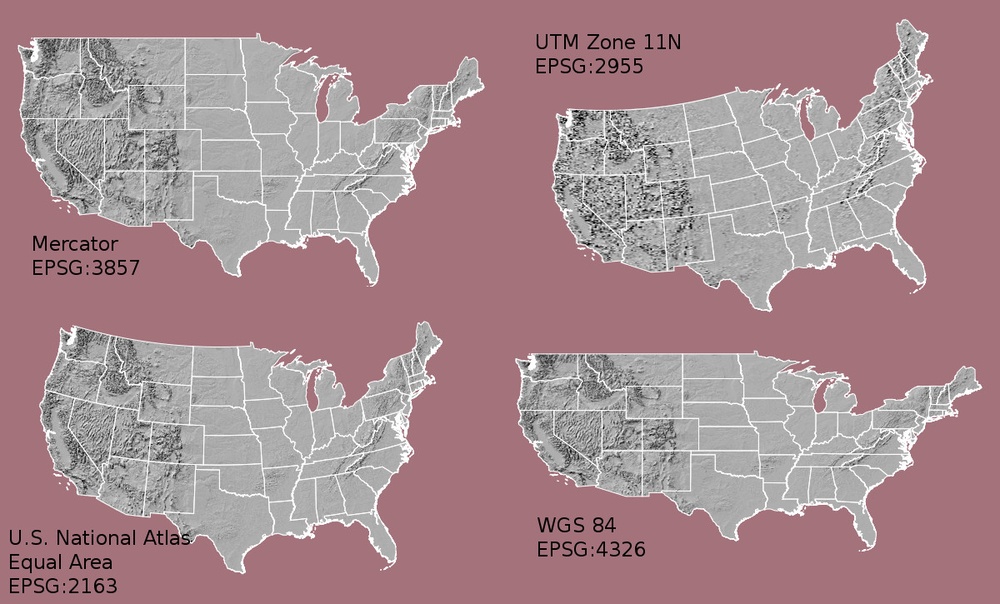
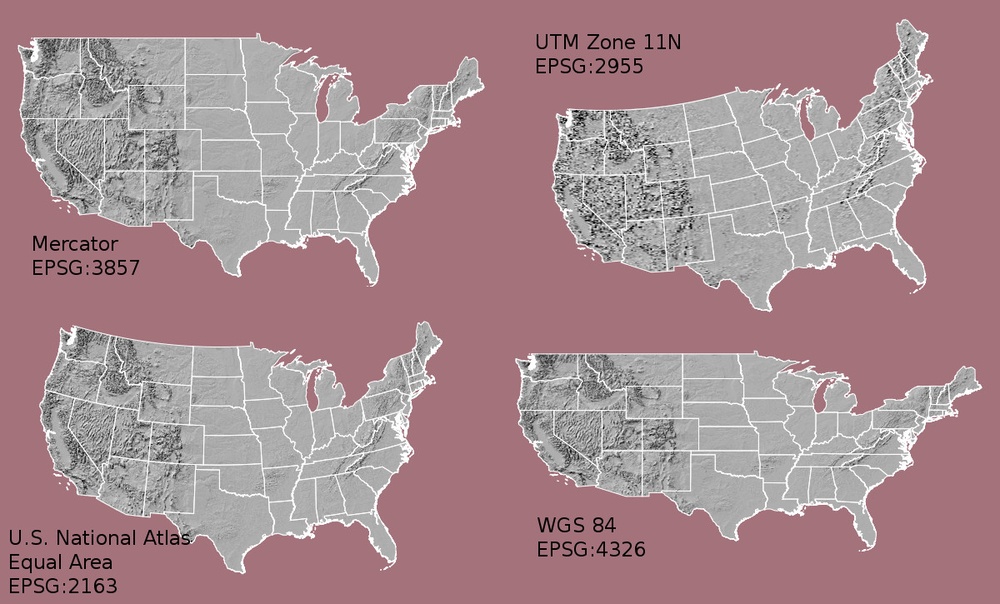
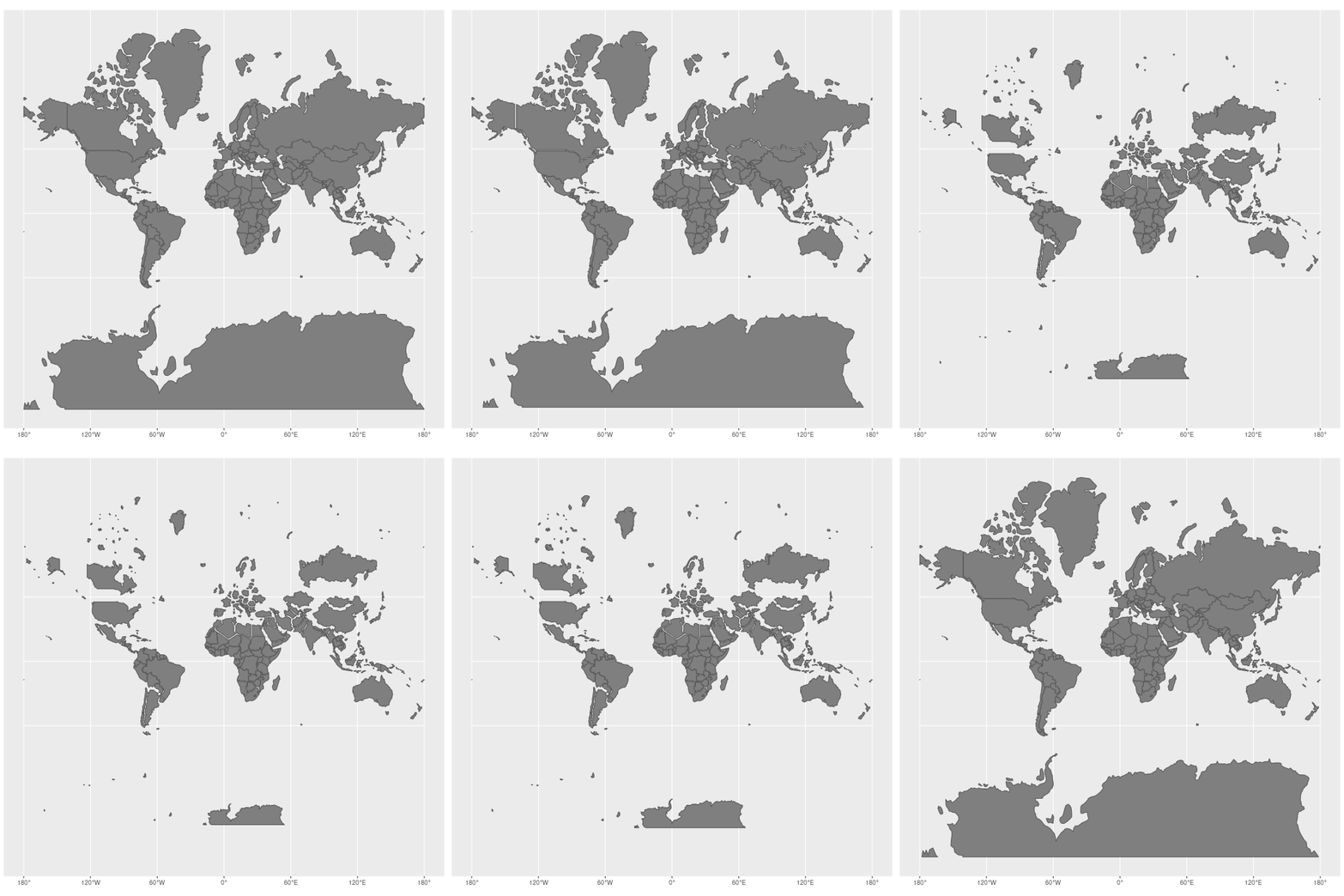
Maps of the United States using data in different projections.
Notice the differences in shape associated with each different projection.
These differences are a direct result of the calculations used to "flatten"
the data onto a 2-dimensional map. Often data are stored purposefully in a
particular projection that optimizes the relative shape and size of
surrounding geographic boundaries (states, counties, countries, etc).
Source: M. Corey,
opennews.org
Check out this short video from
Buzzfeed
highlighting how map projections can make continents
seems proportionally larger or smaller than they actually are!
In this tutorial we will learn how to identify and manage spatial data
in different projections. We will learn how to reproject the data so that they
are in the same projection to support plotting / mapping. Note that these skills
are also required for any geoprocessing / spatial analysis, as data need to be in
the same CRS to ensure accurate results.
We will use the rgdal and raster libraries in this tutorial.
# load packages
library(rgdal)  # for vector work; sp package should always load with rgdal.
library (raster)   # for metadata/attributes- vectors or rasters

# set working directory to data folder
# setwd("pathToDirHere")
Import US Boundaries - Census Data
There are many good sources of boundary base layers that we can use to create a
basemap. Some R packages even have these base layers built in to support quick
and efficient mapping. In this tutorial, we will use boundary layers for the
United States, provided by the
United States Census Bureau.
It is useful to have shapefiles to work with because we can add additional
attributes to them if need be - for project specific mapping.
Read US Boundary File
We will use the readOGR() function to import the
/US-Boundary-Layers/US-State-Boundaries-Census-2014 layer into R. This layer
contains the boundaries of all continental states in the U.S.. Please note that
these data have been modified and reprojected from the original data downloaded
from the Census website to support the learning goals of this tutorial.
# Read the .csv file
State.Boundary.US <- readOGR("NEON-DS-Site-Layout-Files/US-Boundary-Layers",
          "US-State-Boundaries-Census-2014")

## OGR data source with driver: ESRI Shapefile
## Source: "/Users/olearyd/Git/data/NEON-DS-Site-Layout-Files/US-Boundary-Layers", layer: "US-State-Boundaries-Census-2014"
## with 58 features
## It has 10 fields
## Integer64 fields read as strings:  ALAND AWATER

## Warning in readOGR("NEON-DS-Site-Layout-Files/US-Boundary-Layers", "US-
## State-Boundaries-Census-2014"): Z-dimension discarded

# look at the data structure
class(State.Boundary.US)

## [1] "SpatialPolygonsDataFrame"
## attr(,"package")
## [1] "sp"
Note: the Z-dimension warning is normal. The readOGR() function doesn't import
z (vertical dimension or height) data by default. This is because not all
shapefiles contain z dimension data.
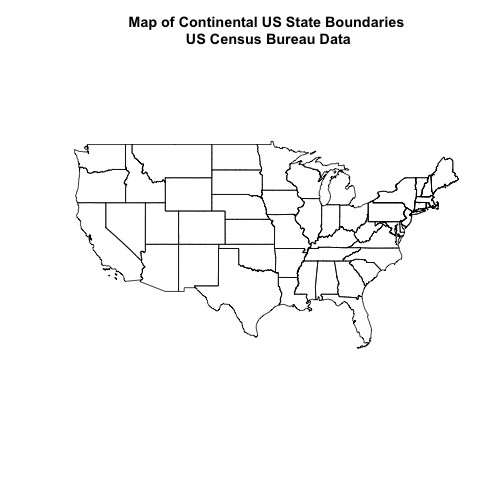
Now, let's plot the U.S. states data.
# view column names
plot(State.Boundary.US,
     main="Map of Continental US State Boundaries\n US Census Bureau Data")
U.S. Boundary Layer
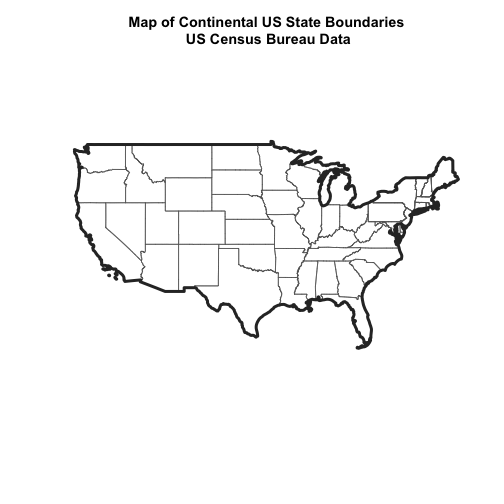
We can add a boundary layer of the United States to our map to make it look
nicer. We will import
NEON-DS-Site-Layout-Files/US-Boundary-Layers/US-Boundary-Dissolved-States.
If we specify a thicker line width using lwd=4 for the border layer, it will
make our map pop!
# Read the .csv file
Country.Boundary.US <- readOGR("NEON-DS-Site-Layout-Files/US-Boundary-Layers",
          "US-Boundary-Dissolved-States")

## OGR data source with driver: ESRI Shapefile
## Source: "/Users/olearyd/Git/data/NEON-DS-Site-Layout-Files/US-Boundary-Layers", layer: "US-Boundary-Dissolved-States"
## with 1 features
## It has 9 fields
## Integer64 fields read as strings:  ALAND AWATER

## Warning in readOGR("NEON-DS-Site-Layout-Files/US-Boundary-Layers", "US-
## Boundary-Dissolved-States"): Z-dimension discarded

# look at the data structure
class(Country.Boundary.US)

## [1] "SpatialPolygonsDataFrame"
## attr(,"package")
## [1] "sp"

# view column names
plot(State.Boundary.US,
     main="Map of Continental US State Boundaries\n US Census Bureau Data",
     border="gray40")

# view column names
plot(Country.Boundary.US,
     lwd=4,
     border="gray18",
     add=TRUE)
Next, let's add the location of a flux tower where our study area is.
As we are adding these layers, take note of the class of each object.
# Import a point shapefile
point_HARV <- readOGR("NEON-DS-Site-Layout-Files/HARV/",
                      "HARVtower_UTM18N")

## OGR data source with driver: ESRI Shapefile
## Source: "/Users/olearyd/Git/data/NEON-DS-Site-Layout-Files/HARV", layer: "HARVtower_UTM18N"
## with 1 features
## It has 14 fields

class(point_HARV)

## [1] "SpatialPointsDataFrame"
## attr(,"package")
## [1] "sp"

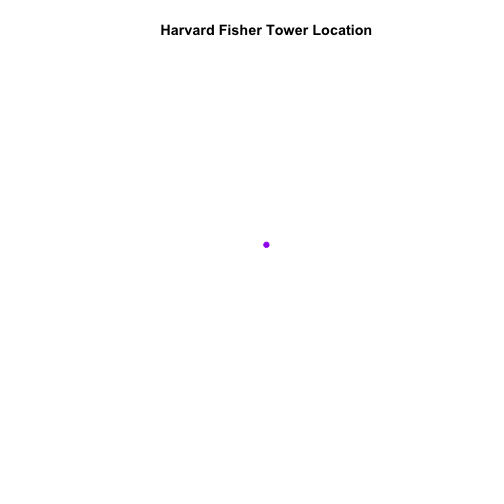
# plot point - looks ok?
plot(point_HARV,
     pch = 19,
     col = "purple",
     main="Harvard Fisher Tower Location")
The plot above demonstrates that the tower point location data are readable and
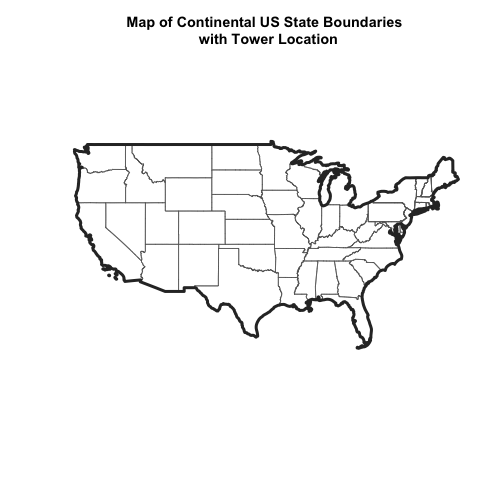
will plot! Let's next add it as a layer on top of the U.S. states and boundary
layers in our basemap plot.
# plot state boundaries
plot(State.Boundary.US,
     main="Map of Continental US State Boundaries \n with Tower Location",
     border="gray40")

# add US border outline
plot(Country.Boundary.US,
     lwd=4,
     border="gray18",
     add=TRUE)

# add point tower location
plot(point_HARV,
     pch = 19,
     col = "purple",
     add=TRUE)
What do you notice about the resultant plot? Do you see the tower location in
purple in the Massachusetts area? No! So what went wrong?
Let's check out the CRS (crs()) of both datasets to see if we can identify any
issues that might cause the point location to not plot properly on top of our
U.S. boundary layers.
# view CRS of our site data
crs(point_HARV)

## CRS arguments:
##  +proj=utm +zone=18 +datum=WGS84 +units=m +no_defs

# view crs of census data
crs(State.Boundary.US)

## CRS arguments: +proj=longlat +datum=WGS84 +no_defs

crs(Country.Boundary.US)

## CRS arguments: +proj=longlat +datum=WGS84 +no_defs
It looks like our data are in different CRS. We can tell this by looking at
the CRS strings in proj4 format.
Understanding CRS in Proj4 Format
The CRS for our data are given to us by R in proj4 format. Let's break
down the pieces of proj4 string. The string contains all of the individual
CRS elements that R or another GIS might need. Each element is specified
with a + sign, similar to how a .csv file is delimited or broken up by
a ,. After each + we see the CRS element being defined. For example
projection (proj=) and datum (datum=).
UTM Proj4 String
Our project string for point_HARV specifies the UTM projection as follows:
proj=longlat: the data are in a geographic (latitude and longitude)
coordinate system
datum=WGS84: the datum is WGS84
ellps=WGS84: the ellipsoid is WGS84
Note that there are no specified units above. This is because this geographic
coordinate reference system is in latitude and longitude which is most
often recorded in Decimal Degrees.
**Data Tip:** the last portion of each `proj4` string
is `+towgs84=0,0,0 `. This is a conversion factor that is used if a datum
conversion is required. We will not deal with datums in this tutorial series.
CRS Units - View Object Extent
Next, let's view the extent or spatial coverage for the point_HARV spatial
object compared to the State.Boundary.US object.
# extent for HARV in UTM
extent(point_HARV)

## class      : Extent
## xmin       : 732183.2
## xmax       : 732183.2
## ymin       : 4713265
## ymax       : 4713265

# extent for object in geographic
extent(State.Boundary.US)

## class      : Extent
## xmin       : -124.7258
## xmax       : -66.94989
## ymin       : 24.49813
## ymax       : 49.38436
Note the difference in the units for each object. The extent for
State.Boundary.US is in latitude and longitude, which yields smaller numbers
representing decimal degree units; however, our tower location point
is in UTM, which is represented in meters.
To view a list of datum conversion factors, type projInfo(type = "datum")
into the R console.
Reproject Vector Data
Now we know our data are in different CRS. To address this, we have to modify
or reproject the data so they are all in the same CRS. We can use
spTransform() function to reproject our data. When we reproject the data, we
specify the CRS that we wish to transform our data to. This CRS contains
the datum, units and other information that R needs to reproject our data.
The spTransform() function requires two inputs:
The name of the object that you wish to transform
The CRS that you wish to transform that object too. In this case we can
use the crs() of the State.Boundary.US object as follows:
crs(State.Boundary.US)
**Data Tip:** `spTransform()` will only work if your
original spatial object has a CRS assigned to it AND if that CRS is the
correct CRS!
Next, let's reproject our point layer into the geographic latitude and
longitude WGS84 coordinate reference system (CRS).
# reproject data
point_HARV_WGS84 <- spTransform(point_HARV,
                                crs(State.Boundary.US))

# what is the CRS of the new object
crs(point_HARV_WGS84)

## CRS arguments: +proj=longlat +datum=WGS84 +no_defs

# does the extent look like decimal degrees?
extent(point_HARV_WGS84)

## class      : Extent
## xmin       : -72.17266
## xmax       : -72.17266
## ymin       : 42.5369
## ymax       : 42.5369
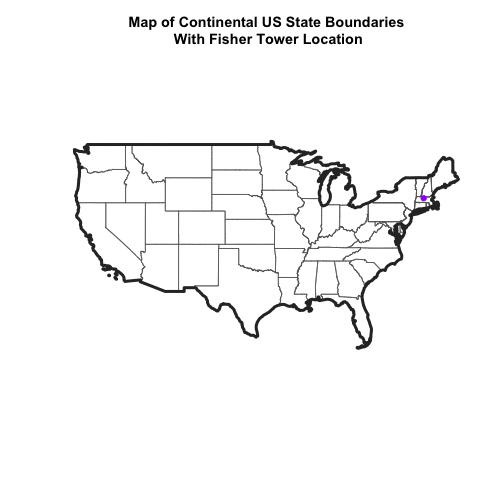
Once our data are reprojected, we can try to plot again.
# plot state boundaries
plot(State.Boundary.US,
     main="Map of Continental US State Boundaries\n With Fisher Tower Location",
     border="gray40")

# add US border outline
plot(Country.Boundary.US,
     lwd=4,
     border="gray18",
     add=TRUE)

# add point tower location
plot(point_HARV_WGS84,
     pch = 19,
     col = "purple",
     add=TRUE)
Reprojecting our data ensured that things line up on our map! It will also
allow us to perform any required geoprocessing (spatial calculations /
transformations) on our data.
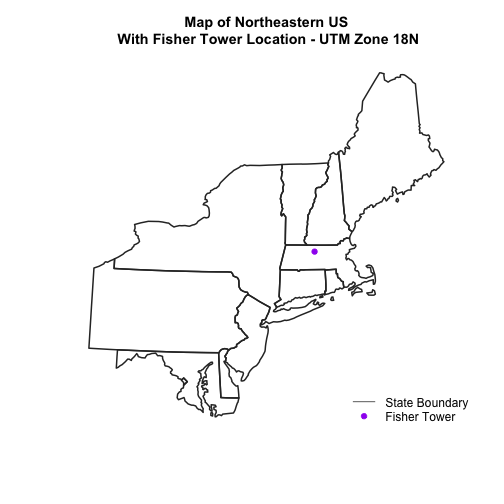
## Challenge - Reproject Spatial Data
Create a map of the North Eastern United States as follows:
Import and plot Boundary-US-State-NEast.shp. Adjust line width as necessary.
Reproject the layer into UTM zone 18 north.
Layer the Fisher Tower point location point_HARV on top of the above plot.
Add a title to your plot.
Add a legend to your plot that shows both the state boundary (line) and
the Tower location point.
This tutorial explains what shapefile attributes are and how to work with
shapefile attributes in R. It also covers how to identify and query shapefile
attributes, as well as subset shapefiles by specific attribute values.
Finally, we will review how to plot a shapefile according to a set of attribute
values.
Learning Objectives
After completing this tutorial, you will be able to:
Query shapefile attributes.
Subset shapefiles using specific attribute values.
Plot a shapefile, colored by unique attribute values.
Things You’ll Need To Complete This Tutorial
You will need the most current version of R and, preferably, RStudio loaded
on your computer to complete this tutorial.
R Script & Challenge Code: NEON data lessons often contain challenges that reinforce
learned skills. If available, the code for challenge solutions is found in the
downloadable R script of the entire lesson, available in the footer of each lesson page.
Shapefile Metadata & Attributes
When we import a shapefile into R, the readOGR() function automatically
stores metadata and attributes associated with the file.
Load the Data
To work with vector data in R, we can use the rgdal library. The raster
package also allows us to explore metadata using similar commands for both
raster and vector files.
We will import three shapefiles. The first is our AOI or area of
interest boundary polygon that we worked with in
Open and Plot Shapefiles in R.
The second is a shapefile containing the location of roads and trails within the
field site. The third is a file containing the Fisher tower location.
# load packages
# rgdal: for vector work; sp package should always load with rgdal.
library(rgdal)
# raster: for metadata/attributes- vectors or rasters
library (raster)

# set working directory to data folder
# setwd("pathToDirHere")

# Import a polygon shapefile
aoiBoundary_HARV <- readOGR("NEON-DS-Site-Layout-Files/HARV",
                            "HarClip_UTMZ18", stringsAsFactors = T)

## OGR data source with driver: ESRI Shapefile
## Source: "/Users/olearyd/Git/data/NEON-DS-Site-Layout-Files/HARV", layer: "HarClip_UTMZ18"
## with 1 features
## It has 1 fields
## Integer64 fields read as strings:  id

# Import a line shapefile
lines_HARV <- readOGR( "NEON-DS-Site-Layout-Files/HARV", "HARV_roads", stringsAsFactors = T)

## OGR data source with driver: ESRI Shapefile
## Source: "/Users/olearyd/Git/data/NEON-DS-Site-Layout-Files/HARV", layer: "HARV_roads"
## with 13 features
## It has 15 fields

# Import a point shapefile
point_HARV <- readOGR("NEON-DS-Site-Layout-Files/HARV",
                      "HARVtower_UTM18N", stringsAsFactors = T)

## OGR data source with driver: ESRI Shapefile
## Source: "/Users/olearyd/Git/data/NEON-DS-Site-Layout-Files/HARV", layer: "HARVtower_UTM18N"
## with 1 features
## It has 14 fields
class() - Describes the type of vector data stored in the object.
length() - How many features are in this spatial object?
object extent() - The spatial extent (geographic area covered by) features
in the object.
coordinate reference system (crs()) - The spatial projection that the data are
in.
Let's explore the metadata for our point_HARV object.
# view class
class(x = point_HARV)

## [1] "SpatialPointsDataFrame"
## attr(,"package")
## [1] "sp"

# x= isn't actually needed; it just specifies which object
# view features count
length(point_HARV)

## [1] 1

# view crs - note - this only works with the raster package loaded
crs(point_HARV)

## CRS arguments:
##  +proj=utm +zone=18 +datum=WGS84 +units=m +no_defs

# view extent- note - this only works with the raster package loaded
extent(point_HARV)

## class      : Extent
## xmin       : 732183.2
## xmax       : 732183.2
## ymin       : 4713265
## ymax       : 4713265

# view metadata summary
point_HARV

## class       : SpatialPointsDataFrame
## features    : 1
## extent      : 732183.2, 732183.2, 4713265, 4713265  (xmin, xmax, ymin, ymax)
## crs         : +proj=utm +zone=18 +datum=WGS84 +units=m +no_defs
## variables   : 14
## names       : Un_ID, Domain, DomainName,       SiteName, Type,       Sub_Type,     Lat,      Long, Zone,       Easting,       Northing,                Ownership,    County, annotation
## value       :     A,      1,  Northeast, Harvard Forest, Core, Advanced Tower, 42.5369, -72.17266,   18, 732183.193774, 4713265.041137, Harvard University, LTER, Worcester,         C1
About Shapefile Attributes
Shapefiles often contain an associated database or spreadsheet of values called
attributes that describe the vector features in the shapefile. You can think
of this like a spreadsheet with rows and columns. Each column in the spreadsheet
is an individual attribute that describes an object. Shapefile attributes
include measurements that correspond to the geometry of the shapefile features.
For example, the HARV_Roads shapefile (lines_HARV object) contains an
attribute called TYPE. Each line in the shapefile has an associated TYPE
which describes the type of road (woods road, footpath, boardwalk, or
stone wall).
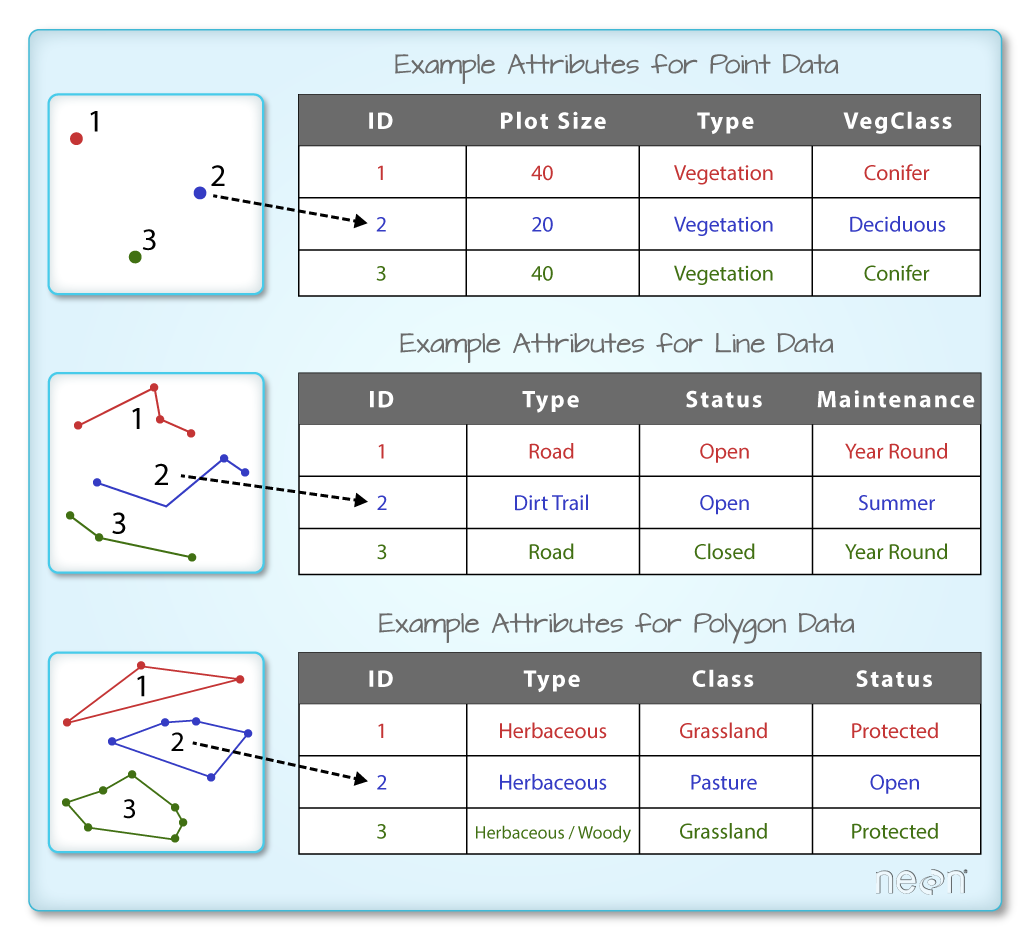
The shapefile format allows us to store attributes for each
feature (vector object) stored in the shapefile. The attribute table is
similar to a spreadsheet. There is a row for each feature. The first column
contains the unique ID of the feature. We can add additional columns that
describe the feature. Image Source: National Ecological Observatory Network
(NEON)
We can look at all of the associated data attributes by printing the contents of
the data slot with objectName@data. We can use the base R length
function to count the number of attributes associated with a spatial object too.
# just view the attributes & first 6 attribute values of the data
head(lines_HARV@data)

##   OBJECTID_1 OBJECTID       TYPE             NOTES MISCNOTES RULEID
## 0         14       48 woods road Locust Opening Rd      <NA>      5
## 1         40       91   footpath              <NA>      <NA>      6
## 2         41      106   footpath              <NA>      <NA>      6
## 3        211      279 stone wall              <NA>      <NA>      1
## 4        212      280 stone wall              <NA>      <NA>      1
## 5        213      281 stone wall              <NA>      <NA>      1
##            MAPLABEL SHAPE_LENG             LABEL BIKEHORSE RESVEHICLE
## 0 Locust Opening Rd 1297.35706 Locust Opening Rd         Y         R1
## 1              <NA>  146.29984              <NA>         Y         R1
## 2              <NA>  676.71804              <NA>         Y         R2
## 3              <NA>  231.78957              <NA>      <NA>       <NA>
## 4              <NA>   45.50864              <NA>      <NA>       <NA>
## 5              <NA>  198.39043              <NA>      <NA>       <NA>
##   RECMAP Shape_Le_1                            ResVehic_1
## 0      Y 1297.10617    R1 - All Research Vehicles Allowed
## 1      Y  146.29983    R1 - All Research Vehicles Allowed
## 2      Y  676.71807 R2 - 4WD/High Clearance Vehicles Only
## 3   <NA>  231.78962                                  <NA>
## 4   <NA>   45.50859                                  <NA>
## 5   <NA>  198.39041                                  <NA>
##                    BicyclesHo
## 0 Bicycles and Horses Allowed
## 1 Bicycles and Horses Allowed
## 2 Bicycles and Horses Allowed
## 3                        <NA>
## 4                        <NA>
## 5                        <NA>

# how many attributes are in our vector data object?
length(lines_HARV@data)

## [1] 15
We can view the individual name of each attribute using the
names(lines_HARV@data) method in R. We could also view just the first 6 rows
of attribute values using head(lines_HARV@data).
Let's give it a try.
# view just the attribute names for the lines_HARV spatial object
names(lines_HARV@data)

##  [1] "OBJECTID_1" "OBJECTID"   "TYPE"       "NOTES"      "MISCNOTES"
##  [6] "RULEID"     "MAPLABEL"   "SHAPE_LENG" "LABEL"      "BIKEHORSE"
## [11] "RESVEHICLE" "RECMAP"     "Shape_Le_1" "ResVehic_1" "BicyclesHo"
### Challenge: Attributes for Different Spatial Classes
Explore the attributes associated with the `point_HARV` and `aoiBoundary_HARV`
spatial objects.
How many attributes do each have?
Who owns the site in the point_HARV data object?
Which of the following is NOT an attribute of the point data object?
A) Latitude B) County C) Country
Explore Values within One Attribute
We can explore individual values stored within a particular attribute.
Again, comparing attributes to a spreadsheet or a data.frame is similar
to exploring values in a column. We can do this using the $ and the name of
the attribute: objectName$attributeName.
# view all attributes in the lines shapefile within the TYPE field
lines_HARV$TYPE

##  [1] woods road footpath   footpath   stone wall stone wall stone wall
##  [7] stone wall stone wall stone wall boardwalk  woods road woods road
## [13] woods road
## Levels: boardwalk footpath stone wall woods road

# view unique values within the "TYPE" attributes
levels(lines_HARV@data$TYPE)

## [1] "boardwalk"  "footpath"   "stone wall" "woods road"
Notice that two of our TYPE attribute values consist of two separate words:
stone wall and woods road. There are really four unique TYPE values, not six
TYPE values.
Subset Shapefiles
We can use the objectName$attributeName syntax to select a subset of features
from a spatial object in R.
# select features that are of TYPE "footpath"
# could put this code into other function to only have that function work on
# "footpath" lines
lines_HARV[lines_HARV$TYPE == "footpath",]

## class       : SpatialLinesDataFrame
## features    : 2
## extent      : 731954.5, 732232.3, 4713131, 4713726  (xmin, xmax, ymin, ymax)
## crs         : +proj=utm +zone=18 +datum=WGS84 +units=m +no_defs
## variables   : 15
## names       : OBJECTID_1, OBJECTID,     TYPE, NOTES, MISCNOTES, RULEID, MAPLABEL,    SHAPE_LENG, LABEL, BIKEHORSE, RESVEHICLE, RECMAP,    Shape_Le_1,                            ResVehic_1,                  BicyclesHo
## min values  :         40,       91, footpath,    NA,        NA,      6,       NA, 146.299844868,    NA,         Y,         R1,      Y, 146.299831389,    R1 - All Research Vehicles Allowed, Bicycles and Horses Allowed
## max values  :         41,      106, footpath,    NA,        NA,      6,       NA,  676.71804248,    NA,         Y,         R2,      Y, 676.718065323, R2 - 4WD/High Clearance Vehicles Only, Bicycles and Horses Allowed

# save an object with only footpath lines
footpath_HARV <- lines_HARV[lines_HARV$TYPE == "footpath",]
footpath_HARV

## class       : SpatialLinesDataFrame
## features    : 2
## extent      : 731954.5, 732232.3, 4713131, 4713726  (xmin, xmax, ymin, ymax)
## crs         : +proj=utm +zone=18 +datum=WGS84 +units=m +no_defs
## variables   : 15
## names       : OBJECTID_1, OBJECTID,     TYPE, NOTES, MISCNOTES, RULEID, MAPLABEL,    SHAPE_LENG, LABEL, BIKEHORSE, RESVEHICLE, RECMAP,    Shape_Le_1,                            ResVehic_1,                  BicyclesHo
## min values  :         40,       91, footpath,    NA,        NA,      6,       NA, 146.299844868,    NA,         Y,         R1,      Y, 146.299831389,    R1 - All Research Vehicles Allowed, Bicycles and Horses Allowed
## max values  :         41,      106, footpath,    NA,        NA,      6,       NA,  676.71804248,    NA,         Y,         R2,      Y, 676.718065323, R2 - 4WD/High Clearance Vehicles Only, Bicycles and Horses Allowed

# how many features are in our new object
length(footpath_HARV)

## [1] 2
Our subsetting operation reduces the features count from 13 to 2. This means
that only two feature lines in our spatial object have the attribute
"TYPE=footpath".
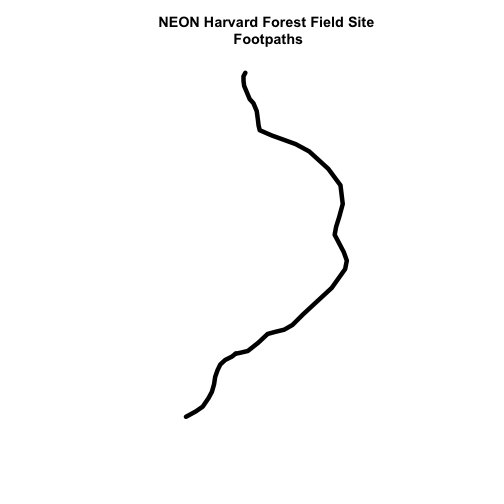
We can plot our subsetted shapefiles.
# plot just footpaths
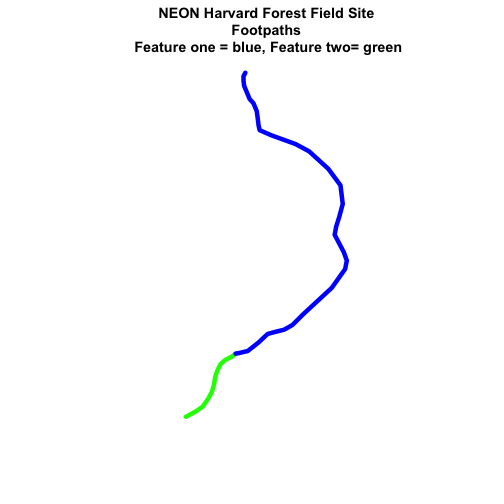
plot(footpath_HARV,
     lwd=6,
     main="NEON Harvard Forest Field Site\n Footpaths")
Interesting! Above, it appeared as if we had 2 features in our footpaths subset.
Why does the plot look like there is only one feature?
Let's adjust the colors used in our plot. If we have 2 features in our vector
object, we can plot each using a unique color by assigning unique colors (col=)
to our features. We use the syntax
col="c("colorOne","colorTwo")
to do this.
# plot just footpaths
plot(footpath_HARV,
     col=c("green","blue"), # set color for each feature
     lwd=6,
     main="NEON Harvard Forest Field Site\n Footpaths \n Feature one = blue, Feature two= green")
Now, we see that there are in fact two features in our plot!
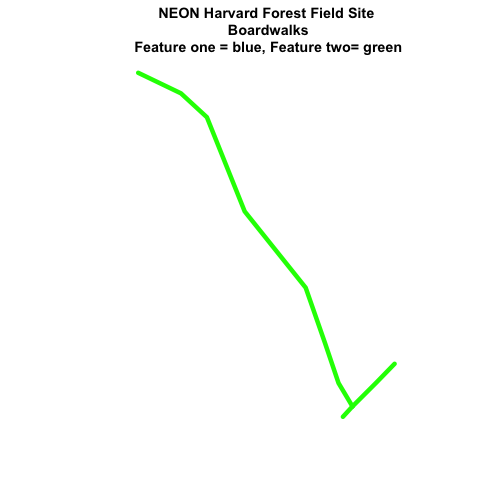
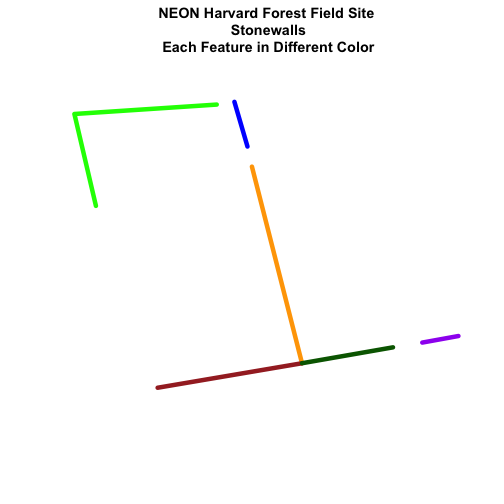
### Challenge: Subset Spatial Line Objects
Subset out all:
boardwalk from the lines layer and plot it.
stone wall features from the lines layer and plot it.
For each plot, color each feature using a unique color.
Plot Lines by Attribute Value
To plot vector data with the color determined by a set of attribute values, the
attribute values must be class = factor. A factor is similar to a category.
you can group vector objects by a particular category value - for example you
can group all lines of TYPE=footpath. However, in R, a factor can also have
a determined order.
By default, R will import spatial object attributes as factors.
**Data Tip:** If our data attribute values are not
read in as factors, we can convert the categorical
attribute values using `as.factor()`.
# view the original class of the TYPE column
class(lines_HARV$TYPE)

## [1] "factor"

# view levels or categories - note that there are no categories yet in our data!
# the attributes are just read as a list of character elements.
levels(lines_HARV$TYPE)

## [1] "boardwalk"  "footpath"   "stone wall" "woods road"

# Convert the TYPE attribute into a factor
# Only do this IF the data do not import as a factor!
# lines_HARV$TYPE <- as.factor(lines_HARV$TYPE)
# class(lines_HARV$TYPE)
# levels(lines_HARV$TYPE)

# how many features are in each category or level?
summary(lines_HARV$TYPE)

##  boardwalk   footpath stone wall woods road
##          1          2          6          4
When we use plot(), we can specify the colors to use for each attribute using
the col= element. To ensure that R renders each feature by it's associated
factor / attribute value, we need to create a vector or colors - one for each
feature, according to it's associated attribute value / factor value.
To create this vector we can use the following syntax:
a vector of colors - one for each factor value (unique attribute value)
the attribute itself ([object$factor]) of class factor
Let's give this a try.
# Check the class of the attribute - is it a factor?
class(lines_HARV$TYPE)

## [1] "factor"

# how many "levels" or unique values does the factor have?
# view factor values
levels(lines_HARV$TYPE)

## [1] "boardwalk"  "footpath"   "stone wall" "woods road"

# count the number of unique values or levels
length(levels(lines_HARV$TYPE))

## [1] 4

# create a color palette of 4 colors - one for each factor level
roadPalette <- c("blue","green","grey","purple")
roadPalette

## [1] "blue"   "green"  "grey"   "purple"

# create a vector of colors - one for each feature in our vector object
# according to its attribute value
roadColors <- c("blue","green","grey","purple")[lines_HARV$TYPE]
roadColors

##  [1] "purple" "green"  "green"  "grey"   "grey"   "grey"   "grey"
##  [8] "grey"   "grey"   "blue"   "purple" "purple" "purple"

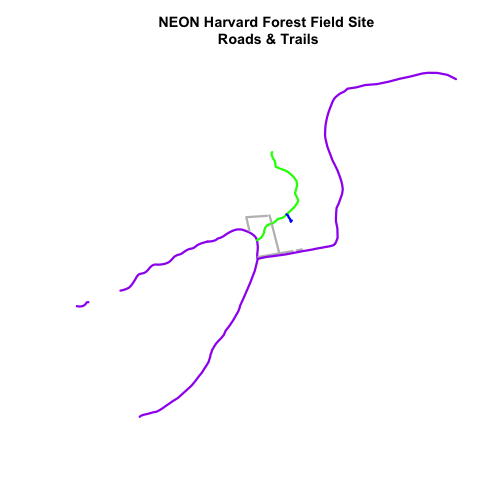
# plot the lines data, apply a diff color to each factor level)
plot(lines_HARV,
     col=roadColors,
     lwd=3,
     main="NEON Harvard Forest Field Site\n Roads & Trails")
Adjust Line Width
We can also adjust the width of our plot lines using lwd. We can set all lines
to be thicker or thinner using lwd=.
# make all lines thicker
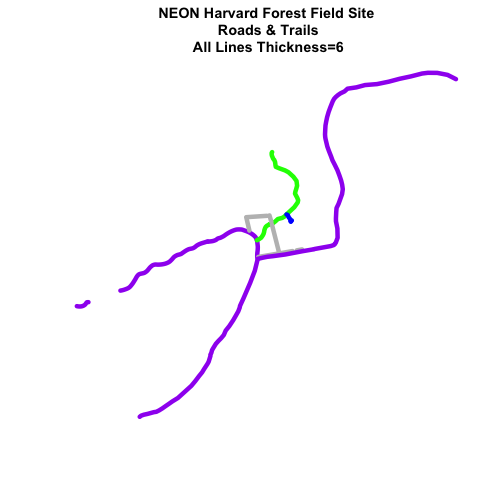
plot(lines_HARV,
     col=roadColors,
     main="NEON Harvard Forest Field Site\n Roads & Trails\n All Lines Thickness=6",
     lwd=6)
Adjust Line Width by Attribute
If we want a unique line width for each factor level or attribute category
in our spatial object, we can use the same syntax that we used for colors, above:
Note that this requires the attribute to be of class factor. Let's give it a
try.
class(lines_HARV$TYPE)

## [1] "factor"

levels(lines_HARV$TYPE)

## [1] "boardwalk"  "footpath"   "stone wall" "woods road"

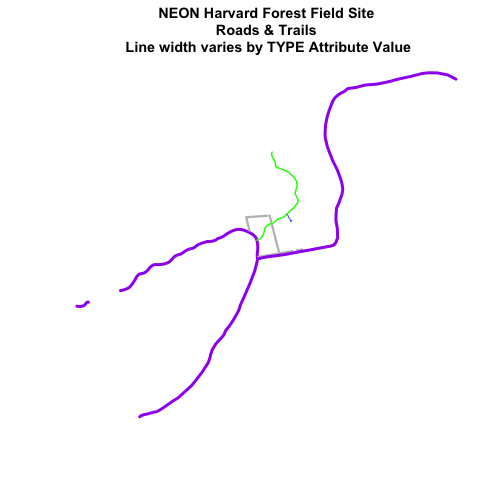
# create vector of line widths
lineWidths <- (c(1,2,3,4))[lines_HARV$TYPE]
# adjust line width by level
# in this case, boardwalk (the first level) is the widest.
plot(lines_HARV,
     col=roadColors,
     main="NEON Harvard Forest Field Site\n Roads & Trails \n Line width varies by TYPE Attribute Value",
     lwd=lineWidths)
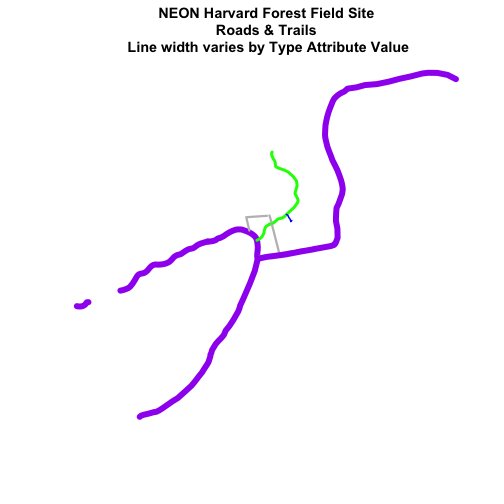
### Challenge: Plot Line Width by Attribute
We can customize the width of each line, according to specific attribute value,
too. To do this, we create a vector of line width values, and map that vector
to the factor levels - using the same syntax that we used above for colors.
HINT: `lwd=(vector of line width thicknesses)[spatialObject$factorAttribute]`
Create a plot of roads using the following line thicknesses:
woods road lwd=8
Boardwalks lwd = 2
footpath lwd=4
stone wall lwd=3
**Data Tip:** Given we have a factor with 4 levels,
we can create an vector of numbers, each of which specifies the thickness of each
feature in our `SpatialLinesDataFrame` by factor level (category): `c(6,4,1,2)[lines_HARV$TYPE]`
Add Plot Legend
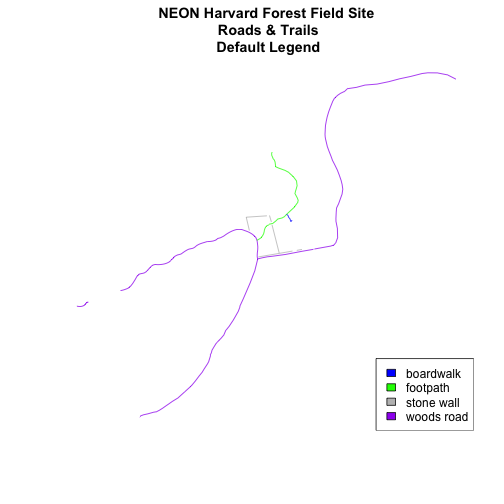
We can add a legend to our plot too. When we add a legend, we use the following
elements to specify labels and colors:
bottomright: We specify the location of our legend by using a default
keyword. We could also use top, topright, etc.
levels(objectName$attributeName): Label the legend elements using the
categories of levels in an attribute (e.g., levels(lines_HARV$TYPE) means use
the levels boardwalk, footpath, etc).
fill=: apply unique colors to the boxes in our legend. palette() is
the default set of colors that R applies to all plots.
Let's add a legend to our plot.
plot(lines_HARV,
     col=roadColors,
     main="NEON Harvard Forest Field Site\n Roads & Trails\n Default Legend")

# we can use the color object that we created above to color the legend objects
roadPalette

## [1] "blue"   "green"  "grey"   "purple"

# add a legend to our map
legend("bottomright",   # location of legend
      legend=levels(lines_HARV$TYPE), # categories or elements to render in
			 # the legend
      fill=roadPalette) # color palette to use to fill objects in legend.
We can tweak the appearance of our legend too.
bty=n: turn off the legend BORDER
cex: change the font size
Let's try it out.
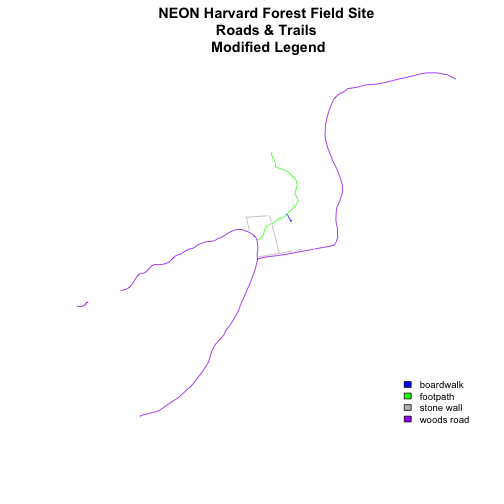
plot(lines_HARV,
     col=roadColors,
     main="NEON Harvard Forest Field Site\n Roads & Trails \n Modified Legend")
# add a legend to our map
legend("bottomright",
       legend=levels(lines_HARV$TYPE),
       fill=roadPalette,
       bty="n", # turn off the legend border
       cex=.8) # decrease the font / legend size
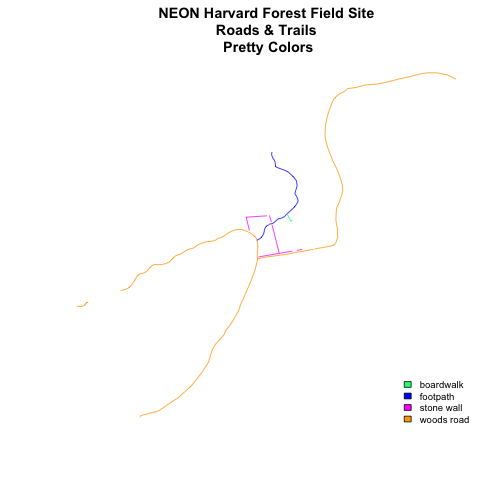
We can modify the colors used to plot our lines by creating a new color vector
directly in the plot code rather than creating a separate object.
col=(newColors)[lines_HARV$TYPE]
Let's try it!
# manually set the colors for the plot!
newColors <- c("springgreen", "blue", "magenta", "orange")
newColors

## [1] "springgreen" "blue"        "magenta"     "orange"

# plot using new colors
plot(lines_HARV,
     col=(newColors)[lines_HARV$TYPE],
     main="NEON Harvard Forest Field Site\n Roads & Trails \n Pretty Colors")

# add a legend to our map
legend("bottomright",
       levels(lines_HARV$TYPE),
       fill=newColors,
       bty="n", cex=.8)
**Data Tip:** You can modify the default R color palette
using the palette method. For example `palette(rainbow(6))` or
`palette(terrain.colors(6))`. You can reset the palette colors using
`palette("default")`!
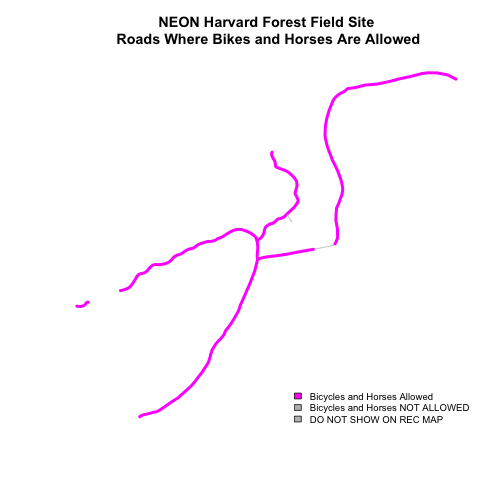
### Challenge: Plot Lines by Attribute
Create a plot that emphasizes only roads where bicycles and horses are allowed.
To emphasize this, make the lines where bicycles are not allowed THINNER than
the roads where bicycles are allowed.
NOTE: this attribute information is located in the `lines_HARV$BicyclesHo`
attribute.
Be sure to add a title and legend to your map! You might consider a color
palette that has all bike/horse-friendly roads displayed in a bright color. All
other lines can be grey.
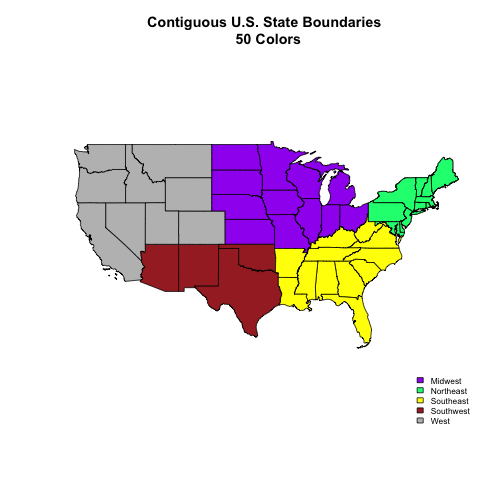
### Challenge: Plot Polygon by Attribute
Create a map of the State boundaries in the United States using the data
located in your downloaded data folder: NEON-DS-Site-Layout-Files/US-Boundary-Layers\US-State-Boundaries-Census-2014.
Apply a fill color to each state using its region value. Add a legend.
Using the NEON-DS-Site-Layout-Files/HARV/PlotLocations_HARV.shp shapefile,
create a map of study plot locations, with each point colored by the soil type
(soilTypeOr). Question: How many different soil types are there at this particular field site?
BONUS -- modify the field site plot above. Plot each point,
using a different symbol. HINT: you can assign the symbol using pch= value.
You can create a vector object of symbols by factor level using the syntax
syntax that we used above to create a vector of lines widths and colors:
pch=c(15,17)[lines_HARV$soilTypeOr]. Type ?pch to learn more about pch or
use google to find a list of pch symbols that you can use in R.
R Script & Challenge Code: NEON data lessons often contain challenges that reinforce
learned skills. If available, the code for challenge solutions is found in the
downloadable R script of the entire lesson, available in the footer of each lesson page.
About Vector Data
Vector data are composed of discrete geometric locations (x,y values) known as
vertices that define the "shape" of the spatial object. The organization
of the vertices, determines the type of vector that we are working
with: point, line or polygon.
There are 3 types of vector objects: points, lines or
polygons. Each object type has a different structure.
Image Source: National Ecological Observatory Network (NEON)
Points: Each individual point is defined by a single x, y coordinate.
There can be many points in a vector point file. Examples of point data include:
sampling locations, the location of individual trees or the location of plots.
Lines: Lines are composed of many (at least 2) vertices, or points, that
are connected. For instance, a road or a stream may be represented by a line. This
line is composed of a series of segments, each "bend" in the road or stream
represents a vertex that has defined x, y location.
Polygons: A polygon consists of 3 or more vertices that are connected and
"closed". Thus the outlines of plot boundaries, lakes, oceans, and states or
countries are often represented by polygons. Occasionally, a polygon can have a
hole in the middle of it (like a doughnut), this is something to be aware of but
not an issue we will deal with in this tutorial.
**Data Tip:** Sometimes, boundary layers such as
states and countries, are stored as lines rather than polygons. However, these
boundaries, when represented as a line, will not create a closed object with a defined "area" that can be "filled".
Shapefiles: Points, Lines, and Polygons
Geospatial data in vector format are often stored in a shapefile format.
Because the structure of points, lines, and polygons are different, each
individual shapefile can only contain one vector type (all points, all lines
or all polygons). You will not find a mixture of point, line and polygon
objects in a single shapefile.
Objects stored in a shapefile often have a set of associated attributes that
describe the data. For example, a line shapefile that contains the locations of
streams, might contain the associated stream name, stream "order" and other
information about each stream line object.
We will use the rgdal package to work with vector data in R. Notice that the
sp package automatically loads when rgdal is loaded. We will also load the
raster package so we can explore raster and vector spatial metadata using similar commands.
# load required libraries
# for vector work; sp package will load with rgdal.
library(rgdal)
# for metadata/attributes- vectors or rasters
library(raster)

# set working directory to the directory location on your computer where
# you downloaded and unzipped the data files for the tutorial
# setwd("pathToDirHere")
The shapefiles that we will import are:
A polygon shapefile representing our field site boundary,
The first shapefile that we will open contains the boundary of our study area
(or our Area Of Interest or AOI, hence the name aoiBoundary). To import
shapefiles we use the R function readOGR().
readOGR() requires two components:
The directory where our shapefile lives: NEON-DS-Site-Layout-Files/HARV
The name of the shapefile (without the extension): HarClip_UTMZ18
Let's import our AOI.
# Import a polygon shapefile: readOGR("path","fileName")
# no extension needed as readOGR only imports shapefiles
aoiBoundary_HARV <- readOGR(dsn=path.expand("NEON-DS-Site-Layout-Files/HARV"),
                            layer="HarClip_UTMZ18")

## OGR data source with driver: ESRI Shapefile
## Source: "/Users/olearyd/Git/data/NEON-DS-Site-Layout-Files/HARV", layer: "HarClip_UTMZ18"
## with 1 features
## It has 1 fields
## Integer64 fields read as strings:  id
**Data Tip:** The acronym, OGR, refers to the
OpenGIS Simple Features Reference Implementation.
Learn more about OGR.
Shapefile Metadata & Attributes
When we import the HarClip_UTMZ18 shapefile layer into R (as our
aoiBoundary_HARV object), the readOGR() function automatically stores
information about the data. We are particularly interested in the geospatial
metadata, describing the format, CRS, extent, and other components of
the vector data, and the attributes which describe properties associated
with each individual vector object.
**Data Tip:** The
*Shapefile Metadata & Attributes in R*
tutorial provides more information on both metadata and attributes
and using attributes to subset and plot data.
Spatial Metadata
Key metadata for all shapefiles include:
Object Type: the class of the imported object.
Coordinate Reference System (CRS): the projection of the data.
Extent: the spatial extent (geographic area that the shapefile covers) of
the shapefile. Note that the spatial extent for a shapefile represents the
extent for ALL spatial objects in the shapefile.
We can view shapefile metadata using the class, crs and extent methods:
# view just the class for the shapefile
class(aoiBoundary_HARV)

## [1] "SpatialPolygonsDataFrame"
## attr(,"package")
## [1] "sp"

# view just the crs for the shapefile
crs(aoiBoundary_HARV)

## CRS arguments:
##  +proj=utm +zone=18 +datum=WGS84 +units=m +no_defs

# view just the extent for the shapefile
extent(aoiBoundary_HARV)

## class      : Extent
## xmin       : 732128
## xmax       : 732251.1
## ymin       : 4713209
## ymax       : 4713359

# view all metadata at same time
aoiBoundary_HARV

## class       : SpatialPolygonsDataFrame
## features    : 1
## extent      : 732128, 732251.1, 4713209, 4713359  (xmin, xmax, ymin, ymax)
## crs         : +proj=utm +zone=18 +datum=WGS84 +units=m +no_defs
## variables   : 1
## names       : id
## value       :  1
Our aoiBoundary_HARV object is a polygon of class SpatialPolygonsDataFrame,
in the CRS UTM zone 18N. The CRS is critical to interpreting the object
extent values as it specifies units.
The spatial extent of a shapefile or R spatial object represents
the geographic "edge" or location that is the furthest north, south east and
west. Thus is represents the overall geographic coverage of the spatial object.
Image Source: National Ecological Observatory Network (NEON)
Spatial Data Attributes
Each object in a shapefile has one or more attributes associated with it.
Shapefile attributes are similar to fields or columns in a spreadsheet. Each row
in the spreadsheet has a set of columns associated with it that describe the row
element. In the case of a shapefile, each row represents a spatial object - for
example, a road, represented as a line in a line shapefile, will have one "row"
of attributes associated with it. These attributes can include different types
of information that describe objects stored within a shapefile. Thus, our road,
may have a name, length, number of lanes, speed limit, type of road and other
attributes stored with it.
Each spatial feature in an R spatial object has the same set of
associated attributes that describe or characterize the feature.
Attribute data are stored in a separate *.dbf file. Attribute data can be
compared to a spreadsheet. Each row in a spreadsheet represents one feature
in the spatial object.
Image Source: National Ecological Observatory Network (NEON)
We view the attributes of a SpatialPolygonsDataFrame using objectName@data
(e.g., aoiBoundary_HARV@data).
# alternate way to view attributes
aoiBoundary_HARV@data

##   id
## 0  1
In this case, our polygon object only has one attribute: id.
Metadata & Attribute Summary
We can view a metadata & attribute summary of each shapefile by entering
the name of the R object in the console. Note that the metadata output
includes the class, the number of features, the extent, and the
coordinate reference system (crs) of the R object. The last two lines of
summary show a preview of the R object attributes.
# view a summary of metadata & attributes associated with the spatial object
summary(aoiBoundary_HARV)

## Object of class SpatialPolygonsDataFrame
## Coordinates:
##       min       max
## x  732128  732251.1
## y 4713209 4713359.2
## Is projected: TRUE
## proj4string :
## [+proj=utm +zone=18 +datum=WGS84 +units=m +no_defs]
## Data attributes:
##       id
##  Length:1
##  Class :character
##  Mode  :character
Plot a Shapefile
Next, let's visualize the data in our R spatialpolygonsdataframe object using
plot().
# create a plot of the shapefile
# 'lwd' sets the line width
# 'col' sets internal color
# 'border' sets line color
plot(aoiBoundary_HARV, col="cyan1", border="black", lwd=3,
     main="AOI Boundary Plot")
### Challenge: Import Line and Point Shapefiles
Using the steps above, import the HARV_roads and HARVtower_UTM18N layers into
R. Call the Harv_roads object `lines_HARV` and the HARVtower_UTM18N
`point_HARV`.
Answer the following questions:
What type of R spatial object is created when you import each layer?
What is the CRS and extentfor each object?
Do the files contain, points, lines or polygons?
How many spatial objects are in each file?
Plot Multiple Shapefiles
The plot() function can be used for basic plotting of spatial objects.
We use the add = TRUE argument to overlay shapefiles on top of each other, as
we would when creating a map in a typical GIS application like QGIS.
We can use main="" to give our plot a title. If we want the title to span two
lines, we use \n where the line should break.
# Plot multiple shapefiles
plot(aoiBoundary_HARV, col = "lightgreen",
     main="NEON Harvard Forest\nField Site")
plot(lines_HARV, add = TRUE)

# use the pch element to adjust the symbology of the points
plot(point_HARV, add  = TRUE, pch = 19, col = "purple")
### Challenge: Plot Raster & Vector Data Together
You can plot vector data layered on top of raster data using the add=TRUE
plot attribute. Create a plot that uses the NEON AOP Canopy Height Model NEON_RemoteSensing/HARV/CHM/HARV_chmCrop.tif as a base layer. On top of the
CHM, please add:
This tutorial explores how to import and plot a multiband raster in
R. It also covers how to plot a three-band color image using the plotRGB()
function in R.
Learning Objectives
After completing this tutorial, you will be able to:
Know how to identify a single vs. a multiband raster file.
Be able to import multiband rasters into R using the terra package.
Be able to plot multiband color image rasters in R using plotRGB().
Understand what a NoData value is in a raster.
Things You’ll Need To Complete This Tutorial
You will need the most current version of R and, preferably, RStudio installed on your computer to complete this tutorial.
Data required for this tutorial will be downloaded using neonUtilities in the lesson. As of June 2026, NEON requires an API token for data downloads, to reduce bot scraping and improve user support. Tokens can be generated in NEON data portal user accounts - log in to your account or create one, and go to the API Tokens section. For best practices in storing and using tokens, follow the instructions here.
Data will be downloaded using neonUtilities at the start of the lesson. If you have already downloaded the data earlier in this tutorial series, you can skip the download step. The entire HARV datasets can be accessed from the NEON Data Portal.
Set Working Directory: This lesson assumes that you have set your working directory to the location of the downloaded and unzipped data subsets.
R Script & Challenge Code: NEON data lessons often contain challenges that reinforce skills. If available, the code for challenge solutions is found in the downloadable R script of the entire lesson, available in the footer of each lesson page.
The Basics of Imagery - About Spectral Remote Sensing Data
A raster can contain one or more bands. We can use the terra `rast` function to import one single band from a single OR multi-band
raster. Source: National Ecological Observatory Network (NEON).
To work with multiband rasters in R, we need to change how we import and plot our data in several ways.
To import multiband raster data we will use the stack() function.
If our multiband data are imagery that we wish to composite, we can use plotRGB() (instead of plot()) to plot a 3 band raster image.
About MultiBand Imagery
One type of multiband raster dataset that is familiar to many of us is a color image. A basic color image consists of three bands: red, green, and blue. Each band represents light reflected from the red, green or blue portions of the electromagnetic spectrum. The pixel brightness for each band, when composited creates the colors that we see in an image.
A color image consists of 3 bands - red, green and blue. When rendered together in a GIS, or even a tool like Photoshop or any other
image software, they create a color image. Source: National Ecological Observatory Network (NEON).
Getting Started with Multi-Band Data in R
To work with multiband raster data we will use the terra package.
library(terra) # terra package to work with raster data

library(neonUtilities) # package for downloading NEON data

library(RColorBrewer) # package for specifying color palettes

token <- Sys.getenv("NEON_TOKEN") # read in API token


# set working directory to ensure R can find the file we wish to import

wd <- "~/data/" # this will depend on your local environment environment

# be sure that the downloaded file is in this directory

setwd(wd)
Download RGB Data
byTileAOP(dpID='DP3.30010.001', # rgb camera data
          site='HARV',
          year='2022',
          easting=732000,
          northing=4713500,
          check.size=FALSE, # set to TRUE or remove to check the size before downloading
          savepath = wd,
          token=token)

## Downloading files totaling approximately 351.004249 MB

## Downloading 1 files

##
## Successfully downloaded 1 files to ~/data//DP3.30010.001
In this tutorial, the multi-band data that we are working with is imagery collected using the NEON Airborne Observation Platform high resolution camera over the NEON Harvard Forest field site. Each RGB image is a 3-band raster. The same steps would apply to working with a multi-spectral image with 4 or more bands - like Landsat imagery, or even hyperspectral imagery (in geotiff format). We can plot the RGB band combination of the image using plotRGB.
Or we can plot each band separately as follows:
# Determine the number of bands

num_bands <- nlyr(RGB_HARV)


# Define colors to plot each

# Define color palettes for each band using RColorBrewer

colors <- list(
  brewer.pal(9, "Reds"),
  brewer.pal(9, "Greens"),
  brewer.pal(9, "Blues")
)


# Plot each band in a loop, with the specified colors

for (i in 1:num_bands) {
  plot(RGB_HARV[[i]], main=paste("Band", i), col=colors[[i]])
}
Image Raster Data Attributes
We can display some of the attributes about the raster, as shown below:
# Print dimensions

cat("Dimensions:\n")

## Dimensions:

cat("Number of rows:", nrow(RGB_HARV), "\n")

## Number of rows: 10000

cat("Number of columns:", ncol(RGB_HARV), "\n")

## Number of columns: 10000

cat("Number of layers:", nlyr(RGB_HARV), "\n")

## Number of layers: 3

# Print resolution

resolutions <- res(RGB_HARV)

cat("Resolution:\n")

## Resolution:

cat("X resolution:", resolutions[1], "\n")

## X resolution: 0.1

cat("Y resolution:", resolutions[2], "\n")

## Y resolution: 0.1

# Get the extent of the raster

rgb_extent <- ext(RGB_HARV)


# Convert the extent to a string with rounded values

extent_str <- sprintf("xmin: %d, xmax: %d, ymin: %d, ymax: %d",
                      round(xmin(rgb_extent)),
                      round(xmax(rgb_extent)),
                      round(ymin(rgb_extent)),
                      round(ymax(rgb_extent)))


# Print the extent string

cat("Extent of the raster: \n")

## Extent of the raster:

cat(extent_str, "\n")

## xmin: 732000, xmax: 733000, ymin: 4713000, ymax: 4714000
Let's take a look at the coordinate reference system, or CRS. You can use the parameters describe=TRUE to display this information more succinctly.
crs(RGB_HARV, describe=TRUE)

##                    name authority  code
## 1 WGS 84 / UTM zone 18N      EPSG 32618
##                                                                                                                                                                                                                                                          area
## 1 Between 78°W and 72°W, northern hemisphere between equator and 84°N, onshore and offshore. Bahamas. Canada - Nunavut; Ontario; Quebec. Colombia. Cuba. Ecuador. Greenland. Haiti. Jamaica. Panama. Turks and Caicos Islands. United States (USA). Venezuela
##            extent
## 1 -78, -72, 0, 84
Let's next examine the raster's minimum and maximum values. What is the range of values for each band?
# Replace Inf and -Inf with NA

values(RGB_HARV)[is.infinite(values(RGB_HARV))] <- NA


# Get min and max values for all bands

min_max_values <- minmax(RGB_HARV)


# Print the results

cat("Min and Max Values for All Bands:\n")

## Min and Max Values for All Bands:

print(min_max_values)

##     2022_HARV_7_732000_4713000_image_1 2022_HARV_7_732000_4713000_image_2
## min                                  0                                  0
## max                                255                                255
##     2022_HARV_7_732000_4713000_image_3
## min                                  0
## max                                255
This raster contains values between 0 and 255. These values represent the intensity of brightness associated with the image band. In the case of a RGB image (red, green and blue), band 1 is the red band. When we plot the red band, larger numbers (towards 255) represent pixels with more red in them (a strong red reflection). Smaller numbers (towards 0) represent pixels with less red in them (less red was reflected).
To plot an RGB image, we mix red + green + blue values into one single color to create a full color image - this is the standard color image a digital camera creates.
Challenge: Making Sense of Single Bands of a Multi-Band Image
Go back to the code chunk where you plotted each band separately. Compare the plots of band 1 (red) and band 2 (green). Is the forested area darker or lighter in band 2 (the green band) compared to band 1 (the red band)?
Other Types of Multi-band Raster Data
Multi-band raster data might also contain:
Time series: the same variable, over the same area, over time.
Multi or hyperspectral imagery: image rasters that have 4 or more (multi-spectral) or more than 10-15 (hyperspectral) bands. Check out the NEON
Data Skills Imaging Spectroscopy HDF5 in R tutorial to learn how to work with hyperspectral data cubes.
The true color image plotted at the beginning of this lesson looks pretty decent. We can explore whether applying a stretch to the image might improve clarity and contrast using stretch="lin" or stretch="hist".
When the range of pixel brightness values is closer to 0, a
darker image is rendered by default. We can stretch the values to extend to
the full 0-255 range of potential values to increase the visual contrast of
the image.
When the range of pixel brightness values is closer to 255, a lighter image is rendered by default. We can stretch the values to extend to the full 0-255 range of potential values to increase the visual contrast of the image.
# What does stretch do?


# Plot the linearly stretched raster

plotRGB(RGB_HARV, stretch="lin")
# Plot the histogram-stretched raster

plotRGB(RGB_HARV, stretch="hist")
In this case, the stretch doesn't enhance the contrast our image significantly given the distribution of reflectance (or brightness) values is distributed well between 0 and 255, and applying a stretch appears to introduce some artificial, almost purple-looking brightness to the image.
Challenge: What Methods Can Be Used on an R Object?
We can view various methods available to call on an R object with methods(class=class(objectNameHere)). Use this to figure out:
What methods can be used to call on the RGB_HARV object?
What methods are available for a single band within RGB_HARV?
In this tutorial, we will review the fundamental principles, packages and
metadata/raster attributes that are needed to work with raster data in R.
We discuss the three core metadata elements that we need to understand to work
with rasters in R: CRS, extent and resolution. We also explore
missing and bad data values as stored in a raster and how R handles these
elements. Finally, we introduce the GeoTiff file format.
Learning Objectives
After completing this tutorial, you will be able to:
Understand what a raster dataset is and its fundamental attributes.
Know how to explore raster attributes in R.
Be able to import rasters into R using the terra package.
Be able to quickly plot a raster file in R.
Understand the difference between single- and multi-band rasters.
Things You’ll Need To Complete This Tutorial
You will need the most current version of R and, preferably, RStudio loaded
on your computer to complete this tutorial.
As of June 2026, NEON requires an API token for data downloads, to reduce bot scraping and improve user support. Tokens can be generated in NEON data portal user accounts - log in to your account or create one, and go to the API Tokens section. For best practices in storing and using tokens, follow the instructions here.
Set Working Directory: This lesson will explain how to set the working directory. You may wish to set your working directory to some other location, depending on how you prefer to organize your data.
Raster or "gridded" data are stored as a grid of values which are rendered on a
map as pixels. Each pixel value represents an area on the Earth's surface.
Source: National Ecological Observatory Network (NEON)
Raster Data in R
Let's first import a raster dataset into R and explore its metadata. To open rasters in R, we will use the terra package.
library(terra)


token <- Sys.getenv("NEON_TOKEN")


# set working directory, you can change this if desired

wd <- "~/data/"

setwd(wd)
Download LiDAR Raster Data
We can use the neonUtilities function byTileAOP to download a single elevation tiles (DSM and DTM). You can run help(byTileAOP) to see more details on what the various inputs are. For this exercise, we'll specify the UTM Easting and Northing to be (732000, 4713500), which will download the tile with the lower left corner (732000,4713000). By default, the function will check the size total size of the download and ask you whether you wish to proceed (y/n). This file is ~8 MB, so make sure you have enough space on your local drive. You can set check.size=TRUE if you want to check the file size before downloading.
byTileAOP(dpID='DP3.30024.001', # lidar elevation
          site='HARV',
          year='2022',
          easting=732000,
          northing=4713500,
          check.size=FALSE, # set to TRUE or remove if you want to check the size before downloading
          savepath = wd,
          token=token)

## Downloading files totaling approximately 5.239584 MB

## Downloading 2 files

##
## Successfully downloaded 2 files to ~/data//DP3.30024.001
This file will be downloaded into a nested subdirectory under the ~/data folder, inside a folder named DP3.30024.001 (the Data Product ID). The file should show up in this location: ~/data/DP3.30024.001/neon-aop-products/2022/FullSite/D01/2022_HARV_7/L3/DiscreteLidar/DSMGtif/NEON_D01_HARV_DP3_732000_4713000_DSM.tif.
Open a Raster in R
We can use terra's rast("path-to-raster-here") function to open a raster in R.
Data Tip: VARIABLE NAMES! To improve code
readability, file and object names should be used that make it clear what is in
the file. The data for this tutorial were collected over from Harvard Forest (HARV),
sowe'll use the naming convention of DATATYPE_HARV.
Raster data can be continuous or categorical. Continuous rasters can have a
range of quantitative values. Some examples of continuous rasters include:
Precipitation maps.
Maps of tree height derived from LiDAR data.
Elevation values for a region.
The raster we loaded and plotted earlier was a digital surface model, or a map of the elevation for Harvard Forest derived from the
NEON AOP LiDAR sensor. Elevation is represented as a continuous numeric variable in this map.
The legend shows the continuous range of values in the data from around 300 to 420 meters.
Some rasters contain categorical data where each pixel represents a discrete
class such as a landcover type (e.g., "forest" or "grassland") rather than a
continuous value such as elevation or temperature. Some examples of classified
maps include:
Landcover/land-use maps.
Tree height maps classified as short, medium, tall trees.
Elevation maps classified as low, medium and high elevation.
Categorical Elevation Map of the NEON Harvard Forest Site
The legend of this map shows the colors representing each discrete class.
# add a color map with 5 colors

col=terrain.colors(3)

# add breaks to the colormap (4 breaks = 3 segments)

brk <- c(250,350, 380,500)


# Expand right side of clipping rect to make room for the legend

par(xpd = FALSE,mar=c(5.1, 4.1, 4.1, 4.5))

# DEM with a custom legend

plot(DSM_HARV,
	col=col,
	breaks=brk,
	main="Classified Elevation Map - HARV",
	legend = FALSE
	)


# turn xpd back on to force the legend to fit next to the plot.

par(xpd = TRUE)

# add a legend - but make it appear outside of the plot

legend( 733100, 4713700,
        legend = c("High Elevation", "Middle","Low Elevation"),
        fill = rev(col))
What is a GeoTIFF??
Raster data can come in many different formats. In this tutorial, we will use the
geotiff format which has the extension .tif. A .tif file stores metadata
or attributes about the file as embedded tif tags. For instance, your camera
might store a tag that describes the make and model of the camera or the date the
photo was taken when it saves a .tif. A GeoTIFF is a standard .tif image
format with additional spatial (georeferencing) information embedded in the file
as tags. These tags can include the following raster metadata:
A Coordinate Reference System (CRS)
Spatial Extent (extent)
Values that represent missing data (NoDataValue)
The resolution of the data
In this tutorial we will discuss all of these metadata tags.
The Coordinate Reference System or CRS tells R where the raster is located
in geographic space. It also tells R what method should be used to "flatten"
or project the raster in geographic space.
Maps of the United States in different projections. Notice the
differences in shape associated with each different projection. These
differences are a direct result of the calculations used to "flatten" the
data onto a 2-dimensional map. Source: M. Corey, opennews.org
What Makes Spatial Data Line Up On A Map?
There are many great resources that describe coordinate reference systems and
projections in greater detail (read more, below). For the purposes of this
activity, it is important to understand that data from the same location
but saved in different projections will not line up in any GIS or other
program. Thus, it's important when working with spatial data in a program like
R to identify the coordinate reference system applied to the data and retain
it throughout data processing and analysis.
Check out this animation which highlights how map projections can make continents seems proportionally larger or smaller than they actually are!
Credit: Jakub Nowosad, wikimedia.org
View Raster Coordinate Reference System (CRS) in R
We can view the CRS string associated with our R object using thecrs()
method. We can assign this string to an R object, too.
# view crs description

crs(DSM_HARV,describe=TRUE)

##                    name authority  code
## 1 WGS 84 / UTM zone 18N      EPSG 32618
##                                                                                                                                                                                                                                                          area
## 1 Between 78°W and 72°W, northern hemisphere between equator and 84°N, onshore and offshore. Bahamas. Canada - Nunavut; Ontario; Quebec. Colombia. Cuba. Ecuador. Greenland. Haiti. Jamaica. Panama. Turks and Caicos Islands. United States (USA). Venezuela
##            extent
## 1 -78, -72, 0, 84

# assign crs to an object (class) to use for reprojection and other tasks

harvCRS <- crs(DSM_HARV)
The CRS of our DSM_HARV object tells us that our data are in the UTM projection, in zone 18N.
The UTM zones across the continental United States. Source: Chrismurf, wikimedia.org.
The CRS in this case is in a char format. This means that the projection information is strung together as a series of text elements.
We'll focus on the first few components of the CRS, as described above.
name: The projection of the dataset. Our data are in WGS84 (World Geodetic System 1984) / UTM (Universal Transverse Mercator) zone 18N. WGS84 is the datum. The UTM projection divides up the world into zones, this element tells you which zone the data are in. Harvard Forest is in Zone 18.
authority: EPSG (European Petroleum Survey Group) - organization that maintains a geodetic parameter database with standard codes
code: The EPSG code. For more details, see EPSG 32618.
Extent
The spatial extent is the geographic area that the raster data covers.
Image Source: National Ecological Observatory Network (NEON)
The spatial extent of an R spatial object represents the geographic "edge" or
location that is the furthest north, south, east and west. In other words, extent
represents the overall geographic coverage of the spatial object.
A raster has horizontal (x and y) resolution. This resolution represents the
area on the ground that each pixel covers. The units for our data are in meters.
Given our data resolution is 1 x 1, this means that each pixel represents a
1 x 1 meter area on the ground.
Source: National Ecological Observatory Network (NEON)
The best way to view resolution units is to look at the coordinate reference system string crs(rast,proj=TRUE). Notice our data contains: +units=m.
It can be useful to know the minimum or maximum values of a raster dataset. In
this case, given we are working with elevation data, these values represent the
min/max elevation range at our site.
Raster statistics are often calculated and embedded in a Geotiff for us.
However if they weren't already calculated, we can calculate them using the
min() or max() functions.
# view the min and max values

min(DSM_HARV)

## class       : SpatRaster
## size        : 1000, 1000, 1  (nrow, ncol, nlyr)
## resolution  : 1, 1  (x, y)
## extent      : 732000, 733000, 4713000, 4714000  (xmin, xmax, ymin, ymax)
## coord. ref. : WGS 84 / UTM zone 18N (EPSG:32618)
## source(s)   : memory
## varname     : NEON_D01_HARV_DP3_732000_4713000_DSM
## name        :        min
## min value   : 317.910004
## max value   : 433.940002
We can see that the elevation at our site ranges from 317.91 m to 433.94 m.
NoData Values in Rasters
Raster data often has a NoDataValue associated with it. This is a value
assigned to pixels where data are missing or no data were collected.
By default the shape of a raster is always square or rectangular. So if we
have a dataset that has a shape that isn't square or rectangular, some pixels
at the edge of the raster will have NoDataValues. This often happens when the
data were collected by an airplane which only flew over some part of a defined
region.
Let's take a look at some of the RGB Camera data over HARV, this time downloading a tile at the edge of the flight box.
byTileAOP(dpID='DP3.30010.001',
          site='HARV',
          year='2022',
          easting=737500,
          northing=4701500,
          check.size=FALSE, # set to TRUE to check the size before downloading
          savepath = wd,
          token=token)

## Downloading files totaling approximately 127.604657 MB

## Downloading 1 files

##
## Successfully downloaded 1 files to ~/data//DP3.30010.001
This file will be downloaded into a nested subdirectory under the ~/data folder, inside a folder named DP3.30010.001 (the Camera Data Product ID). The file should show up in this location: ~/data/DP3.30010.001/neon-aop-products/2022/FullSite/D01/2022_HARV_7/L3/Camera/Mosaic/2022_HARV_7_737000_4701000_image.tif.
In the image below, the pixels that are black have NoDataValues. The camera did not collect data in these areas.
# Use rast function to read in all bands

RGB_HARV <-
  rast(paste0(wd,"DP3.30010.001/neon-aop-products/2022/FullSite/D01/2022_HARV_7/L3/Camera/Mosaic/2022_HARV_7_737000_4701000_image.tif"))


# Create an RGB image from the raster

par(col.axis="white",col.lab="white",tck=0)

plotRGB(RGB_HARV, r = 1, g = 2, b = 3, axes=TRUE)
In the next image, the black edges have been assigned NoDataValue. R doesn't
render pixels that contain a specified NoDataValue. R assigns missing data
with the NoDataValue as NA.
# reassign cells with 0,0,0 to NA

func <- function(x) {
  x[rowSums(x == 0) == 3, ] <- NA
  x}


newRGBImage <- app(RGB_HARV, func)

##
|---------|---------|---------|---------|
par(col.axis="white",col.lab="white",tck=0)

# Create an RGB image from the raster stack

plotRGB(newRGBImage, r = 1, g = 2, b = 3, axis=TRUE)

## Warning in plot.window(...): "axis" is not a graphical parameter

## Warning in plot.xy(xy, type, ...): "axis" is not a graphical parameter

## Warning in title(...): "axis" is not a graphical parameter
NoData Value Standard
The assigned NoDataValue varies across disciplines; -9999 is a common value
used in both the remote sensing field and the atmospheric fields. It is also
the standard used by the
National Ecological Observatory Network (NEON).
If we are lucky, our GeoTIFF file has a tag that tells us what is the
NoDataValue. If we are less lucky, we can find that information in the
raster's metadata. If a NoDataValue was stored in the GeoTIFF tag, when R
opens up the raster, it will assign each instance of the value to NA. Values
of NA will be ignored by R as demonstrated above.
Bad Data Values in Rasters
Bad data values are different from NoDataValues. Bad data values are values
that fall outside of the applicable range of a dataset.
Examples of Bad Data Values:
The normalized difference vegetation index (NDVI), which is a measure of
greenness, has a valid range of -1 to 1. Any value outside of that range would
be considered a "bad" value.
Reflectance data in an image should range from 0-1 (or 0-10,000 depending
upon how the data are scaled). Thus a value greater than 1 or greater than 10,000
is likely caused by an error in either data collection or processing. These
erroneous values can occur, for example, in water vapor absorption bands, which
contain invalid data, and are meant to be disregarded.
Find Bad Data Values
Sometimes a raster's metadata will tell us the range of expected values for a
raster. Values outside of this range are suspect and we need to consider than
when we analyze the data. Sometimes, we need to use some common sense and
scientific insight as we examine the data - just as we would for field data to
identify questionable values.
Create A Histogram of Raster Values
We can explore the distribution of values contained within our raster using the
hist() function which produces a histogram. Histograms are often useful in
identifying outliers and bad data values in our raster data.
# view histogram of data

hist(DSM_HARV,
     main="Distribution of Digital Surface Model Values\n NEON Harvard Forest (HARV)",
     xlab="DSM Elevation Value (m)",
     ylab="Frequency",
     col="lightblue")
The distribution of elevation values for our Digital Surface Model (DSM) looks
reasonable. It is likely there are no bad data values in this particular raster.
Raster Bands
The Digital Surface Model object (DSM_HARV) that we've been working with
is a single band raster. This means that there is only one dataset stored in
the raster: surface elevation in meters for one time period.
Source: National Ecological Observatory Network (NEON).
A raster dataset can contain one or more bands. We can use the rast()function to import all bands from a single OR multi-band raster. We can view the number of bands in a raster using thenlyr()` function.
# view number of bands in the Lidar DSM raster

nlyr(DSM_HARV)

## [1] 1

# view number of bands in the RGB Camera raster

nlyr(RGB_HARV)

## [1] 3
As we see from the RGB camera raster, raster data can also be multi-band,
meaning one raster file contains data for more than one variable or time period
for each cell. By default the terra::rast() function imports all bands of a
multi-band raster. You can set lyrs = 1 if you only want to read in the first
layer, for example.
Remember that a GeoTIFF contains a set of embedded tags that contain
metadata about the raster. So far, we've explored raster metadata after
importing it in R. However, we can use the describe("path-to-raster-here")
function to view raster information (such as metadata) before we open a file in
R. Use help(describe) to see other options for exploring the file contents.
# view metadata attributes before opening the file

describe(path.expand(dsm_harv_file),meta=TRUE)

## [1] "AREA_OR_POINT=Area"
Specifying options=c("stats") will show some summary statistics:
It can be useful to use describe to explore your file before reading it into R.
Challenge: Explore Raster Metadata
Without using the terra function to read the file into R, determine the following information about the DTM file. This was downloaded at the same time as the DSM file, and as long as you didn't move the data, it should be located here: ~/data/DP3.30024.001/neon-aop-products/2022/FullSite/D01/2022_HARV_7/L3/DiscreteLidar/DTMGtif/NEON_D01_HARV_DP3_732000_4713000_DTM.tif.
Sometimes we want to perform a calculation, or a set of calculations, multiple
times in our code. We could write out the equation over and over in our code --
OR -- we could chose to build a function that allows us to repeat several
operations with a single command. This tutorial will focus on creating functions
in R.
Learning Objectives
After completing this tutorial, you will be able to:
Explain why we should divide programs into small, single-purpose functions.
Use a function that takes parameters (input values).
Return a value from a function.
Set default values for function parameters.
Write, or define, a function.
Test and debug a function. (This section in construction).
Things You’ll Need To Complete This Tutorial
You will need the most current version of R and, preferably, RStudio loaded
on your computer to complete this tutorial.
Set Working Directory: This lesson assumes that you have set your working
directory to the location of the downloaded and unzipped data subsets.
R Script & Challenge Code: NEON data lessons often contain challenges that
reinforce learned skills. If available, the code for challenge solutions is found
in the downloadable R script of the entire lesson, available in the footer of
each lesson page.
Creating Functions
Sometimes we want to perform a calculation, or a set of calculations, multiple
times in our code. For example, we might need to convert units from Celsius to
Kelvin, across multiple datasets and save if for future use.
We could write out the equation over and over in our code -- OR -- we could chose
to build a function that allows us to repeat several operations with a single
command. This tutorial will focus on creating functions in R.
Getting Started
Let's start by defining a function fahr_to_kelvin that converts temperature
values from Fahrenheit to Kelvin:
The definition begins with the name of your new function. Use a good descriptor
of the function you are doing and make sure it isn't the same as a
a commonly used R function!
This is followed by the call to make it a function and a parenthesized list of
parameter names. The parameters are the input values that the function will use
to perform any calculations. In the case of fahr_to_kelvin, the input will be
the temperature value that we wish to convert from fahrenheit to kelvin. You can
have as many input parameters as you would like (but too many are poor style).
The body, or implementation, is surrounded by curly braces { }. Leaving the
initial curly bracket at the end of the first line and the final one on its own
line makes functions easier to read (for the human, the machine doesn't care).
In many languages, the body of the function - the statements that are executed
when it runs - must be indented, typically using 4 spaces.
**Data Tip:** While it is not mandatory in R to indent
your code 4 spaces within a function, it is strongly recommended as good
practice!
When we call the function, the values we pass to it are assigned to those
variables so that we can use them inside the function.
The last line within the function is what R will evaluate as a returning value.
Remember that the last line has to be a command that will print to the screen,
and not an object definition, otherwise the function will return nothing - it
will work, but will provide no output. In our example we print the value of
the object Kelvin.
Calling our own function is no different from calling any other built in R
function that you are familiar with. Let's try running our function.
# call function for F=32 degrees
fahr_to_kelvin(32)

## [1] 273.15

# We could use `paste()` to create a sentence with the answer
paste('The boiling point of water (212 Fahrenheit) is',
      fahr_to_kelvin(212),
      'degrees Kelvin.')

## [1] "The boiling point of water (212 Fahrenheit) is 373.15 degrees Kelvin."
We've successfully called the function that we defined, and we have access to
the value that we returned.
Question: What would happen if we instead wrote our function as:
Nothing is returned! This is because we didn't specify what the output was in
the final line of the function.
However, we can see that the function still worked by assigning the function to
object "a" and calling "a".
# assign to a
a <- fahr_to_kelvin_test(32)

# value of a
a

## [1] 273.15
We can see that even though there was no output from the function, the function
was still operational.
###Variable Scope
In R, variables assigned a value within a function do not retain their values
outside of the function.
x <- 1:3
x

## [1] 1 2 3

# define a function to add 1 to the temporary variable 'input'
plus_one <- function(input) {
  input <- input + 1
}

# run our function
plus_one(x)

# x has not actually changed outside of the function
x

## [1] 1 2 3
To change a variable outside of a function you must assign the funciton's output
to that variable.
plus_one <- function(input) {
  output <- input + 1     # store results to output variable
  output                  # return output variable
}

# assign the results of our function to x
x <- plus_one(x)
x

## [1] 2 3 4
### Challenge: Writing Functions
Now that we've seen how to turn Fahrenheit into Kelvin, try your hand at
converting Kelvin to Celsius. Remember, for the same temperature Kelvin is 273.15
degrees less than Celsius.
Compound Functions
What about converting Fahrenheit to Celsius? We could write out the formula as a
new function or we can combine the two functions we have already created. It
might seem a bit silly to do this just for converting from Fahrenheit to Celcius
but think about the other applications where you will use functions!
# use two functions (F->K & K->C) to create a new one (F->C)
fahr_to_celsius <- function(temp) {
	temp_k <- fahr_to_kelvin(temp)
	temp_c <- kelvin_to_celsius(temp_k)
	temp_c
}

paste('freezing point of water (32 Fahrenheit) in Celsius:',
      fahr_to_celsius(32.0))

## [1] "freezing point of water (32 Fahrenheit) in Celsius: 0"
This is our first taste of how larger programs are built: we define basic
operations, then combine them in ever-large chunks to get the effect we want.
Real-life functions will usually be larger than the ones shown here—typically
half a dozen to a few dozen lines—but they shouldn't ever be much longer than
that, or the next person who reads it won't be able to understand what's going
on.
R Script & Challenge Code: NEON data lessons often contain challenges that reinforce
learned skills. If available, the code for challenge solutions is found in the
downloadable R script of the entire lesson, available in the footer of each lesson page.
Recommended Tutorials
This tutorial uses both dplyr and ggplot2. If you are new to either of these
R packages, we recommend the following NEON Data Skills tutorials before
working through this one.
Normalized Difference Vegetation Index (NDVI) is an indicator of how green
vegetation is.
Watch this two and a half minute video from
Karen Joyce
that explains what NDVI is and why it is used.
NDVI is derived from remote sensing data based on a ratio the
reluctance of visible red spectra and near-infrared spectra. The NDVI values
vary from -1.0 to 1.0.
The imagery data used to create this NDVI data were collected over the National
Ecological Observatory Network's
Harvard Forest
field site.
We need to read in two datasets: the 2009-2011 micrometeorological data and the
2011 NDVI data for the Harvard Forest.
# Remember it is good coding technique to add additional libraries to the top of
# your script

library(lubridate) # for working with dates
library(ggplot2)  # for creating graphs
library(scales)   # to access breaks/formatting functions
library(gridExtra) # for arranging plots
library(grid)   # for arranging plots
library(dplyr)  # for subsetting by season

# set working directory to ensure R can find the file we wish to import
wd <- "~/Git/data/"

# read in the Harvard micro-meteorological data; if you don't already have it
harMetDaily.09.11 <- read.csv(
  file=paste0(wd,"NEON-DS-Met-Time-Series/HARV/FisherTower-Met/Met_HARV_Daily_2009_2011.csv"),
  stringsAsFactors = FALSE
  )

#check out the data
str(harMetDaily.09.11)

## 'data.frame':	1095 obs. of  47 variables:
##  $ X        : int  2882 2883 2884 2885 2886 2887 2888 2889 2890 2891 ...
##  $ date     : chr  "2009-01-01" "2009-01-02" "2009-01-03" "2009-01-04" ...
##  $ jd       : int  1 2 3 4 5 6 7 8 9 10 ...
##  $ airt     : num  -15.1 -9.1 -5.5 -6.4 -2.4 -4.9 -2.6 -3.2 -9.9 -11.1 ...
##  $ f.airt   : chr  "" "" "" "" ...
##  $ airtmax  : num  -9.2 -3.7 -1.6 0 0.7 0 -0.2 -0.5 -6.1 -8 ...
##  $ f.airtmax: chr  "" "" "" "" ...
##  $ airtmin  : num  -19.1 -15.8 -9.5 -11.4 -6.4 -10.1 -5.1 -9.9 -12.5 -15.9 ...
##  $ f.airtmin: chr  "" "" "" "" ...
##  $ rh       : int  58 75 69 59 77 65 97 93 78 77 ...
##  $ f.rh     : chr  "" "" "" "" ...
##  $ rhmax    : int  76 97 97 78 97 88 100 100 89 92 ...
##  $ f.rhmax  : chr  "" "" "" "" ...
##  $ rhmin    : int  33 47 41 40 45 38 77 76 63 54 ...
##  $ f.rhmin  : chr  "" "" "" "" ...
##  $ dewp     : num  -21.9 -12.9 -10.9 -13.3 -6.2 -10.9 -3 -4.2 -13.1 -14.5 ...
##  $ f.dewp   : chr  "" "" "" "" ...
##  $ dewpmax  : num  -20.4 -6.2 -6.4 -9.1 -1.7 -7.5 -0.5 -0.6 -11.2 -10.5 ...
##  $ f.dewpmax: chr  "" "" "" "" ...
##  $ dewpmin  : num  -23.5 -21 -14.3 -16.3 -12.1 -13 -7.6 -11.8 -15.2 -18 ...
##  $ f.dewpmin: chr  "" "" "" "" ...
##  $ prec     : num  0 0 0 0 1 0 26.2 0.8 0 1 ...
##  $ f.prec   : chr  "" "" "" "" ...
##  $ slrt     : num  8.4 3.7 8.1 8.3 2.9 6.3 0.8 2.8 8.8 5.7 ...
##  $ f.slrt   : chr  "" "" "" "" ...
##  $ part     : num  16.7 7.3 14.8 16.2 5.4 11.7 1.8 7 18.2 11.4 ...
##  $ f.part   : chr  "" "" "" "" ...
##  $ netr     : num  -39.4 -16.6 -35.3 -24.7 -19.4 -18.9 5.6 -21.7 -31.1 -16 ...
##  $ f.netr   : chr  "" "" "" "" ...
##  $ bar      : int  1011 1005 1004 1008 1006 1009 991 987 1005 1015 ...
##  $ f.bar    : chr  "" "" "" "" ...
##  $ wspd     : num  2.4 1.4 2.7 1.9 2.1 1 1.4 0 1.3 1 ...
##  $ f.wspd   : chr  "" "" "" "" ...
##  $ wres     : num  2.1 1 2.5 1.6 1.9 0.7 1.3 0 1.1 0.6 ...
##  $ f.wres   : chr  "" "" "" "" ...
##  $ wdir     : int  294 237 278 292 268 257 86 0 273 321 ...
##  $ f.wdir   : chr  "" "" "" "" ...
##  $ wdev     : int  29 42 24 31 26 44 24 0 20 50 ...
##  $ f.wdev   : chr  "" "" "" "" ...
##  $ gspd     : num  13.4 8.1 13.9 8 11.6 5.1 9.1 0 10.1 5 ...
##  $ f.gspd   : chr  "" "" "" "" ...
##  $ s10t     : num  1 1 1 1 1 1 1.1 1.2 1.4 1.3 ...
##  $ f.s10t   : logi  NA NA NA NA NA NA ...
##  $ s10tmax  : num  1.1 1 1 1 1.1 1.1 1.1 1.3 1.4 1.4 ...
##  $ f.s10tmax: logi  NA NA NA NA NA NA ...
##  $ s10tmin  : num  1 1 1 1 1 1 1 1.1 1.3 1.2 ...
##  $ f.s10tmin: logi  NA NA NA NA NA NA ...

# read in the NDVI CSV data; if you dont' already have it
NDVI.2011 <- read.csv(
  file=paste0(wd,"NEON-DS-Met-Time-Series/HARV/NDVI/meanNDVI_HARV_2011.csv"),
  stringsAsFactors = FALSE
  )

# check out the data
str(NDVI.2011)

## 'data.frame':	11 obs. of  6 variables:
##  $ X        : int  1 2 3 4 5 6 7 8 9 10 ...
##  $ meanNDVI : num  0.365 0.243 0.251 0.599 0.879 ...
##  $ site     : chr  "HARV" "HARV" "HARV" "HARV" ...
##  $ year     : int  2011 2011 2011 2011 2011 2011 2011 2011 2011 2011 ...
##  $ julianDay: int  5 37 85 133 181 197 213 229 245 261 ...
##  $ Date     : chr  "2011-01-05" "2011-02-06" "2011-03-26" "2011-05-13" ...
In the NDVI dataset, we have the following variables:
'X': an integer identifying each row
meanNDVI: the daily total NDVI for that area. (It is a mean of all pixels in
the original raster).
site: "HARV" means all NDVI values are from the Harvard Forest
year: "2011" all values are from 2011
julianDay: the numeric day of the year
Date: a date in format "YYYY-MM-DD"; currently in chr class
### Challenge: Class Conversion & Subset by Time
The goal of this challenge is to get our datasets ready so that we can work
with data from each, within the same plots or analyses.
Ensure that date fields within both datasets are in the Date class. If not,
convert the data to the Date class.
The NDVI data are limited to 2011, however, the meteorological data are from
2009-2011. Subset and retain only the 2011 meteorological data. Name it
harMet.daily2011.
Now that we have our datasets with Date class dates and limited to 2011, we can
begin working with both.
Plot NDVI Data from a .csv
These NDVI data were derived from a raster and are now integers in a
data.frame, therefore we can plot it like any of our other values using
ggplot(). Here we plot meanNDVI by Date.
# plot NDVI by date
ggplot(NDVI.2011, aes(Date, meanNDVI))+
  geom_point(colour = "forestgreen", size = 4) +
  ggtitle("Daily NDVI at Harvard Forest, 2011")+
  theme(legend.position = "none",
        plot.title = element_text(lineheight=.8, face="bold",size = 20),
        text = element_text(size=20))
Two y-axes or Side-by-Side Plots?
When we have different types of data like NDVI (scale: 0-1 index units),
Photosynthetically Active Radiation (PAR, scale: 0-65.8 mole per meter squared),
or temperature (scale: -20 to 30 C) that we want to plot over time, we cannot
simply plot them on the same plot as they have different y-axes.
One option, would be to plot both data types in the same plot space but each
having it's own axis (one on left of plot and one on right of plot). However,
there is a line of graphical representation thought that this is not a good
practice. The creator of ggplot2 ascribes to this dislike of different y-axes
and so neither qplot nor ggplot have this functionality.
Instead, plots of different types of data can be plotted next to each other to
allow for comparison. Depending on how the plots are being viewed, they can
have a vertical or horizontal arrangement.
### Challenge: Plot Air Temperature and NDVI
Plot the NDVI vs Date (previous plot) and PAR vs Date (create a new plot) in the
same viewer so we can more easily compare them.
The figures from this Challenge are nice but a bit confusing as the dates on the
x-axis don't exactly line up. To fix this we can assign the same min and max
to both x-axes so that they align. The syntax for this is:
limits=c(min=VALUE,max=VALUE).
In our case we want the min and max values to
be based on the min and max of the NDVI.2011$Date so we'll use a function
specifying this instead of a single value.
We can also assign the date format for the x-axis and clearly label both axes.
### Challenge: Plot Air Temperature and NDVI
Create a plot, complementary to those above, showing air temperature (`airt`)
throughout 2011. Choose colors and symbols that show the data well.
Second, plot PAR, air temperature and NDVI in a single pane for ease of
comparison.