
Tutorial
Raster 04: Work With Multi-Band Rasters - Image Data in R
Last Updated: Jun 30, 2026
This tutorial explores how to import and plot a multiband raster in
R. It also covers how to plot a three-band color image using the plotRGB()
function in R.
Learning Objectives
After completing this tutorial, you will be able to:
- Know how to identify a single vs. a multiband raster file.
- Be able to import multiband rasters into R using the
terrapackage. - Be able to plot multiband color image rasters in R using
plotRGB(). - Understand what a
NoDatavalue is in a raster.
Things You’ll Need To Complete This Tutorial
You will need the most current version of R and, preferably, RStudio installed on your computer to complete this tutorial.
Data required for this tutorial will be downloaded using neonUtilities in the lesson. As of June 2026, NEON requires an API token for data downloads, to reduce bot scraping and improve user support. Tokens can be generated in NEON data portal user accounts - log in to your account or create one, and go to the API Tokens section. For best practices in storing and using tokens, follow the instructions here.
Install R Packages
-
terra:
install.packages("terra") -
neonUtilities:
install.packages("neonUtilities") -
More on Packages in R – Adapted from Software Carpentry.
Data to Download
The LiDAR and imagery data used in this lesson were collected over the National Ecological Observatory Network's Harvard Forest (HARV) field site.
Data will be downloaded using neonUtilities at the start of the lesson. If you have already downloaded the data earlier in this tutorial series, you can skip the download step. The entire HARV datasets can be accessed from the NEON Data Portal.
Set Working Directory: This lesson assumes that you have set your working directory to the location of the downloaded and unzipped data subsets.
An overview of setting the working directory in R can be found here.
R Script & Challenge Code: NEON data lessons often contain challenges that reinforce skills. If available, the code for challenge solutions is found in the downloadable R script of the entire lesson, available in the footer of each lesson page.
The Basics of Imagery - About Spectral Remote Sensing Data
About Raster Bands in R
As discussed in the Intro to Raster Data tutorial, a raster can contain 1 or more bands.
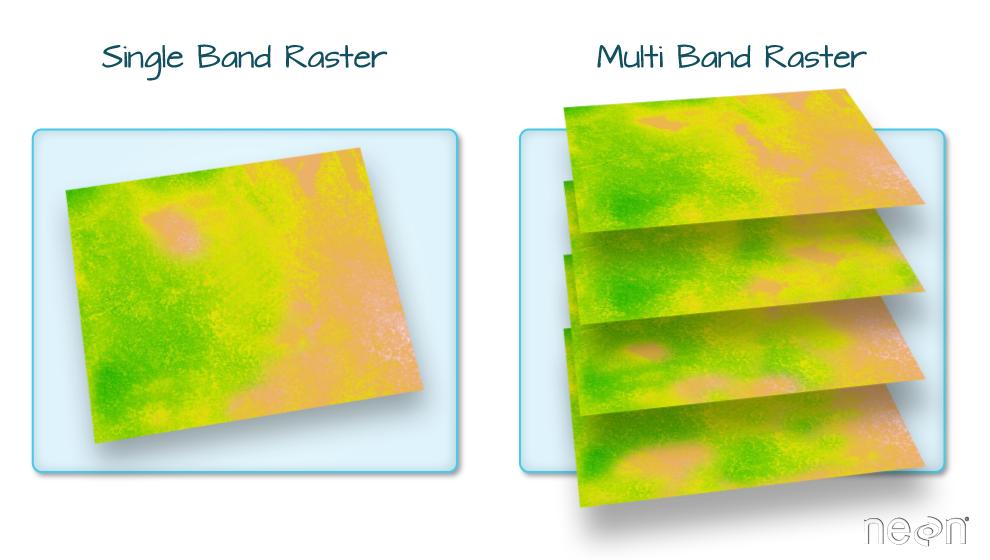
To work with multiband rasters in R, we need to change how we import and plot our data in several ways.
- To import multiband raster data we will use the
stack()function. - If our multiband data are imagery that we wish to composite, we can use
plotRGB()(instead ofplot()) to plot a 3 band raster image.
About MultiBand Imagery
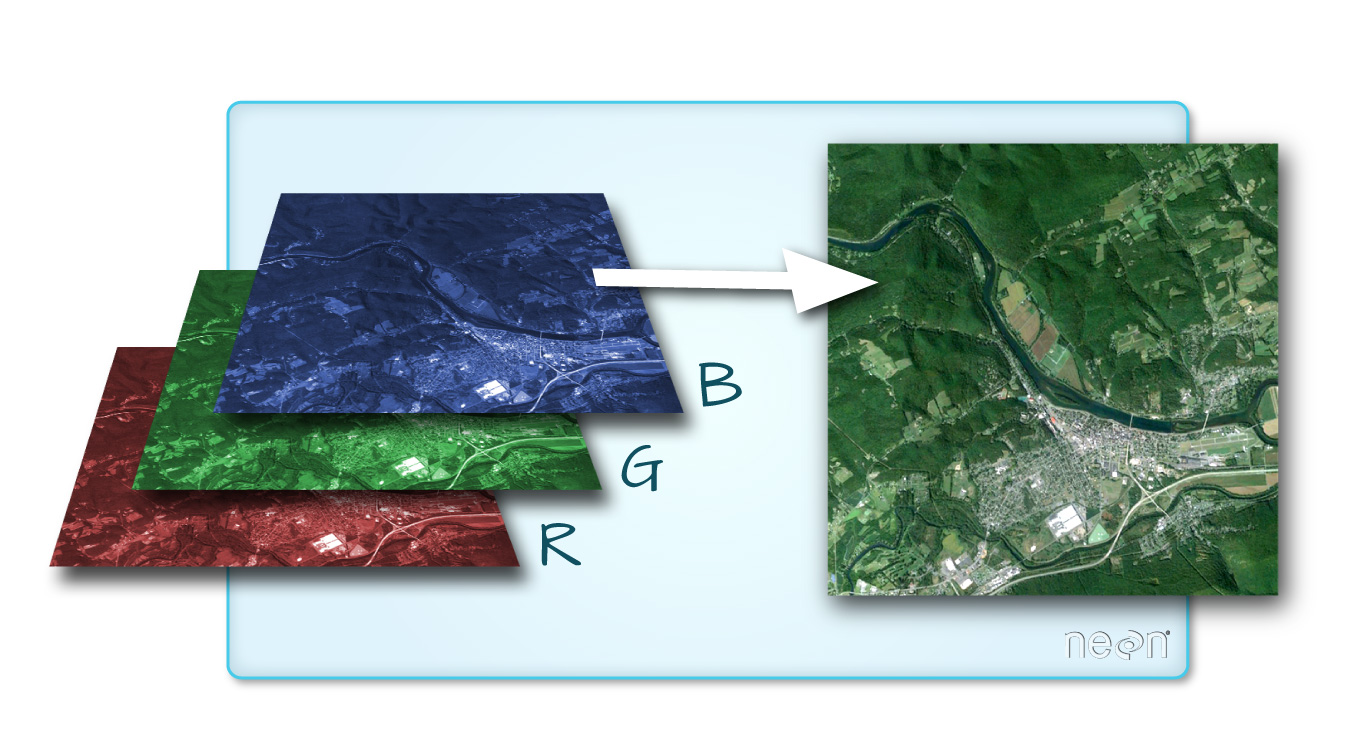
One type of multiband raster dataset that is familiar to many of us is a color image. A basic color image consists of three bands: red, green, and blue. Each band represents light reflected from the red, green or blue portions of the electromagnetic spectrum. The pixel brightness for each band, when composited creates the colors that we see in an image.
Getting Started with Multi-Band Data in R
To work with multiband raster data we will use the terra package.
library(terra) # terra package to work with raster data

library(neonUtilities) # package for downloading NEON data

library(RColorBrewer) # package for specifying color palettes

token <- Sys.getenv("NEON_TOKEN") # read in API token


# set working directory to ensure R can find the file we wish to import

wd <- "~/data/" # this will depend on your local environment environment

# be sure that the downloaded file is in this directory

setwd(wd)
Download RGB Data
byTileAOP(dpID='DP3.30010.001', # rgb camera data
          site='HARV',
          year='2022',
          easting=732000,
          northing=4713500,
          check.size=FALSE, # set to TRUE or remove to check the size before downloading
          savepath = wd,
          token=token)

## Downloading files totaling approximately 351.004249 MB

## Downloading 1 files

##
|
| | 0%
|
|==========================================================================| 100%
## Successfully downloaded 1 files to ~/data//DP3.30010.001
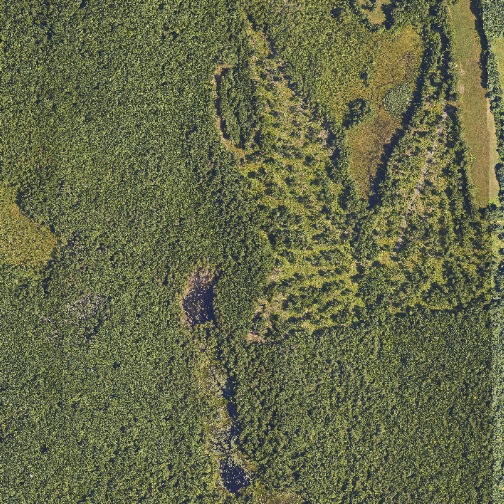
In this tutorial, the multi-band data that we are working with is imagery collected using the NEON Airborne Observation Platform high resolution camera over the NEON Harvard Forest field site. Each RGB image is a 3-band raster. The same steps would apply to working with a multi-spectral image with 4 or more bands - like Landsat imagery, or even hyperspectral imagery (in geotiff format). We can plot the RGB band combination of the image using plotRGB.
Or we can plot each band separately as follows:
# Determine the number of bands

num_bands <- nlyr(RGB_HARV)


# Define colors to plot each

# Define color palettes for each band using RColorBrewer

colors <- list(
  brewer.pal(9, "Reds"),
  brewer.pal(9, "Greens"),
  brewer.pal(9, "Blues")
)


# Plot each band in a loop, with the specified colors

for (i in 1:num_bands) {
  plot(RGB_HARV[[i]], main=paste("Band", i), col=colors[[i]])
}
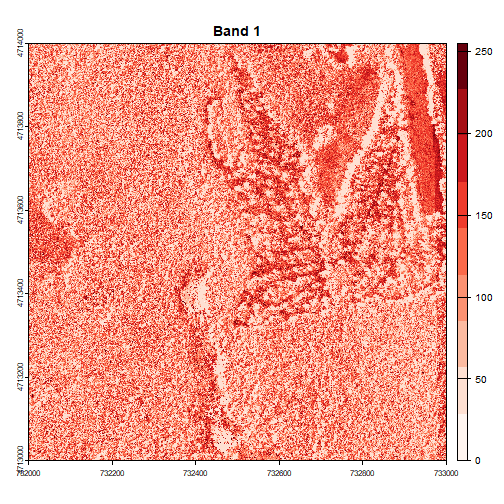
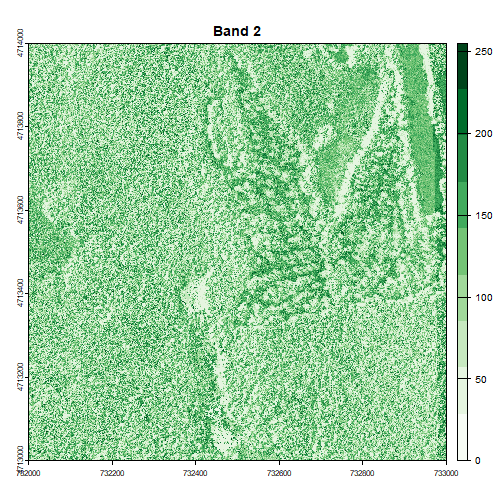
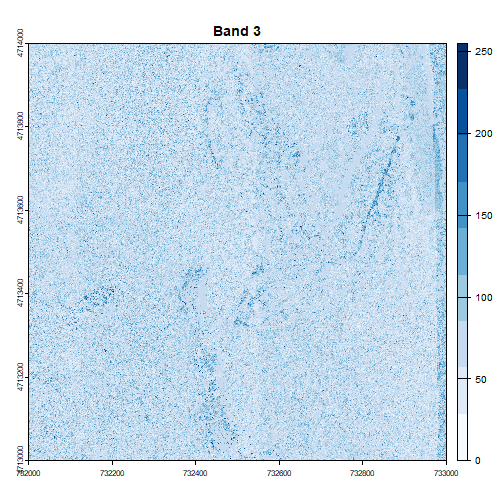
Image Raster Data Attributes
We can display some of the attributes about the raster, as shown below:
# Print dimensions

cat("Dimensions:\n")

## Dimensions:

cat("Number of rows:", nrow(RGB_HARV), "\n")

## Number of rows: 10000

cat("Number of columns:", ncol(RGB_HARV), "\n")

## Number of columns: 10000

cat("Number of layers:", nlyr(RGB_HARV), "\n")

## Number of layers: 3

# Print resolution

resolutions <- res(RGB_HARV)

cat("Resolution:\n")

## Resolution:

cat("X resolution:", resolutions[1], "\n")

## X resolution: 0.1

cat("Y resolution:", resolutions[2], "\n")

## Y resolution: 0.1

# Get the extent of the raster

rgb_extent <- ext(RGB_HARV)


# Convert the extent to a string with rounded values

extent_str <- sprintf("xmin: %d, xmax: %d, ymin: %d, ymax: %d",
                      round(xmin(rgb_extent)),
                      round(xmax(rgb_extent)),
                      round(ymin(rgb_extent)),
                      round(ymax(rgb_extent)))


# Print the extent string

cat("Extent of the raster: \n")

## Extent of the raster:

cat(extent_str, "\n")

## xmin: 732000, xmax: 733000, ymin: 4713000, ymax: 4714000
Let's take a look at the coordinate reference system, or CRS. You can use the parameters describe=TRUE to display this information more succinctly.
crs(RGB_HARV, describe=TRUE)

##                    name authority  code
## 1 WGS 84 / UTM zone 18N      EPSG 32618
##                                                                                                                                                                                                                                                          area
## 1 Between 78°W and 72°W, northern hemisphere between equator and 84°N, onshore and offshore. Bahamas. Canada - Nunavut; Ontario; Quebec. Colombia. Cuba. Ecuador. Greenland. Haiti. Jamaica. Panama. Turks and Caicos Islands. United States (USA). Venezuela
##            extent
## 1 -78, -72, 0, 84
Let's next examine the raster's minimum and maximum values. What is the range of values for each band?
# Replace Inf and -Inf with NA

values(RGB_HARV)[is.infinite(values(RGB_HARV))] <- NA


# Get min and max values for all bands

min_max_values <- minmax(RGB_HARV)


# Print the results

cat("Min and Max Values for All Bands:\n")

## Min and Max Values for All Bands:

print(min_max_values)

##     2022_HARV_7_732000_4713000_image_1 2022_HARV_7_732000_4713000_image_2
## min                                  0                                  0
## max                                255                                255
##     2022_HARV_7_732000_4713000_image_3
## min                                  0
## max                                255
This raster contains values between 0 and 255. These values represent the intensity of brightness associated with the image band. In the case of a RGB image (red, green and blue), band 1 is the red band. When we plot the red band, larger numbers (towards 255) represent pixels with more red in them (a strong red reflection). Smaller numbers (towards 0) represent pixels with less red in them (less red was reflected). To plot an RGB image, we mix red + green + blue values into one single color to create a full color image - this is the standard color image a digital camera creates.
Challenge: Making Sense of Single Bands of a Multi-Band Image
Go back to the code chunk where you plotted each band separately. Compare the plots of band 1 (red) and band 2 (green). Is the forested area darker or lighter in band 2 (the green band) compared to band 1 (the red band)?
Other Types of Multi-band Raster Data
Multi-band raster data might also contain:
- Time series: the same variable, over the same area, over time.
- Multi or hyperspectral imagery: image rasters that have 4 or more (multi-spectral) or more than 10-15 (hyperspectral) bands. Check out the NEON Data Skills Imaging Spectroscopy HDF5 in R tutorial to learn how to work with hyperspectral data cubes.
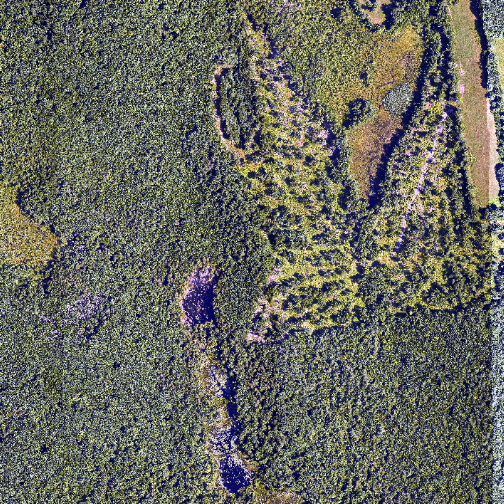
The true color image plotted at the beginning of this lesson looks pretty decent. We can explore whether applying a stretch to the image might improve clarity and contrast using stretch="lin" or stretch="hist".
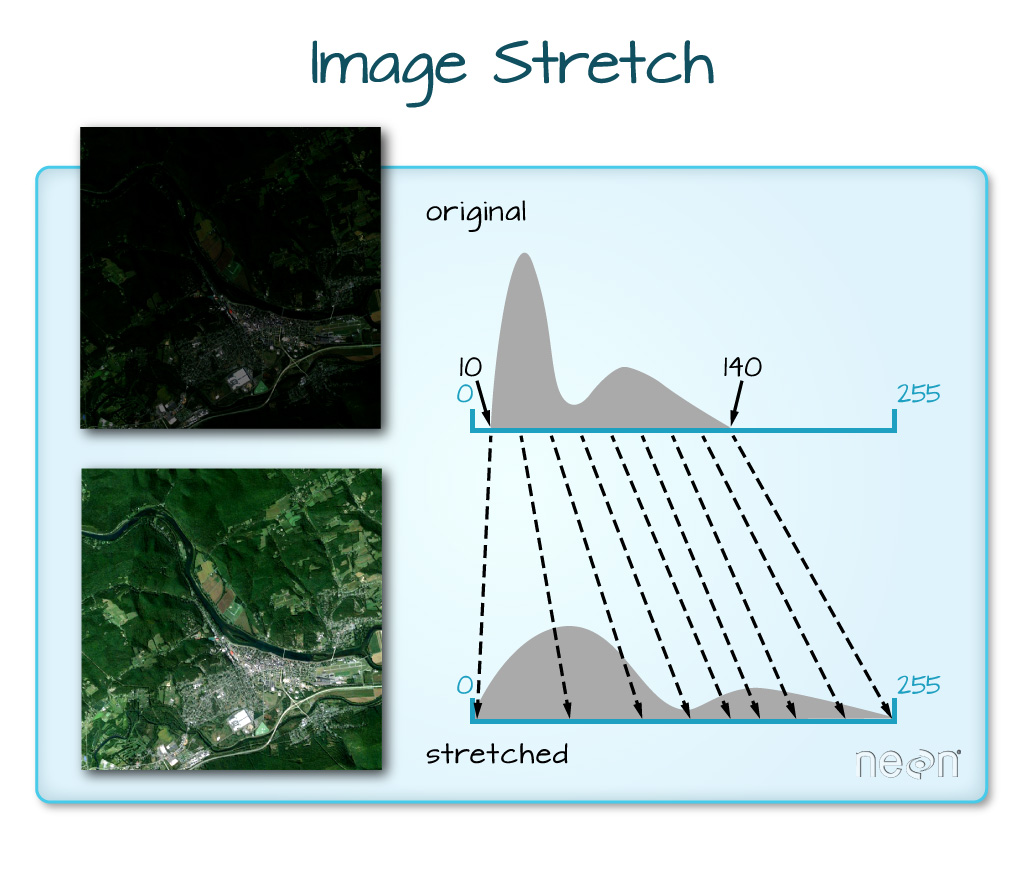
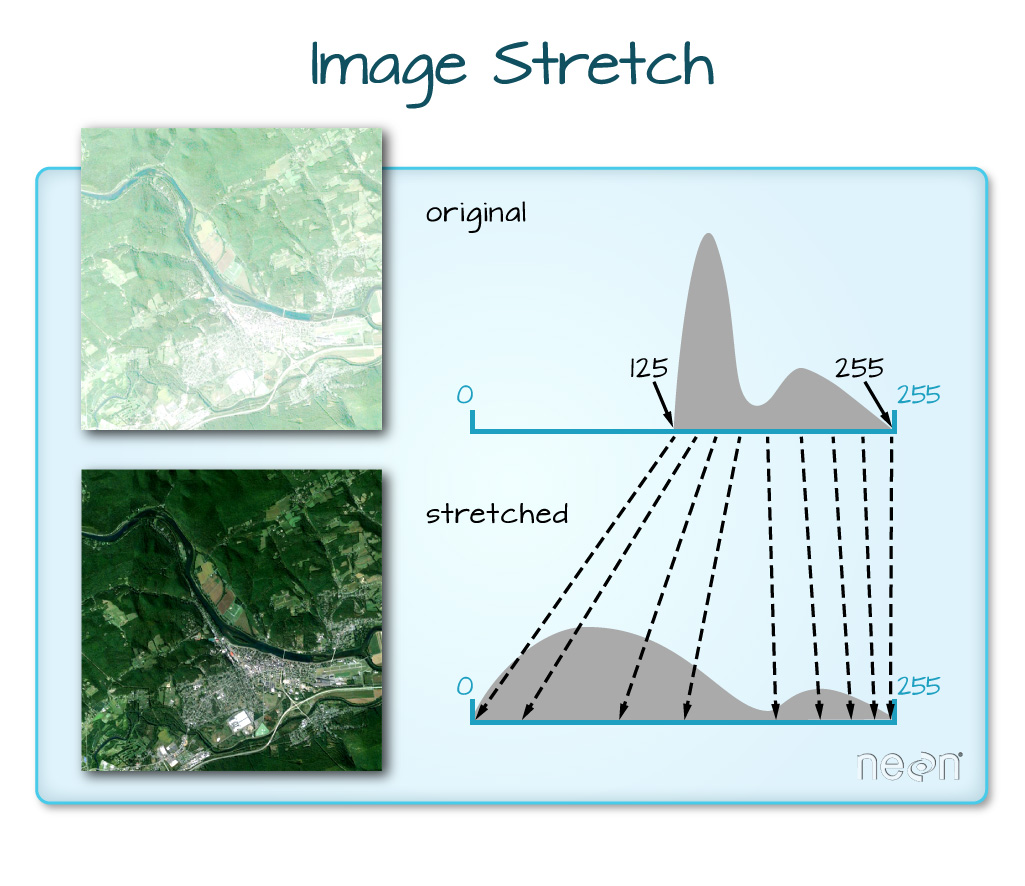
# What does stretch do?


# Plot the linearly stretched raster

plotRGB(RGB_HARV, stretch="lin")
# Plot the histogram-stretched raster

plotRGB(RGB_HARV, stretch="hist")
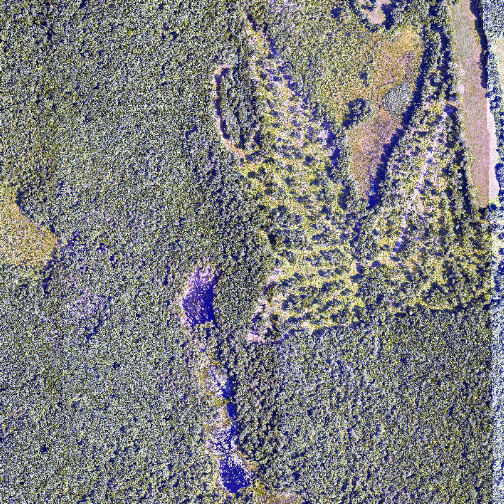
In this case, the stretch doesn't enhance the contrast our image significantly given the distribution of reflectance (or brightness) values is distributed well between 0 and 255, and applying a stretch appears to introduce some artificial, almost purple-looking brightness to the image.
Challenge: What Methods Can Be Used on an R Object?
We can view various methods available to call on an R object with methods(class=class(objectNameHere)). Use this to figure out:
- What methods can be used to call on the
RGB_HARVobject? - What methods are available for a single band within
RGB_HARV? - Why do you think there is a difference?