The NSF sponsored joint NCAR/NEON workshop, Predicting life in the Earth system – linking the geosciences and ecology, is an opportunity to bring together members of the atmospheric science and ecological communities to advance the capability of Earth system prediction to include terrestrial ecosystems and biological resources. The workshop’s overarching theme will focus on convergent research between the geosciences and ecology for ecological forecasting and prediction at subseasonal to seasonal, seasonal to decadal, and centennial timescales, including use of observations, required data services infrastructure, and models.
The National Socio-Environmental Synthesis Center (SESYNC) announces its Spring 2020 Request for Proposals for collaborative team-based research projects that synthesize existing data, methods, theories, and tools to address a pressing socio-environmental problem. The request includes a research topic focused on NEON-enabled Socio-Environmental Synthesis. Proposals are due March 30, 2020 at 5 p.m. ET.
In this tutorial, we will learn how to plot spectral signatures of several
different land cover types using an interactive click feature of the
terra package.
Learning Objectives
After completing this activity, you will be able to:
Extract and plot spectra from an HDF5 file.
Work with groups and datasets within an HDF5 file.
Use the terra::click() function to interact with an RGB raster image
Things You’ll Need To Complete This Tutorial
To complete this tutorial you will need the most current version of R and,
preferably, RStudio loaded on your computer.
As of June 2026, NEON requires an API token for data downloads, to reduce bot scraping and improve user support. Tokens can be generated in NEON data portal user accounts - log in to your account or create one, and go to the API Tokens section. For best practices in storing and using tokens, follow the instructions here.
These hyperspectral remote sensing data provide information on the National Ecological Observatory Network'sSan Joaquin Experimental Range (SJER) field site in March of 2021. The data used in this lesson is the 1km by 1km mosaic tile named NEON_D17_SJER_DP3_257000_4112000_reflectance.h5. If you already completed the previous lesson in this tutorial series, you do not need to download this data again. The entire SJER reflectance dataset can be accessed from the NEON Data Portal.
Set Working Directory: This lesson assumes that you have set your working directory to the location of the downloaded data.
This tutorial will require that you be comfortable navigating HDF5 files, and have an understanding of what spectral signatures are. For additional information on these topics, we highly recommend you work through the earlier tutorials in this Introduction to Hyperspectral Remote Sensing Data series before starting on this tutorial.
Getting Started
First, we need to load our required packages and set the working directory.
# load required packages
library(rhdf5)
library(reshape2)
library(terra)
library(plyr)
library(ggplot2)
library(grDevices)
# set working directory, you can change the data path if desired
wd <- "~/data/"
setwd(wd)
Download the reflectance tile, if you haven't already, using neonUtilities::byTileAOP:
byTileAOP(dpID = 'DP3.30006.001',
site = 'SJER',
year = '2021',
easting = 257500,
northing = 4112500,
savepath = wd)
And then we can read in the hyperspectral hdf5 data. We will also collect a few other important pieces of information (band wavelengths and scaling factor) while we're at it.
# define filepath to the hyperspectral dataset
h5_file <- paste0(wd,"DP3.30006.001/neon-aop-products/2021/FullSite/D17/2021_SJER_5/L3/Spectrometer/Reflectance/NEON_D17_SJER_DP3_257000_4112000_reflectance.h5")
# read in the wavelength information from the HDF5 file
wavelengths <- h5read(h5_file,"/SJER/Reflectance/Metadata/Spectral_Data/Wavelength")
# grab scale factor from the Reflectance attributes
reflInfo <- h5readAttributes(h5_file,"/SJER/Reflectance/Reflectance_Data" )
scaleFact <- reflInfo$Scale_Factor
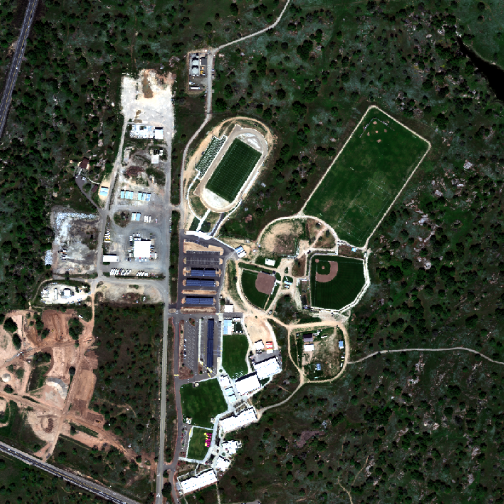
Now, we will read in the RGB image that we created in an earlier tutorial and plot it.
# read in RGB image as a 'stack' rather than a plain 'raster'
rgbStack <- rast(paste0(wd,"NEON_D17_SJER_DP3_257000_4112000_reflectance_2021_RGB.tif"))
# plot as RGB image, with a linear stretch
plotRGB(rgbStack,
r=1,g=2,b=3, scale=300,
stretch = "lin")
Interactive click Function from the terra Package
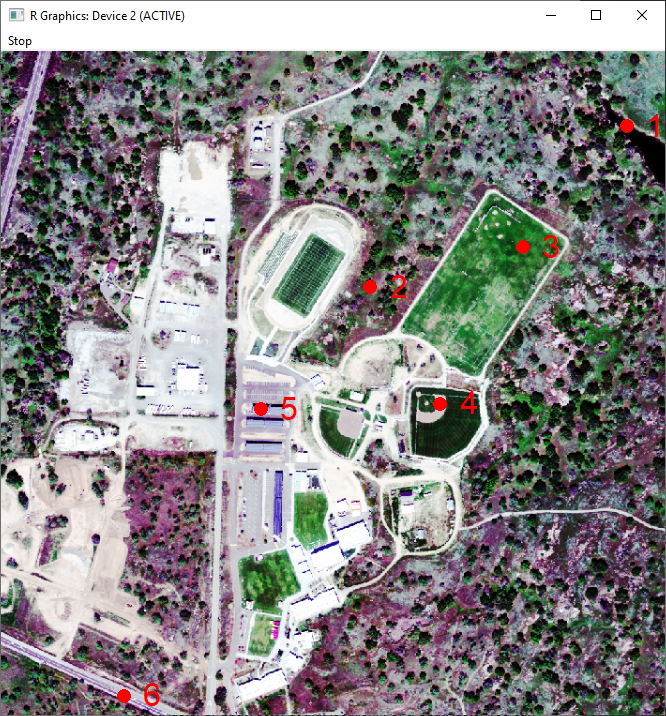
Next, we use an interactive clicking function to identify the pixels that we want to extract spectral signatures for. To follow along with this tutorial, we suggest the following six cover types (exact locations shown in the image below).
Water
Tree canopy (avoid the shaded northwestern side of the tree)
Irrigated grass
Bare soil (baseball diamond infield)
Building roof (blue)
Road
As shown here:
Six different land cover types chosen for this study in the order listed above (red numbers). This image is displayed with a histogram stretch.
Data Tip: Note from the terra::click Description (which you can read by typing help("click"): click "does not work well on the default RStudio plotting device. To work around that, you can first run dev.new(noRStudioGD = TRUE) which will create a separate window for plotting, then use plot() followed by click() and click on the map."
For this next part, if you are following along in RStudio, you will need to enter these line below directly in the Console. dev.new(noRStudioGD = TRUE) will open up a separate window for plotting, which is where you will click the pixels to extract spectra, using the terra::click functionality.
dev.new(noRStudioGD = TRUE)
Now we can create our RGB plot, and start clicking on this in the pop-out Graphics window.
# change plotting parameters to better see the points and numbers generated from clicking
par(col="red", cex=2)
# use a histogram stretch in order to provide more contrast for selecting pixels
plotRGB(rgbStack, r=1, g=2, b=3, scale=300, stretch = "hist")
# use the 'click' function
c <- click(rgbStack, n = 6, id=TRUE, xy=TRUE, cell=TRUE, type="p", pch=16, col="red", col.lab="red")
Once you have clicked your six points, the graphics window should close. If you want to choose new points, or if you accidentally clicked a point that you didn't intend to, run the previous 2 chunks of code again to re-start.
The click() function identifies the cell number that you clicked, but in order to extract spectral signatures, we need to convert that cell number into a row and column, as shown here:
# convert raster cell number into row and column (used to extract spectral signature below)
c$row <- c$cell%/%nrow(rgbStack)+1 # add 1 because R is 1-indexed
c$col <- c$cell%%ncol(rgbStack)
Extract Spectral Signatures from HDF5 file
Next, we will loop through each of the cells that and use the h5read() function to extract the reflectance values of all bands from the given pixel (row and column).
# create a new dataframe from the band wavelengths so that we can add the reflectance values for each cover type
pixel_df <- as.data.frame(wavelengths)
# loop through each of the cells that we selected
for(i in 1:length(c$cell)){
# extract spectral values from a single pixel
aPixel <- h5read(h5_file,"/SJER/Reflectance/Reflectance_Data",
index=list(NULL,c$col[i],c$row[i]))
# scale reflectance values from 0-1
aPixel <- aPixel/as.vector(scaleFact)
# reshape the data and turn into dataframe
b <- adply(aPixel,c(1))
# rename the column that we just created
names(b)[2] <- paste0("Point_",i)
# add reflectance values for this pixel to our combined data.frame called pixel_df
pixel_df <- cbind(pixel_df,b[2])
}
Plot Spectral signatures using ggplot2
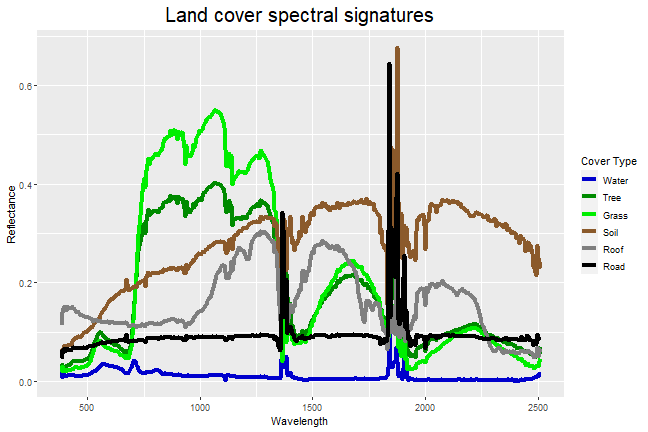
Finally, we have everything that we need to plot the spectral signatures for each of the pixels that we clicked. In order to color our lines by the different land cover types, we will first reshape our data using the melt() function, then plot the spectral signatures.
# Use the melt() function to reshape the dataframe into a format that ggplot prefers
pixel.melt <- reshape2::melt(pixel_df, id.vars = "wavelengths", value.name = "Reflectance")
# Now, let's plot the spectral signatures!
ggplot()+
geom_line(data = pixel.melt, mapping = aes(x=wavelengths, y=Reflectance, color=variable), lwd=1.5)+
scale_colour_manual(values = c("blue3","green4","green2","tan4","grey50","black"),
labels = c("Water","Tree","Grass","Soil","Roof","Road"))+
labs(color = "Cover Type")+
ggtitle("Land cover spectral signatures")+
theme(plot.title = element_text(hjust = 0.5, size=20))+
xlab("Wavelength")
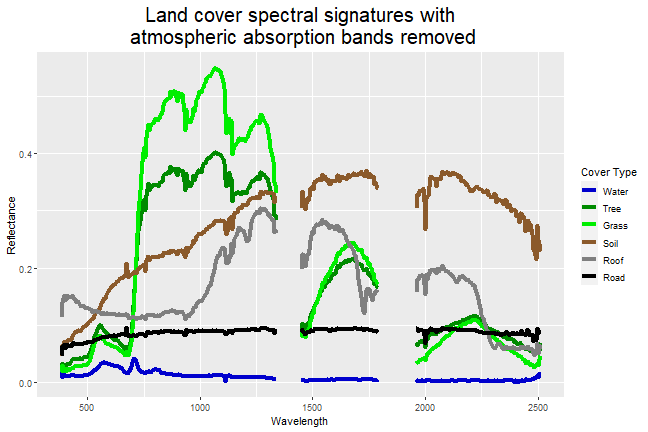
Nice! However, there seems to be something weird going on in the wavelengths near ~1400nm and ~1850 nm...
Atmospheric Absorption Bands
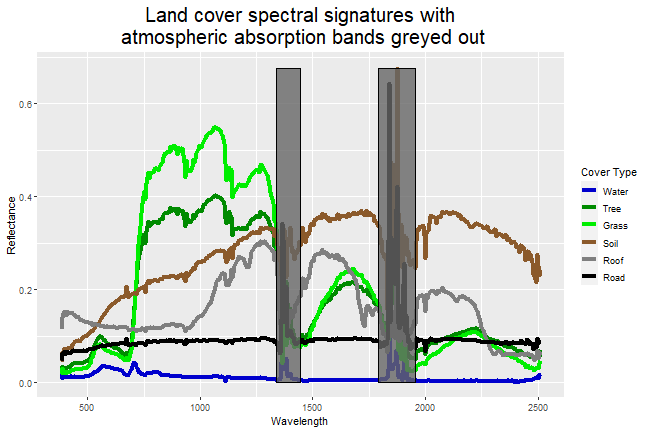
Those irregularities around 1400nm and 1850 nm are two major atmospheric absorption bands - regions where gasses in the atmosphere (primarily carbon dioxide and water vapor) absorb radiation, and therefore, obscure the reflected radiation that the imaging spectrometer measures. Fortunately, the lower and upper bound of each of those atmospheric absorption bands is specified in the HDF5 file. Let's read those bands and plot rectangles where the reflectance measurements are obscured by atmospheric absorption.
Now we can clearly see that the noisy sections of each spectral signature are within the atmospheric absorption bands. For our final step, let's take all reflectance values from within each absorption band and set them to NA to remove the noisiest sections from the plot.
# Duplicate the spectral signatures into a new data.frame
pixel.melt.masked <- pixel.melt
# Mask out all values within each of the two atmospheric absorption bands
pixel.melt.masked[pixel.melt.masked$wavelengths>ab1[1]&pixel.melt.masked$wavelengths<ab1[2],]$Reflectance <- NA
pixel.melt.masked[pixel.melt.masked$wavelengths>ab2[1]&pixel.melt.masked$wavelengths<ab2[2],]$Reflectance <- NA
# Plot the masked spectral signatures
ggplot()+
geom_line(data = pixel.melt.masked, mapping = aes(x=wavelengths, y=Reflectance, color=variable), lwd=1.5)+
scale_colour_manual(values = c("blue3","green4","green2","tan4","grey50","black"),
labels = c("Water","Tree","Grass","Soil","Roof","Road"))+
labs(color = "Cover Type")+
ggtitle("Land cover spectral signatures with\n atmospheric absorption bands removed")+
theme(plot.title = element_text(hjust = 0.5, size=20))+
xlab("Wavelength")
There you have it, spectral signatures for six different land cover types, with the regions from the atmospheric absorption bands removed.
Challenge: Compare Spectral Signatures
There are many interesting comparisons to make with spectral signatures.
Try these challenges to explore hyperspectral data further:
Compare six different types of vegetation, and pick an appropriate color for each of their lines. A nice guide to the many different color options in R can be found here.
What happens if you only click five points? What about ten? How does this change the spectral signature plots, and can you fix any errors that occur?
Does shallow water have a different spectral signature than deep water?
In this tutorial, we will subset an existing HDF5 file containing NEON
hyperspectral data. The purpose of this exercise is to generate a smaller
file for use in subsequent analyses to reduce the file transfer time and
processing power needed.
Learning Objectives
After completing this activity, you will be able to:
Navigate an HDF5 file to identify the variables of interest.
Generate a new HDF5 file from a subset of the existing dataset.
Save the new HDF5 file for future use.
Things You’ll Need To Complete This Tutorial
To complete this tutorial you will need the most current version of R and,
preferably, RStudio loaded on your computer.
The purpose of this tutorial is to reduce a large file (~652Mb) to a smaller
size. The download linked here is the original large file, and therefore you may
choose to skip this tutorial and download if you are on a slow internet connection
or have file size limitations on your device.
These data were collected over the San Joaquin field site located in California
(Domain 17) in March of 2019 and processed at NEON headquarters. This particular mosaic tile is
named NEON_D17_SJER_DP3_257000_4112000_reflectance.h5. The entire dataset can be accessed by
request from the NEON Data Portal.
R Script & Challenge Code: NEON data lessons often contain challenges that reinforce
learned skills. If available, the code for challenge solutions is found in the
downloadable R script of the entire lesson, available in the footer of each lesson page.
Recommended Skills
For this tutorial, we recommend that you have some basic familiarity with the
HDF5 file format, including knowing how to open HDF5 files (in Rstudio or
HDF5Viewer) and how groups and metadata are structured. To brush up on these
skills, we suggest that you work through the
Introduction to Working with HDF5 Format in R series
before moving on to this tutorial.
Why subset your dataset?
There are many reasons why you may wish to subset your HDF5 file.
Primarily, HDF5 files may contain a large amount of information
that is not necessary for your purposes. By subsetting the file,
you can reduce file size, thereby shrinking your storage needs,
shortening file transfer/download times, and reducing your processing
time for analysis. In this example, we
will take a full HDF5 file of NEON hyperspectral reflectance data
from the San Joaquin Experimental Range (SJER) that has a file size
of ~652 Mb and make a new HDF5 file with a reduced spatial extent,
and a reduced spectral resolution, yielding a file of only ~50.1 Mb.
This reduction in file size will make it easier and faster to conduct
your analysis and to share your data with others. We will then use this
subsetted file in the Introduction to Hyperspectral Remote Sensing Data series.
Exploring the NEON hyperspectral HDF5 file structure
In order to determine what information that we want to put into our subset, we
should first take a look at the full NEON hyperspectral HDF5 file structure to
see what is included. To do so, we will load the required package for this
tutorial (you can un-comment the middle two lines to load 'BiocManager' and
'rhdf5' if you don't already have it on your computer).
# Install rhdf5 package (only need to run if not already installed)
# install.packages("BiocManager")
# BiocManager::install("rhdf5")
# Load required packages
library(rhdf5)
Next, we define our working directory where we have saved the full HDF5
file of NEON hyperspectral reflectance data from the SJER site. Note,
the filepath to the working directory will depend on your local environment.
Then, we create a string (f) of the HDF5 filename and read its attributes.
# set working directory to ensure R can find the file we wish to import and where
# we want to save our files. Be sure to move the download into your working directory!
wd <- "~/Documents/data/" # This will depend on your local environment
setwd(wd)
# Make the name of our HDF5 file a variable
f_full <- paste0(wd,"NEON_D17_SJER_DP3_257000_4112000_reflectance.h5")
Next, let's take a look at the structure of the full NEON hyperspectral
reflectance HDF5 file.
View(h5ls(f_full, all=T))
Wow, there is a lot of information in there! The majority of the groups contained
within this file are Metadata, most of which are used for processing the raw
observations into the reflectance product that we want to use. For demonstration
and teaching purposes, we will not need this information. What we will need are
things like the Coordinate_System information (so that we can georeference these
data), the Wavelength dataset (so that we can match up each band with its appropriate
wavelength in the electromagnetic spectrum), and of course the Reflectance_Data
themselves. You can also see that each group and dataset has a number of associated
attributes (in the 'num_attrs' column). We will want to copy over those attributes
into the data subset as well. But first, we need to define each of the groups that
we want to populate in our new HDF5 file.
Create new HDF5 file framework
In order to make a new subset HDF5 file, we first must create an empty file
with the appropriate name, then we will begin to fill in that file with the
essential data and attributes that we want to include. Note that the function
h5createFile() will not overwrite an existing file. Therefore, if you have
already created or downloaded this file, the function will throw an error!
Each function should return 'TRUE' if it runs correctly.
# First, create a name for the new file
f <- paste0(wd, "NEON_hyperspectral_tutorial_example_subset.h5")
# create hdf5 file
h5createFile(f)
## [1] TRUE
# Now we create the groups that we will use to organize our data
h5createGroup(f, "SJER/")
## [1] TRUE
h5createGroup(f, "SJER/Reflectance")
## [1] TRUE
h5createGroup(f, "SJER/Reflectance/Metadata")
## [1] TRUE
h5createGroup(f, "SJER/Reflectance/Metadata/Coordinate_System")
## [1] TRUE
h5createGroup(f, "SJER/Reflectance/Metadata/Spectral_Data")
## [1] TRUE
Adding group attributes
One of the great things about HDF5 files is that they can contain
data and attributes within the same group.
As explained within the Introduction to Working with HDF5 Format in R series,
attributes are a type of metadata that are associated with an HDF5 group or
dataset. There may be multiple attributes associated with each group and/or
dataset. Attributes come with a name and an associated array of information.
In this tutorial, we will read the existing attribute data from the full
hyperspectral tile using the h5readAttributes() function (which returns
a list of attributes), then we loop through those attributes and write
each attribute to its appropriate group using the h5writeAttribute() function.
First, we will do this for the low-level "SJER/Reflectance" group. In this step,
we are adding attributes to a group rather than a dataset. To do so, we must
first open a file and group interface using the H5Fopen and H5Gopen functions,
then we can use h5writeAttribute() to edit the group that we want to give
an attribute.
a <- h5readAttributes(f_full,"/SJER/Reflectance/")
fid <- H5Fopen(f)
g <- H5Gopen(fid, "SJER/Reflectance")
for(i in 1:length(names(a))){
h5writeAttribute(attr = a[[i]], h5obj=g, name=names(a[i]))
}
# It's always a good idea to close the file connection immidiately
# after finishing each step that leaves an open connection.
h5closeAll()
Next, we will loop through each of the datasets within the Coordinate_System
group, and copy those (and their attributes, if present) from the full tile
to our subset file. The Coordinate_System group contains many important pieces
of information for geolocating our data, so we need to make sure that the
subset file has that information.
# make a list of all groups within the full tile file
ls <- h5ls(f_full,all=T)
# make a list of all of the names within the Coordinate_System group
cg <- unique(ls[ls$group=="/SJER/Reflectance/Metadata/Coordinate_System",]$name)
# Loop through the list of datasets that we just made above
for(i in 1:length(cg)){
print(cg[i])
# Read the inividual dataset within the Coordinate_System group
d=h5read(f_full,paste0("/SJER/Reflectance/Metadata/Coordinate_System/",cg[i]))
# Read the associated attributes (if any)
a=h5readAttributes(f_full,paste0("/SJER/Reflectance/Metadata/Coordinate_System/",cg[i]))
# Assign the attributes (if any) to the dataset
attributes(d)=a
# Finally, write the dataset to the HDF5 file
h5write(obj=d,file=f,
name=paste0("/SJER/Reflectance/Metadata/Coordinate_System/",cg[i]),
write.attributes=T)
}
## [1] "Coordinate_System_String"
## [1] "EPSG Code"
## [1] "Map_Info"
## [1] "Proj4"
Spectral Subsetting
The goal of subsetting this dataset is to substantially reduce the file size,
making it faster to download and process these data. While each AOP mosaic tile
is not particularly large in terms of its spatial scale (1km by 1km at 1m
resolution= 1,000,000 pixels, or about half as many pixels at shown on a standard
1080p computer screen), the 426 spectral bands available result in a fairly large
file size. Therefore, we will reduce the spectral resolution of these data by
selecting every fourth band in the dataset, which reduces the file size to 1/4
of the original!
Some circumstances demand the full spectral resolution file. For example, if you
wanted to discern between the spectral signatures of similar minerals, or if you
were conducting an analysis of the differences in the 'red edge' between plant
functional types, you would want to use the full spectral resolution of the
original hyperspectral dataset. Still, we can use far fewer bands for demonstration
and teaching purposes, while still getting a good sense of what these hyperspectral
data can do.
# First, we make our 'index', a list of number that will allow us to select every fourth band, using the "sequence" function seq()
idx <- seq(from = 1, to = 426, by = 4)
# We then use this index to select particular wavelengths from the full tile using the "index=" argument
wavelengths <- h5read(file = f_full,
name = "SJER/Reflectance/Metadata/Spectral_Data/Wavelength",
index = list(idx)
)
# As per above, we also need the wavelength attributes
wavelength.attributes <- h5readAttributes(file = f_full,
name = "SJER/Reflectance/Metadata/Spectral_Data/Wavelength")
attributes(wavelengths) <- wavelength.attributes
# Finally, write the subset of wavelengths and their attributes to the subset file
h5write(obj=wavelengths, file=f,
name="SJER/Reflectance/Metadata/Spectral_Data/Wavelength",
write.attributes=T)
Spatial Subsetting
Even after spectral subsetting, our file size would be greater than 100Mb.
herefore, we will also perform a spatial subsetting process to further
reduce our file size. Now, we need to figure out which part of the full image
that we want to extract for our subset. It takes a number of steps in order
to read in a band of data and plot the reflectance values - all of which are
thoroughly described in the Intro to Working with Hyperspectral Remote Sensing Data in HDF5 Format in R
tutorial. For now, let's focus on the essentials for our problem at hand. In
order to explore the spatial qualities of this dataset, let's plot a single
band as an overview map to see what objects and land cover types are contained
within this mosaic tile. The Reflectance_Data dataset has three dimensions in
the order of bands, columns, rows. We want to extract a single band, and all
1,000 columns and rows, so we will feed those values into the index= argument
as a list. For this example, we will select the 58th band in the hyperspectral
dataset, which corresponds to a wavelength of 667nm, which is in the red end of
the visible electromagnetic spectrum. We will use NULL in the column and row
position to indicate that we want all of the columns and rows (we agree that
it is weird that NULL indicates "all" in this circumstance, but that is the
default behavior for this, and many other, functions).
# Extract or "slice" data for band 58 from the HDF5 file
b58 <- h5read(f_full,name = "SJER/Reflectance/Reflectance_Data",
index=list(58,NULL,NULL))
h5closeAll()
# convert from array to matrix
b58 <- b58[1,,]
# Make a plot to view this band
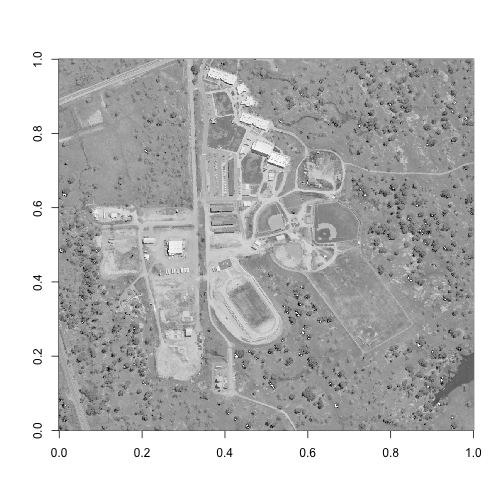
image(log(b58), col=grey(0:100/100))
As we can see here, this hyperspectral reflectance tile contains a school campus
that is under construction. There are many different land cover types contained
here, which makes it a great example! Perhaps the most unique feature shown is in
the bottom right corner of this image, where we can see the tip of a small reservoir.
Let's be sure to capture this feature in our spatial subset, as well as a few other
land cover types (irrigated grass, trees, bare soil, and buildings).
While raster images count their pixels from the top left corner, we are working
with a matrix, which counts its pixels from the bottom left corner. Therefore,
rows are counted from the bottom to the top, and columns are counted from the
left to the right. If we want to sample the bottom right quadrant of this image,
we need to select rows 1 through 500 (bottom half), and columns 501 through 1000
(right half). Note that, as above, the index= argument in h5read() requires
a list of three dimensions for this example - in the order of bands, columns,
rows.
subset_rows <- 1:500
subset_columns <- 501:1000
# Extract or "slice" data for band 44 from the HDF5 file
b58 <- h5read(f_full,name = "SJER/Reflectance/Reflectance_Data",
index=list(58,subset_columns,subset_rows))
h5closeAll()
# convert from array to matrix
b58 <- b58[1,,]
# Make a plot to view this band
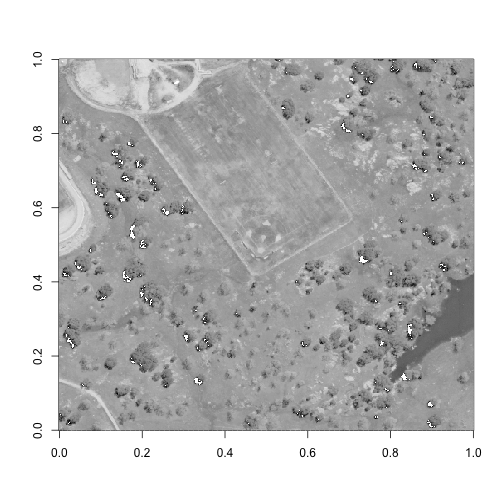
image(log(b58), col=grey(0:100/100))
Perfect - now we have a spatial subset that includes all of the different land
cover types that we are interested in investigating.
### Challenge: Pick your subset
Pick your own area of interest for this spatial subset, and find the rows and
columns that capture that area. Can you include some solar panels, as well as
the water body?
Does it make a difference if you use a band from another part of the
electromagnetic spectrum, such as the near-infrared? Hint: you can use the
'wavelengths' function above while removing the index= argument to get the
full list of band wavelengths.
Extracting a subset
Now that we have determined our ideal spectral and spatial subsets for our
analysis, we are ready to put both of those pieces of information into our
h5read() function to extract our example subset out of the full NEON
hyperspectral dataset. Here, we are taking every fourth band (using our idx
variabe), columns 501:1000 (the right half of the tile) and rows 1:500 (the
bottom half of the tile). The results in us extracting every fourth band of
the bottom-right quadrant of the mosaic tile.
# Read in reflectance data.
# Note the list that we feed into the index argument!
# This tells the h5read() function which bands, rows, and
# columns to read. This is ultimately how we reduce the file size.
hs <- h5read(file = f_full,
name = "SJER/Reflectance/Reflectance_Data",
index = list(idx, subset_columns, subset_rows)
)
As per the 'adding group attributes' section above, we will need to add the
attributes to the hyperspectral data (hs) before writing to the new HDF5
subset file (f). The hs variable already has one attribute, $dim, which
contains the actual dimensions of the hs array, and will be important for
writing the array to the f file later. We will want to combine this attribute
with all of the other Reflectance_Data group attributes from the original HDF5
file, f. However, some of the attributes will no longer be valid, such as the
Dimensions and Spatial_Extent_meters attributes, so we will need to overwrite
those before assigning these attributes to the hs variable to then write to
the f file.
# grab the '$dim' attribute - as this will be needed
# when writing the file at the bottom
hsd <- attributes(hs)
# We also need the attributes for the reflectance data.
ha <- h5readAttributes(file = f_full,
name = "SJER/Reflectance/Reflectance_Data")
# However, some of the attributes are not longer valid since
# we changed the spatial extend of this dataset. therefore,
# we will need to overwrite those with the correct values.
ha$Dimensions <- c(500,500,107) # Note that the HDF5 file saves dimensions in a different order than R reads them
ha$Spatial_Extent_meters[1] <- ha$Spatial_Extent_meters[1]+500
ha$Spatial_Extent_meters[3] <- ha$Spatial_Extent_meters[3]+500
attributes(hs) <- c(hsd,ha)
# View the combined attributes to ensure they are correct
attributes(hs)
## $dim
## [1] 107 500 500
##
## $Cloud_conditions
## [1] "For cloud conditions information see Weather Quality Index dataset."
##
## $Cloud_type
## [1] "Cloud type may have been selected from multiple flight trajectories."
##
## $Data_Ignore_Value
## [1] -9999
##
## $Description
## [1] "Atmospherically corrected reflectance."
##
## $Dimension_Labels
## [1] "Line, Sample, Wavelength"
##
## $Dimensions
## [1] 500 500 107
##
## $Interleave
## [1] "BSQ"
##
## $Scale_Factor
## [1] 10000
##
## $Spatial_Extent_meters
## [1] 257500 258000 4112500 4113000
##
## $Spatial_Resolution_X_Y
## [1] 1 1
##
## $Units
## [1] "Unitless."
##
## $Units_Valid_range
## [1] 0 10000
# Finally, write the hyperspectral data, plus attributes,
# to our new file 'f'.
h5write(obj=hs, file=f,
name="SJER/Reflectance/Reflectance_Data",
write.attributes=T)
## You created a large dataset with compression and chunking.
## The chunk size is equal to the dataset dimensions.
## If you want to read subsets of the dataset, you should testsmaller chunk sizes to improve read times.
# It's always a good idea to close the HDF5 file connection
# before moving on.
h5closeAll()
That's it! We just created a subset of the original HDF5 file, and included the
most essential groups and metadata for exploratory analysis. You may consider
adding other information, such as the weather quality indicator, when subsetting
datasets for your own purposes.
If you want to take a look at the subset that you just made, run the h5ls() function:
This tutorial explores NEON geolocation data. The focus is on the locations
of NEON observational sampling and sensor data; NEON remote sensing data are
inherently spatial and have dedicated tutorials. If you are interested in
connecting remote sensing with ground-based measurements, the methods in
the vegetation structure and canopy height model
tutorial can be generalized to other data products.
In planning your analyses, consider what level of spatial resolution is
required. There is no reason to carefully map each measurement if precise
spatial locations aren't required to address your hypothesis! For example,
if you want to use the Vegetation structure
data product to calculate a site-scale estimate of biomass and production,
the spatial coordinates of each tree are probably not needed. If
you want to explore relationships between vegetation and beetle communities,
you will need to identify the sampling plots where NEON measures both beetles
and vegetation, but finer-scale coordinates may not be needed. Finally, if
you want to relate vegetation measurements to airborne remote sensing data,
you will need very accurate coordinates for each measurement on the ground.
Learning Objectives
After completing this tutorial you will be able to:
Access NEON spatial data through data downloaded with the
neonUtilities package.
Access and plot specific sampling locations for TOS data products.
Access and use sensor location data.
Things You’ll Need To Complete This Tutorial
R Programming Language
You will need a current version of R (4+) to complete this tutorial. We also
recommend the RStudio IDE to work with R.
Setup R Environment
We'll need several R packages in this tutorial. Install the packages, if not
already installed, and load the libraries for each. As of June 2026, NEON
requires an API token for data downloads, to reduce bot scraping and improve
user support. Tokens can be generated in NEON data portal user accounts - log
in to your account or create one, and go to the API Tokens section. For best
practices in storing and using tokens, follow the instructions here.
# run once to get the package, and re-run if you need to get updates
install.packages("ggplot2")
install.packages("dplyr")
install.packages("neonUtilities")
install.packages("neonOS")
install.packages("devtools")
devtools::install_github("NEONScience/NEON-geolocation/geoNEON")
library(ggplot2)
library(dplyr)
library(neonUtilities)
library(neonOS)
library(geoNEON)
token <- Sys.getenv("NEON_TOKEN")
Locations for observational data
Plot level locations
Both aquatic and terrestrial observational data downloads include spatial
data in the downloaded files. The spatial data in the aquatic data files
are the most precise locations available for the sampling events. The
spatial data in the terrestrial data downloads represent the locations of
the sampling plots. In some cases, the plot is the most precise location
available, but for many terrestrial data products, more precise locations
can be calculated for specific sampling events.
Here, we'll download the Vegetation structure (DP1.10098.001) data
product, examine the plot location data in the download, then calculate
the locations of individual trees. These steps can be extrapolated to other
terrestrial observational data products; the specific sampling layout
varies from data product to data product, but the methods for working with
the data are similar.
First, let's download the vegetation structure data from one site, Wind
River Experimental Forest (WREF). If downloading data using the neonUtilities
package is new to you, check out the Download and Explore tutorial.
Data downloaded this way are stored in R as a large list. For this tutorial,
we'll work with the individual dataframes within this large list.
Alternatively, each dataframe can be assigned as its own object.
To find the spatial data for any given data product, view the variables files
to figure out which data table the spatial data are contained in.
View(vst$variables_10098)
Looking through the variables, we can see that the spatial data
(decimalLatitude and decimalLongitude, etc) are in the
vst_perplotperyear table. Let's take a look at
the table.
View(vst$vst_perplotperyear)
As noted above, the spatial data here are at the plot level; the
latitude and longitude represent the centroid of the sampling plot.
We can map these plots on the landscape using the easting and
northing variables; these are the UTM coordinates. At this site,
tower plots are 40 m x 40 m, and distributed plots are 20 m x 20 m;
we can use the symbols() function to draw boxes of the correct
size.
We'll also use the treesPresent variable to subset to only
those plots where trees were found and measured.
# start by subsetting data to plots with trees
vst.trees <- vst$vst_perplotperyear |>
filter(treesPresent=="Y")
# create plot size variable
vst.trees <- vst.trees |>
mutate(plotsize = case_when(plotType=="tower" ~ 40,
plotType=="distributed" ~ 20,
TRUE ~ NA))
# create map of plots
symbols(vst.trees$easting,
vst.trees$northing,
squares=vst.trees$plotsize,
inches=F,
xlab="Easting",
ylab="Northing")
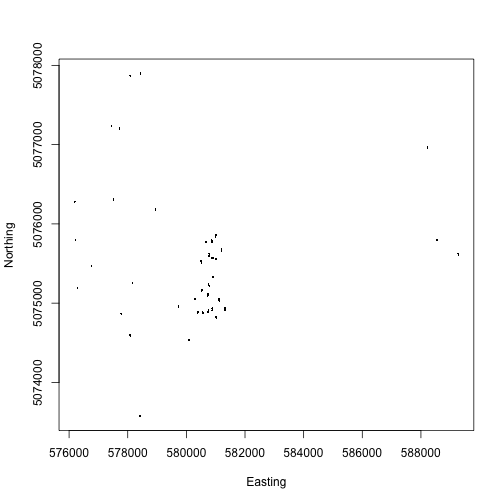
We can see where the plots are located across the landscape, and
we can see the denser cluster of plots in the area near the
micrometeorology tower.
For many analyses, this level of spatial data may be sufficient.
Calculating the precise location of each tree is only required for
certain hypotheses; consider whether you need these data when
working with a data product with plot-level spatial data.
Looking back at the variables_10098 table, notice that there is
a table in this data product called vst_mappingandtagging,
suggesting we can find mapping data there. Let's take a look.
View(vst$vst_mappingandtagging)
Here we see data fields for stemDistance and stemAzimuth. Looking
back at the variables_10098 file, we see these fields contain the
distance and azimuth from a pointID to a specific stem. To calculate
the precise coordinates of each tree, we would need to get the locations
of the pointIDs, and then adjust the coordinates based on distance and
azimuth. The Data Product User Guide describes how to carry out these
steps, and can be downloaded from the
Data Product Details page.
However, carrying out these calculations yourself is not the only option!
The geoNEON package contains a function that can do this for you, for
the TOS data products with location data more precise than the plot level.
Sampling locations
The getLocTOS() function in the geoNEON package uses the NEON API to
access NEON location data and then makes protocol-specific calculations
to return precise locations for each sampling effort. This function works for a
subset of NEON TOS data products. The list of tables and data products that can
be entered is in the
package documentation on GitHub.
For more information about the NEON API, see the
API tutorial
and the
API web page.
For more information about the location calculations used in each data product,
see the Data Product User Guide for each product.
The getLocTOS() function requires three inputs:
A data table that contains spatial data from a NEON TOS data product
The NEON table name of that data table
NEON API token
For vegetation structure locations, the function call looks like this. This
function may take a while to download all the location data.
Now we have adjusted latitude, longitude, and elevation, and the
corresponding easting and northing UTM data. We also have coordinate
uncertainty data for these coordinates.
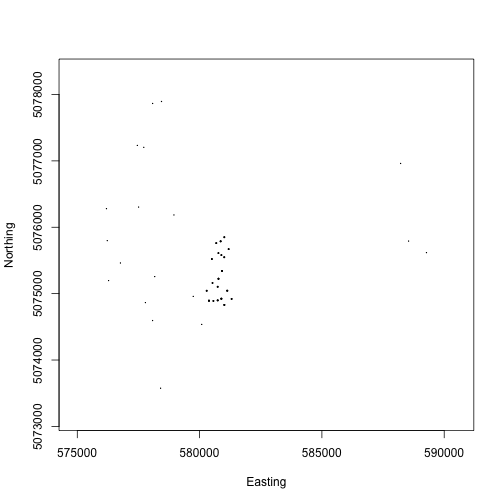
As we did with the plots above, we can use the easting and northing
data to plot the locations of the individual trees.
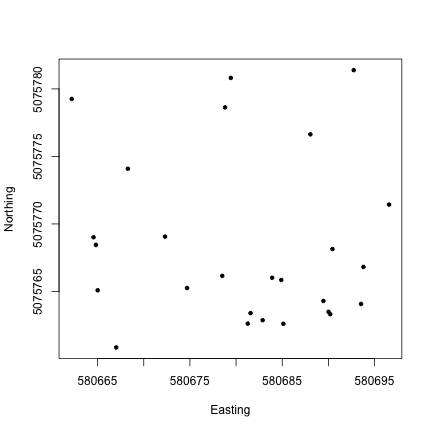
We can see the mapped trees in the same plots we mapped above.
We've plotted each individual tree as a ., so all we can see at
this scale is the cluster of dots that make up each plot.
Now we can see the location of each tree within the sampling plot WREF_085.
This is interesting, but it would be more interesting if we could see more
information about each tree. How are species distributed across the plot,
for instance?
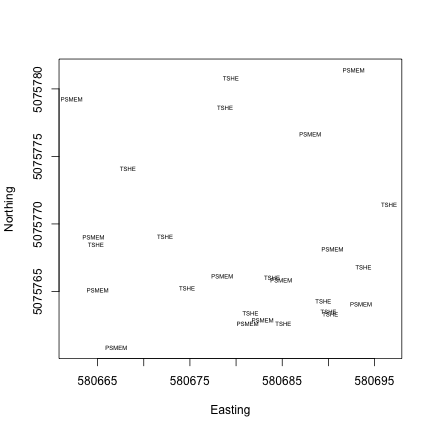
We can plot the tree species at each location using the text() function
and the taxonID field.
Almost all of the mapped trees in this plot are either Pseudotsuga menziesii
or Tsuga heterophylla (Douglas fir and Western hemlock), not too
surprising at Wind River.
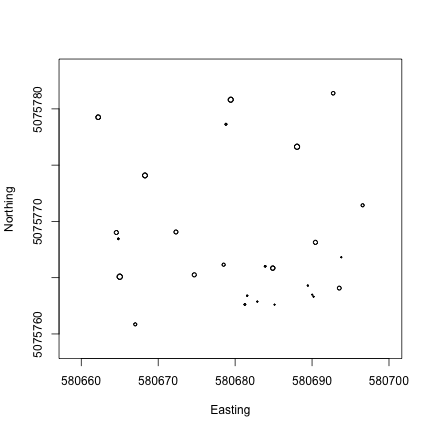
But suppose we want to map the diameter of each tree? This is a very common
way to present a stem map, it gives a visual as if we were looking down on
the plot from overhead and had cut off each tree at its measurement height.
Other than taxon, the attributes of the trees, such as diameter, height,
growth form, and canopy position, are found in the vst_apparentindividual
table, not in the vst_mappingandtagging table. We'll need to join the
two tables to get the tree attributes together with their mapped locations.
The neonOS package contains the function joinTableNEON(), which can be
used to do this. See the tutorial for the neonOS package for more details
about this function.
Now we can use the symbols() function to plot the diameter of each tree,
at its spatial coordinates, to create a correctly scaled map of boles in
the plot. Note that stemDiameter is in centimeters, while easting and
northing UTMs are in meters, so we divide by 100 to scale correctly.
If you are interested in taking the vegetation structure data a step
further, and connecting measurements of trees on the ground to remotely
sensed Lidar data, check out the
Vegetation Structure and Canopy Height Model tutorial.
If you are interested in working with other terrestrial observational (TOS)
data products, the basic techniques used here to find precise sampling
locations and join data tables can be adapted to other TOS data products.
Consult the Data Product User Guide for each data product to find
details specific to that data product.
Locations for sensor data
Downloads of instrument system (IS) data include a file called
sensor_positions.csv. The sensor positions file contains information
about the coordinates of each sensor, relative to a reference location.
While the specifics vary, techniques are generalizable for working with sensor
data and the sensor_positions.csv file. For this tutorial, let's look at the
sensor locations for soil temperature (PAR; DP1.00041.001) at
the NEON Treehaven site (TREE) in July 2018. To reduce our file size, we'll use
the 30 minute averaging interval. Our final product from this section is to
create a depth profile of soil temperature in one soil plot.
If downloading data using the neonUtilties package is new to you, check out the
neonUtilities tutorial.
This function will download about 7 MB of data as written so we have check.size =F
for ease of running the code.
Soil temperature data are collected in 5 instrumented soil plots inside the
tower footprint. We see this reflected in the data where HOR = 001 to 005.
Within each plot, temperature is measured at 9 depths, seen in VER = 501 to
509. At some sites, the number of depths may differ slightly.
The x, y, and z offsets in the sensor positions file are the relative distance,
in meters, to the reference latitude, longitude, and elevation in the file.
The HOR and VER indices in the sensor positions file correspond to the
verticalPosition and horizontalPosition fields in soilT$ST_30_minute.
Note that there are two sets of position data for soil plot 001, and that
one set has a positionEndDateTime date in the file. This indicates sensors either
moved or were relocated; in this case there was a frost heave incident.
You can read about it in the issue log, which is displayed on the
Data Product Details page,
and also included as a table in the data download:
soilT$issueLog_00041 |>
filter(grepl("TREE soil plot 1", locationAffected))
## id parentIssueID issueDate resolvedDate dateRangeStart dateRangeEnd
## 1 9328 NA 2019-05-23T00:00:00Z 2019-05-23T00:00:00Z 2018-11-07T00:00:00Z 2019-04-19T00:00:00Z
## locationAffected
## 1 D05 TREE soil plot 1 measurement levels 1-9 (HOR.VER: 001.501, 001.502, 001.503, 001.504, 001.505, 001.506, 001.507, 001.508, 001.509)
## issue
## 1 Soil temperature sensors were pushed or pulled out of the ground by 3 cm over winter, presumably due to freeze-thaw action. The exact timing of this is unknown, but it occurred sometime between 2018-11-07 and 2019-04-19.
## resolution
## 1 Sensor depths were updated in the database with a start date of 2018-11-07 for the new depths.
Since we're working with data from July 2018, and the change in
sensor locations is dated Nov 2018, we'll use the original locations.
There are a number of ways to drop the later locations from the
table; here, here, we find the rows in which the positionEndDateTime field is
empty, indicating no end date, and the rows corresponding to soil plot 001,
and drop all the rows that meet both criteria.
Our goal is to plot a time series of temperature, stratified by
depth, so let's start by joining the data file and sensor positions
file, to bring the depth measurements into the same data frame with
the data.
# paste horizontalPosition and verticalPosition together
# to match HOR.VER in the sensor positions file
soilT$ST_30_minute <- soilT$ST_30_minute |>
mutate(HOR.VER = paste(horizontalPosition,
verticalPosition,
sep="."))
# left join to keep all temperature records
soilTHV <- merge(soilT$ST_30_minute, pos,
by="HOR.VER", all.x=T)
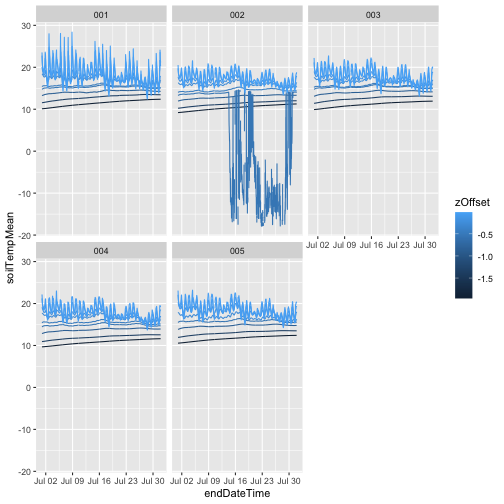
And now we can plot soil temperature over time for each depth.
We'll use ggplot since it's well suited to this kind of
stratification. Each soil plot is its own panel, and each depth
is its own line:
gg <- ggplot(soilTHV,
aes(endDateTime, soilTempMean,
group=zOffset, color=zOffset)) +
geom_line() +
facet_wrap(~horizontalPosition)
gg
## Warning: Removed 1488 rows containing missing values or values outside the scale range (`geom_line()`).
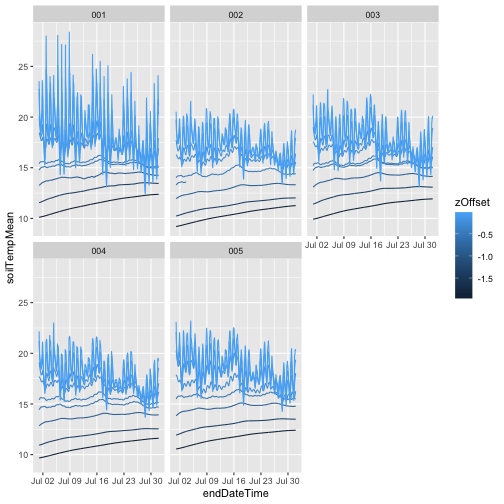
We can see that as soil depth increases, temperatures
become much more stable, while the shallowest measurement
has a clear diurnal cycle. We can also see that
something has gone wrong with one of the sensors in plot
002. To remove those data, use only values where the final
quality flag passed, i.e. finalQF = 0
This data tutorial provides an introduction to working with NEON eddy
flux data, using the neonUtilities R package or the
neonutilities Python package. If you are new to NEON data,
we recommend starting with a more general tutorial, such as the
Download
and Explore tutorial. Some of the functions and techniques described
there will be used here, as well as functions and data formats that are
unique to the eddy flux system.
As of June 2026, NEON requires an API token for data downloads, to
reduce bot scraping and improve user support. Tokens can be generated in
NEON data portal user accounts - log in to your account or create one,
and go to the API Tokens section. For best practices in storing and
using tokens, follow the instructions
here.
This tutorial assumes general familiarity with eddy flux data and
associated concepts.
1. Setup and data download
Start by installing and loading packages and setting options.
R
To work with the NEON flux data, we need the rhdf5
package, which is hosted on Bioconductor, and requires a different
installation process than CRAN packages:
The necessary helper packages should be installed automatically when
we install neonUtilities. We’ll also use several modules
that are installed automatically with standard Python installations.
pip install neonutilities
Now load packages and token.
import neonutilities as nu
import matplotlib.pyplot as plt
import pandas as pd
import numpy as np
from datetime import datetime
import dotenv
import os
dotenv.load_dotenv()
token = os.environ.get("NEON_TOKEN")
Download data
R
Use the zipsByProduct() function from the
neonUtilities package to download flux data from two sites
and two months. The transformations and functions below will work on any
time range and site(s), but two sites and two months allows us to see
all the available functionality while minimizing download size.
Inputs to the zipsByProduct() function for this
tutorial:
dpID: DP4.00200.001, the bundled eddy covariance
product
package: basic (the expanded package is not covered in
this tutorial)
site: NIWO = Niwot Ridge and HARV = Harvard Forest
startdate: 2018-06 (both dates are inclusive)
enddate: 2018-07 (both dates are inclusive)
savepath: path to download to; here we use the working
directory
check.size: T if you want to see file size before
downloading, otherwise F
token: NEON API token
The download may take a while, especially if you’re on a slow
network.
Use the zips_by_product() function from the
neonutilities package to download flux data from two sites
and two months. The transformations and functions below will work on any
time range and site(s), but two sites and two months allows us to see
all the available functionality while minimizing download size.
Inputs to the zips_by_product() function for this
tutorial:
dpid: DP4.00200.001, the bundled eddy covariance
product
package: basic (the expanded package is not covered in
this tutorial)
site: NIWO = Niwot Ridge and HARV = Harvard Forest
startdate: 2018-06 (both dates are inclusive)
enddate: 2018-07 (both dates are inclusive)
savepath: path to download to; here we use the working
directory
check_size: T if you want to see file size before
downloading, otherwise F
token: NEON API token
The download may take a while, especially if you’re on a slow
network.
There are five levels of data contained in the eddy flux bundle. For
full details, refer to the
NEON
algorithm document.
Briefly, the data levels are:
Level 0’ (dp0p): Calibrated raw observations
Level 1 (dp01): Time-aggregated observations, e.g. 30-minute mean
gas concentrations
Level 2 (dp02): Time-interpolated data, e.g. rate of change of a gas
concentration
Level 3 (dp03): Spatially interpolated data, i.e. vertical
profiles
Level 4 (dp04): Fluxes
The dp0p data are available in the expanded data package and are
beyond the scope of this tutorial.
The dp02 and dp03 data are used in storage calculations, and the dp04
data include both the storage and turbulent components. Since many users
will want to focus on the net flux data, we’ll start there.
3. Extract Level 4 data (Fluxes!)
R
To extract the Level 4 data from the HDF5 files and merge them into a
single table, we’ll use the stackEddy() function from the
neonUtilities package.
stackEddy() requires two inputs:
filepath: Path to a file or folder, which can be any
one of:
A zip file of eddy flux data downloaded from the NEON data
portal
A folder of eddy flux data downloaded by the
zipsByProduct() function
The folder of files resulting from unzipping either of 1 or 2
One or more HDF5 files of NEON eddy flux data
level: dp01-4
Input the filepath you downloaded to using
zipsByProduct() earlier, including the
filestoStack00200 folder created by the function, and
dp04:
The variables and objDesc tables can help
you interpret the column headers in the data table. The
objDesc table contains definitions for many of the terms
used in the eddy flux data product, but it isn’t complete. To get the
terms of interest, we’ll break up the column headers into individual
terms and look for them in the objDesc table:
term <- unlist(strsplit(names(flux$NIWO), split=".", fixed=T))
flux$objDesc[which(flux$objDesc$X...Object %in% term),]
## X...Object
## 22 angZaxsErth
## 84 data
## 91 distReso
## 92 distXaxs90
## 93 distXaxsMax
## 94 distYaxs90
## 95 distZaxsAbl
## 100 distZaxsMeasDisp
## 101 distZaxsRgh
## 125 flux
## 126 fluxCo2
## 128 fluxH2o
## 130 fluxMome
## 132 fluxTemp
## 133 foot
## 200 nsae
## 244 qfFinl
## 274 qfqm
## 451 stat
## 453 stor
## 474 timeBgn
## 475 timeEnd
## 477 turb
## 505 veloFric
## 512 veloYaxsHorSd
## 515 veloZaxsHorSd
## Description
## 22 Wind direction
## 84 Represents data fields
## 91 Resolution of vector of distances (units = m)
## 92 Distance of 90% contriubtion of footprint aligned with dominant wind direction
## 93 Max distance of footprint contriubtion aligned with dominant wind direction
## 94 Distance of 90% contriubtion of footprint aligned with direction that is perpendicular to dominant wind direction
## 95 Atmospheric boundary layer height used in flux footprint calculations
## 100 Measurement height minus displacement height
## 101 Roughness length used in flux footprint calculation
## 125 General term for flux
## 126 CO2 flux (can be turbulent, storage, or nsae)
## 128 H2O flux (can be turbulent, storage, or nsae) - relates to latent heat flux
## 130 Momentum flux (can be turbulent, storage, or nsae)
## 132 Temperature flux (can be turbulent, storage, or nsae) - relates to sensible heat flux
## 133 Footprint
## 200 Net surface atmospher exchange (turbulent + storage fluxes)
## 244 The final quality flag indicating if the data are valid for the given aggregation period (1=fail, 0=pass)
## 274 Quality flag and quality metrics, represents quality flags and quality metrics that accompany the provided data
## 451 Statistics
## 453 Storage
## 474 The beginning time of the aggregation period
## 475 The end time of the aggregation period
## 477 Turbulent
## 505 Friction velocity/ustar (units = m s-1)
## 512 Standard deviation of horizontal wind speed in Y direction (units = m s-1)
## 515 Standard deviation of horizontal wind speed in X direction (units = m s-1)
For the terms that aren’t captured here, fluxCo2,
fluxH2o, and fluxTemp are self-explanatory.
The flux components are
turb: Turbulent flux
stor: Storage
nsae: Net surface-atmosphere exchange
The variables table contains the units for each
field:
flux$variables
## category system variable stat units
## 1 data fluxCo2 nsae timeBgn NA
## 2 data fluxCo2 nsae timeEnd NA
## 3 data fluxCo2 nsae flux umolCo2 m-2 s-1
## 4 data fluxCo2 stor timeBgn NA
## 5 data fluxCo2 stor timeEnd NA
## 6 data fluxCo2 stor flux umolCo2 m-2 s-1
## 7 data fluxCo2 turb timeBgn NA
## 8 data fluxCo2 turb timeEnd NA
## 9 data fluxCo2 turb flux umolCo2 m-2 s-1
## 10 data fluxH2o nsae timeBgn NA
## 11 data fluxH2o nsae timeEnd NA
## 12 data fluxH2o nsae flux W m-2
## 13 data fluxH2o stor timeBgn NA
## 14 data fluxH2o stor timeEnd NA
## 15 data fluxH2o stor flux W m-2
## 16 data fluxH2o turb timeBgn NA
## 17 data fluxH2o turb timeEnd NA
## 18 data fluxH2o turb flux W m-2
## 19 data fluxMome turb timeBgn NA
## 20 data fluxMome turb timeEnd NA
## 21 data fluxMome turb veloFric m s-1
## 22 data fluxTemp nsae timeBgn NA
## 23 data fluxTemp nsae timeEnd NA
## 24 data fluxTemp nsae flux W m-2
## 25 data fluxTemp stor timeBgn NA
## 26 data fluxTemp stor timeEnd NA
## 27 data fluxTemp stor flux W m-2
## 28 data fluxTemp turb timeBgn NA
## 29 data fluxTemp turb timeEnd NA
## 30 data fluxTemp turb flux W m-2
## 31 data foot stat timeBgn NA
## 32 data foot stat timeEnd NA
## 33 data foot stat angZaxsErth deg
## 34 data foot stat distReso m
## 35 data foot stat veloYaxsHorSd m s-1
## 36 data foot stat veloZaxsHorSd m s-1
## 37 data foot stat veloFric m s-1
## 38 data foot stat distZaxsMeasDisp m
## 39 data foot stat distZaxsRgh m
## 40 data foot stat distObkv m
## 41 data foot stat paraStbl -
## 42 data foot stat distZaxsAbl m
## 43 data foot stat distXaxs90 m
## 44 data foot stat distXaxsMax m
## 45 data foot stat distYaxs90 m
## 46 qfqm fluxCo2 nsae timeBgn NA
## 47 qfqm fluxCo2 nsae timeEnd NA
## 48 qfqm fluxCo2 nsae qfFinl NA
## 49 qfqm fluxCo2 stor qfFinl NA
## 50 qfqm fluxCo2 stor timeBgn NA
## 51 qfqm fluxCo2 stor timeEnd NA
## 52 qfqm fluxCo2 turb timeBgn NA
## 53 qfqm fluxCo2 turb timeEnd NA
## 54 qfqm fluxCo2 turb qfFinl NA
## 55 qfqm fluxH2o nsae timeBgn NA
## 56 qfqm fluxH2o nsae timeEnd NA
## 57 qfqm fluxH2o nsae qfFinl NA
## 58 qfqm fluxH2o stor qfFinl NA
## 59 qfqm fluxH2o stor timeBgn NA
## 60 qfqm fluxH2o stor timeEnd NA
## 61 qfqm fluxH2o turb timeBgn NA
## 62 qfqm fluxH2o turb timeEnd NA
## 63 qfqm fluxH2o turb qfFinl NA
## 64 qfqm fluxMome turb timeBgn NA
## 65 qfqm fluxMome turb timeEnd NA
## 66 qfqm fluxMome turb qfFinl NA
## 67 qfqm fluxTemp nsae timeBgn NA
## 68 qfqm fluxTemp nsae timeEnd NA
## 69 qfqm fluxTemp nsae qfFinl NA
## 70 qfqm fluxTemp stor qfFinl NA
## 71 qfqm fluxTemp stor timeBgn NA
## 72 qfqm fluxTemp stor timeEnd NA
## 73 qfqm fluxTemp turb timeBgn NA
## 74 qfqm fluxTemp turb timeEnd NA
## 75 qfqm fluxTemp turb qfFinl NA
## 76 qfqm foot turb timeBgn NA
## 77 qfqm foot turb timeEnd NA
## 78 qfqm foot turb qfFinl NA
Python
To extract the Level 4 data from the HDF5 files and merge them into a
single table, we’ll use the stack_eddy() function from the
neonutilities package.
stack_eddy() requires two inputs:
filepath: Path to a file or folder, which can be any
one of:
A zip file of eddy flux data downloaded from the NEON data
portal
A folder of eddy flux data downloaded by the
zips_by_product() function
The folder of files resulting from unzipping either of 1 or 2
One or more HDF5 files of NEON eddy flux data
level: dp01-4
Input the filepath you downloaded to using
zips_by_product() earlier, including the
filestoStack00200 folder created by the function, and
dp04:
The variables and objDesc tables can help
you interpret the column headers in the data table. The
objDesc table contains definitions for many of the terms
used in the eddy flux data product, but it isn’t complete. To get the
terms of interest, we’ll break up the column headers into individual
terms and look for them in the objDesc table:
termlist = [f.split('.') for f in flux['NIWO'].keys()]
term = [t for sublist in termlist for t in sublist]
## Object Description
## 21 angZaxsErth Wind direction
## 83 data Represents data fields
## 90 distReso Resolution of vector of distances (units = m)
## 91 distXaxs90 Distance of 90% contriubtion of footprint alig...
## 92 distXaxsMax Max distance of footprint contriubtion aligned...
## 93 distYaxs90 Distance of 90% contriubtion of footprint alig...
## 94 distZaxsAbl Atmospheric boundary layer height used in flux...
## 99 distZaxsMeasDisp Measurement height minus displacement height
## 100 distZaxsRgh Roughness length used in flux footprint calcul...
## 124 flux General term for flux
## 125 fluxCo2 CO2 flux (can be turbulent, storage, or nsae)
## 127 fluxH2o H2O flux (can be turbulent, storage, or nsae) ...
## 129 fluxMome Momentum flux (can be turbulent, storage, or n...
## 131 fluxTemp Temperature flux (can be turbulent, storage, o...
## 132 foot Footprint
## 199 nsae Net surface atmospher exchange (turbulent + st...
## 243 qfFinl The final quality flag indicating if the data ...
## 273 qfqm Quality flag and quality metrics, represents q...
## 450 stat Statistics
## 452 stor Storage
## 473 timeBgn The beginning time of the aggregation period
## 474 timeEnd The end time of the aggregation period
## 476 turb Turbulent
## 504 veloFric Friction velocity/ustar (units = m s-1)
## 511 veloYaxsHorSd Standard deviation of horizontal wind speed in...
## 514 veloZaxsHorSd Standard deviation of horizontal wind speed in...
For the terms that aren’t captured here, fluxCo2,
fluxH2o, and fluxTemp are self-explanatory.
The flux components are
turb: Turbulent flux
stor: Storage
nsae: Net surface-atmosphere exchange
The variables table contains the units for each
field:
flux['variables']
## category system variable stat units
## 0 data fluxCo2 nsae timeBgn NA
## 1 data fluxCo2 nsae timeEnd NA
## 2 data fluxCo2 nsae flux umolCo2 m-2 s-1
## 3 data fluxCo2 stor timeBgn NA
## 4 data fluxCo2 stor timeEnd NA
## .. ... ... ... ... ...
## 73 qfqm fluxTemp turb timeEnd NA
## 74 qfqm fluxTemp turb qfFinl NA
## 75 qfqm foot turb timeBgn NA
## 76 qfqm foot turb timeEnd NA
## 77 qfqm foot turb qfFinl NA
##
## [78 rows x 5 columns]
Plot fluxes
Let’s plot some data! First, a brief aside about time stamps, since
these are time series data.
Time stamps
NEON sensor data come with time stamps for both the start and end of
the averaging period. Depending on the analysis you’re doing, you may
want to use one or the other; for general plotting, re-formatting, and
transformations, I prefer to use the start time, because there are some
small inconsistencies between data products in a few of the end time
stamps.
Note that all NEON data use UTC time, aka Greenwich
Mean Time. This is true across NEON’s instrumented, observational, and
airborne measurements. When working with NEON data, it’s best to keep
everything in UTC as much as possible, otherwise it’s very easy to end
up with data in mismatched times, which can cause insidious and
hard-to-detect problems. In the code below, time stamps and time zones
have been handled by stackEddy() and
loadByProduct(), so we don’t need to do anything
additional. But if you’re writing your own code and need to convert
times, remember that if the time zone isn’t specified, R will default to
the local time zone it detects on your operating system.
Note the timing of C uptake; the UTC time zone is clear here, where
uptake occurs at times that appear to be during the night.
4. Merge flux data with other sensor data
Many of the data sets we would use to interpret and model flux data
are measured as part of the NEON project, but are not present in the
eddy flux data product bundle. In this section, we’ll download PAR data
and merge them with the flux data; the steps taken here can be applied
to any of the NEON instrumented (IS) data products.
Download PAR data
R
To get NEON PAR data, use the loadByProduct() function
from the neonUtilities package.
loadByProduct() takes the same inputs as
zipsByProduct(), but it loads the downloaded data directly
into the current R environment.
Let’s download PAR data matching the Niwot Ridge flux data. The
inputs needed are:
dpID: DP1.00024.001
site: NIWO
startdate: 2018-06
enddate: 2018-07
package: basic
timeIndex: 30
token: your API token
The new input here is timeIndex=30, which downloads only
the 30-minute data. Since the flux data are at a 30-minute resolution,
we can save on download time by disregarding the 1-minute data files
(which are of course 30 times larger). The timeIndex input
can be left off if you want to download all available averaging
intervals.
To get NEON PAR data, use the load_by_product() function
from the neonutilities package.
load_by_product() takes the same inputs as
zips_by_product(), but it loads the downloaded data
directly into the current Python environment.
Let’s download PAR data matching the Niwot Ridge flux data. The
inputs needed are:
dpid: DP1.00024.001
site: NIWO
startdate: 2018-06
enddate: 2018-07
package: basic
timeindex: 30
token: your API token
The new input here is timeindex=30, which downloads only
the 30-minute data. Since the flux data are at a 30-minute resolution,
we can save on download time by disregarding the 1-minute data files
(which are of course 30 times larger). The timeindex input
can be left off if you want to download all available averaging
intervals.
pr is another named list, and again, metadata and units
can be found in the variables table. The
PARPAR_30min table contains a verticalPosition
field. This field indicates the position on the tower, with 010 being
the first tower level, and 020, 030, etc going up the tower.
Join PAR to flux data
We’ll connect PAR data from the tower top to the flux data.
As noted above, loadByProduct() automatically converts
time stamps to a recognized date-time format when it reads the data.
However, the field names for the time stamps differ between the flux
data and the other meteorological data: the start of the averaging
interval is timeBgn in the flux data and
startDateTime in the PAR data.
Let’s create a new variable in the PAR data:
pr.top$timeBgn <- pr.top$startDateTime
And now use the matching time stamp fields to merge the flux and PAR
data.
fx.pr <- merge(pr.top, flux$NIWO, by="timeBgn")
And now we can plot net carbon exchange as a function of light
availability:
As noted above, load_by_product() automatically converts
time stamps to a recognized date-time format when it reads the data.
However, the field names for the time stamps differ between the flux
data and the other meteorological data: the start of the averaging
interval is timeBgn in the flux data and
startDateTime in the PAR data.
Let’s create a new variable in the PAR data and subset to the top of
the tower.
If you’re interested in data in the eddy covariance bundle besides
the net flux data, the rest of this tutorial will guide you through how
to get those data out of the bundle.
5. Vertical profile data (Level 3)
The Level 3 (dp03) data are the spatially interpolated
profiles of the rates of change of CO2, H2O, and
temperature. Extract the Level 3 data from the HDF5 file using
stackEddy() with the same syntax as for the Level 4
data.
Note (Feb 17, 2026): There is a bug in the Python implementation of
the Level 3 code. This section may not run correctly, we will update as
soon as possible.
Note that here, as in the PAR data, there is a
verticalPosition field. It has the same meaning as in the
PAR data, indicating the tower level of the measurement.
7. Calibrated raw data (Level 1)
Level 1 (dp01) data are calibrated, and aggregated in
time, but otherwise untransformed. Use Level 1 data for raw gas
concentrations and atmospheric stable isotopes.
Extract Level 1 data
R
Using stackEddy() to extract Level 1 data requires
additional inputs. The Level 1 files are too large to simply pull out
all the variables by default, and they include multiple averaging
intervals, which can’t be merged. So two additional inputs are
needed:
avg: The averaging interval to extract
var: One or more variables to extract
What variables are available, at what averaging intervals? Another
function in the neonUtilities package,
getVarsEddy(), returns a list of HDF5 file contents. It
requires only one input, a filepath to a single NEON HDF5 file:
vars <- getVarsEddy(paste0(getwd(),
"/filesToStack00200/NEON.D01.HARV.DP4.00200.001.nsae.2018-07.basic.20260115T064348Z.h5"))
head(vars)
## site level category system hor ver tmi subsys name otype
## 5 HARV dp01 data amrs 000 060 01m <NA> angNedXaxs H5I_DATASET
## 6 HARV dp01 data amrs 000 060 01m <NA> angNedYaxs H5I_DATASET
## 7 HARV dp01 data amrs 000 060 01m <NA> angNedZaxs H5I_DATASET
## 9 HARV dp01 data amrs 000 060 30m <NA> angNedXaxs H5I_DATASET
## 10 HARV dp01 data amrs 000 060 30m <NA> angNedYaxs H5I_DATASET
## 11 HARV dp01 data amrs 000 060 30m <NA> angNedZaxs H5I_DATASET
## dclass dim oth
## 5 COMPOUND 44640 <NA>
## 6 COMPOUND 44640 <NA>
## 7 COMPOUND 44640 <NA>
## 9 COMPOUND 1488 <NA>
## 10 COMPOUND 1488 <NA>
## 11 COMPOUND 1488 <NA>
Inputs to var can be any values from the
name field in the table returned by
getVarsEddy(). Let’s take a look at CO2 and
H2O, 13C in CO2 and 18O in
H2O, at 30-minute aggregation. Let’s look at Harvard Forest
for these data, since deeper canopies generally have more interesting
profiles:
iso <- stackEddy(filepath=paste0(getwd(), "/filesToStack00200"),
level="dp01", var=c("rtioMoleDryCo2","rtioMoleDryH2o",
"dlta13CCo2","dlta18OH2o"), avg=30)
Using stack_eddy() to extract Level 1 data requires
additional inputs. The Level 1 files are too large to simply pull out
all the variables by default, and they include multiple averaging
intervals, which can’t be merged. So two additional inputs are
needed:
avg: The averaging interval to extract
var: One or more variables to extract
Inputs to var can be any values from the
name field in the table returned by
get_vars_eddy(). Let’s take a look at CO2 and
H2O, 13C in CO2 and 18O in
H2O, at 30-minute aggregation. Let’s look at Harvard Forest
for these data, since deeper canopies generally have more interesting
profiles:
iso = nu.stack_eddy(filepath=os.getcwd() + "/filesToStack00200",
level="dp01", avg=30,
var=["rtioMoleDryCo2","rtioMoleDryH2o",
"dlta13CCo2","dlta18OH2o"])
iso['HARV'].head()
## horizontalPosition ... ucrt.h2oTurb.rtioMoleDryH2o.se
## 0 000 ... NaN
## 1 000 ... NaN
## 2 000 ... NaN
## 3 000 ... NaN
## 4 000 ... NaN
##
## [5 rows x 85 columns]
Plot vertical profiles
Let’s plot vertical profiles of CO2 and 13C in
CO2 on a single day.
Here we’ll use the time stamps to select all of the records for a
single day. And discard the verticalPosition values that
are string values - those are the calibration gases.
for color, group_name in zip(colors, groups):
group = isod[isod["timeBgn"] == group_name]
ax.plot(group['data.co2Stor.rtioMoleDryCo2.mean'],
group['verticalPosition'],
color=color)
ax.set_xlabel("CO2")
ax.set_ylabel("Tower level")
plt.show()
And the same plot for 13C in CO2:
fig, ax = plt.subplots()
for color, group_name in zip(colors, groups):
group = isod[isod["timeBgn"] == group_name]
ax.plot(group["data.isoCo2.dlta13CCo2.mean"],
group["verticalPosition"],
color=color)
ax.set_xlabel("13C")
ax.set_ylabel("Tower level")
plt.show()
The legends are omitted for space, see if you can use the
concentration and isotope ratio buildup and drawdown below the canopy to
work out the times of day the different colors represent.
An extremely common task for remote sensing researchers is to connect
remote sensing data with data on the ground. This might be a research
question in itself - what reflectance wavelengths are most closely
correlated with a particular ground feature? - or a ground-truthing for
extrapolation and prediction, or development or testing of a model.
This tutorial explores the relationship between a Lidar-derived
canopy height model and tree heights measured from the ground, because
these two datasets provide a straightforward introduction to thinking
about how to relate different sources of data. They are a good exemplar
for the two major components of connecting airborne and ground data:
The mechanics: Finding the remotely sensed pixels that correspond to
a given ground measurement
The science: Considering biases in each data source, and the ways
the measurements might differ even if neither is incorrect
We will explore these issues between these two datasets, and you can
use what you learn here as a roadmap for making similar comparisons
between different datasets.
The two NEON data products that estimate tree height:
DP3.30015.001, Ecosystem structure, aka Canopy
Height Model (CHM)
DP1.10098.001, Vegetation structure
The
CHM
data are derived from the Lidar point cloud data collected by the
remote sensing platform. The
vegetation
structure data are collected by by field staff on the ground.
We will be using data from the Wind River Experimental Forest (WREF)
NEON field site located in Washington state. The predominant vegetation
there is tall evergreen conifers.
Things You’ll Need To Complete This Tutorial
You will need the a recent version of R (4+) or Python (3.9+) loaded
on your computer to complete this tutorial.
1. Setup
Start by installing and loading packages (if necessary) and setting
options. Installation can be run once, then periodically to get package
updates.
As of June 2026, NEON requires an API token for data downloads, to
reduce bot scraping and improve user support. Tokens can be generated in
NEON data portal user accounts - log in to your account or create one,
and go to the API Tokens section. For best practices in storing and
using tokens, follow the instructions
here.’
R
One of the packages we’ll be using, geoNEON, is only
available via GitHub, so it’s installed using the devtools
package. The other packages can be installed directly from CRAN.
Now load packages. This needs to be done every time you run code.
We’ll also set a working directory for data downloads (adapt the working
directory path for your system) and load our API token.
There are a variety of spatial packages available in Python; we’ll
use rasterio and rioxarray. We’ll also use
several modules that are installed automatically with standard Python
installations.
import neonutilities as nu
import pandas as pd
import numpy as np
import rasterstats as rs
import geopandas as gpd
import rioxarray as rxr
import matplotlib.pyplot as plt
import matplotlib.collections
import rasterio
from rasterio import sample
from rasterio.enums import Resampling
import requests
import time
import os
import dotenv
dotenv.load_dotenv()
token = os.environ.get("NEON_TOKEN")
2. Vegetation structure data
In this section we’ll download the vegetation structure data, find
the locations of the mapped trees, and join to the species and size
data.
R
Download the vegetation structure data using the
loadByProduct() function in the neonUtilities
package. Inputs to the function are:
dpID: data product ID; woody vegetation structure =
DP1.10098.001
site: (vector of) 4-letter site codes; Wind River =
WREF
package: basic or expanded; we’ll download basic
here
release: which data release to download; we’ll use
RELEASE-2023
check.size: should this function prompt the user with
an estimated download size? Set to FALSE here for ease of
processing as a script, but good to leave as default TRUE
when downloading a dataset for the first time.
Refer to the
cheat
sheet for the neonUtilities package for more details
and the complete index of possible function inputs.
Download the vegetation structure data using the
load_by_product() function in the
neonutilities package. Inputs to the function are:
dpid: data product ID; woody vegetation structure =
DP1.10098.001
site: (vector of) 4-letter site codes; Wind River =
WREF
package: basic or expanded; we’ll download basic
here
release: which data release to download; we’ll use
RELEASE-2023
check_size: should this function prompt the user with
an estimated download size? Set to False here for ease of
processing as a script, but good to leave as default True
when downloading a dataset for the first time.
Refer to the
cheat
sheet for the neonUtilities package for more details
and the complete index of possible function inputs. The cheat sheet is
focused on the R package, but nearly all the inputs are the same.
Use the getLocTOS() function in the geoNEON
package to get precise locations for the tagged plants. Refer to the
package documentation for more details.
## Please note locations will be calculated only for mapped woody individuals. To find subplot locations for unmapped individuals, use this function with the vst_apparentindividual, vst_non-woody, and/or vst_shrubgroup tables.
Python
NEON doesn’t currently offer a Python equivalent to the
geoNEON R package, so we’ll calculate the tree locations
step-by-step. The trees are mapped as distance and azimuth from a
reference location. The reference location data are accessible on the
NEON API. The steps in this calculation are described in the
Data
Product User Guide.
First, get the names of the reference locations, and query the NEON
API to retrieve their location data:
for i in veg_points:
time.sleep(1)
vres = requests.get("https://data.neonscience.org/api/v0/locations/"+i)
vres_json = vres.json()
if vres_json["data"] is not None:
easting.append(vres_json["data"]["locationUtmEasting"])
northing.append(vres_json["data"]["locationUtmNorthing"])
props = pd.DataFrame.from_dict(vres_json["data"]["locationProperties"])
cu = props.loc[props["locationPropertyName"] == "Value for Coordinate uncertainty"]["locationPropertyValue"]
coord_uncertainty.append(cu[cu.index[0]])
eu = props.loc[props["locationPropertyName"] == "Value for Elevation uncertainty"]["locationPropertyValue"]
elev_uncertainty.append(eu[eu.index[0]])
else:
drop_points.append(i)
veg_points_clean = [v for v in veg_points if v not in drop_points]
Now we have the mapped locations of individuals in the
vst_mappingandtagging table, and the annual measurements of
tree dimensions such as height and diameter in the
vst_apparentindividual table. To bring these measurements
together, join the two tables, using the joinTableNEON()
function from the neonOS package. Refer to the
Quick
Start Guide for Vegetation structure for more information about the
data tables and the joining instructions joinTableNEON() is
using.
Like the geoNEON package, there is not currently a
Python equivalent to the neonOS package. Refer to the
Quick
Start Guide for Vegetation structure to find the data field to use
to join the two tables.
Let’s see what the data look like! Make a stem map, where each tree
is mapped by a circle matching its size. This won’t look informative at
the scale of the entire site, so we’ll subset to a single plot,
WREF_075.
In addition to looking at only one plot, we’ll also target a single
year. We want to match height measurements from the ground to remote
sensing flights, so we need to pick a year when WREF was flown. We’ll
use 2017. Use the eventID field from vst_apparentindividual to find the 2017 measurements. We
use the eventID rather than the date because
sampling bouts for vegetation structure are carried out in the winter,
to avoid the growing season, and can sometimes extend into the following
calendar year.
Note that in both languages the input to the function that draws a
circle is a radius, but stemDiameter is just that, a
diameter, so we will need to divide by two. And
stemDiameter is in centimeters, but the mapping scale is in
meters, so we also need to divide by 100 to get the scale right.
Now we’ll download the CHM tile covering plot WREF_075. Several other
plots are also covered by this tile. We could download all tiles that
contain vegetation structure plots, but in this exercise we’re sticking
to one tile to limit download size and processing time.
The tileByAOP() function in the
neonUtilities package allows for download of remote sensing
tiles based on easting and northing coordinates, so we’ll give it the
coordinates of all the trees in plot WREF_075 and the data product ID,
DP3.30015.001 (note that if WREF_075 crossed tile boundaries, this code
would download all relevant tiles).
The download will include several metadata files as well as the data
tile. Load the data tile into the environment using the
terra package in R and the rasterio and
`rioxarray`` packages in Python.
Now we have the heights of individual trees measured from the ground,
and the height of the top surface of the canopy, measured from the air.
There are many different ways to make a comparison between these two
datasets! This section will walk through three different approaches.
Subset the data
First, subset the vegetation structure data to only the trees that
fall within this tile. This step isn’t strictly necessary, but it will
make the processing faster.
Note that although we downloaded this tile by targeting plot
WREF_075, there are other plots in the area covered by this tile - from
here forward, we’re working with all measured trees within the tile
area.
Starting with a very simple first pass: get the CHM value matching
the coordinates of each mapped plant. Then make a scatter plot of each
tree’s height vs. the CHM value at its location.
R
The extract() function from the terra
package gets the values from the tile at the given coordinates.
How strong is the correlation between the ground and lidar
measurements?
CHMlist = np.array([c.tolist()[0] for c in valCHM])
idx = np.intersect1d(np.where(np.isfinite(vegsub.height)),
np.where(CHMlist != None))
np.corrcoef(vegsub.height[idx], list(CHMlist[idx]))[0,1]
## np.float64(0.3913279146475449)
Canopy height within a buffer of mapped tree
locations
Now we remember there is uncertainty in the location of each tree, so
the precise pixel it corresponds to might not be the right one. Let’s
try adding a buffer to the extraction function, to get the tallest tree
within the uncertainty of the location of each tree.
To extract values using a buffer in Python, we need to create a
shapefile of the buffered locations, and then extract the maximum value
for each area in the shapefile.
Adding the buffer has actually made our correlation slightly weaker.
Let’s think about the data.
There are a lot of points clustered on the 1-1 line, but there is
also a cloud of points above the line, where the measured height is
lower than the canopy height model at the same coordinates. This makes
sense, because the tree height data include the understory. There are
many plants measured in the vegetation structure data that are not at
the top of the canopy, and the CHM sees only the top surface of the
canopy.
This also explains why the buffer didn’t improve things. Finding the
highest CHM value within the uncertainty of a tree should improve the
fit for the tallest trees, but it’s likely to make the fit worse for the
understory trees.
How to exclude understory plants from this analysis? Again, there are
many possible approaches. We’ll try out two, one map-centric and one
tree-centric.
Compare maximum height within 10 meter pixels
Starting with the map-centric approach: select a pixel size, and
aggregate both the vegetation structure data and the CHM data to find
the tallest point in each pixel. Let’s try this with 10m pixels.
Start by rounding the coordinates of the vegetation structure data,
to create 10m bins. Use floor() instead of
round() so each tree ends up in the pixel with the same
numbering as the raster pixels (the rasters/pixels are numbered by their
southwest corners).
To get the CHM values for the 10m bins, use the terra
package version of the aggregate() function. Let’s take a
look at the lower-resolution image we get as a result.
Use the extract() function again to get the values from
each pixel. Our grids are numbered by the corners, so add 5 to each tree
coordinate to make sure it’s in the correct pixel.
Let’s take a look at the lower-resolution image we get as a
result.
plt.imshow(chm10.read(1))
plt.show()
Use the sample() function again to get the values from
the pixel corresponding to each maximum tree height estimate. Our grids
are numbered by the corners, so add 5 to each tree coordinate to make
sure it’s in the correct pixel.
CHM10list = np.array([c.tolist()[0] for c in valCHM10])
idx = np.intersect1d(np.where(np.isfinite(vegbin.height_max)),
np.where(CHM10list != None))
np.corrcoef(vegbin.height_max[idx], list(CHM10list[idx]))[0,1]
## np.float64(0.35904092842414137)
The understory points are thinned out substantially, but so are the
rest, and we’ve lost a lot of the shorter points. We’ve lost a lot of
data overall by going to a lower resolution.
Let’s try and see if we can identify the tallest trees by another
approach, using the trees as the starting point instead of map area.
Find the top-of-canopy trees and compare to
model
Start by sorting the vegetation structure data by height.
R
vegsub <- vegsub |>
arrange(desc(height))
Now, for each tree, let’s estimate which nearby trees might be
beneath its canopy, and discard those points. To do this:
Calculate the distance of each tree from the target tree.
Pick a reasonable estimate for canopy size, and discard shorter
trees within that radius. The radius I used is 0.3 times the height,
based on some rudimentary googling about Douglas fir allometry. It could
definitely be improved on!
Iterate over all trees.
We’ll use a simple for loop to do this:
vegfil <- vegsub
for(i in 1:nrow(vegsub)) {
if(is.na(vegfil$height[i]))
next
dist <- sqrt((vegsub$adjEasting[i]-vegsub$adjEasting)^2 +
(vegsub$adjNorthing[i]-vegsub$adjNorthing)^2)
vegfil$height[which(dist<0.3*vegsub$height[i] &
vegsub$height<vegsub$height[i])] <- NA
}
Now, for each tree, let’s estimate which nearby trees might be
beneath its canopy, and discard those points. To do this:
Calculate the distance of each tree from the target tree.
Pick a reasonable estimate for canopy size, and discard shorter
trees within that radius. The radius I used is 0.3 times the height,
based on some rudimentary googling about Douglas fir allometry. It could
definitely be improved on!
Iterate over all trees.
We’ll use a simple for loop to do this:
height = vegfil.height.reset_index()
for i in vegfil.index:
if height.height[i] is None:
pass
else:
dist = np.sqrt(np.square(vegfil.adjEasting[i]-vegfil.adjEasting) +
np.square(vegfil.adjNorthing[i]-vegfil.adjNorthing))
idx = vegfil.index[(vegfil.height<height.height[i]) & (dist<0.3*height.height[i])]
height.loc[idx, "height"] = None
filCHMlist = np.array([c.tolist()[0] for c in filterCHM])
idx = np.intersect1d(np.where(np.isfinite(height.height)),
np.where(filCHMlist != None))
np.corrcoef(height.height[idx], list(filCHMlist[idx]))[0,1]
## np.float64(0.8393670222898226)
This is quite a bit better! There are still several understory points
we failed to exclude, but we were able to filter out most of the
understory without losing so many overstory points.
Remove dead trees
Let’s try one more thing. The plantStatus field in the
veg structure data indicates whether a plant is dead, broken, or
otherwise damaged. In theory, a dead or broken tree can still be the
tallest thing around, but it’s less likely, and it’s also less likely to
get a good Lidar return. Exclude all trees that aren’t alive:
This tutorial has explored different ways of relating remotely sensed
to ground-based data. Although some of the options we tried resulted in
stronger correlations than others, the approach you choose will probably
depend most on the research questions you are trying to answer. The goal
of this tutorial has been to help you think through the possibilities,
and identify some of the pitfalls and biases.
Speaking of biases: however we slice the data, there is a noticeable
bias even in the strongly correlated values. The CHM heights are
generally a bit shorter than the ground-based estimates of tree height.
There are two biases in the CHM data that contribute to this. (1) Lidar
returns from short-stature vegetation are difficult to distinguish from
returns from the ground itself, so the “ground” estimated by Lidar is
often a bit higher than the true ground surface, and (2) the height
estimate from Lidar represents the highest return, but the highest
return may slightly miss the actual tallest point on a given tree. This
is especially likely to happen with conifers, which are the
top-of-canopy trees at Wind River.
Finally, as you explore other types of both remote sensing and ground
data, keep in mind that the two datasets we examined here, tree height
and canopy height model, are an unusual pair in that both are measuring
the same quantity in the same units. Attempting to relate remote sensing
and ground data can be much more complicated in other scenarios, such as
the relationships between leaf chemistry and reflectance indices.