
NSF NEON, Operated by Battelle

Main navigation

  • About
    • NEON Overview
      • Vision and Management
      • Spatial and Temporal Design
      • History
    • About the NEON Biorepository
      • ASU Biorepository Staff
      • Contact the NEON Biorepository
    • Observatory Blog
    • Newsletters
    • Staff
    • FAQ
    • Contact Us

    About

  • Data
    • Data Portal
      • Data Availability Charts
      • API & GraphQL
      • Prototype Data
      • Externally Hosted Data
    • Data Collection Methods
      • Airborne Observation Platform (AOP)
      • Instrument System (IS)
        • Instrumented Collection Types
        • Aquatic Instrument System (AIS)
        • Terrestrial Instrument System (TIS)
      • Observational System (OS)
        • Observation Types
        • Observational Sampling Design
        • Sampling Schedules
        • Taxonomic Lists Used by Field Staff
        • Optimizing the Observational Sampling Designs
      • Protocols & Standardized Methods
    • Getting Started with NEON Data
      • neonUtilities for R and Python
      • Learning Hub
      • Code Hub
    • Using Data
      • Data Formats and Conventions
      • Released, Provisional, and Revised Data
      • Data Product Bundles
      • Usage Policies
      • Acknowledging and Citing NEON
      • Publishing Research Outputs
    • Data Notifications
    • NEON Data Management
      • Data Availability
      • Data Processing
      • Data Quality

    Data

  • Samples & Specimens
    • Biorepository Sample Portal at ASU
    • About Samples
      • Sample Types
      • Sample Repositories
      • Megapit and Distributed Initial Characterization Soil Archives
    • Finding and Accessing Sample Data
      • Species Checklists
      • Sample Explorer - Relationships and Data
      • Biorepository API
    • Requesting and Using Samples
      • Loans & Archival Requests
      • Usage Policies

    Samples & Specimens

  • Field Sites
    • Field Site Map and Info
    • Spatial Layers & Printable Maps

    Field Sites

  • Resources
    • Getting Started with NEON Data
    • Research Support Services
      • Field Site Coordination
      • Letters of Support
      • Mobile Deployment Platforms
      • Permits and Permissions
      • AOP Flight Campaigns
      • Research Support FAQs
      • Research Support Projects
    • Code Hub
      • neonUtilities for R and Python
      • Code Resources Guidelines
      • Code Resources Submission
      • NEON's GitHub Organization Homepage
    • Learning Hub
      • Tutorials
      • Workshops & Courses
      • Science Videos
      • Teaching Modules
    • Science Seminars and Data Skills Webinars
    • Document Library
    • Funding Opportunities

    Resources

  • Impact
    • Research Highlights
    • Papers & Publications
    • NEON in the News

    Impact

  • Get Involved
    • Upcoming Events
    • Research and Collaborations
      • Environmental Data Science Innovation and Inclusion Lab
      • Collaboration with DOE BER User Facilities and Programs
      • EFI-NEON Ecological Forecasting Challenge
      • NEON Great Lakes User Group
      • NCAR-NEON-Community Collaborations
    • Advisory Groups
      • Science, Technology & Education Advisory Committee
      • Technical Working Groups
    • NEON Ambassador Program
      • Exploring NEON-Derived Data Products Workshop Series
    • Partnerships
    • Community Engagement
    • Work Opportunities

    Get Involved

  • My Account
  • Search

Search

Learning Hub

  • Tutorials
  • Workshops & Courses
  • Science Videos
  • Teaching Modules

Breadcrumb

  1. Resources
  2. Learning Hub
  3. Tutorials
  4. Git 06: Sync GitHub Repos with Pull Requests

Tutorial

Git 06: Sync GitHub Repos with Pull Requests

Authors: Megan A. Jones

Last Updated: Apr 8, 2021

This tutorial covers adding new edits or contents from your forked repo on github.com and a central repo.

## Learning Objectives At the end of this activity, you will be able to:
  • Explain the concept of base fork and head fork.
  • Know how to transfer changes (sync) between a fork & a central repo in GitHub.
  • Create a Pull Request on the GitHub.com website.

Additional Resources

  • Diagram of Git Commands: this diagram includes more commands than we will learn in this series.
  • GitHub Help Learning Git resources

We now have done the following:

  1. We've forked (made an individual copy of) the NEONScience/DI-NEON-participants repo to our github.com account.
  2. We've cloned the forked repo - making a copy of it on our local computers.
  3. We've added files and content to our local copy of the repo and committed the changes.
  4. We've pushed those changes back up to our forked repo on github.com.

Once you've forked and cloned a repo, you are all setup to work on your project. You won't need to repeat those steps.
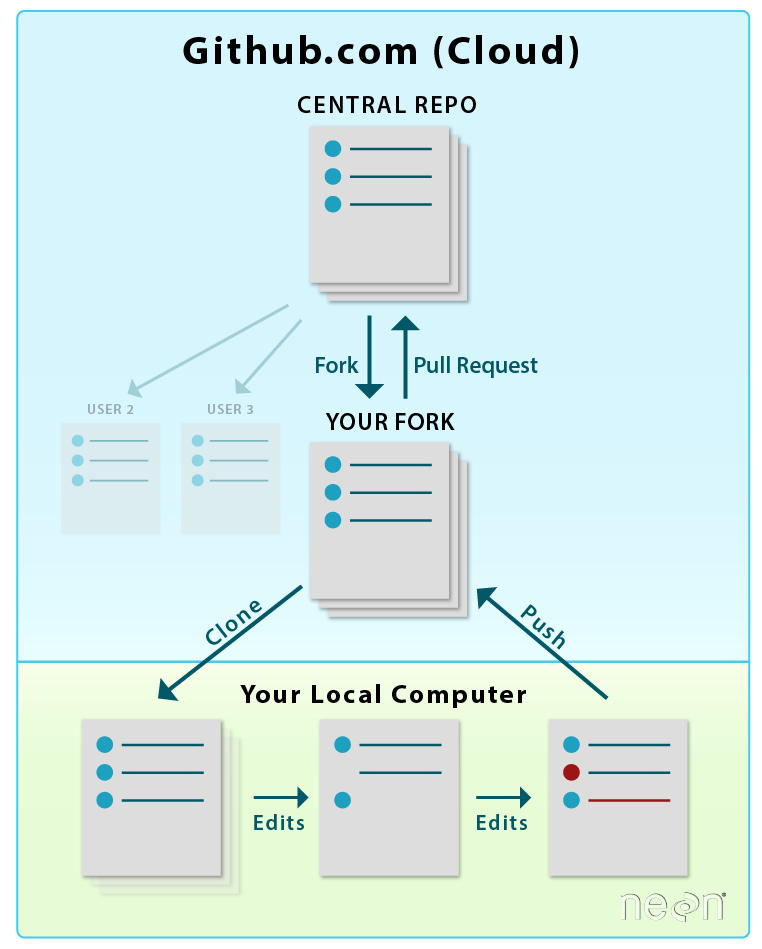
Graphic showing the entire workflow after you have forked and cloned the repository. Submitting a pull request is the last step. Graphic showing the entire workflow once a repository has been established. Submitting a pull request is the last step.
When you want to add materials from your repo to the central repo, you will use a Pull Request. LEFT: Initial workflow after you fork and clone a repo. RIGHT: Typical workflow once a repo is established (see Git 07 tutorial). Both use pull requests. Source: National Ecological Observatory Network (NEON)

In this tutorial, we will learn how to transfer changes from our forked repo in our github.com account to the central NEON Data Institute repo. Adding information from your forked repo to the central repo in GitHub is done using a pull request.
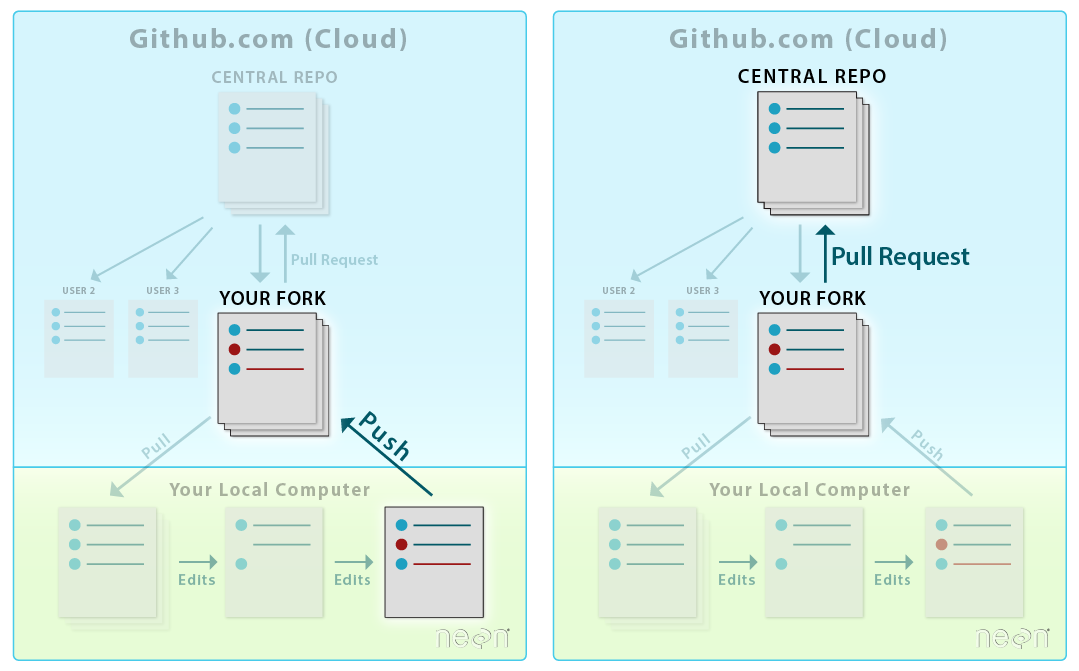
Graphic showing the entire workflow once a repository has been established. The graphic to the left highlights the process of syncing changes made and committed to the repository from your local computer. This is done by using the git push command, which updates the fork on your github.com account with the changes made in your local repository. The graphic to the right highlights the last step of the process, which is submitting a pull request.
LEFT: To sync changes made and committed to the repo from your local computer, you will first push the changes from your local repo to your fork on github.com. RIGHT: Then, you will submit a Pull Request to update the central repository. Source: National Ecological Observatory Network (NEON)
**Data Tip:** A pull request to another repo is similar to a "push". However it allows for a few things:
  1. It allows you to contribute to another repo without needing administrative privileges to make changes to the repo.
  2. It allows others to review your changes and suggest corrections, additions, edits, etc.
  3. It allows repo administrators control over what gets added to their project repo.

The ability to suggest changes to ANY (public) repo, without needing administrative privileges is a powerful feature of GitHub. In our case, you do not have privileges to actually make changes to the DI-NEON-participants repo. However you can make as many changes as you want in your fork, and then suggest that NEON add those changes to their repo, using a pull request. Pretty cool!

Adding to a Repo Using Pull Requests

Pull Requests in GitHub

Step 1 - Start Pull Request

To start a pull request, click the pull request button on the main repo page.
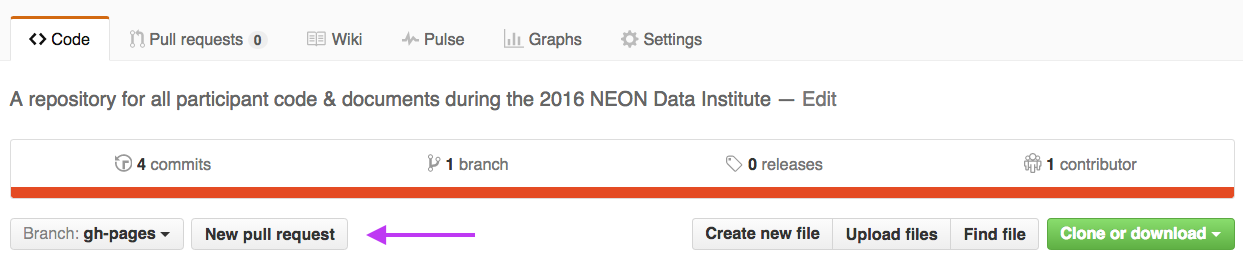
Screenshot of the NEON Data Institute participant repository on github.com highlighting the location of the new pull request button.
Location of the Pull Request button on a fork of the NEON Data Institute participants repo (Note, screenshot shows a previous version of the repo, however, the button is in the same location). Source: National Ecological Observatory Network (NEON)

Alternatively, you can click the Pull requests tab, then on this new page click the "New pull request" button.

Step 2 - Choose Repos to Update

Select your fork to compare with NEON central repo. When you begin a pull request, the head and base will auto-populate as follows:

  • base fork: NEONScience/DI-NEON-participants
  • head fork: YOUR-USER-NAME/DI-NEON-participants

The above pull request configuration tells Git to sync (or update) the NEON repo with contents from your repo.

Head vs Base

  • Base: the repo that will be updated, the changes will be added to this repo.
  • Head: the repo from which the changes come.

One way to remember this is that the “head” is always ahead of the base, so we must add from the head to the base.

Step 3 - Verify Changes

When you compare two repos in a pull request page, git will provide an overview of the differences (diffs) between the files (if the file is a binary file, like code. Non-binary files will just show up as a fully new file if it had any changes). Look over the changes and make sure nothing looks surprising.
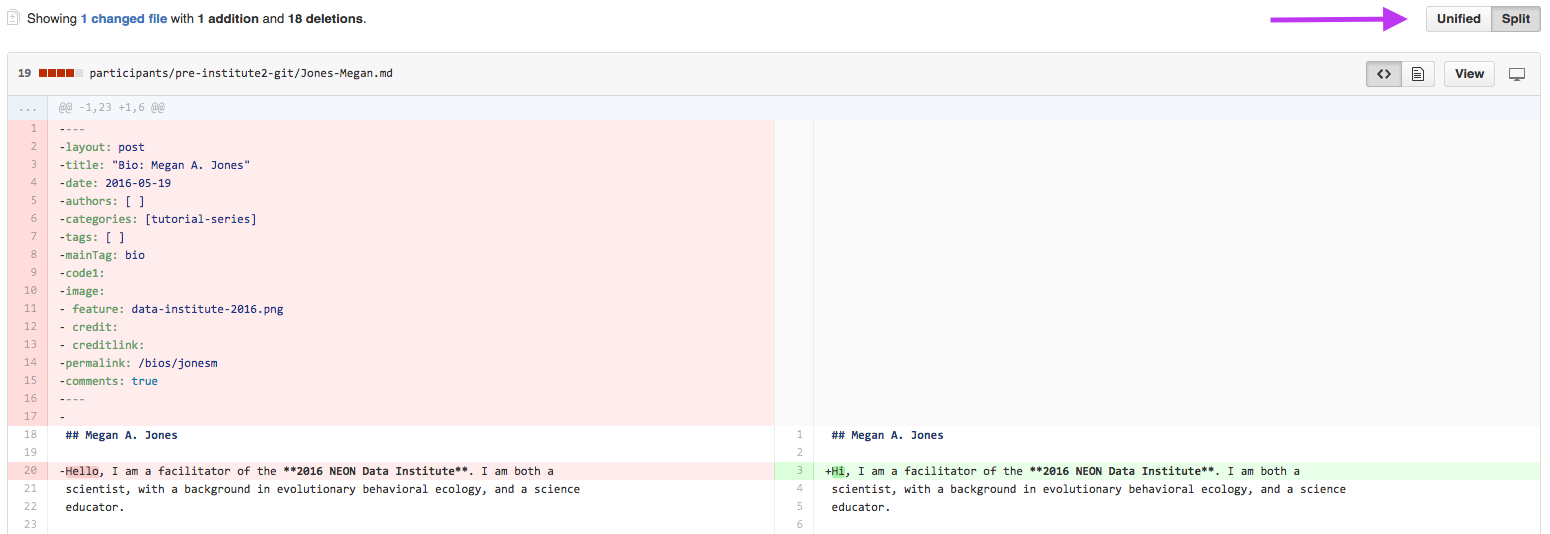
Screenshot of the split view showing differences between the older document on the left and the newer document on the right. Deletions are highlited in red, and additions are highlighted in green. Also, pull request diffs view can be changed between unified and split views using the toggle button at the top right of the window pane.
In this split view, shows the differences between the older (LEFT) and newer (RIGHT) document. Deletions are highlighted in red and additions are highlighted in green. Pull request diffs view can be changed between unified and split (arrow). Source: National Ecological Observatory Network (NEON)

Step 4 - Create Pull Request

Click the green Create Pull Request button to create the pull request.

Step 5 - Title Pull Request

Give your pull request a title and write a brief description of your changes. When you’re done with your message, click Create pull request!
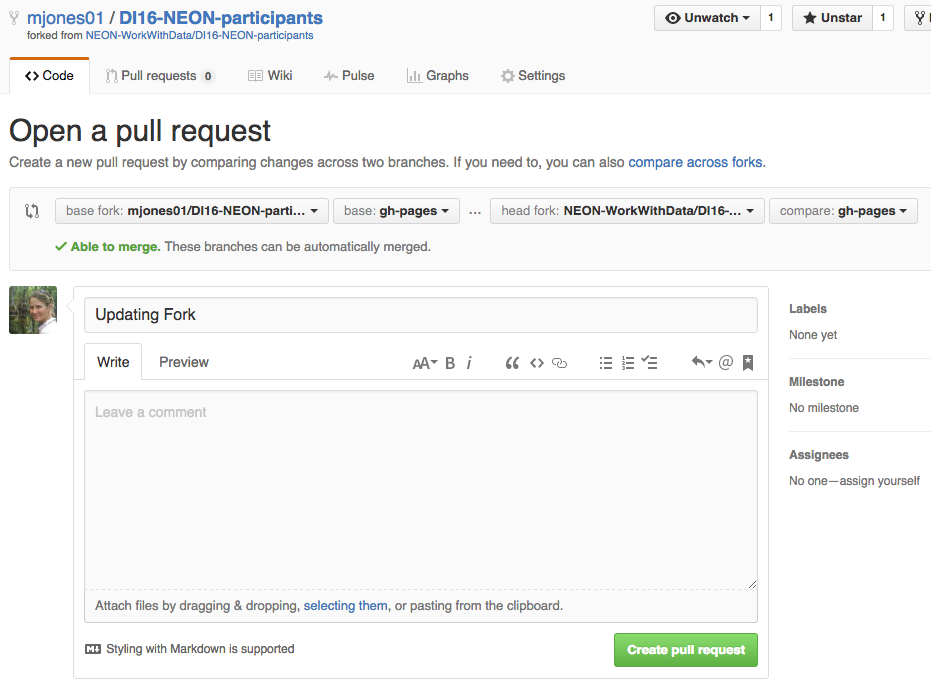
Screenshot of an open pull request window highlighting the importance that all pull request titles should be concise and descriptive.
All pull requests titles should be concise and descriptive of the content in the pull request. More detailed notes can be left in the comments box. Source: National Ecological Observatory Network (NEON)

Check out the repo name up at the top (in your repo and in screenshot above) When creating the pull request you will be automatically transferred to the base repo. Since the central repo was the base, github will automatically transfer you to the central repo landing page.

Step 6 - Merge Pull Request

In this final step, it’s time to merge your changes in the NEONScience/DI-NEON-participants repo.

NOTE 1: You are only able to merge a pull request in a repo that you have permissions to!

NOTE 2: When collaborating, it is generally poor form to merge your own Pull Request, better to tag (@username) a collaborator in the comments so they know you want them to look at it. They can then review and, if acceptable, merge it.

To merge, your (or someone else's PR click the green "Merge Pull Request" button to "accept" or merge the updated commits in the central repo into your repo. Then click Confirm Merge.

We now synced our forked repo with the central NEON Repo. The next step in working in a GitHub workflow is to transfer any changes in the central repository into your local repo so you can work with them.

Data Institute Activity: Submit Pull Request for Week 2 Assignment

Submit a pull request containing the .md file that you created in this tutorial-series series. Before you submit your PR, review the Week 2 Assignment page. To ensure you have all of the required elements in your .md file.

To submit your PR:

Repeat the pull request steps above, with the base and head switched. Your base will be the NEON central repo and your HEAD will be YOUR forked repo:

  • base fork: NEONScience/DI-NEON-participants
  • head fork: YOUR-USER-NAME/DI-NEON-participants

When you get to Step 6 - Merge Pull Request (PR), are you able to merge the PR?

  • Finally, go to the NEON Central Repo page in github.com. Look for the Pull Requests link at the top of the page. How many Pull Requests are there?
  • Click on the link - do you see your Pull Request?

You can only merge a PR if you have permissions in the base repo that you are adding to. At this point you don’t have contributor permissions to the NEON repo. Instead someone who is a contributor on the repository will need to review and accept the request.

After completing the pull request to upload your bio markdown file, be sure to continue on to Git 07: Updating Your Repo by Setting Up a Remote to learn how to update your local fork and really begin the cycle of working with Git & GitHub in a collaborative manner.

Workflow Summary

Add updates to Central Repo with Pull Request

On github.com

  • Button: Create New Pull Request

  • Set base: central Institute repo, set head: your Fork

  • Make sure changes are what you want to sync

  • Button: Create Pull Request

  • Add Pull Request title & comments

  • Button: Create Pull Request

  • Button: Merge Pull Request - if working collaboratively, poor style to merge your own PR, and you only can if you have contributor permissions


    Have questions? No problem. Leave your question in the comment box below. It's likely some of your colleagues have the same question, too! And also likely someone else knows the answer.

Questions?

If you have questions or comments on this content, please contact us.

Contact Us
NSF NEON, Operated by Battelle

Follow Us:

Join Our Newsletter

Get updates on events, opportunities, and how NEON is being used today.

Subscribe Now

Footer

  • About Us
  • Contact Us
  • Terms & Conditions
  • Careers
  • Code of Conduct

Copyright © Battelle, 2026

The National Ecological Observatory Network is a major facility fully funded by the U.S. National Science Foundation.

Any opinions, findings and conclusions or recommendations expressed in this material do not necessarily reflect the views of the U.S. National Science Foundation.