
Tutorial
Understanding AOP Data Releases and Best Practices for AOP Data Management
Last Updated: Jun 30, 2026
What is a NEON Data Release?
A NEON Data Release is a fixed set of data that does not change over time. Each data product in a Release is associated with a unique Digital Object Identifier (DOI) that can be used for data citation. Because the data in a Release do not change, analyses performed on those data are traceable and reproducible.
NEON data are initially published under a Provisional status, meaning that data may be updated on an as-needed basis, without guarantee of reproducibility. Publishing Provisional data allows NEON to publish data rapidly while retaining the ability to make corrections or additions as the need is identified. Most of the time, unless issues are discovered in the Provisional data, the Provisional data will become Released - so Provisional data are still valid to use. If any issues are identified, they will be included in the data product issue logs.
For more details about NEON Data Releases, see the Understanding Releases and Provisional Data tutorial and the Data Product Revisions and Releases web page.
How are AOP Releases different than the other NEON subsystems (IS/OS)?
Unlike NEON's other systems (Instrumented/IS and Observational/OS), AOP (Remote Sensing) does not preserve historical versions of data. Most AOP data products are high volume; thus it is expensive to store and make openly and freely available more than the most recent version. Therefore, NEON's annual releases for AOP data products are only available for the current release year – from the date of release to approximately 11 months later when the AOP team begins preparing for the next year’s release. For example, Release-2023 versions of AOP data products were available from January 27, 2023 until December 20, 2023.
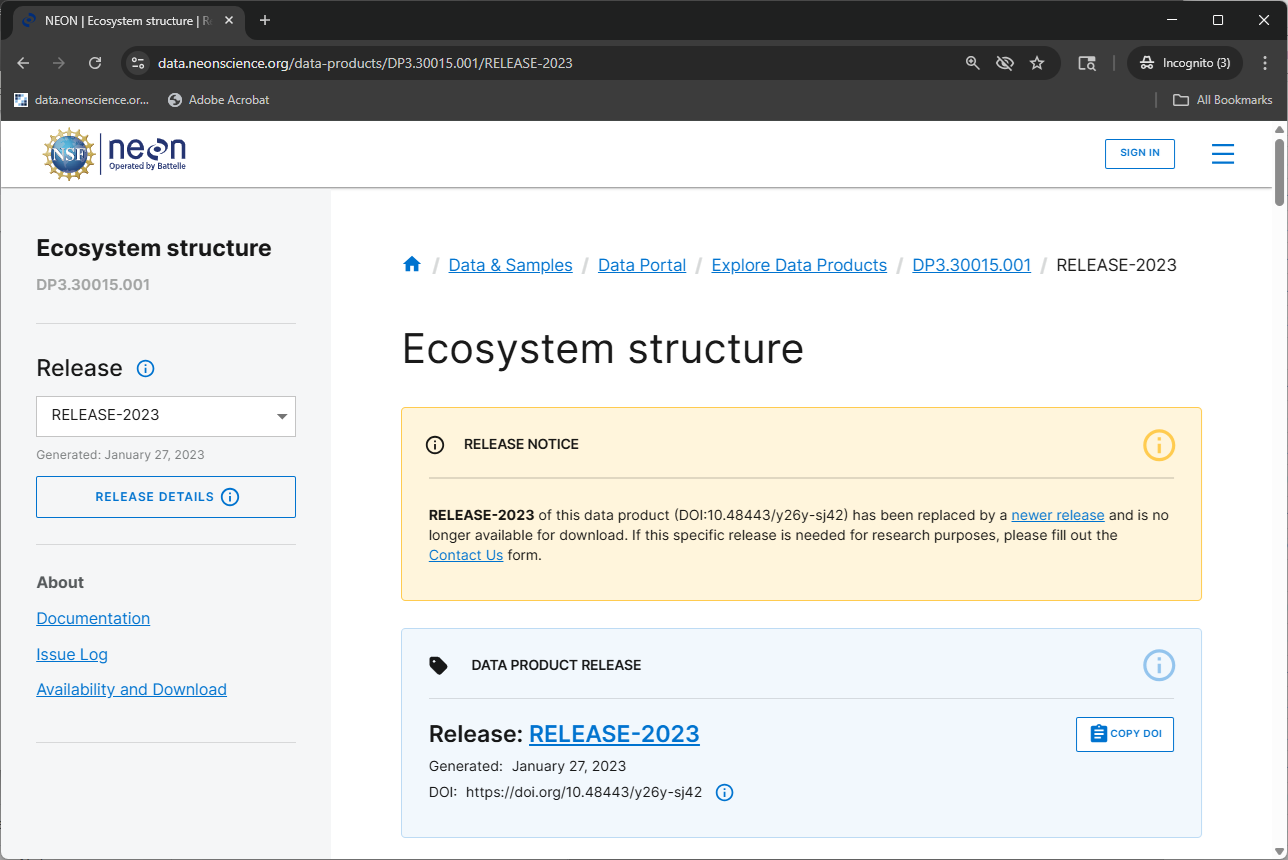
DOIs for AOP data products for a given RELEASE will be tombstoned prior to each subsequent Release. These tombstoned data can be thought of as being "out of print": the DOI for each data product release is still valid, but the version of the data that the DOI referred to is no longer available for download. A DOI that has been tombstoned will resolve to the data product release's webpage which explains that the released version of the product is no longer available for download (e.g. Ecosystem structure RELEASE-2023, also shown in the figure below).
Prior to each annual NEON Release, AOP scientists review the existing data and reprocess data if any issues are identified. Then they begin an approximately month-long transition period of replacing older files with newer ones. During this period, the current data release tag may no longer point to the same exact files for certain AOP data products that are undergoing updates. Although the data portal or API may indicate availability of a data product at specific sites for specific months, some files may be unavailable for few days (or longer) before being replaced by updated versions.
NEON will publish a Data Notification indicating when AOP is transitioning between one Release and the next (e.g., AOP Data Availability Notification – Release 2026). We suggest holding off on downloading AOP data during this interim period if it is not urgent, or submitting an inquiry through the NEON Contact Us Form to obtain information about the status of the data products, sites, and years that you are interested in.
How can I tell if the AOP data I've downloaded is up to date?
There are a few ways to check if and what AOP data have been updated since you last downloaded the data, both on the website, and programmatically using functionality built into the AOP download functions. On the website, you can check the Issue Log tables on each data product page and also see the Issue resolutions, and you can also check the Release pages for a complete summary of what has been changed between the past release and the current one; for example Release 2026. This tutorial will demonstrate some of the programmatic options to check if published AOP data has been modified compared to your local version.
Objectives
After completing this activity, you will be able to:
- Find available Released and Provisional AOP data for a given site and data product
- Understand options for downloading AOP data
- Display citation information for both Released and Provisional data
- Learn about available tools to reduce repeat large data downloads
- Understand some basic best practices for working with large volumes of AOP data
Things You’ll Need To Complete This Tutorial
To complete this tutorial, you will need:
- Python version 3.9 or higher
- The latest Python neonutilities package (1.2 or higher)
- Create a NEON user account
- Generate an API token for downloading data
Some of the lesson can also be carried out in R using the R neonUtilities package; however some of the functionality that is demonstrated is currently only available in Python.
Additional Resources
Import Required Packages and Define the API Token
For this tutorial, we will mainly be using the functions imported below in the neonutilities package that allow us to explore availability of and download AOP data.
As of June 2026, NEON requires an API token for data downloads, to reduce bot scraping and improve user support. Tokens can be generated in NEON data portal user accounts - log in to your account or create one, and go to the API Tokens section. For best practices in storing and using tokens, follow the instructions here.
# if you haven't installed the packages, install as follows:
!pip install neonutilities
import csv
import os
from neonutilities import by_file_aop, list_available_dates, get_citation
import dotenv
dotenv.load_dotenv()
token = os.environ.get("NEON_TOKEN")
# print(token) # uncomment to display the token; if you haven't set the token properly in the environment, this will print nothing
List Available Dates
First, we can use some the list_available_dates function to find available data. This will show us the data that is available both provisionally and as part of the latest release. First, run help(list_available_dates) to see the required inputs of this function.
help(list_available_dates)
Help on function list_available_dates in module neonutilities.aop_download:

list_available_dates(dpid, site)
        list_available_dates displays the available releases and dates for a given product and site
        --------
         Inputs:
             dpid: the data product code (eg. 'DP3.30015.001' - CHM)
             site: the 4-digit NEON site code (eg. 'JORN')
        --------
        Returns:
        prints the Release Tag (or PROVISIONAL) and the corresponding available dates (YYYY-MM) for each tag
    --------
        Usage:
        --------
        >>> list_available_dates('DP3.30015.001','JORN')
        RELEASE-2025 Available Dates: 2017-08, 2018-08, 2019-08, 2021-08, 2022-09

        >>> list_available_dates('DP3.30015.001','HOPB')
        PROVISIONAL Available Dates: 2024-09
        RELEASE-2025 Available Dates: 2016-08, 2017-08, 2019-08, 2022-08

        >>> list_available_dates('DP1.10098.001','HOPB')
        ValueError: There are no data available for the data product DP1.10098.001 at the site HOPB.
The required inputs for this function are the data product id (dpid) and the site code (site). Let's try this function out for the Leaf Area Index (LAI) data product at the McRae Creek site in Oregon (MCRA), to start. This data product has the code DP3.30012.001 for data derived from directional reflectance, and DP3.30012.002 for data derived from bidirectional reflectance (with BRDF and topographic corrections applied). As of 2026, all bidirectional reflectance data and data derived from the BRDF-corrected data are only available provisionally, and all directional reflectance data have been released.
lai_dpid = 'DP3.30012.001' # lAI - directional reflectance
lai_dpid2 = 'DP3.30012.002' # lAI - bidirectional reflectance
list_available_dates(lai_dpid,'MCRA')
RELEASE-2026 Available Dates: 2018-07, 2021-07
list_available_dates(lai_dpid2,'MCRA')
PROVISIONAL Available Dates: 2022-07, 2023-07, 2025-08
We can see that as of May 2026, LAI 002 data at MCRA are available provisionally in 2022, 2023, and 2025, and as part of RELEASE-2026 for the years 2018 and 2021. MCRA is a non-collocated aquatic site and is collected on an opportunistic basis, so it has been flown a little less frequently than the terrestrial or collocated aquatic sites.
Download All AOP Files v. Download By Tile
We can download the LAI data from the site MCRA collected in 2021 and 2022 using the neonutilities function by_file_aop. Note that by_file_aop downloads all available data for a given data product, while by_tile_aop downloads only data that intersect provided UTM coordinates (easting and northing). For the purposes of this tutorial, we will stick to using by_file_aop, but note that you could use by_tile_aop similarly, provided you know which tiles you want to download. First, take a quick look at the function documentation using help.
help(by_file_aop)
Help on function by_file_aop in module neonutilities.aop_download:

by_file_aop(
    dpid,
    site,
    year,
    include_provisional=False,
    check_size=True,
    savepath=None,
    chunk_size=1024,
    token=None,
    verbose=False,
    skip_if_exists=False,
    overwrite='prompt'
)
    This function queries the NEON API for AOP data by site, year, and product, and downloads all
    files found, preserving the original folder structure. It downloads files serially to
    avoid API rate-limit overload, which may take a long time.

    Parameters
    --------
    dpid: str
        The identifier of the NEON data product to pull, in the form DPL.PRNUM.REV, e.g. DP3.30001.001.

    site: str
        The four-letter code of a single NEON site, e.g. 'CLBJ'.

    year: str or int
        The four-digit year of data collection.

    include_provisional: bool, optional
        Should provisional data be downloaded? Defaults to False. See
        https://www.neonscience.org/data-samples/data-management/data-revisions-releases
        for details on the difference between provisional and released data.

    check_size: bool, optional
        Should the user approve the total file size before downloading? Defaults to True.
        If you have sufficient storage space on your local drive, when working
        in batch mode, or other non-interactive workflow, use check_size=False.

    savepath: str, optional
        The file path to download to. Defaults to None, in which case the working directory is used.

    chunk_size: integer, optional
        Size in bytes of chunk for chunked download. Defaults to 1024.

    token: str, optional
        User-specific API token from data.neonscience.org user account. Defaults to None.
        See https://data.neonscience.org/data-api/rate-limiting/ for details about API
        rate limits and user tokens.

    verbose: bool, optional
        If set to True, the function will print more detailed information about the download process.

    skip_if_exists: bool, optional
        If set to True, the function will skip downloading files that already exist in the
        savepath and are valid (local checksums match the checksums of the published file).
        Defaults to False. If any local file checksums don't match those of files published
        on the NEON Data Portal, the user will be prompted to skip these files or overwrite
        the existing files with the new ones (see overwrite input).

    overwrite: str, optional
        Must be one of:
            'yes'    - overwrite mismatched files without prompting,
            'no'     - don't overwrite mismatched files (skip them, no prompt),
            'prompt' - prompt the user (y/n) to overwrite mismatched files after displaying them (default).
        If skip_if_exists is False, this parameter is ignored, and any existing files in
        the savepath will be overwritten according to the function's default behavior.

    Returns
    --------
    None; data are downloaded to the directory specified (savepath) or the current working directory.
    If data already exist in the expected path, they will be overwritten by default. To check for
    existing files before downloading, set skip_if_exists=True along with an overwrite option (y/n/prompt).

    Examples
    --------
    >>> by_file_aop(dpid="DP3.30015.001",
                    site="MCRA",
                    year="2021",
                    savepath="./test_download",
                    skip_if_exists=True)
    # This downloads the 2021 Canopy Height Model data from McRae Creek to the './test_download' directory.
    # If any files already exist in the savepath, they will be checked and skipped if they are valid.
    # The user will be prompted to ovewrite or skip downloading any existing files that do not match
    # the latest published data on the NEON Data Portal.

    Notes
    --------
    This function creates a folder named by the Data Product ID (DPID; e.g. DP3.30015.001) in the
    'savepath' directory, containing all AOP files meeting the query criteria. If 'savepath' is
    not provided, data are downloaded to the working directory, in a folder named by the DPID.
The required inputs for this function are the data product id (dpid), site id (site) and year (year). Note that there are a number of additional optional inputs, which we will explain more in detail. Some ones that we recommend paying attention to are:
-
token: Your API token from your NEON user account (on data.neonscience.org). Currently defaults to None, but we highly encourage using a token when downloading NEON data. See Using an API Token when Accessing NEON Data with neonUtilities for more details on the benefits of tokens and how to use them. -
include_provisional: setting this toTrueis the only way you can download provisional data. If you've used thelist_available_datesfunction and you want to download data from a year where it is only available provisionally, you must set this option to True in order to download any data. You will see a warning if no data are found. We will show this in the example below. -
savepath: this is the path where data will be downloaded. We recommend setting this to somewhere close to the root folder to avoid very long paths for AOP data. Windows systems can have path length limitations (unless you change them) and if the path is too long you may see a warning or error.
In the most recent version of Python neonutilities (1.2.0, released in October 2025), there are two new optional inputs to the by_file_aop and by_tile_aop functions: skip_if_exists and overwrite. We will go over these options in more detail towards the end of this tutorial. For now, just know that these options provide functionality to avoid re-downloading identical data.
Set the data directory, where data will be downloaded. Make sure this is a path that works on your system and has sufficient space for downloading data.
data_dir = r'C:\NEON_Data'
Download Provisional Data
Let's take a look at the default behavior in the code, when we try to download provisional data.
by_file_aop(dpid=lai_dpid2,
            site='MCRA',
            year='2022',
            savepath=data_dir,
            token=token)
Provisional NEON data are not included. To download provisional data, use input parameter include_provisional=True.
No NEON data files found. Available data may all be provisional. To download provisional data, use input parameter include_provisional=True.
Now let's set include_provisional=True to see what happens. Select "y" when prompted to download the data (first ensuring you have enough space).
by_file_aop(dpid=lai_dpid2,
            site='MCRA',
            year='2022',
            savepath=data_dir,
            include_provisional=True,
            token=token)
Provisional NEON data are included. To exclude provisional data, use input parameter include_provisional=False.


Continuing will download 66 NEON data files totaling approximately 1.4 GB. Do you want to proceed? (y/n)  y


Downloading 66 NEON data files totaling approximately 1.4 GB

100%|███████████████████████████████████████████████████████████████████████████| 66/66 [04:18<00:00,  3.92s/it]
You can also optionally set check_size=False if you don't want to be prompted to type yes or no (y/n) after the data volume is displayed. If this is your first time downloading data, we recommend keeping the default setting so you can make sure you have enough space on your computer before downloading.
Look at Contents of Downloaded Data
Ok, simple enough! Let's take a look at the data we have downloaded. We'll write a couple of functions to let us see the folders and some of the files that have been downloaded. Feel free to explore the directory in File Explorer on your own as well.
def get_folders_with_files(path):
    """
    Returns a list of folders within the given path that contain files,
    excluding folders that only contain subfolders or are empty.

    Args:
        path (str): The path to the directory to search.

    Returns:
        list: A list of full paths to folders containing files.
    """
    folders_with_files = []
    for root, dirs, files in os.walk(path):
        # Check if the current 'root' directory contains any files
        if files:
            folders_with_files.append(root)
    return folders_with_files
def display_files_in_subdirectories(path):
    """
    Displays files within a given directory and its subdirectories.
    Only the first 5 files are shown in each directory if more are present.

    Args:
        path (str): The path to the root directory to start scanning from.
    """

    for dirpath, dirnames, filenames in os.walk(path):
        if filenames:
            print(f"\nDirectory: {dirpath}")
            # Sort filenames for consistent output, then take the first 5
            sorted_filenames = sorted(filenames)
            files_to_display = sorted_filenames[:5]
            for file in files_to_display:
                print(f"  - {file}")
            if len(sorted_filenames) > 5:
                print(f"  ... ({len(sorted_filenames) - 5} more files not shown)")
Use these functions to see what we've downloaded:
get_folders_with_files(data_dir)
['C:\\NEON_Data\\DP3.30012.001',
 'C:\\NEON_Data\\DP3.30012.001\\neon-aop-products\\2021\\FullSite\\D16\\2021_MCRA_2\\L3\\Spectrometer\\LAI',
 'C:\\NEON_Data\\DP3.30012.001\\neon-aop-products\\2021\\FullSite\\D16\\2021_MCRA_2\\Metadata\\Spectrometer\\Reports',
 'C:\\NEON_Data\\DP3.30012.001\\neon-publication\\release\\tag\\RELEASE-2026\\NEON.DOM.SITE.DP3.30012.001\\MCRA\\20210701T000000--20210801T000000\\basic',
 'C:\\NEON_Data\\DP3.30012.002',
 'C:\\NEON_Data\\DP3.30012.002\\neon-aop-provisional-products\\2022\\FullSite\\D16\\2022_MCRA_3\\L3\\Spectrometer\\LAI',
 'C:\\NEON_Data\\DP3.30012.002\\neon-aop-provisional-products\\2022\\FullSite\\D16\\2022_MCRA_3\\Metadata\\Spectrometer\\Reports',
 'C:\\NEON_Data\\DP3.30012.002\\neon-publication\\NEON.DOM.SITE.DP3.30012.002\\MCRA\\20220701T000000--20220801T000000\\basic']
display_files_in_subdirectories(data_dir)
Directory: C:\NEON_Data\DP3.30012.001
  - citation_DP3.30012.001_RELEASE-2026.txt
  - issueLog_DP3.30012.001.csv

Directory: C:\NEON_Data\DP3.30012.001\neon-aop-products\2021\FullSite\D16\2021_MCRA_2\L3\Spectrometer\LAI
  - NEON_D16_MCRA_DP3_565000_4900000_LAI.tif
  - NEON_D16_MCRA_DP3_565000_4900000_LAI_error.tif
  - NEON_D16_MCRA_DP3_565000_4901000_LAI.tif
  - NEON_D16_MCRA_DP3_565000_4901000_LAI_error.tif
  - NEON_D16_MCRA_DP3_565000_4902000_LAI.tif
  ... (53 more files not shown)

Directory: C:\NEON_Data\DP3.30012.001\neon-aop-products\2021\FullSite\D16\2021_MCRA_2\Metadata\Spectrometer\Reports
  - 2021_MCRA_2_2021072216_P1C2_L2_spectrometer_processing.pdf
  - 2021_MCRA_2_MCRA_L3_spectrometer_processing.pdf
  - MCRA_2021072216_L1_spectrometer_processing.pdf

Directory: C:\NEON_Data\DP3.30012.001\neon-publication\release\tag\RELEASE-2026\NEON.DOM.SITE.DP3.30012.001\MCRA\20210701T000000--20210801T000000\basic
  - NEON.D16.MCRA.DP3.30012.001.readme.20260123T000749Z.txt

Directory: C:\NEON_Data\DP3.30012.002
  - citation_DP3.30012.002_PROVISIONAL.txt
  - issueLog_DP3.30012.002.csv

Directory: C:\NEON_Data\DP3.30012.002\neon-aop-provisional-products\2022\FullSite\D16\2022_MCRA_3\L3\Spectrometer\LAI
  - NEON_D16_MCRA_DP3_565000_4899000_bidirectional_LAI.tif
  - NEON_D16_MCRA_DP3_565000_4899000_bidirectional_LAI_error.tif
  - NEON_D16_MCRA_DP3_565000_4900000_bidirectional_LAI.tif
  - NEON_D16_MCRA_DP3_565000_4900000_bidirectional_LAI_error.tif
  - NEON_D16_MCRA_DP3_565000_4901000_bidirectional_LAI.tif
  ... (57 more files not shown)

Directory: C:\NEON_Data\DP3.30012.002\neon-aop-provisional-products\2022\FullSite\D16\2022_MCRA_3\Metadata\Spectrometer\Reports
  - 2022_MCRA_3_L3_spectrometer_processing.pdf
  - MCRA_2022071415_P1C1_L1_spectrometer_processing.pdf
  - MCRA_2022071415_P1C1_L2_spectrometer_processing.pdf

Directory: C:\NEON_Data\DP3.30012.002\neon-publication\NEON.DOM.SITE.DP3.30012.002\MCRA\20220701T000000--20220801T000000\basic
  - NEON.D16.MCRA.DP3.30012.002.readme.20241224T041656Z.txt
We can see that we've downloaded some files in subfolders under the C:\NEON_Data\DP3.30015.001 folder. The provisional data are stored in a provisional "bucket" (or cloud storage path) called neon-aop-provisional-products and the full path of the data as it is stored on cloud storage is preserved in order to maintain organization. This is helpful if you are working with multiple data products, sites, and/or years of data. Note that there is an L3\DiscreteLidar\CanopyHeightModelGtiffolder - this contains the Level 3 (L3) geotiff files (or .tif tiles), and there is also a Metadata\DiscreteLidar folder, which contains the subfolders called Reports and TileBoundary. The reports are informational documents (in pdf or html format) summarizing the processing parameters and useful quality information. The TileBoundary folder contains shapefiles and kml files that provide useful information about the extent of the data. Please explore the data more on your own!
Citations and Issue Logs
Before continuing, let's take a quick look at the files citation_DP3.30015.001_PROVISIONAL.txt and issueLog_DP3.30015.001.csv that were downloaded in the C:\NEON_Data\DP3.30015.001 folder.
with open(r'C:\NEON_Data\DP3.30012.002\citation_DP3.30012.002_PROVISIONAL.txt', 'r', newline='') as file:
    reader = csv.reader(file)
    for row in reader:
        print(row[0])
@misc{DP3.30012.002/provisional
  doi = {}
  url = {https://data.neonscience.org/data-products/DP3.30012.002}
  author = {{National Ecological Observatory Network (NEON)}}
  language = {en}
  title = {LAI - spectrometer - bidirectional mosaic (DP3.30012.002)}
  publisher = {National Ecological Observatory Network (NEON)}
  year = {2026}
}
Note that there is no DOI since the data are provisional.
We can also get the citation information from the neonutilities get_citation function as follows:
mcra_lai_provisional_citation = get_citation('DP3.30012.002','PROVISIONAL')
mcra_lai_provisional_citation.split('\n') # .split('\n') displays this output more nicely
['@misc{DP3.30012.002/provisional,',
 '  doi = {},',
 '  url = {https://data.neonscience.org/data-products/DP3.30012.002},',
 '  author = {{National Ecological Observatory Network (NEON)}},',
 '  language = {en},',
 '  title = {LAI - spectrometer - bidirectional mosaic (DP3.30012.002)},',
 '  publisher = {National Ecological Observatory Network (NEON)},',
 '  year = {2026}',
 '}']
Download Released Data
Let's also download data that has been released. For this example, we'll download the LAI data derived from the directional reflectance collected at the MCRA site in 2021. In this case, as we saw at the start, the data have been released as part of RELEASE-2026 (or the most recent release), so we do not need to set include_provisional=True (although it won't hurt). Type "y" for yes when prompted.
by_file_aop(dpid=lai_dpid,
            site='MCRA',
            year='2021',
            savepath=data_dir,
            token=token)
Continuing will download 62 NEON data files totaling approximately 350.4 MB. Do you want to proceed? (y/n)  y


Downloading 62 NEON data files totaling approximately 350.4 MB

100%|███████████████████████████████████████████████████████████████████████████| 62/62 [01:21<00:00,  1.31s/it]
Re-run the get_folders_with_files function to see the new data that has been downloaded.
get_folders_with_files(data_dir)
['C:\\NEON_Data\\DP3.30012.001',
 'C:\\NEON_Data\\DP3.30012.001\\neon-aop-products\\2021\\FullSite\\D16\\2021_MCRA_2\\L3\\Spectrometer\\LAI',
 'C:\\NEON_Data\\DP3.30012.001\\neon-aop-products\\2021\\FullSite\\D16\\2021_MCRA_2\\Metadata\\Spectrometer\\Reports',
 'C:\\NEON_Data\\DP3.30012.001\\neon-publication\\release\\tag\\RELEASE-2026\\NEON.DOM.SITE.DP3.30012.001\\MCRA\\20210701T000000--20210801T000000\\basic',
 'C:\\NEON_Data\\DP3.30012.002',
 'C:\\NEON_Data\\DP3.30012.002\\neon-aop-provisional-products\\2022\\FullSite\\D16\\2022_MCRA_3\\L3\\Spectrometer\\LAI',
 'C:\\NEON_Data\\DP3.30012.002\\neon-aop-provisional-products\\2022\\FullSite\\D16\\2022_MCRA_3\\Metadata\\Spectrometer\\Reports',
 'C:\\NEON_Data\\DP3.30012.002\\neon-publication\\NEON.DOM.SITE.DP3.30012.002\\MCRA\\20220701T000000--20220801T000000\\basic']
Now, in addition to the data in the neon-aop-provisional-products folder, we have new data in a neon-aop-products folder. This is important to pay attention to, especially if you plan to re-download data - once data have gone through quality checks and are released, they will be moved to the neon-aop-products folder. Let's take a look at the files, only in this neon-aop-products folder.
display_files_in_subdirectories(os.path.join(data_dir,lai_dpid,'neon-aop-products'))
Directory: C:\NEON_Data\DP3.30012.001\neon-aop-products\2021\FullSite\D16\2021_MCRA_2\L3\Spectrometer\LAI
  - NEON_D16_MCRA_DP3_565000_4900000_LAI.tif
  - NEON_D16_MCRA_DP3_565000_4900000_LAI_error.tif
  - NEON_D16_MCRA_DP3_565000_4901000_LAI.tif
  - NEON_D16_MCRA_DP3_565000_4901000_LAI_error.tif
  - NEON_D16_MCRA_DP3_565000_4902000_LAI.tif
  ... (53 more files not shown)

Directory: C:\NEON_Data\DP3.30012.001\neon-aop-products\2021\FullSite\D16\2021_MCRA_2\Metadata\Spectrometer\Reports
  - 2021_MCRA_2_2021072216_P1C2_L2_spectrometer_processing.pdf
  - 2021_MCRA_2_MCRA_L3_spectrometer_processing.pdf
  - MCRA_2021072216_L1_spectrometer_processing.pdf
We can see that the contents of the LAI geotiff files and Metadata reports are similar to what we saw in the provisional bucket.
AOP Data Management Considerations
Avoiding Downloading Data That You've Already Downloaded
For this tutorial, we chose to demonstrate data downloads for a small site, and a relatively small AOP data product (comprised of single-band geotiff files). However, some of the other AOP datasets such as the surface reflectance data (426 bands) and the L1 discrete and waveform lidar data can be very large in size, especially for the typical 10 x 10 km terrestrial sites (or in some cases, larger)! If you are working with geotiff data for multiple years and sites, the data volume can also quickly add up. So what if you've already downloaded some AOP data and only want to pull data that has been updated, or make sure your data is up-to-date with the latest release?
The latest version of Python neonutilities(1.2.0, released in October 2025, see Version 1.2.0 of neonutilities Python package released), has some options that allow you to skip downloading existing files with the skip_if_exists option, and as part of this, it will check the local files against the published files. We will now give an overview of this input, and the related overwrite input, which provides you some different options depending on your use-case.
Note that for the skip_if_exists option to work properly, some conditions must be met:
- The locally downloaded data must be saved in the same location as it was originally downloaded, and you have to use the same
savepathwhen you re-download the data. - Data that was originally provisional (thus in the
neon-aop-provisional-productsbucket) and is now released will not be compared, since the bucket has changed. So if you are trying to download newly released data, we recommend deleting the provisional data folders and re-downloading the latest, which will ensure you have the latest released version. If you prefer to check your local data against the released data, you could do this, but would have to re-name the provisional folderneon-aop-provisional-productstoneon-aop-productsin order for the checks to work.
Let's go ahead and try out the skip_if_exists option. For now, we have just downloaded data from MCRA 2021 and 2022. Assuming you haven't changed anything in those download folders, if you set skip_if_exists=True (all else the same) the code should find that all the data are matching and there is no new data to download. Let's see!
by_file_aop(dpid=lai_dpid,
            site='MCRA',
            year='2021',
            savepath=data_dir,
            check_size=False,
            skip_if_exists=True,
            token=token)
Found 62 NEON data files totaling approximately 350.4 MB.
Files in savepath will be checked and skipped if they exist and match the latest version.
Downloading README file
100%|█████████████████████████████████████████████████████████████████████████████| 1/1 [00:00<00:00,  8.53it/s]
All files already exist locally and match the latest available data. Skipping download.
Ok, we can see the message "All files already exist locally and match the latest available data. Skipping download.", so the download was skipped, aside from the README file.
If you removed any of the files, or modified any of them (or if the data changed due to a new release), you would see another message and then be provided with some options. To show how this would look, we can programmatically modify some of the local data.
This next code chunk is not something you would do typically, it is just to show how the validation functionality in skip_if_exists works. If you modified any files locally for any reason, you would see something similar.
# remove the first LAI file
os.remove(r"C:\NEON_Data\DP3.30012.001\neon-aop-products\2021\FullSite\D16\2021_MCRA_2\L3\Spectrometer\LAI\NEON_D16_MCRA_DP3_565000_4900000_LAI.tif")

file_to_empty = r"C:\NEON_Data\DP3.30012.001\neon-aop-products\2021\FullSite\D16\2021_MCRA_2\L3\Spectrometer\LAI\NEON_D16_MCRA_DP3_565000_4900000_LAI_error.tif"
# set the second file to a null value
with open(file_to_empty, "w") as f:
    # Opening in "w" mode truncates the file, making it empty.
    pass
Skip Downloading if the Same Data Already Exists
Now that we've modified some of the local files, let's try re-downloading using skip_if_exists. Select n when prompted.
by_file_aop(dpid=lai_dpid,
            site='MCRA',
            year='2021',
            savepath=data_dir,
            check_size=False,
            skip_if_exists=True,
            token=token)
Found 62 NEON data files totaling approximately 350.4 MB.
Files in savepath will be checked and skipped if they exist and match the latest version.
Downloading README file
100%|█████████████████████████████████████████████████████████████████████████████| 1/1 [00:00<00:00,  6.04it/s]
The following files will be downloaded (they do not already exist locally):
  NEON_D16_MCRA_DP3_565000_4900000_LAI.tif
100%|█████████████████████████████████████████████████████████████████████████████| 1/1 [00:01<00:00,  1.74s/it]
The remainder of the files in savepath will not be downloaded. They already exist locally and match the latest available data.
The following files exist locally but have a different checksum than the remote files:
  NEON_D16_MCRA_DP3_565000_4900000_LAI_error.tif


Do you want to overwrite these files with the latest version? (y/n)  n


Skipped overwriting files with mismatched checksums.
The skip_if_exists options identified the two changes we made. It found a file that was missing and automatically downloaded it, and it also found a file that existed locally but did not match the published data on the Data Portal. For that option, it asked whether we wanted to overwrite the existing file with the ;atest version of the file.
Overwrite Options
Note that so far, we have not used the overwrite input option. By default, this is set to 'prompt', meaning that it will prompt you to decide what to do if any mis-matched files are found (such as the one above). If you don't want to be prompted, and definitely want to download the latest data, you can set overwrite='yes' to automatically overwrite the existing files, and if you want to keep your local files, even if the currently published files are different, you can set overwrite='no'. Let's try overwrite='no':
by_file_aop(dpid=lai_dpid,
            site='MCRA',
            year='2021',
            savepath=data_dir,
            check_size=False,
            skip_if_exists=True,
            overwrite='no',
            token=token)
Found 62 NEON data files totaling approximately 350.4 MB.
Files in savepath will be checked and skipped if they exist and match the latest version.
Downloading README file
100%|█████████████████████████████████████████████████████████████████████████████| 1/1 [00:00<00:00,  8.33it/s]
The following files exist locally but have a different checksum than the remote files:
  NEON_D16_MCRA_DP3_565000_4900000_LAI_error.tif
Skipped overwriting files with mismatched checksums.
Here you can see that the modified file was identified, but it was not overwritten. If you just want to check what has changed since you downloaded the data, setting overwrite='no is is a good way to do that.
Snags to Watch Out For
- The
skip_if_existsoption only looks for missing files or altered files. If there are additional files locally compared to what is published on the portal, the function will not do anything about those files. To be safe, deleting the local folder and running a fresh download is still the cleanest option to ensure you've downloaded the most recent data (and that you only have the most recent data) in your local folder. There are cases where AOP files are removed from one release to the next (such as files that were entirely NaN, for example). - When you are working with older data and use the
skip_if_existsoption to identify modified data, the release and citation information can potentially get confusing. You can use thelist_available_datesfunction to ensure you know whether the data are currently Released or Provisional. - If the data were originally provisionally published, and have been moved to a Release, the folder where they are downloaded will change, and the
skip_if_existsoption does not currently check against both folders. - If
skip_if_existsis set to False (default), theoverwriteoption will not apply (it will not do anything, even if it set). You will see the following warning if you try to setoverwritewithout settingskip_if_exists=True:
WARNING: overwrite option only applies if skip_if_exists=True. By default, any existing files will be overwritten unless you select skip_if_exists=True and overwrite='no' or 'prompt' (default).
AOP Release Recap
Below are some of the most important points to remember about AOP Data Releases, and how they differ from the other NEON sub-systems (IS and OS).
Released Data
- Unlike IS and OS data, older AOP data releases are not saved indefinitely. Only the latest year's release is saved.
- Each January, when a new release becomes available, all AOP datasets from the last year's release are "tombstoned". The DOIs from older releases are still valid, but the data from those releases become out-of-print, and the same exact dataset may no longer be accessible.
- The summary of what has been changed from one year to the next is available on the Release page, e.g. Release 2025.
- Issue logs for each data product are also provided on the Data Portal product pages, and these logs are downloaded by default as part of the
neonutilitiesdownload functions. Issue logs should be reviewed to ensure the data you are working with do not currently have any known and unresolved issues.
Provisional Data
- Provisional data may be updated at any time and therefore do not have a static DOI. These data can still be (and should be) cited.
- There is typically a 1-year lag period before newly published AOP data are released (so data collected in 2024 would not be available in a release until early 2026). This lag period may be longer in some cases, for example if AOP is providing a major algorithm update (such as reflectance data processed with BRDF and topographic corrections; these were first published in 2024 and are remaining provisional through 2026).
- Provisional does not necessarily mean problematic! Most data published provisionally are high-quality and, pending data review, will become released after the lag period with no changes. Refer to issue logs to understand if a given data product has any known issues.
- For AOP data, whether you are using released or provisional data, if you need your results to be fully reproducible, you will need to archive the AOP data that you used. See the Large Data Packages section on the Publishing Research Outputs page for suggestions about archiving large datasets.
Release Transitions
- There is an up to 6-week interim period for AOP in December and January each year between data releases. Check the Data Portal notifications and alerts in December and January before downloading AOP data to make sure your data downloads are not affected by this transition.
- If you can, wait to download AOP data until the next release becomes available.
- The previous year's release citation should not be used for data downloaded during this interim period, instead use the PROVISIONAL citations.
AOP Best Practices
This tutorial provided a quick overview of downloading AOP data in Python and some different options for downloading and checking for updated data, if you have already downloaded AOP data locally and don't want to re-download large volumes of data. To sum up, below are a few considerations and best practices that we recommend when working with AOP data.
- In the
neonutilitiesby_file_aoporby_tile_aopfunctions, use theskip_if_existsoption and optionally theoverwriteoption to check for and download any missing files, and to check for and optionally download any modified files. - Pay attention to whether the data are Provisional or Released when you first download the data, and when you re-download data. The root folder where the data are downloaded may have changed from
neon-aop-provisional-productstoneon-aop-productsif data has been released since you first downloaded. - There are multiple ways to find citation information: on the NEON Data Protal Data Product pages, in the downloaded citation file, or using the
neonutilitiesget_citationfunction. Always cite NEON data, and update citations accordingly if data has since been released (and you have overwritten data with the most recent version). - If you want to work with the latest available AOP data and ensure everything is up to date, the cleanest option is to delete any pre-existing folders and re-download. The
skip_if_existsandoverwriteoptions do not handle every possible scenario (for example if you have additional files locally that are not published).
AOP Data on Google Earth Engine
- Finally, a subset of the Level 3 (tiled) AOP data are available on Google Earth Engine (GEE). The release information for those data are contained in the Image Properties under the
PROVISIONAL_RELEASEDandRELEASE_YEARtags. There will be a short (less than a month) lag between when data are Released on the Data Portal and when data on GEE are updated to pull in the latest released data. GEE does not require downloading any data and has many built-in algorithms for cloud-processing of remote sensing data, so this is a good alternative if you want to avoid local storage and compute. Please refer to the Intro to AOP Data in Google Earth Engine (GEE) Tutorial Series to get started working with AOP data in GEE. You can also work with the data in GEE using Python, for example as shown in the tutorial Intro to AOP Datasets in Google Earth Engine (GEE) using Python.